In this complete guide, you’ll learn exactly how to stream on TikTok with OBS, from getting your stream key to optimizing your visuals. You’ll also learn how to level up with TikFinity and popular features like such as Text-to-Speech, Alerts, Sound Alerts and many TikTok Overlays.
Why Stream TikTok with OBS?
Mobile streaming might be quick, but OBS turns your stream into a fully customizable experience:
- Add overlays, alerts, and scene transitions
- Integrate pro audio from high-quality mics
- Use multi-camera setups and filters
- Brand your stream to match your creator style
Compared to TikTok LIVE Studio, OBS offers way more flexibility and plugin support. And when paired with platforms like Restream, you can multistream to YouTube, Twitch, and TikTok simultaneously.
Plus, OBS is completely free and open-source, meaning you have full control over your stream without being locked into any one platform.
What You Need Before Starting
TikTok LIVE Eligibility
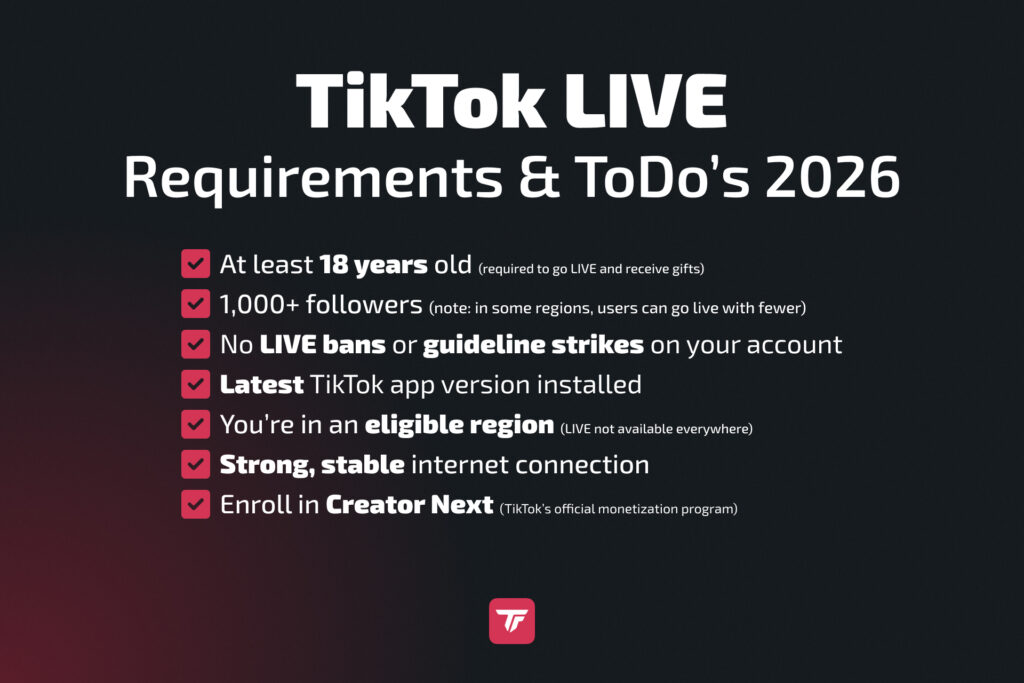
To stream on TikTok via OBS with a stream key or plugin, your account must meet these requirements:
- 1,000+ followers
- Age 18+
- No active community strikes
Note: Some users in 2026 on Reddit and other online communities report access with fewer followers. Check your in-app settings to see if LIVE access is enabled.
OBS Studio Setup
Download OBS from the official site: obsproject.com. It’s free and open-source and works on Windows and Mac.
Install it and explore the interface. Understanding how Scenes and Sources work is crucial before you go live. If you need help, check out OBS Tutorials from OWN3D.
Gear Checklist
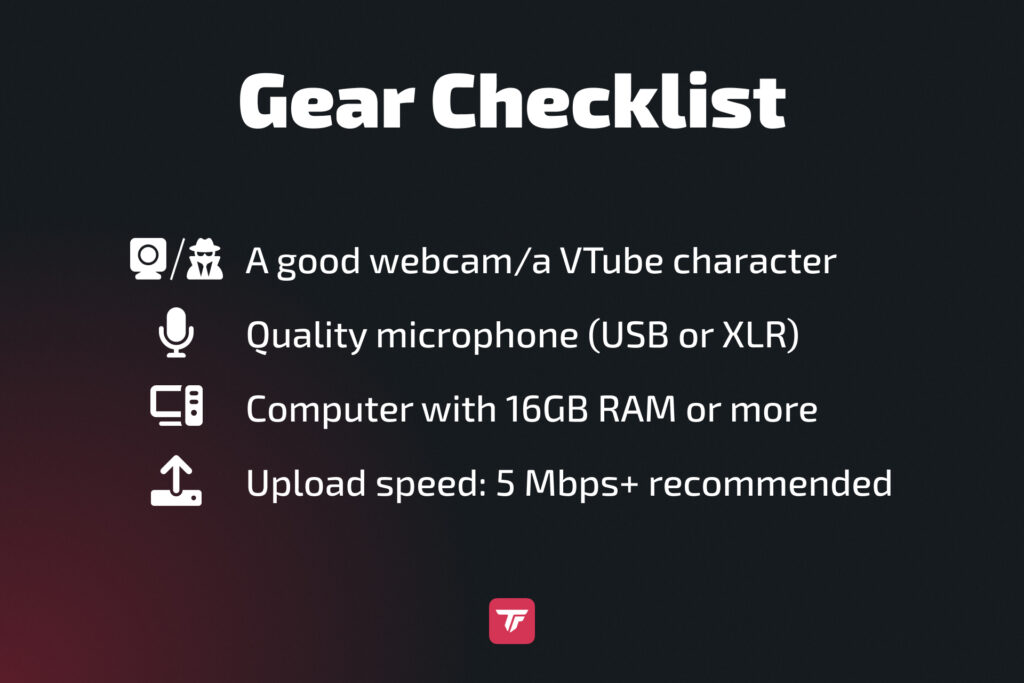
You don’t need a Hollywood studio, but solid gear matters:
- A good webcam, or if you’d rather keep your face private, a VTube character works perfectly too.
- Quality microphone (USB or XLR)
- Computer with 16GB RAM or more
- Upload speed: 5 Mbps+ recommended
📝 Pro Tip: Use a second monitor or device for chat and stream monitoring.
Also, make sure your lighting is decent, even a ring light can make a big difference in how professional your stream looks.
Step 1: Get Your TikTok Stream Key
Follow these steps to retrieve your stream credentials:
- Log in to TikTok on a desktop browser.
- Click “Go LIVE” on the left sidebar, or click directly here to enter the live center.
- Head to LIVE Room (livecenter.tiktok.com/producer).
- Choose your stream title and category > Save & Go LIVE.
- Scroll down to find Server URL and Stream Key. They appear as soon as you are live.
- Copy both. You’ll need them in OBS.
🔁 If you don’t see the stream key or the “LIVE Room” tab, you can either partner with a stream key agency or use TikTok’s LIVE Studio, which lets you integrate OBS even without a stream key. Check out this tutorial for step-by-step guidance.
Step 2: Connect OBS to TikTok
Once you have the Stream Key, open OBS:
- Go to Settings > Stream
- Select Custom
- Paste in your Server URL and Stream Key
Now adjust your canvas to TikTok’s preferred format:
- Base/Output Resolution: 1080×1920 (portrait)
- Be aware: If you want to multistream vertical & horizontal, you’ll need an OBS plugin like Aitum or SE.Live

Step 3: Optimize OBS for TikTok
Set up OBS for smooth, crisp TikTok streams:
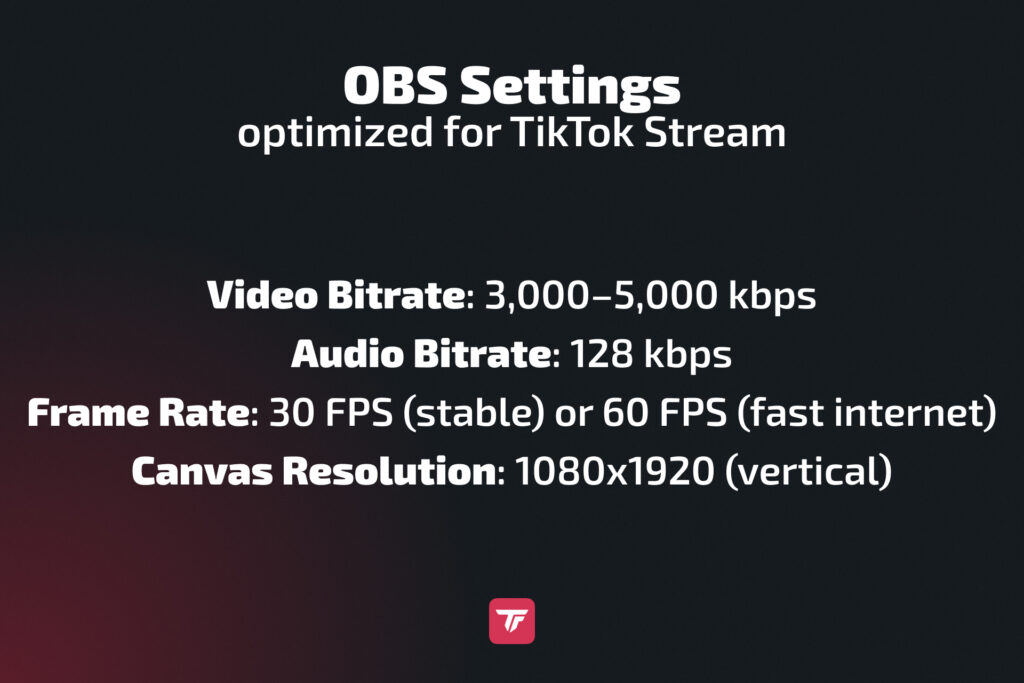
- Video Bitrate: 3,000–5,000 kbps
- Audio Bitrate: 128 kbps
- Frame Rate: 30 FPS (stable) or 60 FPS (fast internet)
- Canvas Resolution: 1080×1920 (vertical)
Scene Setup Tips:
- Add webcam, screen capture, and overlays
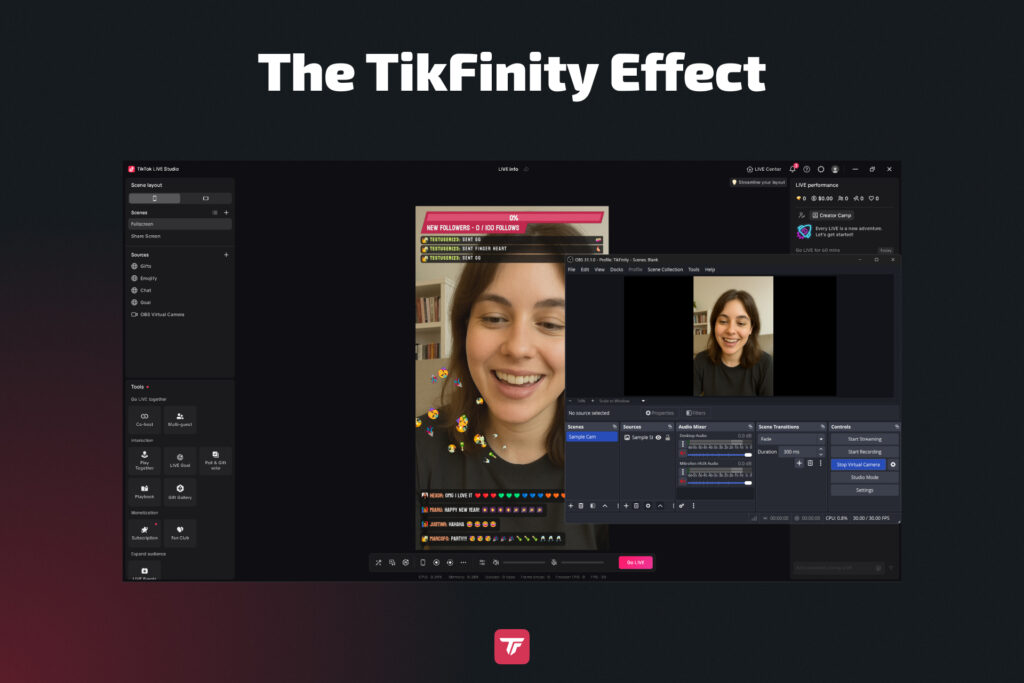
- Integrate TikFinity browser sources for interactivity
- Include a goal bar or other community tracker
🎨 Make your layout mobile-friendly! Most TikTok viewers watch vertically on phones.
Step 4: Start Your First TikTok Stream
✅ Always test your stream before going public:
- Do a quick OBS test recording to make sure everything looks and sounds right (audio, video, etc.)
- Use unlisted/private stream settings if available
Once your stream is ready:
- Click Start Streaming in OBS
- Confirm you’re LIVE via the TikTok mobile app or browser
💬 Engage early: greet viewers, pin a message, and set LIVE goals to boost interaction.
Consistency is key. The more frequently you stream, the more likely you are to appear in the TikTok LIVE discovery feed.
Step 5: Upgrade Your TikTok Streams with TikFinity 🚀
Real-Time Alerts
TikFinity shows instant on-screen alerts for:
- Follows
- Likes
- Gifts
- New viewers
This keeps your audience engaged and makes every interaction feel meaningful.
Interactive Features
TikFinity lets you add:
- Goal bars for likes or gifts
- Text-to-speech (TTS) chat
- Rankings, minigames, countdown timers, and more
These features encourage longer watch time, more engagement, and more gifts, all while giving your stream a professional look.
🔗 Tip: Add these as browser sources in OBS. All you need is a link, no coding required.
Troubleshooting Common OBS-to-TikTok Issues
Don’t See TikTok LIVE Option?
If you don’t see the TikTok LIVE option, make sure you meet the eligibility requirements, such as having 1,000 followers, being of the required age, and having no strikes on your account. You can also try logging in from a different device.
OBS Shows Black Screen or Audio Doesn’t Work
First, make sure your OBS software, graphics, and audio drivers are up to date.
Next, double-check your audio mixer settings to ensure everything is configured correctly.
Finally, check if another application is using your webcam or microphone, as this can prevent OBS from accessing them.
Laggy Stream or Dropped Frames
Try lowering your bitrate settings to reduce strain on your connection. Close any unnecessary background applications that might be using bandwidth or system resources.
It is also a good idea to test your internet speed. TikTok recommends at least 5 Mbps upload for streaming. For a more stable stream, use an Ethernet connection instead of Wi-Fi.
Wrong Video Orientation
If your video orientation is wrong, make sure to set your OBS canvas to 1080 by 1920. You can also use plugins like Aitum Vertical to enable portrait mode.
No Stream Key Available?
If no stream key is available, you can use TikTok LIVE Studio on Windows. You can also apply for stream key access through TikTok support or work together with a TikTok agency. Alternatively, you can use SE.Live for OBS Studio, Restream, or Streamlabs for direct TikTok integration.
Pro Tips to Grow While Streaming
Want more viewers and engagement? Try these:
- Go live during peak hours (6–10 PM local time)
- Use trending sounds and hashtags
- Co-stream with other creators via Duo LIVE
- Repurpose clips for TikTok, Reels, or Shorts
- Promote your stream in advance via TikTok Stories
- Run giveaways for viewers who stay until the end
- Add a CTA in your overlays: “Tap to Follow” or “Gift to Unlock!”
🎯 Tip: Set weekly stream goals and announce them in your bio.
FAQs about TikTok OBS Streaming
Can I stream to TikTok using OBS without a stream key?
OBS requires a stream key to connect to TikTok. However, you can use SE.Live, a plugin for OBS Studio that lets you stream directly to TikTok without needing a stream key. Alternatively, using TikTok LIVE Studio or platforms like Streamlabs with official TikTok integration also allows streaming without manually entering a stream key. For standard OBS setups, stream keys are still required and must be copied from TikTok’s Live Producer panel.
How do I get access to a TikTok stream key?
To get a stream key, your account typically needs 1,000+ followers, you must be at least 18 years old, and comply with community guidelines. Go to livecenter.tiktok.com on your desktop and check if you see the “LIVE Room” option. If it’s not available, consider reapplying or contacting TikTok support.
Can I multistream with OBS to TikTok and other platforms?
Yes, but you’ll need to use a third-party service like SE.Live, Restream, or Streamlabs. Depending on your bandwidth, multistreaming may reduce your stream quality, and TikTok might limit features or discoverability for third-party streams.
Is OBS compatible with Mac for TikTok streaming?
Absolutely. OBS works on macOS, but you’ll still need to obtain a TikTok stream key. TikTok LIVE Studio is Windows-only, so OBS is the go-to option for Mac users.
How can I stream in vertical (portrait) mode using OBS?
Go to OBS settings and change both your Base (Canvas) Resolution and Output (Scaled) Resolution to 1080×1920. You can also use a plugin like Aitum Vertical or SE.Live for easier layout management.
Will TikTok track my live time and achievements if I use OBS?
Unfortunately not. TikTok currently only tracks streaming milestones (like “Go Live for 30 Minutes”) through their own LIVE Studio. If you want credit for stream challenges, use LIVE Studio or combine it with OBS via a virtual camera.
Conclusion: Take Your TikTok Streaming Next Level
There you have it! Everything you need to stream on TikTok with OBS in 2026:
- Get your stream key (or use a plugin like SE.Live)
- Connect OBS
- Optimize settings
- Go live
- Upgrade with TikFinity
Streaming with OBS unlocks serious creator power. Add branding, pro visuals, and audience interactivity, all while growing your community.
🔥 Ready to take your LIVE sessions from basic to brilliant?
👉 Enhance your TikTok OBS stream today with TikFinity