It happened twice in one week on our Discord. A creator asked why their TTS (text-to-speech, the voice that reads chat out loud) had just said a racial slur. A troll had spelled it in Amharic letters, and the creator got suspended for it. A day earlier, another creator got restricted because viewers kept typing slurs for the voice. Both cases show why it’s worth knowing how to block words on TikTok, in your chat and in your TTS.
Why does the creator get the blame and not the troll? TikTok’s Community Guidelines make you responsible for everything that happens on your LIVE, including the tools you switch on, and they name this exact case, a tool that reads out a harmful comment. If that keeps happening, TikTok can restrict your access to LIVE or some of its features. Our TikTok LIVE rules guide explains the rest.
So we rebuilt text-to-speech in TikFinity. TTS Chat now comes with a Content Filter that checks every comment before the voice reads it, free for everyone, plus a library with 15,000 voices. Below we set up TikTok’s own settings for your chat first, then TikFinity’s Content Filter for your voice. At the end, you’ll pick the voice that fits your LIVE out of those 15,000.
How to block words on TikTok LIVE
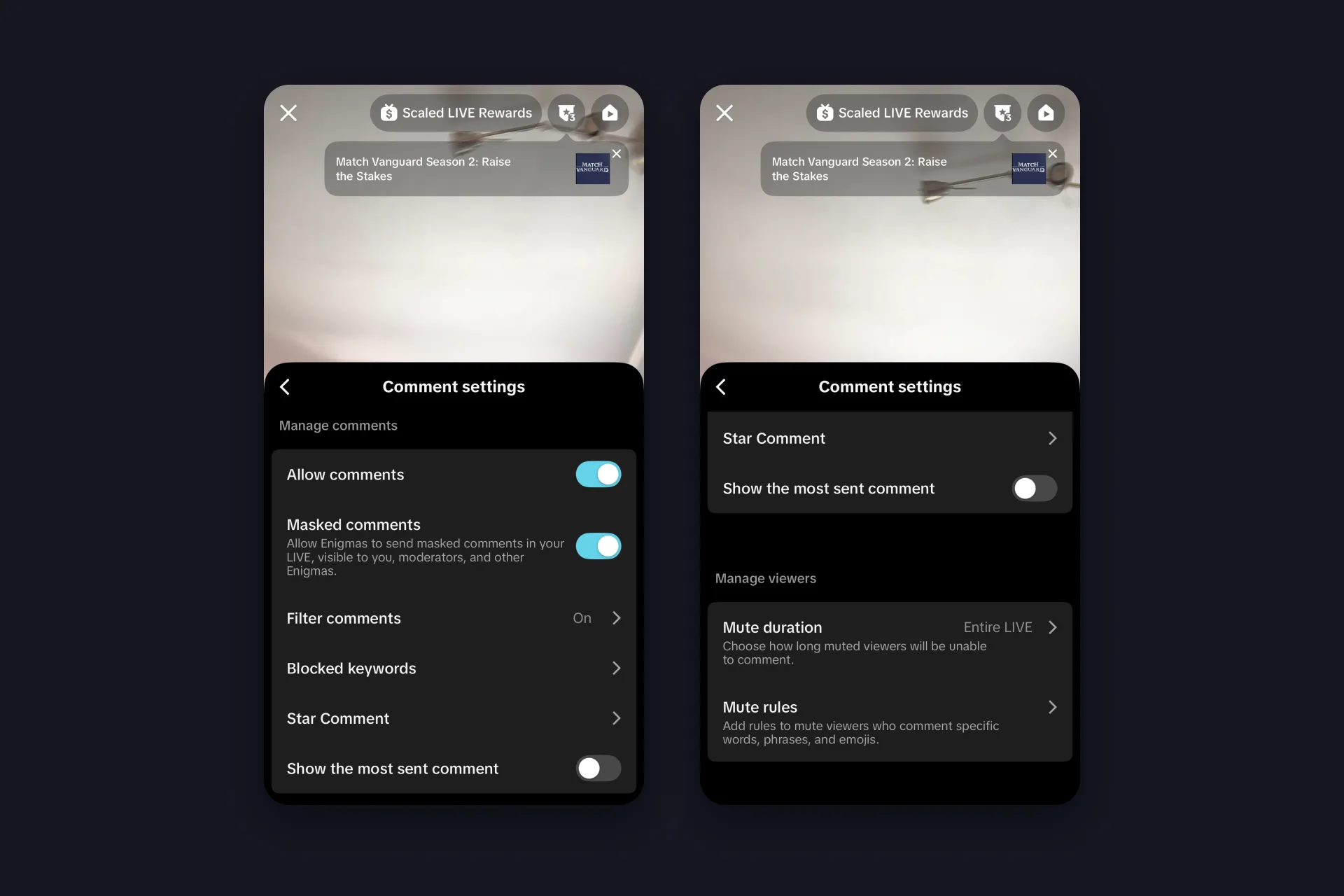
Everything for your LIVE chat sits in one panel of the TikTok app. Tap the Add post + button, tap LIVE, then Settings and Comment settings. The panel works before you go LIVE and during the stream, and these four settings keep swear words out of your chat:
✅ Blocked keywords takes up to 500 words, phrases or emoji, 30 characters each. Comments that contain them don’t show up for you or your viewers.
✅ Filter comments is TikTok’s comment filter for LIVE and has three boxes. Spam comments and Potentially unkind comments (suggestive, mean-spirited or stereotyping ones) are ticked by default. Community-flagged comments, so comments similar to ones the community flagged before, are up to you. Only you as the creator can change this.
✅ Mute rules mute anyone who comments an exact word, phrase or emoji, and their earlier comments disappear from the chat. Mute rules only last for one LIVE, so set them again before the next one, otherwise your next stream starts without them.
✅ Mute duration decides how long a muted viewer stays quiet, from a set time up to the entire LIVE.
Adding a word is quick. In Blocked keywords, tap Add keyword, type the word and tap Save. TikTok’s list is smarter than it looks, so you don’t need extra versions in upper or lower case, with spaces in between or with special characters. “bad” also blocks “BAD”, “b a d” and “b@d”. Block similar versions is on by default and catches “badness” too. Switch it off, and TikTok only blocks the word when it stands on its own, so “a bad chat” but not “abadchat”.
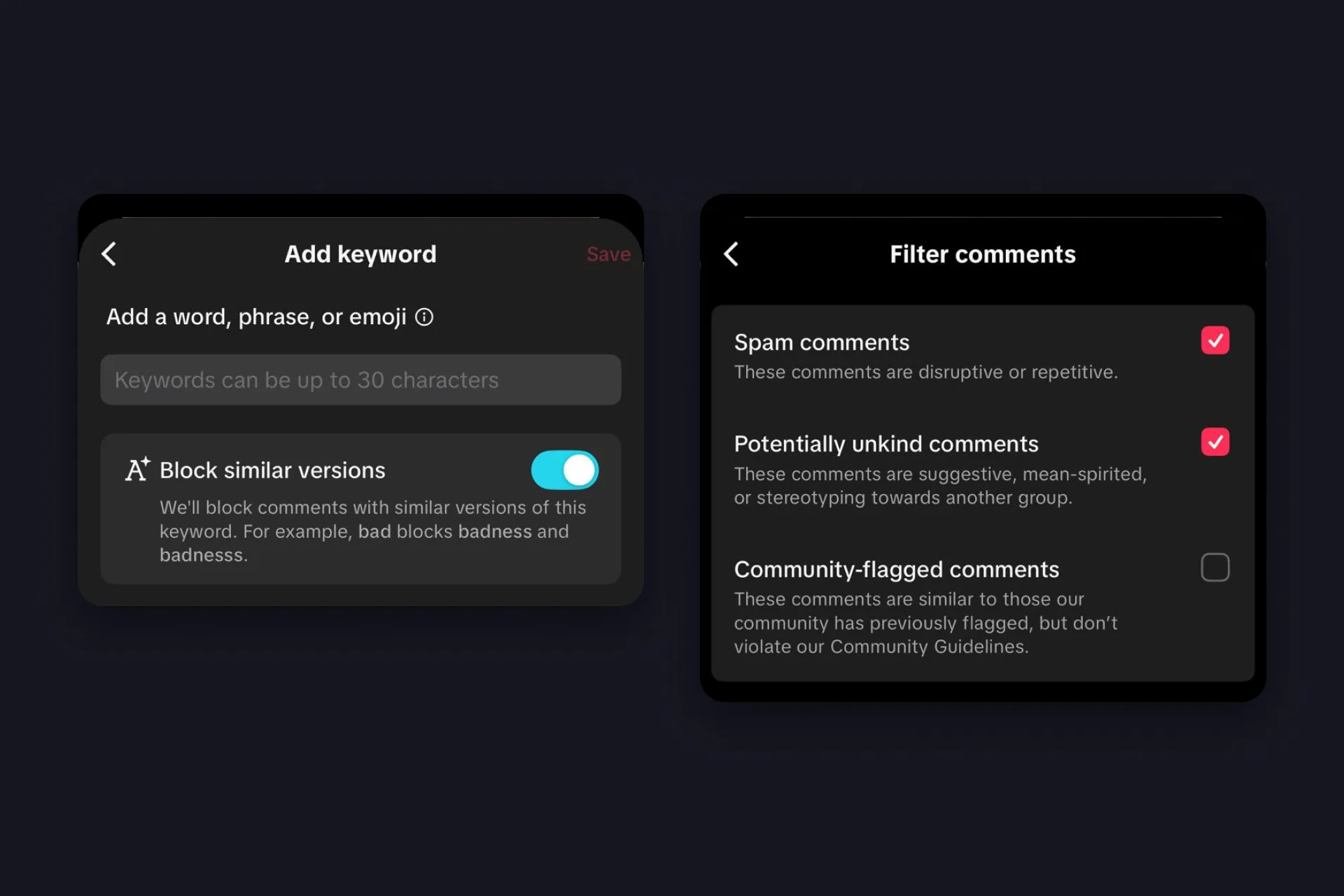
A filtered comment isn’t gone for good. If you filter community-flagged comments, they look faded to you and your moderators. To let one through after all, tap Review comment next to it, then Yes.
Turn off comments on TikTok LIVE completely
For a quick announcement without chat, switch off Allow comments, the first switch in Comment settings. It’s on by default. If you run your LIVE from a web browser, you’ll find the same switch under Settings in the LIVE chat panel, then Moderation settings and Comment settings.
Block words in TikTok LIVE Studio
TikTok LIVE Studio, TikTok’s own app for going LIVE from your PC, keeps the same tools under Settings in the Chat tab. Hide potential spam or offensive comments is TikTok’s own filter, and the Keyword filter takes up to 500 keywords with 30 characters each. Our TikTok LIVE chat guide walks through the rest of that Chat tab.
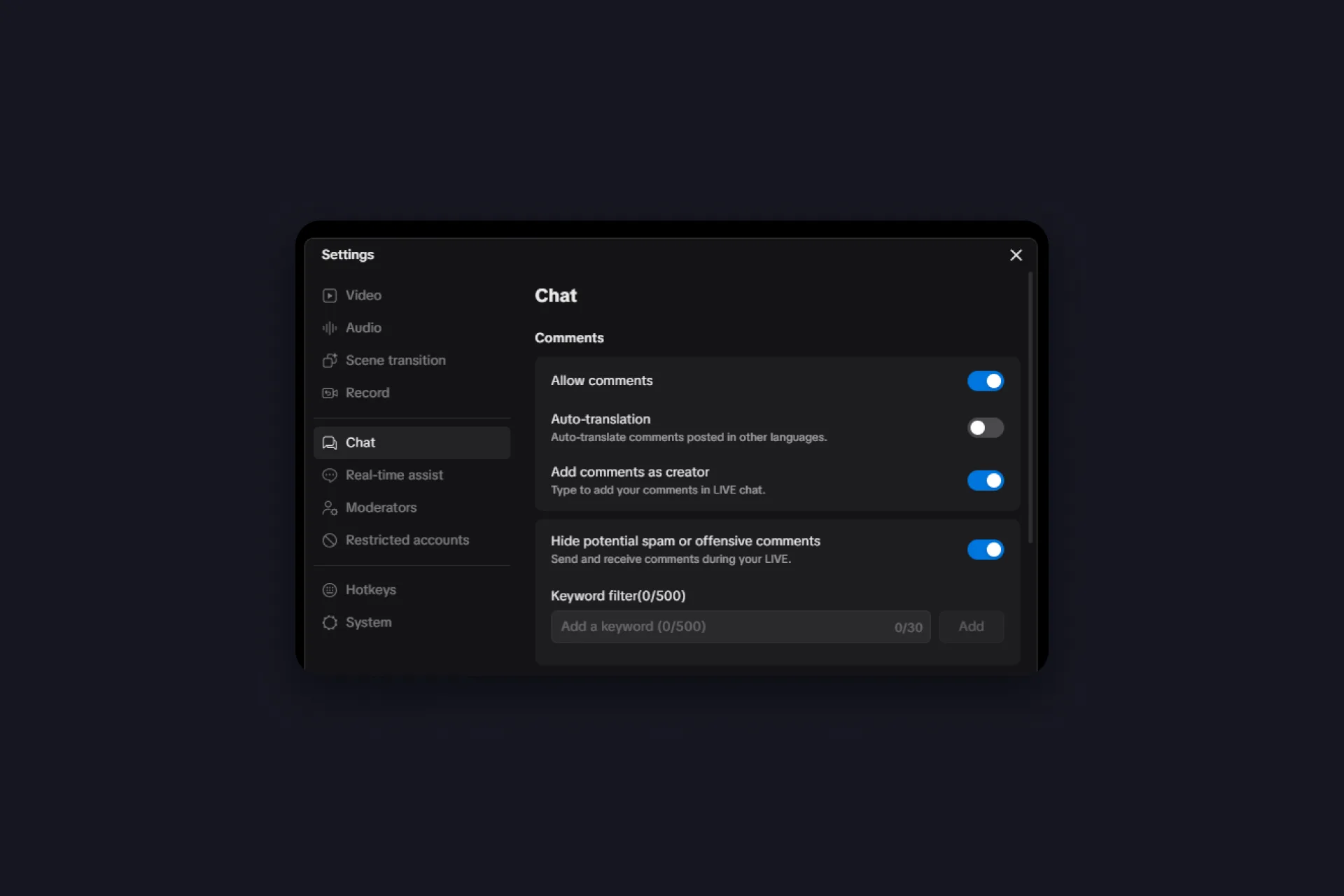
Tip: put your most important words into TikFinity’s Blocked Words as well, which we set up further down. Then your chat and your voice block the same words.
Let your moderators help
You can’t read every comment while you talk, so give that job to people you trust. Add moderators (viewers you pick to look after your chat) in your LIVE settings before you start, or tap a viewer in the chat during the LIVE and choose Add moderator. You then decide which settings each moderator can use. To change the Comment settings, including your blocked keywords, they need comment permissions from you.
Why your TTS needs its own word filter
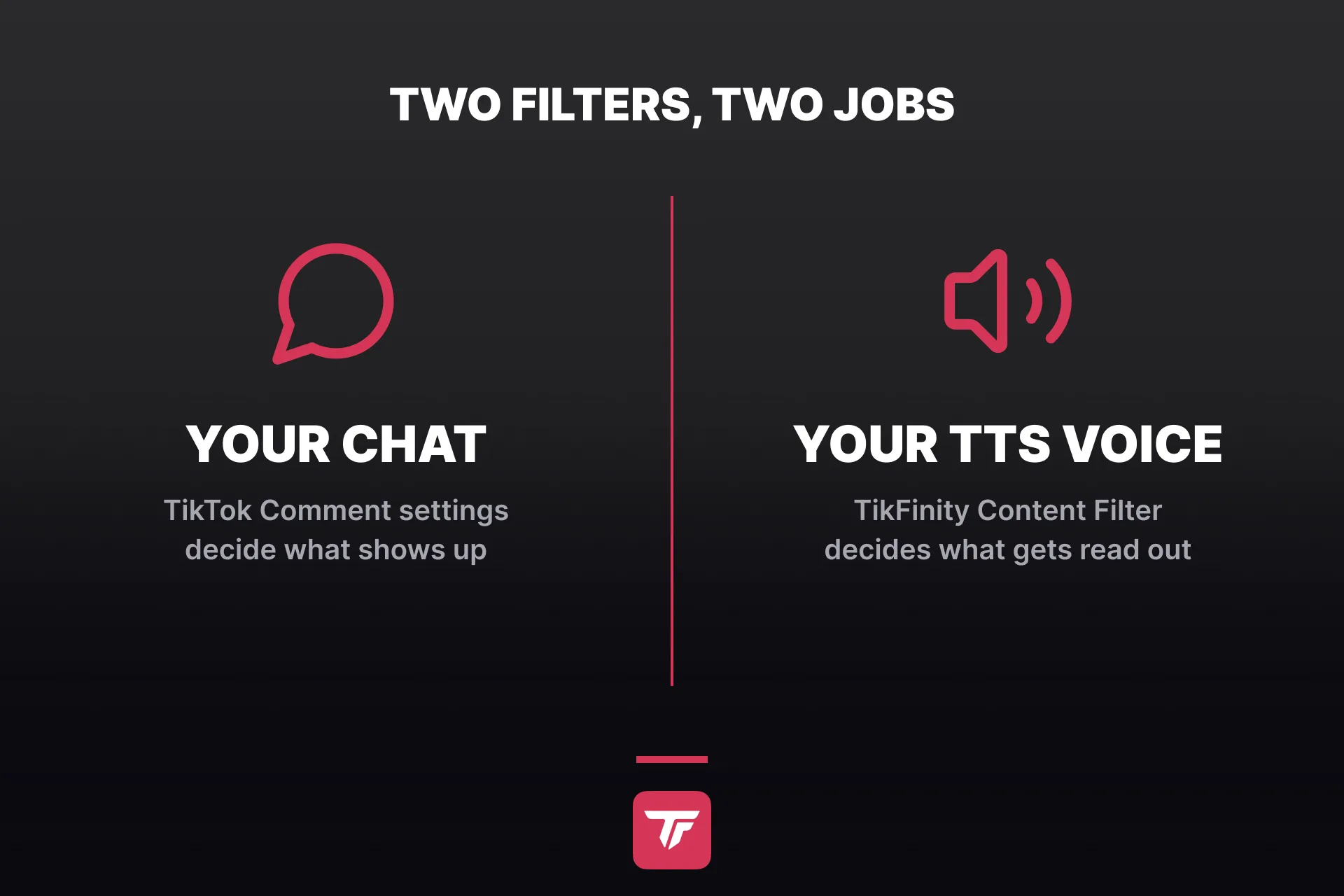
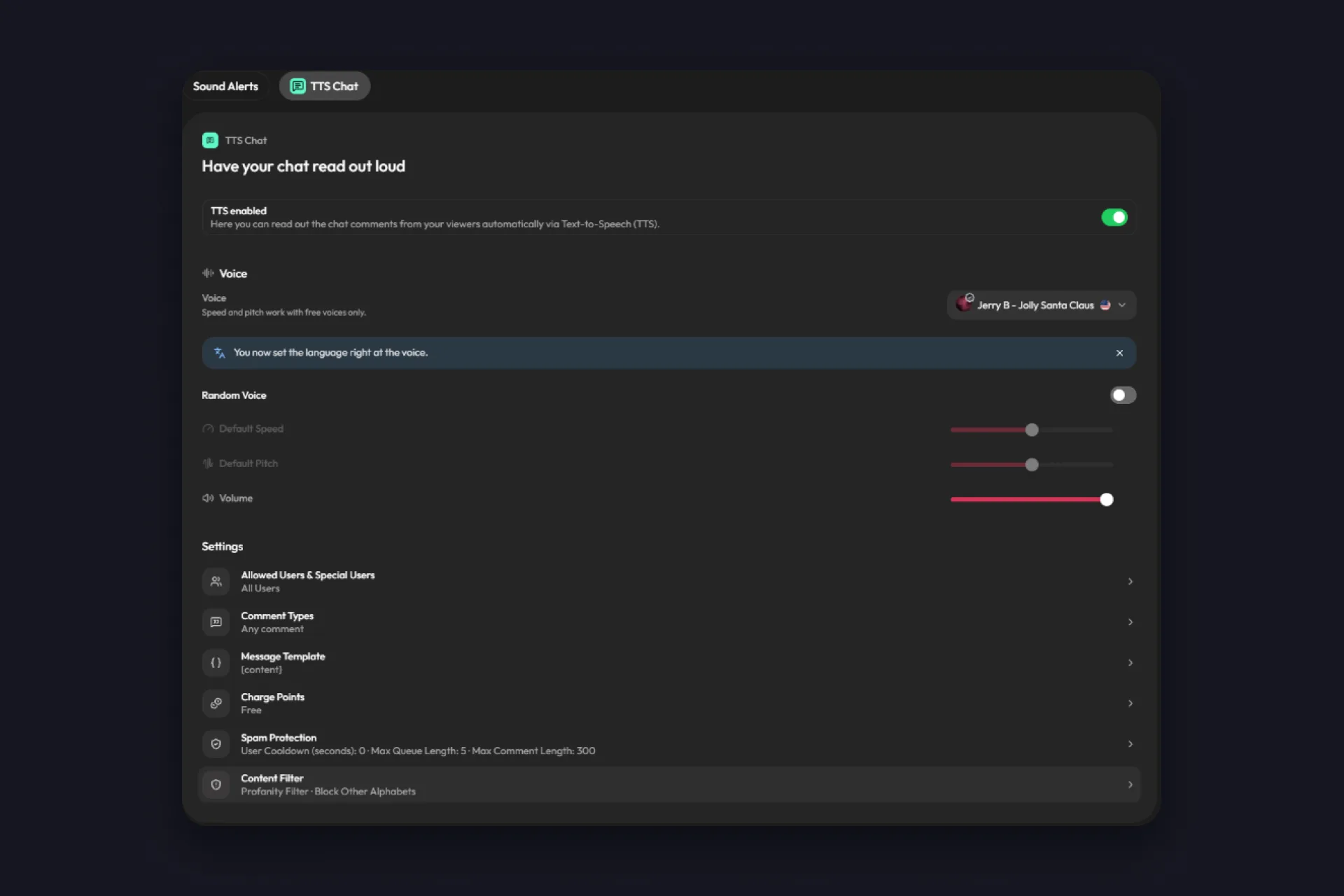
That’s TikTok’s side covered. Now to the part that happens in TikFinity, your TTS voice. It’s a second channel, and whatever the voice says goes out on your LIVE. That’s why TikFinity’s Content Filter sits right inside the TTS settings and checks every comment before the voice speaks.
Trolls know how word lists work, so they disguise a word with symbols, look-alike letters or stretched letters. TikFinity’s filter catches those spellings too. Some go one step further and type slurs in alphabets like Amharic or Georgian, which no word list covers but every TTS voice can read. For that, there’s a separate switch called Block Other Alphabets.
By the way: TikFinity doesn’t translate anything. The voice simply reads letters from every alphabet out loud.
Set up TikFinity’s profanity filter, free
The Content Filter is part of TikFinity’s free plan, and setting it up takes about two minutes. We’ll walk you through switching it on and testing your first comment:
1 In TikFinity, open Sounds and switch to the TTS Chat tab.
2 Under Settings, open Content Filter. Every change saves on its own.
3 Turn on Profanity Filter. It checks each comment against a built-in list of offensive words before the voice reads it.
4 Check Filter Languages. If you leave it empty, the filter uses your TTS language, and the field shows you which one that is. Add every language your chat writes in.
5 Add your own words under Blocked Words, or tap Upload a list.
6 Type a sentence into Test a comment to see whether it would be read out. We tried “Welcome to the stream!” and got “Would be read out”.
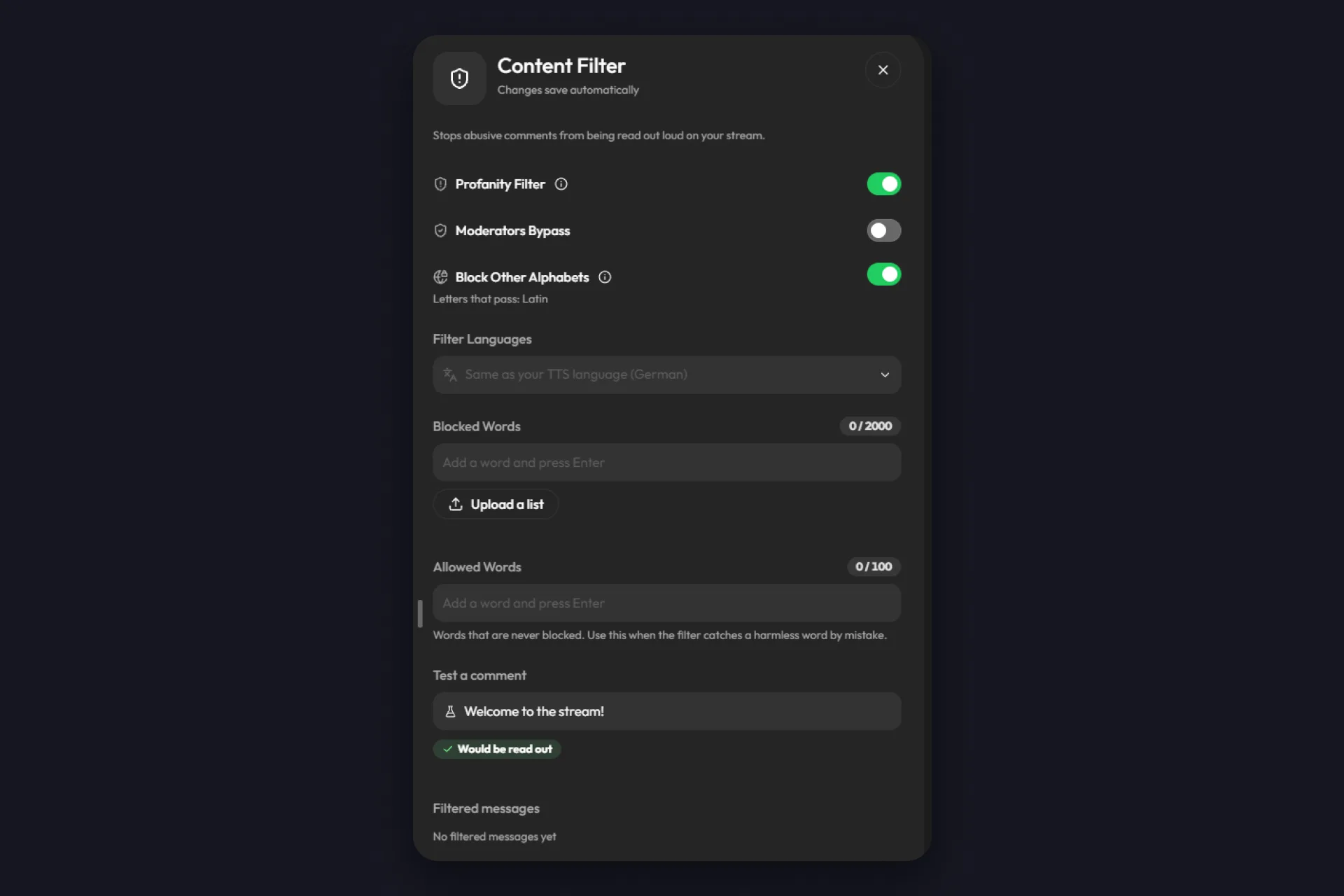
That’s it, your filter is on! From now on, a comment with a swear word stays quiet instead of going out on your stream, and the Content Filter row in TTS Chat shows which protections are active.
The built-in word lists cover English, Filipino, German, Indonesian, Japanese, Korean, Malay, Portuguese, Spanish, Thai, Turkish and Vietnamese. For any other language, your own Blocked Words list does the job. It holds up to 2,000 words and works even with Profanity Filter switched off. An upload is a plain .txt file with one word per line. The filter works with single words and two-word phrases. Single letters and very short words are skipped, because they’d block normal messages too.
Three more settings fine-tune the filter:
- Allowed Words, up to 100, are never blocked. Use them when the filter catches a harmless word by mistake.
- Moderators Bypass lets your moderators’ comments through the filter. Not a must, but handy if your mods joke around in chat.
- Block Other Alphabets stops comments in letters your languages don’t use. Latin letters always pass, and so do the letters of your TTS language and your Filter Languages. Important: viewers who write in another language get blocked as well. If part of your community writes in Thai or Japanese, add that language under Filter Languages first, otherwise none of their comments get read.
What happens to a blocked comment
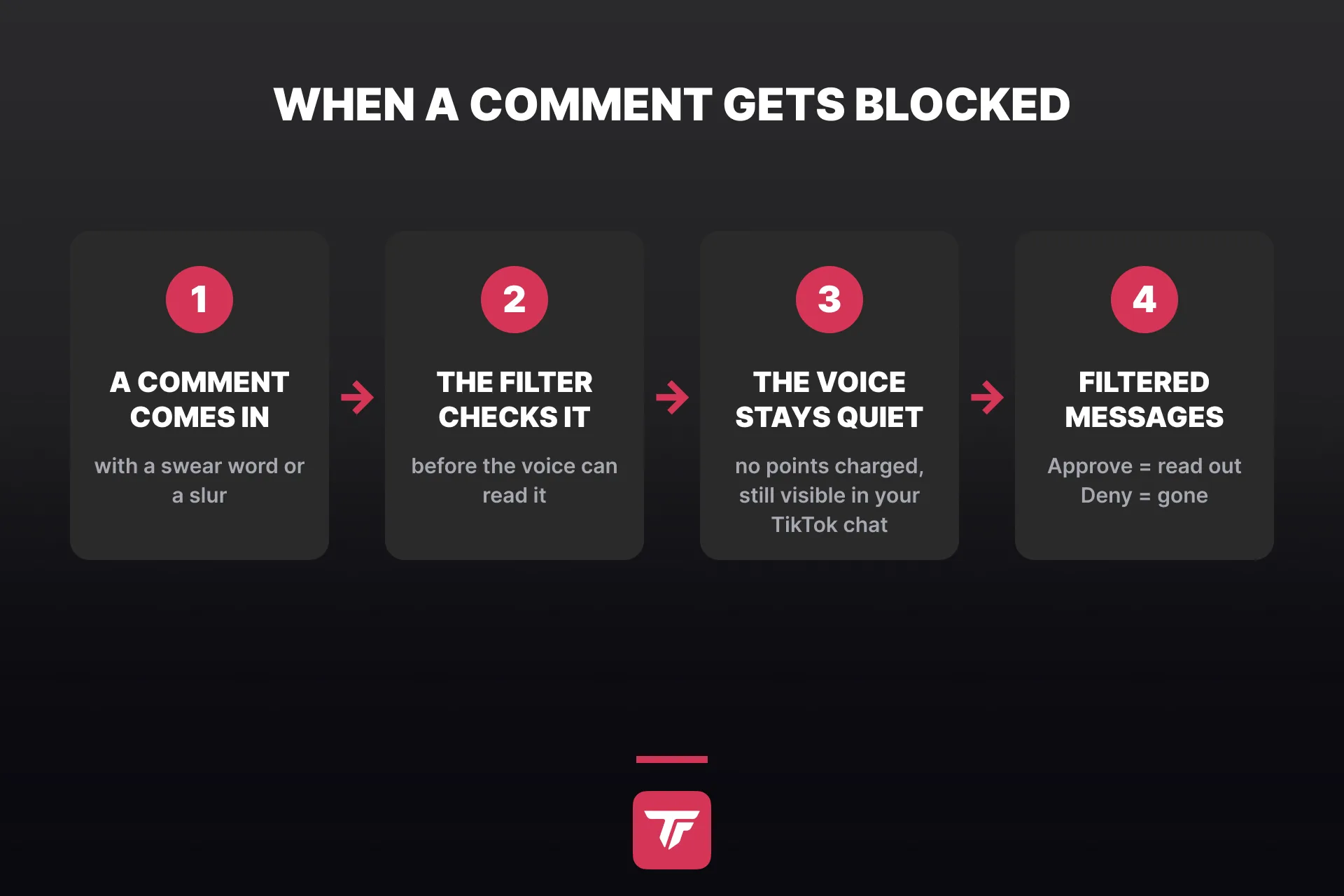
The voice skips it, and the viewer isn’t charged points for it. The comment itself stays visible in your TikTok chat, because TikFinity only controls what gets read out. That’s why the Blocked keywords from the first section still matter. In your TTS logs (the list of everything TTS has read) the comment shows up as blocked, and it lands under Filtered messages. If it was harmless after all, tap Approve while the countdown runs and the voice reads it, or tap Deny.
Words that a viewer already hides with asterisks get through on purpose. Everything else, from symbols to look-alike letters, gets checked.
Still, no filter catches every creative spelling, and we’d rather tell you that up front. One creator on our Discord said Block Other Alphabets helped a lot, but trolls kept finding new ways to write the same slur. Whenever you spot a new spelling, add it to Blocked Words. If one viewer keeps trying, open Special Users, add their handle without the @ and switch Allowed off. TTS then ignores that viewer completely.
More ways to keep your TTS clean
The Content Filter does the main work. Three more TTS Chat settings back it up:
- Allowed Users & Special Users decides who gets read at all, everyone or only followers, moderators, team members from a minimum level or your top gifters. Here you can also give a regular their own voice.
- Comment Types reads only comments that start with a dot, a slash or a command.
- Spam Protection adds a cooldown per viewer, a maximum comment length and filters for letter spam, @mentions and !commands.
Find a TTS voice that fits your LIVE
With the filter on, your voice only says what it should. Now pick which voice says it. In TTS Chat, click the voice under Voice and the Choose a voice window pops up. It holds 15,000 TikFinity voices in many languages. With English as the language filter, our list showed more than 10,000 of them. Search by name, or narrow the list down with filters:
✅ Language and Accent, from American to Cockney
✅ Category, like Conversational, Narration, Characters or Social media
✅ Gender and Age
✅ Quality, for voices recorded in studio quality
✅ Price, to show only the free voices
Click any voice to hear a sample. Under Your text, type your own sentence and hear exactly how a chat message would sound. The very first sample needs a few seconds, after that each one plays in about a second. Tap the heart to save a voice to Favorites, which follow you to every device. Recently used keeps your last 20 picks.
Test a few voices, there’s no wrong choice. Found the one? Click Use this voice, and it reads your chat from the next comment on!
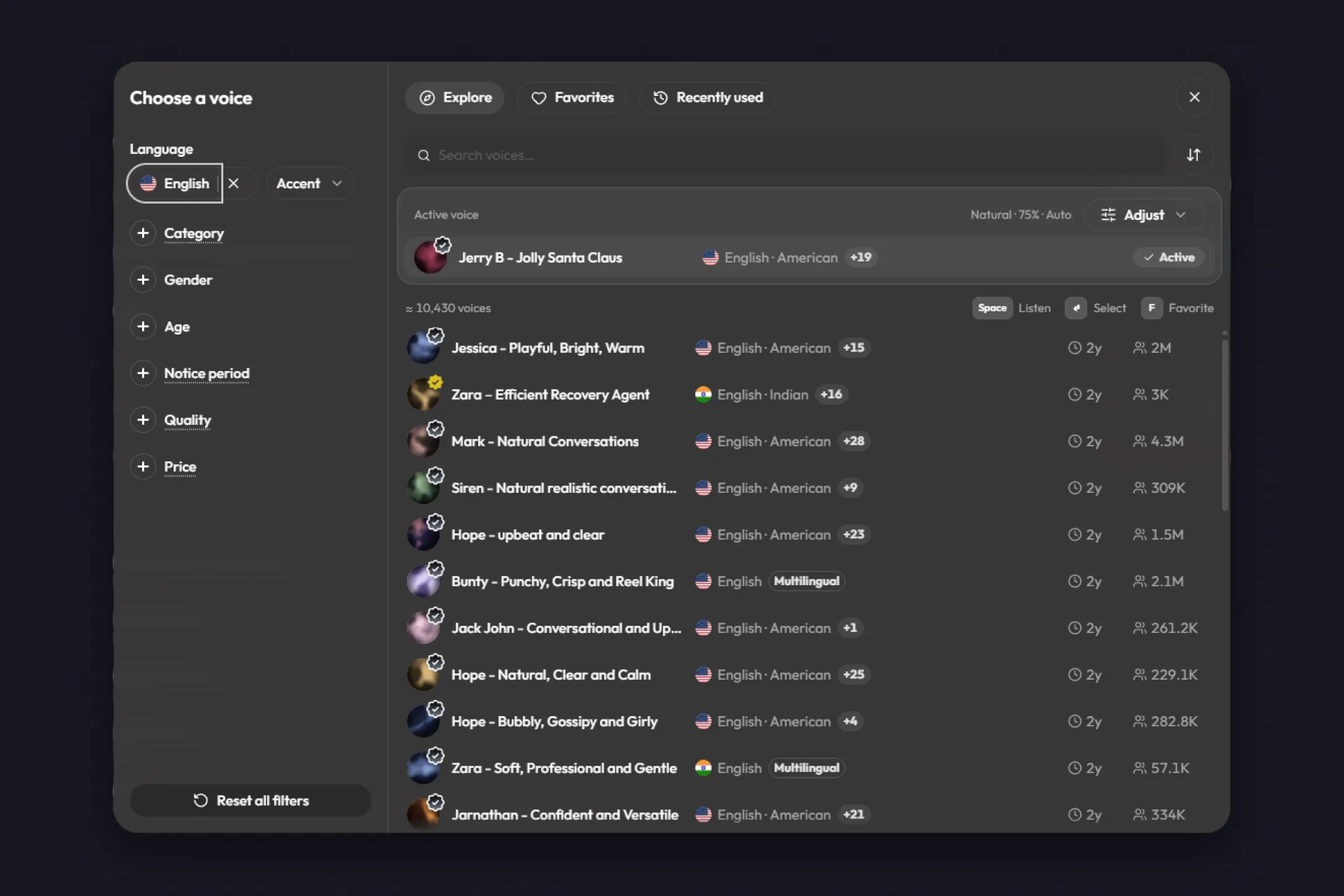
The same window opens in three places, for TTS Chat, for each of your Special Users and for the TTS effect of an action in Actions & Events, which can read gifts or follows out loud. If you can’t decide on one voice, switch on Random voice.
Free or Pro? On the free plan you can pick any voice. The free voices read without a limit, and the AI voices read 25 messages a day. TikFinity Pro gives you 100,000 credits a month for AI voices. You’ll find the full comparison in the table further down.
Fine-tune how the voice speaks
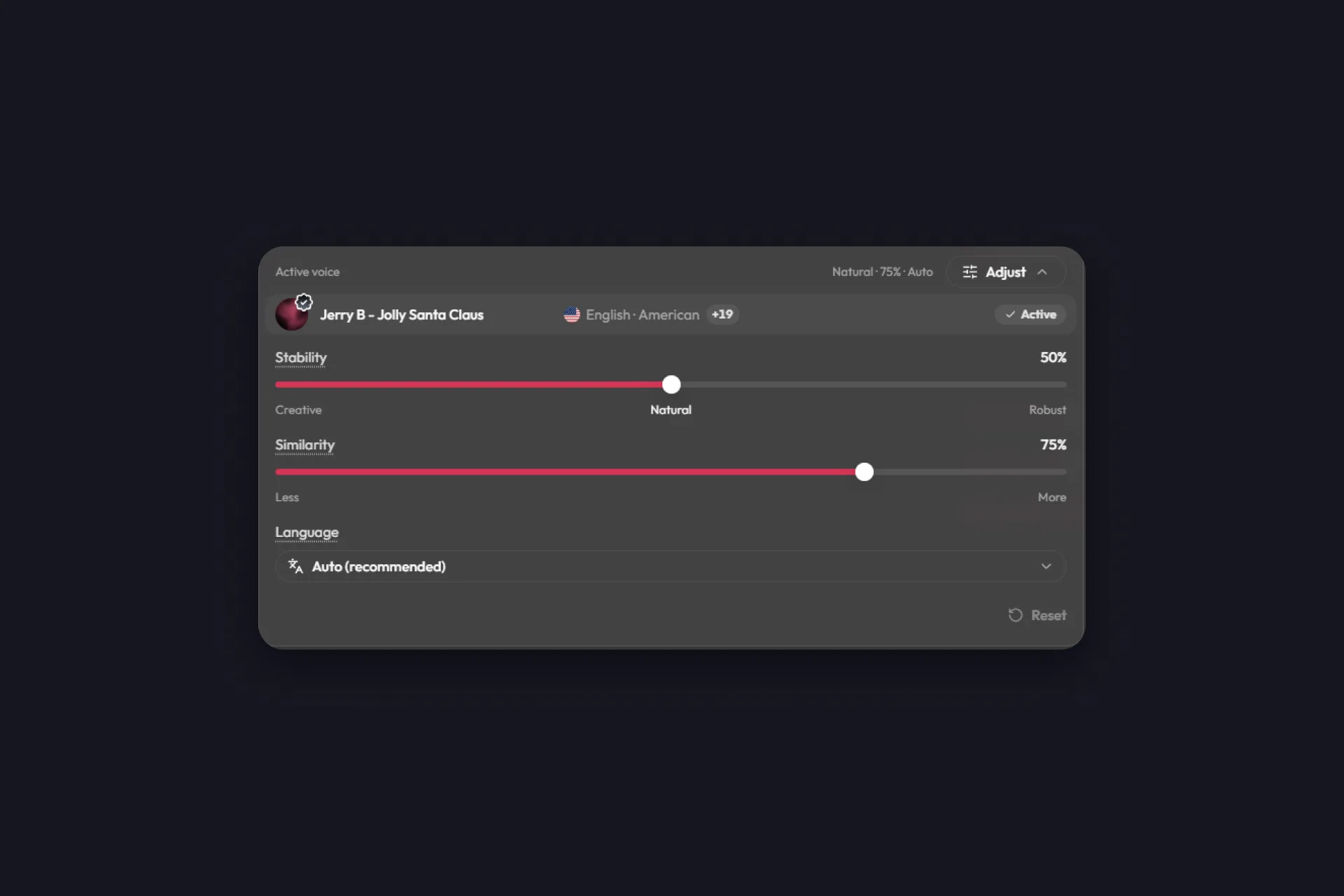
You don’t need this at the start, because the default settings already sound good. If you’re curious, click Adjust next to your voice:
- Stability sets how lively the voice sounds. Creative is the most expressive (it can even sing!), Natural sounds like a normal conversation, and the other end keeps the voice calm and steady.
- Similarity sets how close the voice stays to its original sound.
- Language works best on Auto, so the voice picks up the language of each message. A fixed language reads everything that way, so an English message would suddenly sound German.
Play around until it sounds right to you. Speed and pitch only work with the free voices.
If the person who shared a voice ever withdraws it, TikFinity switches to the default voice and tells you, so you can pick a new one. The Notice period filter shows how long you could keep using a voice in that case.
Free or TikFinity Pro?
The whole Content Filter is free, and free accounts can pick any voice in the library too. The difference is how much your viewers can hear the AI voices. Those run on credits, TikFinity’s currency for AI voices, and one credit covers one character of read-out text:
| Free | TikFinity Pro | |
|---|---|---|
| Content Filter | Included | Included |
| AI voices | All of them, 25 AI voice messages a day | All of them, 100,000 credits a month (1 credit per character) |
| Free voices | No limit | No limit |
| Your own test sentence | Counts toward the 25 daily messages | Uses credits |
| More credits | Upgrade to Pro | Top up anytime, top-ups don’t expire |
Once the 25 free AI voice messages of the day are used up, AI voice messages aren’t read out until the next day. Switch to a free voice and TTS keeps going, or move to TikFinity Pro for a whole stream with AI voices.
Turn On Your TTS Filter, Free →
If you stream from your phone with TikFinity Mobile, the app has its own word filter in its TTS settings, and our TikFinity Mobile TTS guide shows where. New to text-to-speech altogether? Start with our guide on TikTok TTS for your stream, then come back for the filter.
FAQs about blocking words on TikTok LIVE
In the TikTok app, tap Add post +, then LIVE, Settings and Comment settings, and add up to 500 words or phrases under Blocked keywords. In TikTok LIVE Studio, you’ll find the Keyword filter under Settings in the Chat tab. To keep your text-to-speech from reading a word out, also turn on the Profanity Filter in TikFinity.
Open Comment settings in your LIVE settings and switch off Allow comments. In a web browser, click Settings in the LIVE chat panel, then Moderation settings and Comment settings, and switch off Comments.
Don’t rely on that. TikTok’s Blocked keywords control what shows up in your LIVE chat, and what your TikFinity voice reads is controlled in TikFinity. Turn on the Profanity Filter there and add your most important words to Blocked Words as well, then both layers have you covered.
Yes. The whole Content Filter is part of the free plan, including the Profanity Filter with its built-in lists for 12 languages, your own Blocked Words and Allowed Words, Moderators Bypass and Block Other Alphabets.
It sits in Sounds, on the TTS Chat tab, under Settings. Depending on your TikFinity version, it may not show up there yet. Until then, add your words to Blocked keywords in TikTok and limit who your TTS reads under Allowed Users & Special Users.
No. Every voice in the library is free to pick, and the free plan reads 25 AI voice messages a day plus unlimited messages with the free voices. TikFinity Pro adds 100,000 credits every month for AI voices, with one credit per character, and lets you top up anytime.
Yes. Turn on the Profanity Filter in TikFinity’s Content Filter, and its built-in lists cover 12 languages. On top of that, add your own words under Blocked Words, or upload a .txt file with one word per line. Your list holds up to 2,000 words.