

You know that little jolt of joy when your phone buzzes with good news? Sound alerts give your stream that exact feeling, out loud: someone follows, shares, subscribes, joins, or sends a gift, and your phone celebrates it with you in real time. TikFinity Mobile makes all of it yours in a few taps, and this guide walks you through every step.
Sound alerts in TikFinity Mobile: the basics
The TikFinity mobile app plays a sound on your phone the moment something happens in your TikTok LIVE: a gift, a follow, a subscribe, a share, or a viewer joining. You start with two presets already switched on, Any Gift and Follow, and every alert has its own sound, its own volume, and a Sound Preview button.
Never used it before? TikFinity Mobile is a free app for TikTok LIVE creators, made by the same team as TikFinity for desktop, and you’ll find it on Google Play and the App Store. Our TikFinity Mobile quick guide walks you through install, login, and connecting your TikTok account. This article goes deeper into one thing: making your alerts sound like you.
Set up your first alert in detail: Follow, in 6 steps
We’ll build the Follow alert once, in detail, because every other alert works exactly the same way. After this one, you’re basically done learning.
1 Open the Alerts tab and tap the Follow preset. The Sound Alert Settings open.
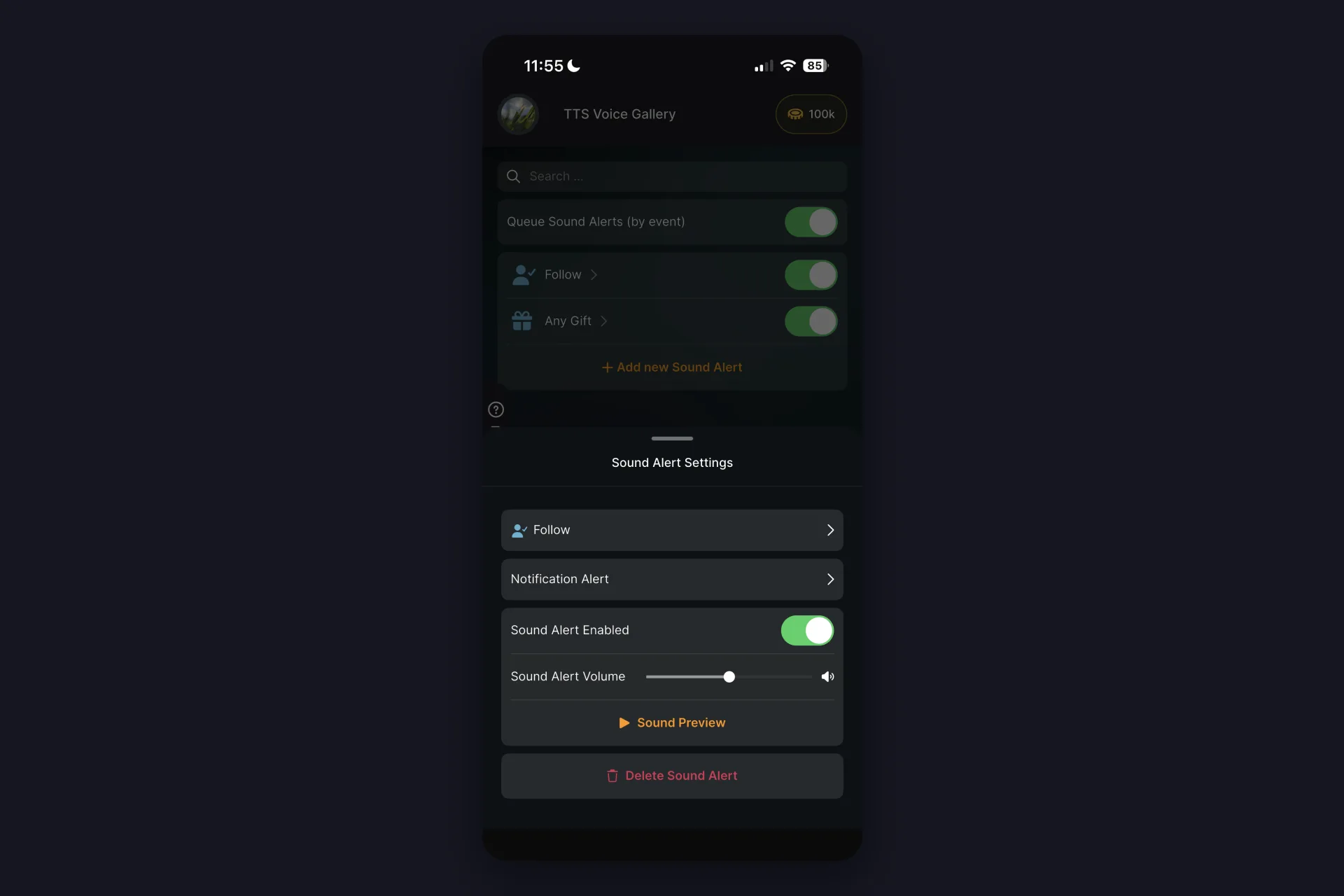
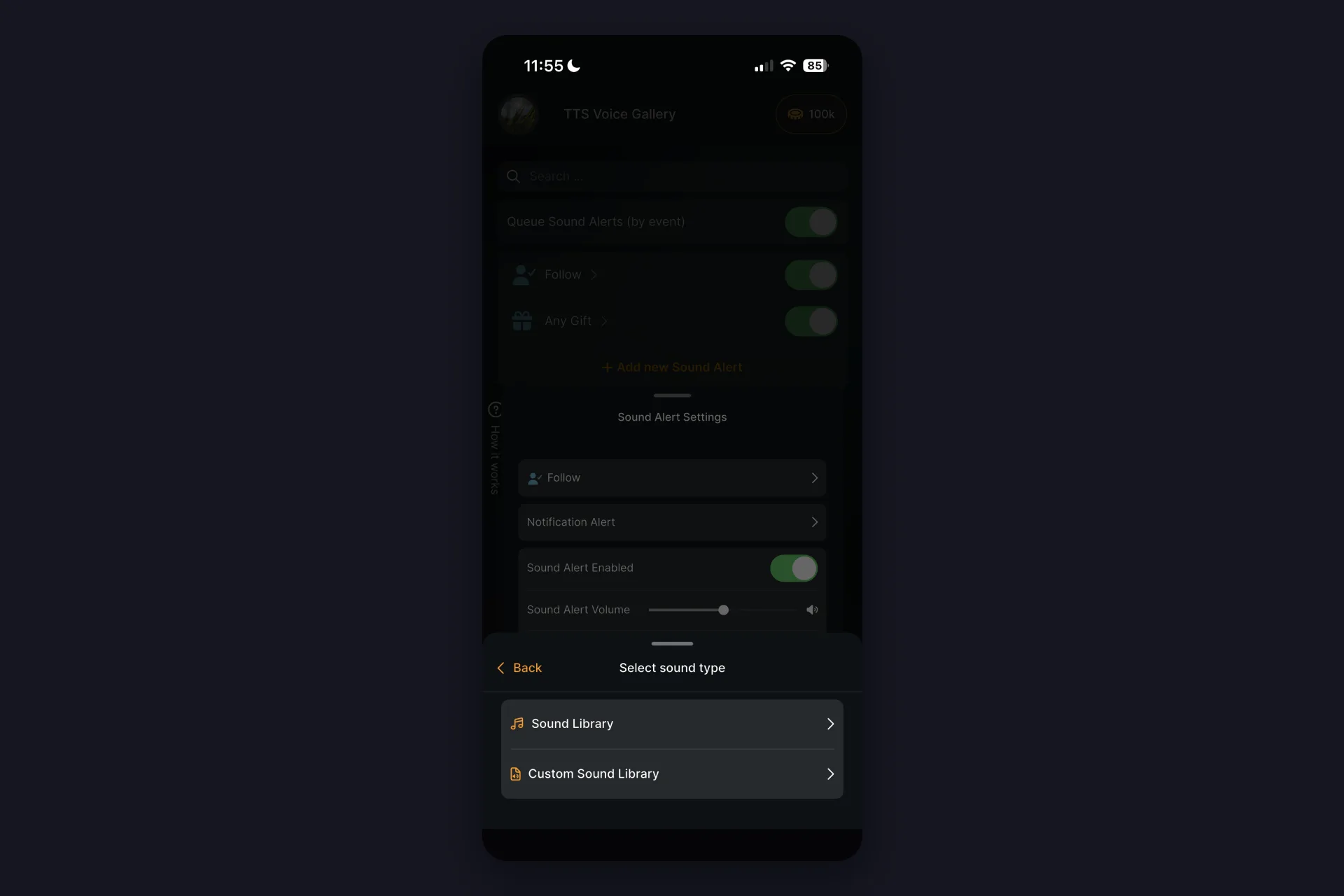
2 Tap the sound row and pick your source: the Sound Library with predefined sounds you can preview right there, or your Custom Sound Library.
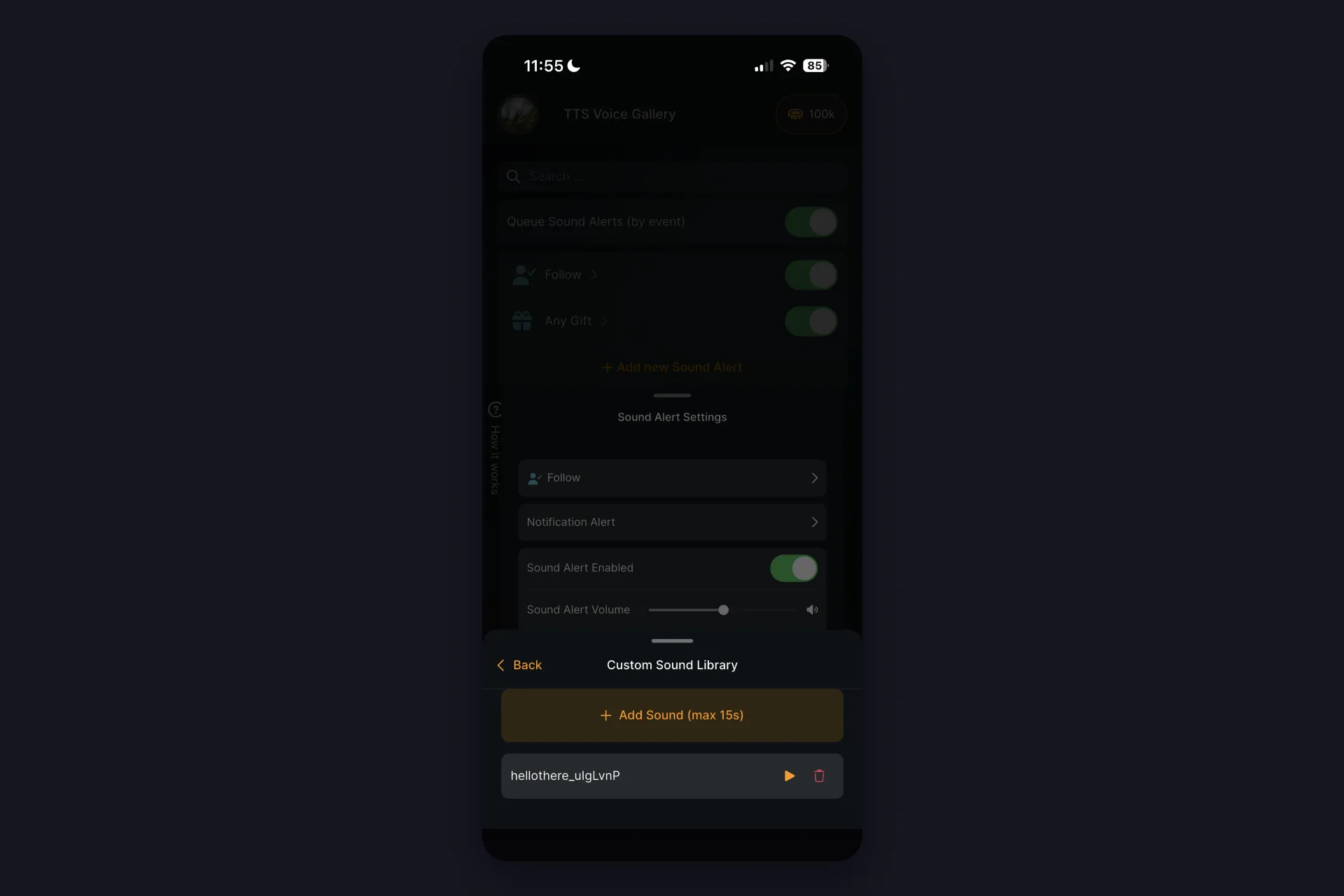
3 Going custom? Tap Add Sound and pick any audio file from your phone, up to 15 seconds. Short and punchy beats long and epic here.
4 Custom sounds need a fallback from the free library, the app marks it in red until you pick one. That’s the sound that plays if your custom one can’t (more on that below).
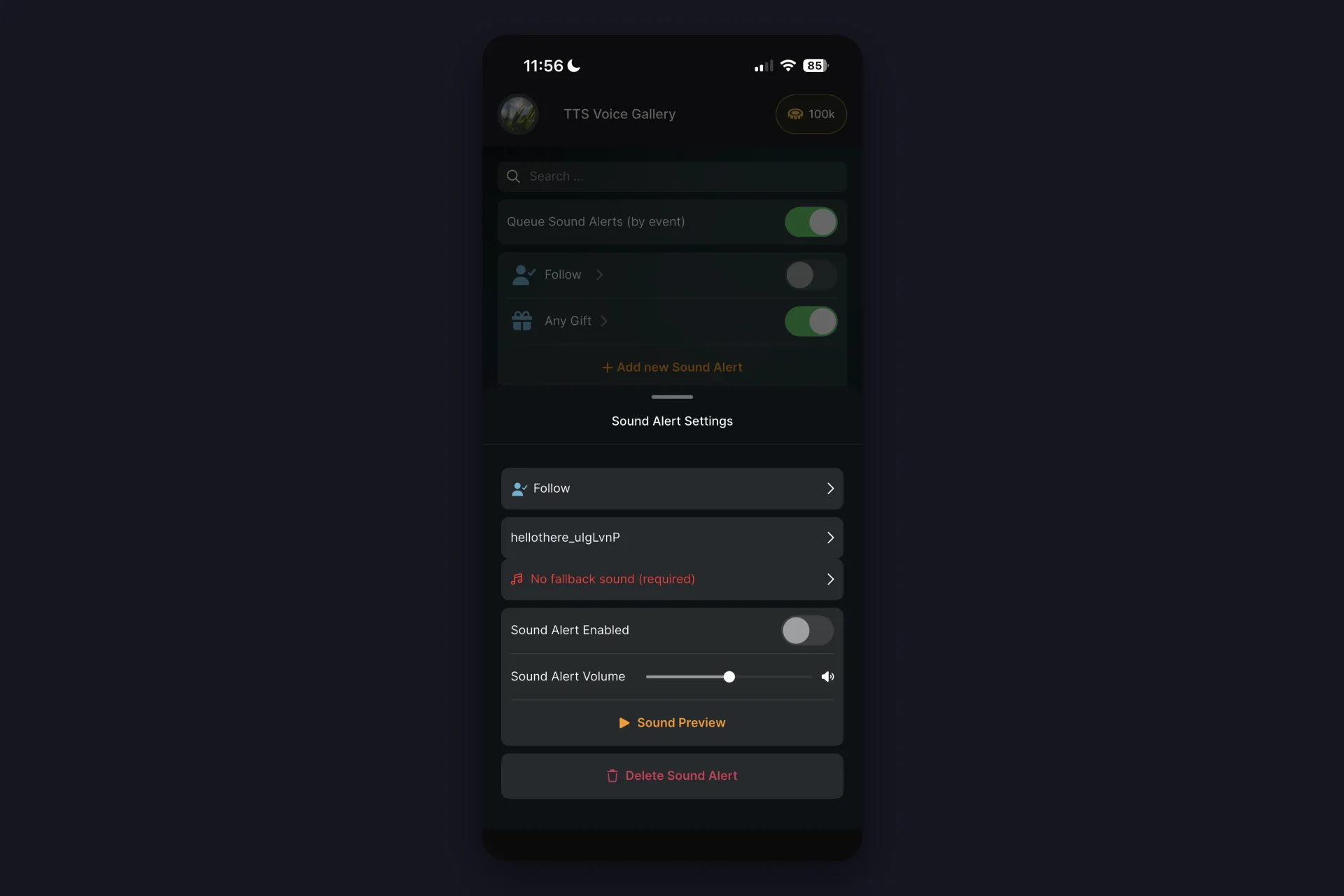
5 Switch Sound Alert Enabled on and set the volume.
6 Hit Sound Preview. If it makes you grin, it’ll make your viewers grin.
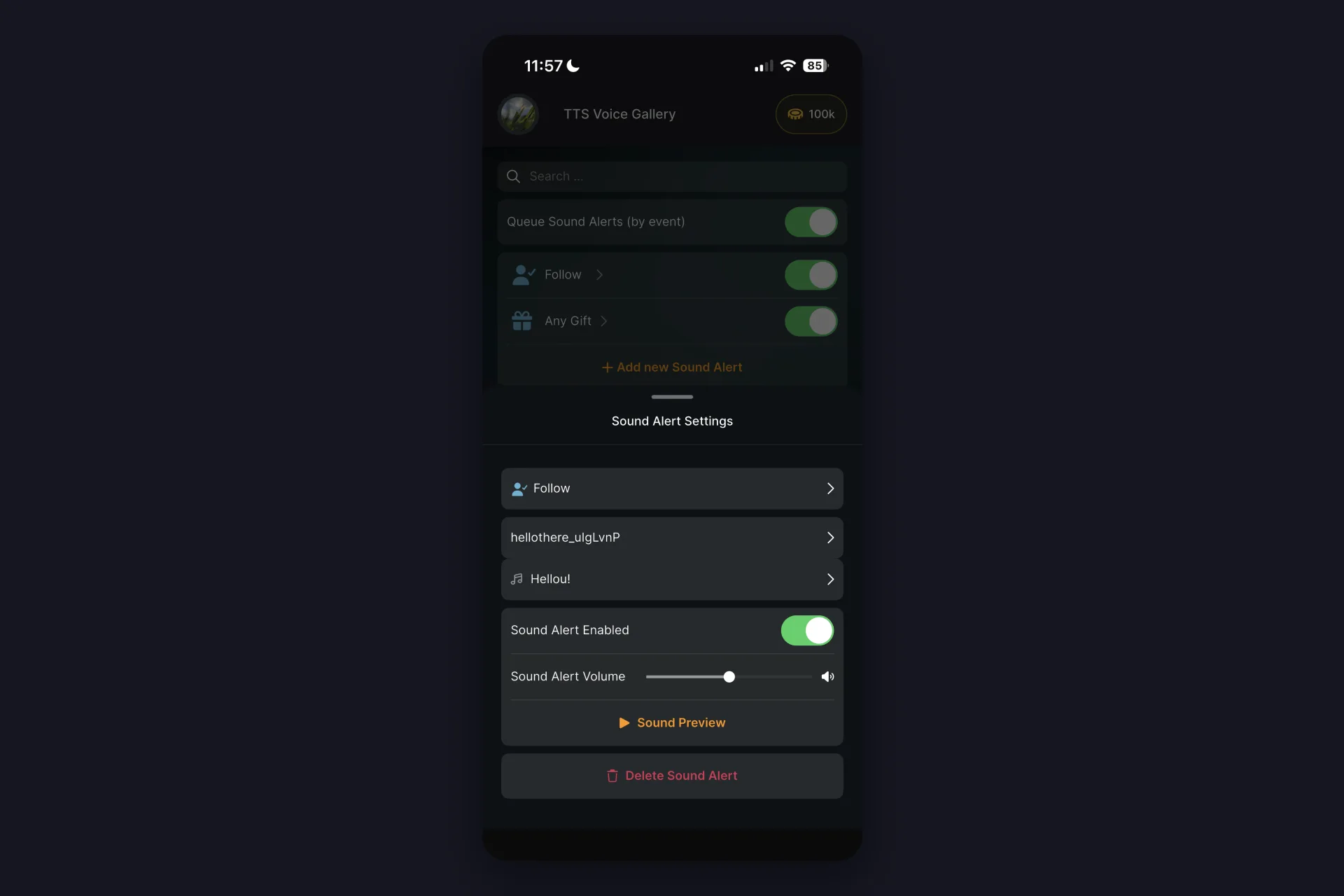
About that fallback: building your custom sound library is free for everyone, playing custom sounds live on stream is a TikFinity Pro feature. Without Pro, the fallback plays instead, so your alert always fires and nothing you set up is wasted.
Any Gift, Rose, and friends: same flow, new sounds
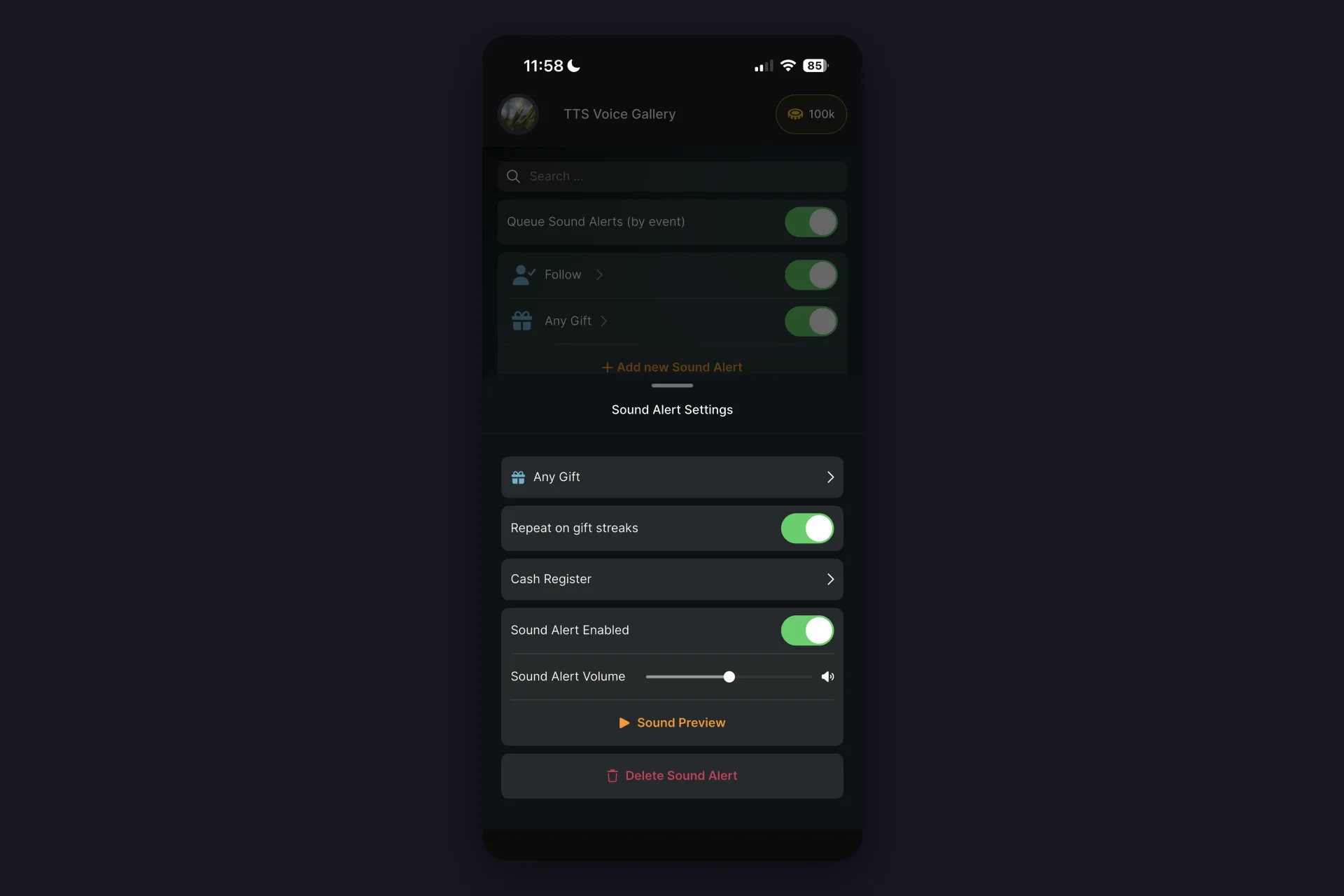
Any Gift works exactly like Follow, with one extra switch: Repeat on gift streaks. Leave it on and the sound fires again for every gift in a streak, which turns a gift spam moment into a little concert.
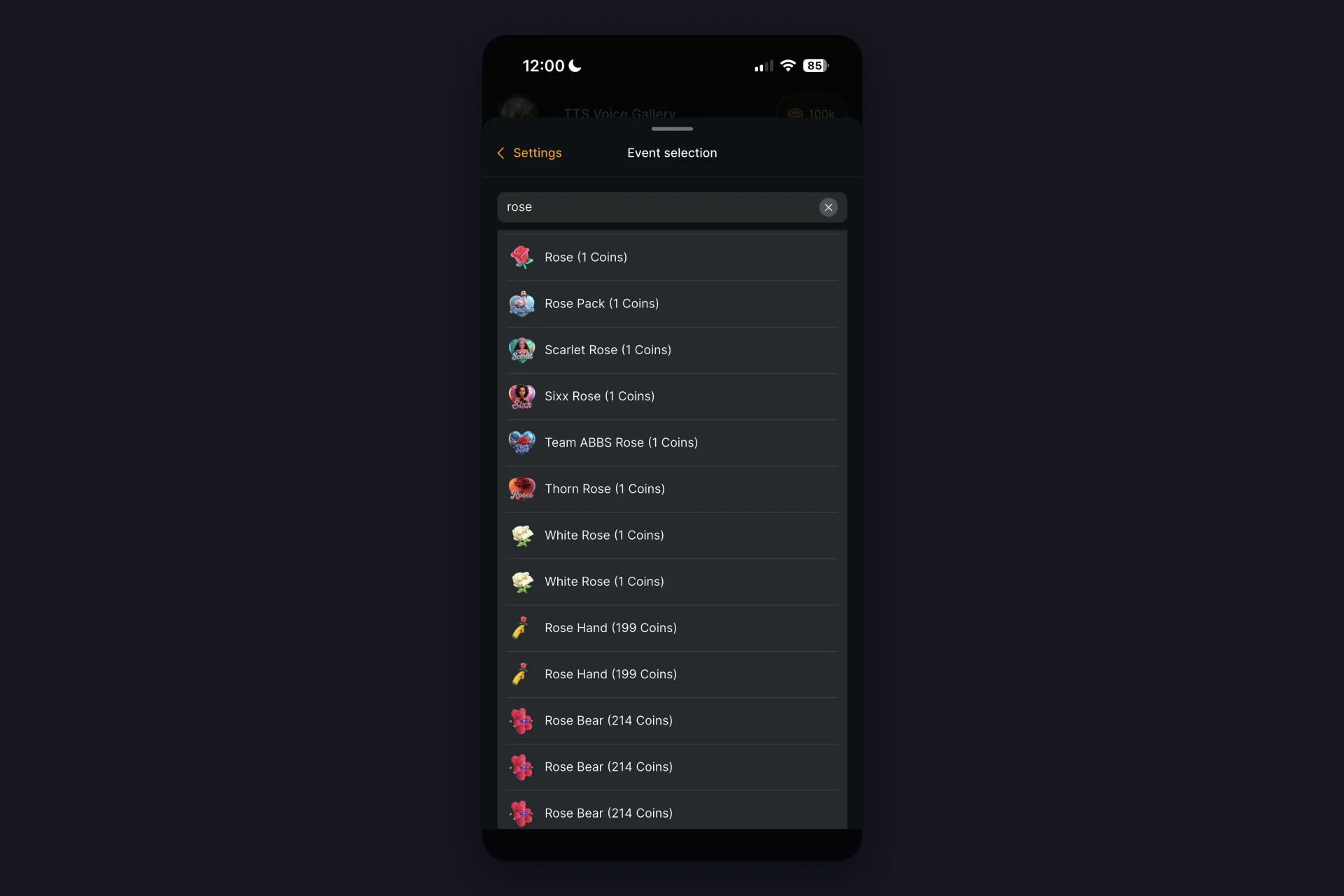
Specific gifts are where it gets personal. Tap Add new Sound Alert, and the event list shows Follow, Share, Subscribe, Viewer Joined, Any Gift, and then TikTok’s entire gift catalog, with a search on top. Type rose and you’ll find the Rose, Rose Pack, White Rose, Rose Bear and more. Every gift that’s available to you can carry its own sound, whatever you’d like to set up, you can.
That’s where communities get creative: a signature sound for the gift your top supporter always sends, a meme sound your chat quotes all day, a dramatic fanfare reserved for the really big gifts.
Viewer Joined: hear your supporters arrive
The Viewer Joined event plays a sound when someone enters your LIVE, and it’s the one event where specializing really pays off, because it has its own Allowed Users filter. Here’s a setup your top supporters will feel:
1 Add a Viewer Joined alert and give it a subtle sound, think soft water drop, not fanfare.
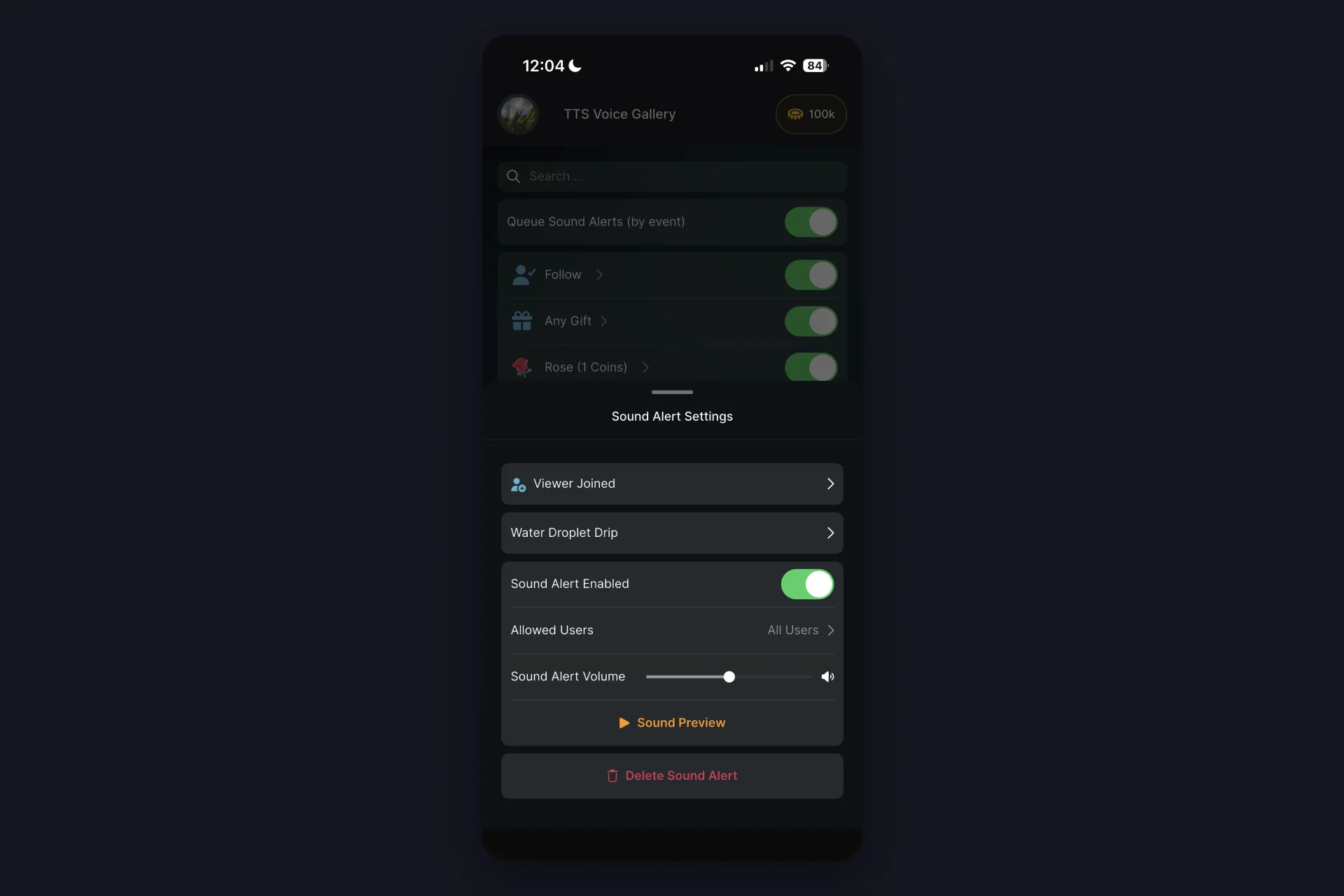
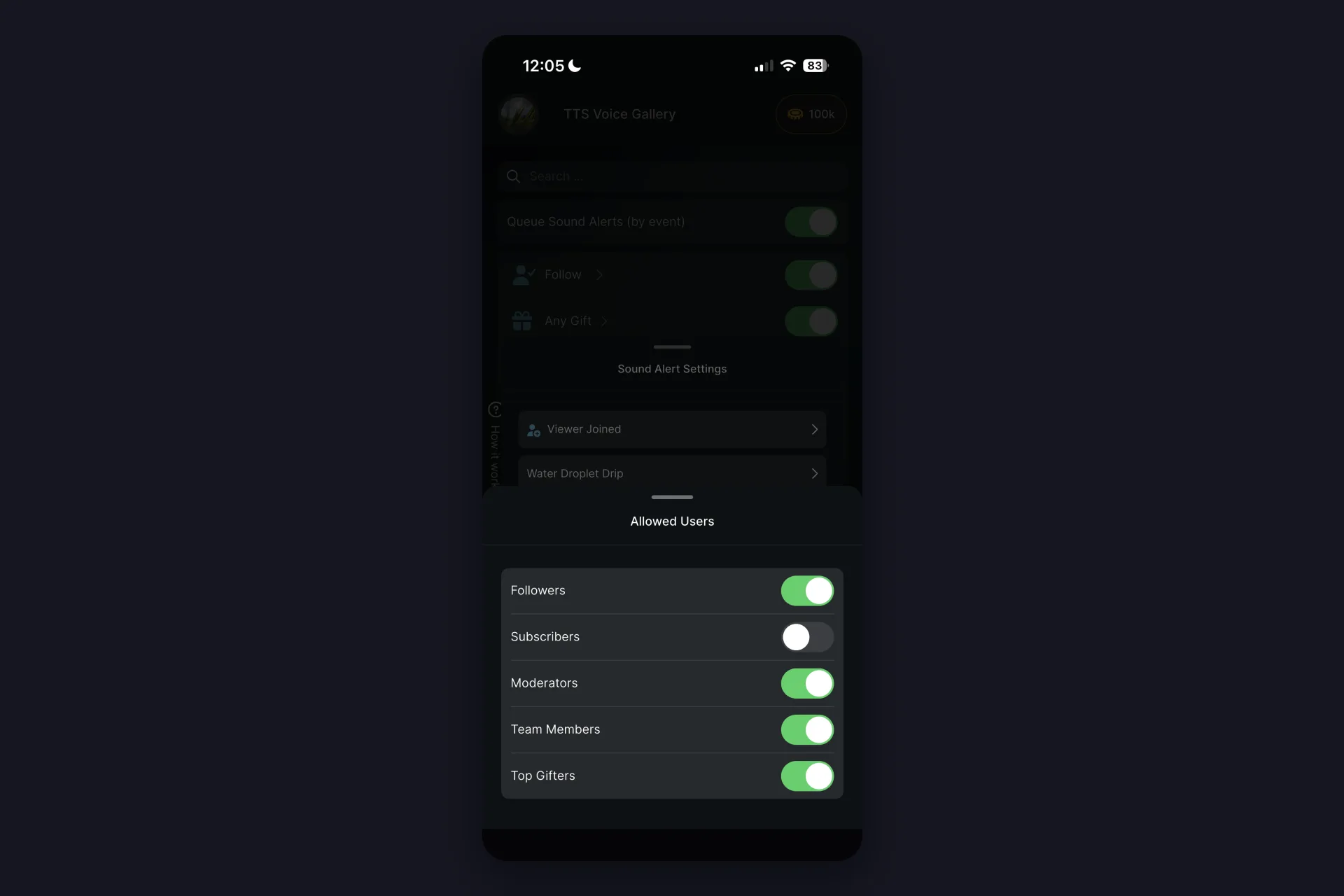
2 Tap Allowed Users and pick who triggers it: followers, moderators, team members, top gifters. Leave subscribers off, they’re about to get something better.
3 Now add a second Viewer Joined alert with a distinctive sound, and set its Allowed Users to subscribers only.
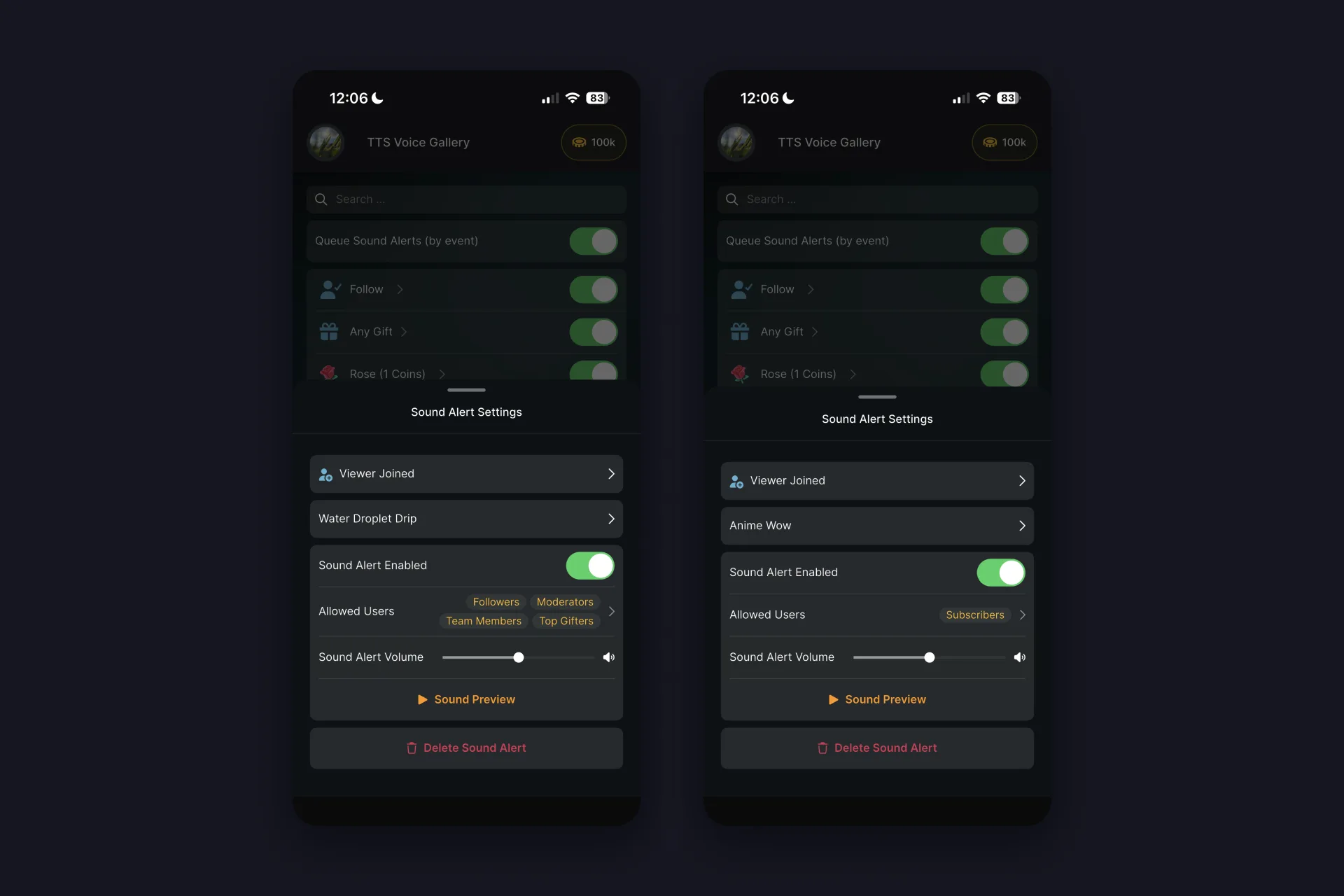
From then on you hear your supporters arrive without ever looking at the screen, and you instantly know which tier just walked in. And you can specialize further: a third alert just for moderators, a special one for your team, whatever fits how your community works.
The whole setup, in under five minutes
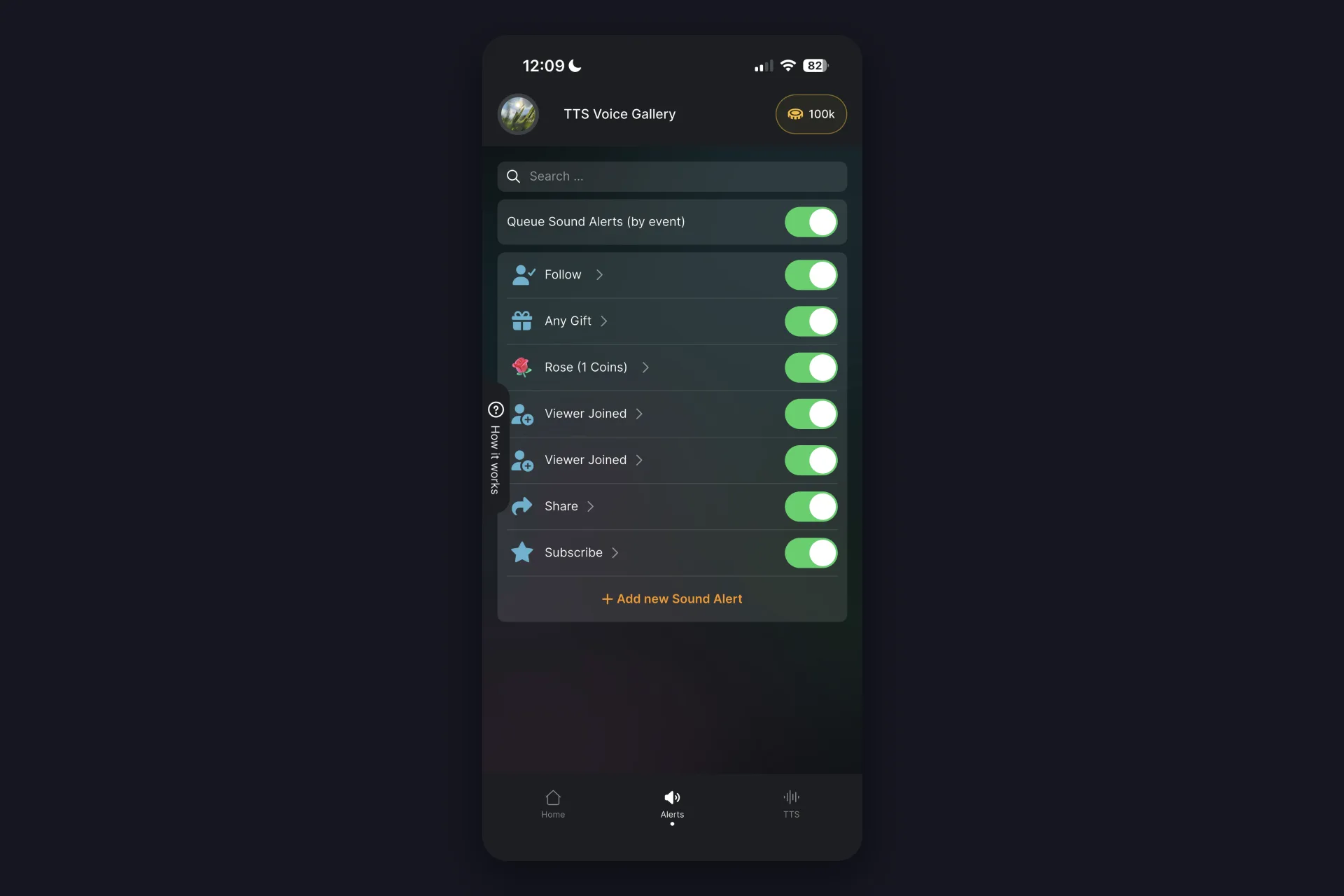
Follow, Any Gift with streak repeat, a Rose alert, two Viewer Joined tiers, Share, Subscribe: that’s a complete, personal alert setup, and building it takes less than five minutes. The free plan covers your first 3 alerts, TikFinity Pro removes the cap for setups like this one. The moment you go live, you’ll hear all of it.
Sounds are only half of it, by the way. If you want your chat messages, gift announcements, and even viewer joins read out loud too, that’s Text-to-Speech, and we cover it in our TikFinity Mobile TTS guide.
Extra tips: seen and heard, never too much
A few finishing touches that keep your alerts special:
- Volume as hierarchy: quiet sounds for frequent events like follows, louder ones for rare moments like subscribes
- Give the Share event its own sound, the people spreading your stream deserve a moment too
- Keep custom sounds short, two or three seconds layer beautifully, and the Queue Sound Alerts toggle makes sure busy moments play one after another instead of all at once
- Swap one sound every few weeks, a fresh sound gets your regulars talking again
Why sound alerts make gifters come back
Here’s the quiet truth about gifts on TikTok LIVE: nobody sends them for the pixels.
You react instantly, thank them by name, and the whole room hears it happen. And when a supporter knows their gift triggers their own sound, that gift becomes their move, their running gag, their seat at the table. That kind of belonging brings people back stream after stream, and it pays off directly in support.
Want the bigger picture on earning through LIVE? Our guide on how to make money on TikTok LIVE covers the whole journey.
Speakers or headphones? A small tactical choice
TikFinity Mobile plays your sounds out loud on the phone you’re streaming from. That gives you two setups, and both are legitimate:
Out loud on your phone. Your mic picks the sounds up, so your viewers hear every alert live. That’s free hype: chat hears the fanfare, asks what happened, and supporting you becomes a public event. Just keep the volume at a level where it doesn’t drown out your voice.
Headphones on. The alerts stay private, you react, and your stream stays clean. Good for calm formats, chatting streams, or anywhere loud sounds would break the mood.
There’s no wrong answer, and switching between the two takes two seconds. Many streamers let the phone play out loud on hype streams and switch to headphones for cozy ones.
What’s free and what’s Pro?
| What you get | Free | Pro |
|---|---|---|
| Sound alerts | 3 | Unlimited |
| Predefined sound library | Included | Included |
| Custom sounds | Set up only, standard sounds play | Your own sounds play on stream |
If you want to see the pricing, just have a look in the app. And a heads-up before you buy: the mobile subscription is separate from TikFinity Pro on desktop, neither one unlocks the other.
When a sound doesn’t play
Alerts are simple machines, so the fixes are simple too. Run through this list:
✅ Phone isn’t on silent and the volume is up
✅ The alert’s own toggle is switched on
✅ You hit Start Sound Alerts & Text-To-Speech before going live
✅ You’re live with a public stream, TikFinity can’t read private streams
✅ The app is updated to the latest version
Still quiet after all five? The app has a built-in way to contact support, they’ll sort you out.
Give your community its own sound
Somewhere in your community there’s a moment waiting for its soundtrack: the regular who never misses a stream, the gift that has a story, the running gag everyone’s in on. Give it a sound today, and the next time it happens, everyone will hear how much it means. Five minutes of setup, and your stream will never feel silent again.
Download TikFinity Mobile now →
Streaming from a PC with OBS or TikTok LIVE Studio? Then visual alerts are on the menu too, our guide on how to set up TikTok alerts covers that whole world.
FAQs about TikFinity Mobile sound alerts
Yes. You can add, preview, and organize your own custom sounds for free, straight from your phone’s files. Playing them live on stream is a TikFinity Pro feature; without Pro, a standard sound from the free library plays instead, so your alert always fires.
The free plan includes 3 sound alerts, which covers the classics like Any Gift, Follow, and one special event. TikFinity Pro removes the limit, so every gift can get its own sound.
Yes. Besides the Any Gift event, you can create an alert for one specific gift and pick it from TikTok’s catalog, there’s a search in the app because the list is long. Your top supporter’s favorite gift deserves its own fanfare.
Only if you want them to. The sounds play out loud on your phone, so without headphones your mic picks them up and the whole stream hears every alert, which can be great hype. With headphones on, they stay just for you.
Yes, but that’s a separate setup. TikFinity for desktop handles custom sounds in its Sound Alerts section and adds visual overlays on top, our TikTok alerts guide covers it. The mobile app and its subscription are independent from desktop.