You just got your first gift on TikTok LIVE and completely missed it. That stings, because the viewer who sent it was watching whether you’d react. TikTok alerts fix exactly that: they pop up on your stream the moment someone sends a gift, follows you, or subscribes.
What are TikTok alerts?
A TikTok alert is a small animation or sound that appears on your stream when a viewer does something. Someone sends a Rose, your screen celebrates it. Someone follows, everyone sees it. You’ll also see them called TikTok LIVE notifications: a follower notification when someone taps follow, a like notification when the hearts come in, a gift alert for every Rose.
In the TikTok app these events mostly live in the chat feed, where they scroll away in seconds. Alerts put them front and center, so the viewer gets their moment and the rest of your community sees that supporting you is worth it.
You can trigger alerts for pretty much anything on TikTok LIVE:
- Gifts (from a single Rose up to big gifts like the Lion)
- New followers
- New subscribers
- Shares and likes
- Viewers joining your LIVE
What you need before you start
Alerts are overlays, so they need a streaming setup that supports browser sources. That means you stream from a PC with OBS, Streamlabs, or TikTok LIVE Studio.
If you’re new to PC streaming, set that up first. Our guide on how to stream on TikTok with OBS walks you through it step by step.
Streaming only from your phone? Then visual alerts aren’t available, but sound alerts still work through the TikFinity Mobile app. More on that below.
How to set up TikTok alerts with TikFinity
TikFinity is made for exactly this: it reads your LIVE events and turns them into TikTok LIVE alerts you fully control, from the animation to the sound to what triggers it. Free alerts are ready to go, and TikFinity Pro unlocks more options when you want them. The whole setup looks like this:
Prefer watching? The quick video guide
Here’s the whole Actions & Events setup in under a minute, using a follow alert as the example:
@tikfinity.official Here is a tutorial on how to add Action Triggers to your TikTok LIVE! 😎 In this example we will be using “Follow” as a trigger but you can use many others, like: comments, shares, likes or even specific gifts 🚀 #TikFinity #Tutorial
♬ som original – TikFinity – TikFinity
Want it in more detail? The written steps below walk you through every screen.
1. Connect your TikTok account
Open TikFinity in your browser and register or log in. Then enter your TikTok @handle (not your display name) if you haven’t before, so TikFinity can connect to your LIVE. TikFinity never asks for your TikTok password, it reads your public LIVE events.
2. Build your alert in Actions & Events
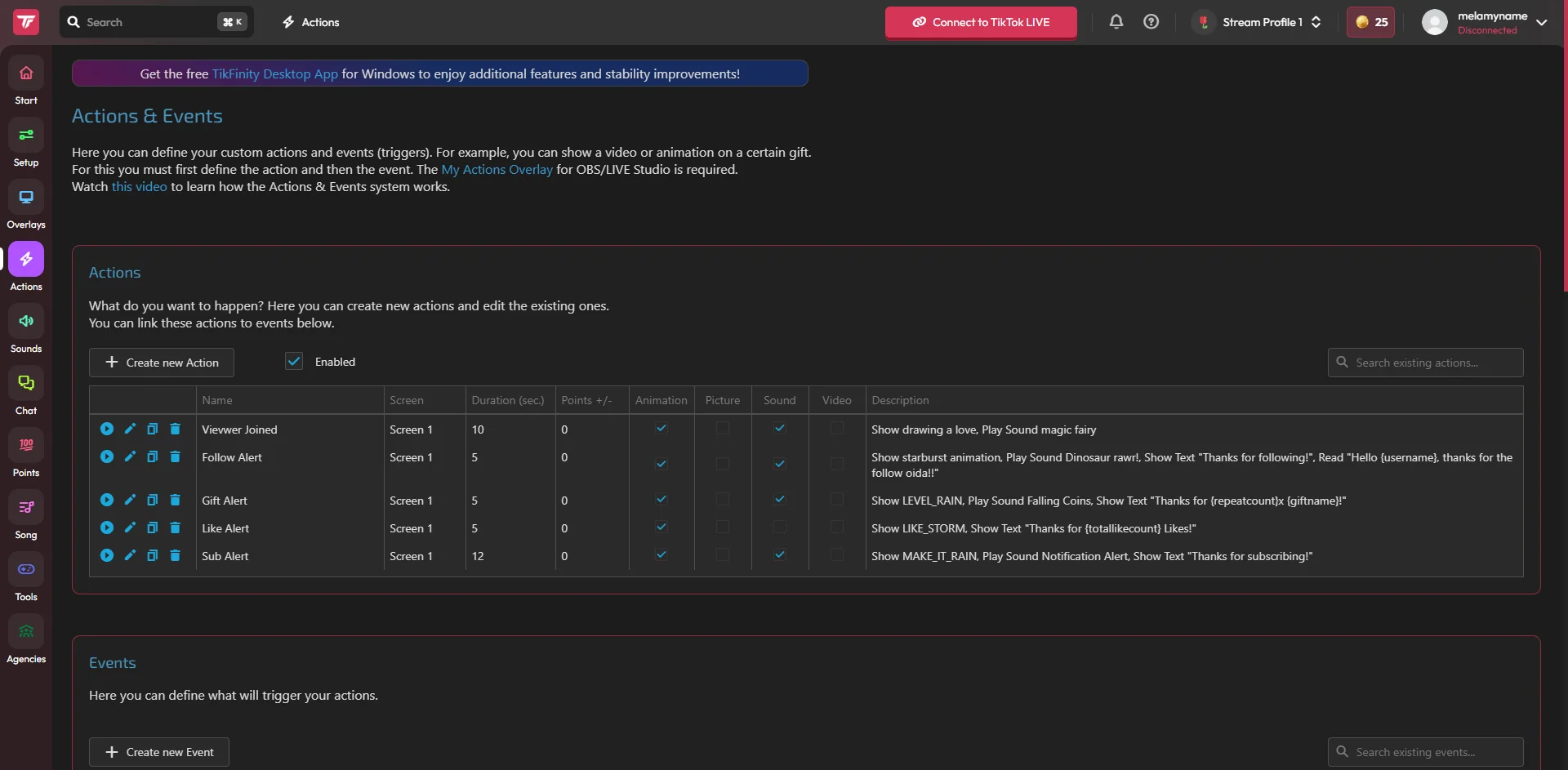
Head to Actions & Events. This is where your alerts live: you first define an action (what happens, like a GIF with a sound) and then the event that triggers it (for example a specific gift).
There are predefined alerts to start from, and you can attach almost anything: animations, videos, sounds, Text-to-Speech, chatbot messages and more. The setup that gets you the most for the least effort: a GIF plus a sound.
3. Add the overlay to your broadcasting tool
To make your actions visible on stream, you need at least one overlay screen. Scroll down to the Overlay Screen Settings on the Actions & Events page and copy a screen URL.
In OBS: under Sources hit +, choose Browser, paste your link. In TikTok LIVE Studio: Sources, then Link, paste the same URL, done. Streamlabs works like OBS, TikTok alerts run as a browser source there too.
4. Test it without going live
No need to wait for your next stream. Right on the Actions & Events page, hit the play button on your action or use the Event Simulator at the bottom to fire a fake gift or follow, and you’ll see and hear exactly how your alert lands.
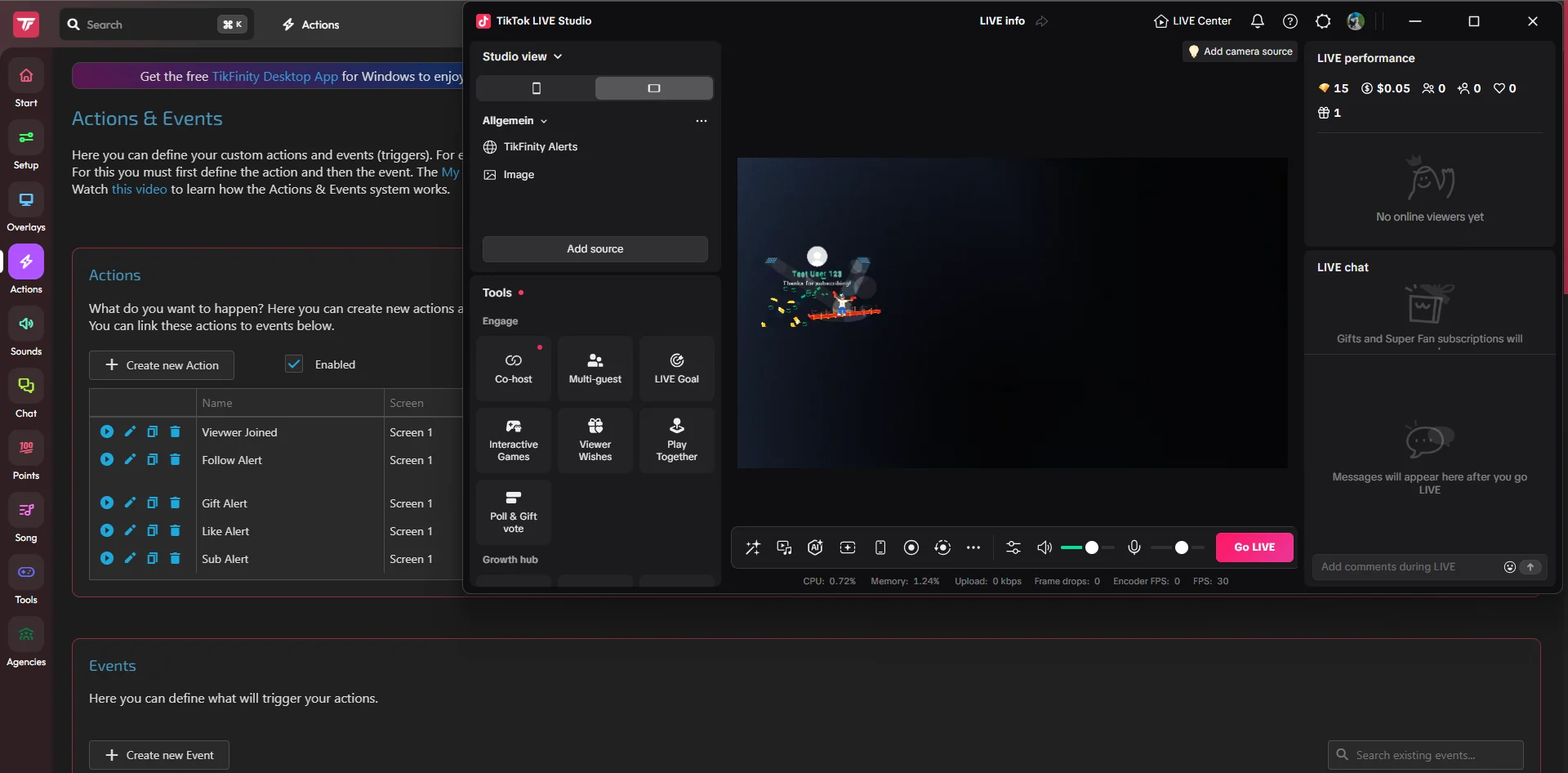
Once it looks right, position and resize the overlay in your scene so it never covers your face or the chat.
Add sound alerts so you never miss a gift
Visual stream alerts are easy to miss when you’re focused on your game or your chat. Sounds solve that, and you have two ways to get them.
The quickest is the Sound Alerts section: the easiest way to play a sound when someone sends a gift, follows, or subscribes. Map different sounds to different events, a soft ping for follows, a big fanfare for large gifts. Free accounts get 5 sound alerts, TikFinity Pro removes the limit.
If you’re building in Actions & Events anyway, you can pick sounds right there too and attach them to your action, so animation and sound fire as one alert. Best fit for OBS and LIVE Studio setups that want more advanced options.
Mobile TikTok alerts: hear every gift on your phone
Streaming straight from the TikTok app? Overlays are off the table there, but alerts aren’t.
TikFinity Mobile is a dedicated app built for phone streamers. Install it on your phone, log in, enter your TikTok handle, and set up your alerts. Then hit the Start Sound Alerts & TTS button.
From that moment the app listens in the background: as soon as you tap Go LIVE on TikTok, your sounds and TTS trigger on your phone. You react to every gift in real time, no PC needed.
The app has its own settings, so you set it up once and you’re done.
Make your alerts work harder
Once the basics run, a few tweaks get you more out of every alert:
✅ Thank people by name. The alert shows who sent the gift. Say their name out loud, or let Text-to-Speech do the talking so no supporter slips past you. It’s the single best way to get a second gift.
✅ Scale the celebration. Small gift, quick thanks. Big gift, big reaction. Viewers notice the difference.
✅ Pair alerts with goals. A gift goal overlay next to your alerts shows viewers what they’re contributing to.
✅ Go further with Actions & Events. TikFinity can trigger almost anything from a gift: switch your OBS scene, activate a source, set your Voicemod voice, start a Streamer.bot action, kick off a challenge, or fire a custom animation.
Alerts turn passive viewers into active supporters, and that feeds directly into your earnings. If you want the bigger picture, read our guide on how to make money on TikTok LIVE.
Set up your first alert today
You don’t need a big setup or a paid tool to get started. Register with TikFinity, build one action with a GIF and a sound, drop the overlay screen into OBS or LIVE Studio, and hit the Event Simulator to watch it pop. If alerts are all you want, you’re done in five minutes.
And there’s plenty more waiting on the same page: challenges, scene switches, whole gift-triggered shows. The more interactive your LIVE, the longer people stay, because viewers love streams that react to them. The next Rose fills your screen, and the gift after that is already on its way.
Want your whole stream to feel more alive? Combine alerts with Text-to-Speech for your chat and let your viewers hear themselves on stream.
FAQs about TikTok alerts
Yes. TikFinity’s alert overlays and sound alerts are free to use. The free plan includes 5 sound alerts; TikFinity Pro removes that limit and adds premium overlays.
Visual overlays need a PC setup, but sound alerts work on mobile. Use the TikFinity Mobile app and you’ll hear every gift, follow, and more while streaming from the TikTok app.
TikTok alerts in OBS or Streamlabs only go active once the screen URL is added as a browser source, and TikTok LIVE Studio alerts need it as a link source. If it still shows offline, double-check that you entered your TikTok @handle (not your display name) and that you’re live.
Only if you want them to. The sounds play out loud on your phone, so without headphones your mic picks them up and your viewers hear every alert and TTS message. Prefer to keep them to yourself? Stream with headphones on.
No. You register a TikFinity account, but TikTok itself is connected with your @username only. TikFinity reads your public LIVE events like gifts, follows, and chat, and never asks for your TikTok login.
Yes. You can map separate sounds and animations to specific events, and with Actions & Events you can give big gifts their own special trigger, like a scene change or a custom animation.