
Picture your last LIVE: you’re mid-story, chat is flying, and somewhere in there someone sent a Rose you never saw. On a phone stream there’s no second monitor to catch it for you. That’s the gap the TikFinity mobile app closes: a sound plays the second someone sends a gift, and a TTS message can thank the gifter by name, so you know who it was without taking your eyes off the stream.
What is the TikFinity mobile app?
TikFinity Mobile is a dedicated app for TikTok LIVE creators who stream straight from their phone. It comes from the same team as TikFinity for desktop, but it’s its own app with its own settings and its own subscription.
At its core you get two features, both working completely without a PC:
- Sound alerts for the events you care about: a follow, a share, a subscribe, a viewer joining, or any gift. You can even react to one specific gift, and since TikTok has a huge catalog of them, there’s a search to find exactly the one you want.
- Text-to-Speech in two flavors: TTS Chat reads your viewers’ messages out loud and can greet new viewers by name the moment they join, TTS Gifts announces incoming gifts. Each brings its own voice and filter settings.
The interface is built for exactly that and nothing else: connect your account, pick your sounds, hit start. You set it up once, then it just rides along with every stream. Half a million creators have already downloaded it.
Download TikFinity for Android or iOS
Get the app from Google Play for Android or the App Store for iPhone. Both buttons also sit on the TikFinity Mobile page if that’s easier to find later.
You might spot TikFinity APK files on random download sites too. The two official stores are the only sources we can vouch for, and they keep your app updated automatically.
Set up TikFinity Mobile in five steps
The whole setup happens inside the app, and honestly, the coffee you make first will take longer than setting up your stream. Here’s the path from install to your first alert.
1. Install and open the app
Download it from your store, open it, and you’re looking at the start screen. That’s it for step one.
2. Log in with Apple or Google
One tap with your Apple or Google account creates your TikFinity login. The app never asks for your TikTok password, at no point in the setup.
3. Connect your TikTok account
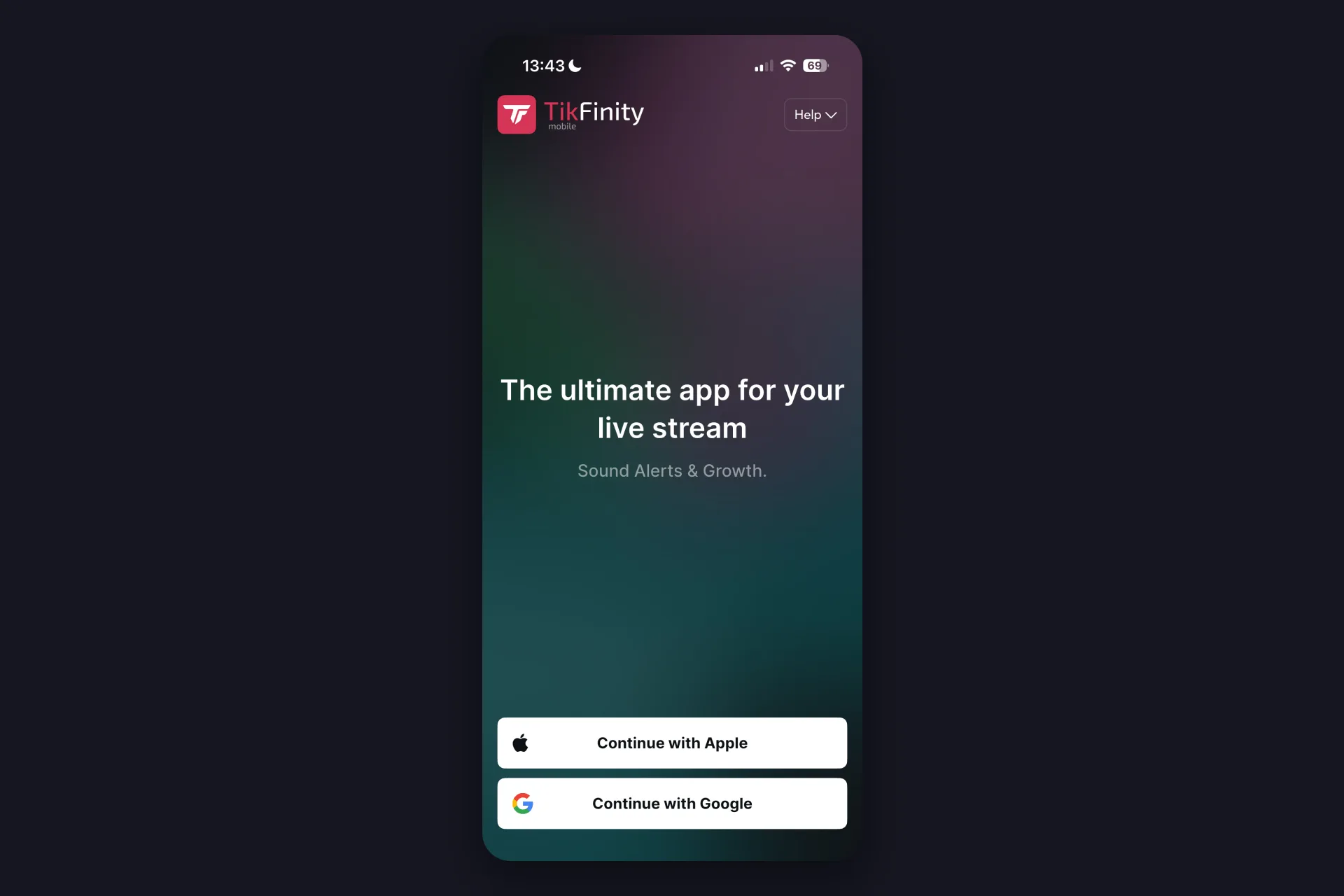
The app asks for your TikTok username the first time you log in. Type in your @handle, not your display name. That’s how TikFinity knows which LIVE to listen to, and you can also skip this for now and add it later.
One requirement: your TikTok account needs to have been LIVE at least once, otherwise TikFinity can’t connect to it. More on that in the FAQ below.
4. Check your first alert
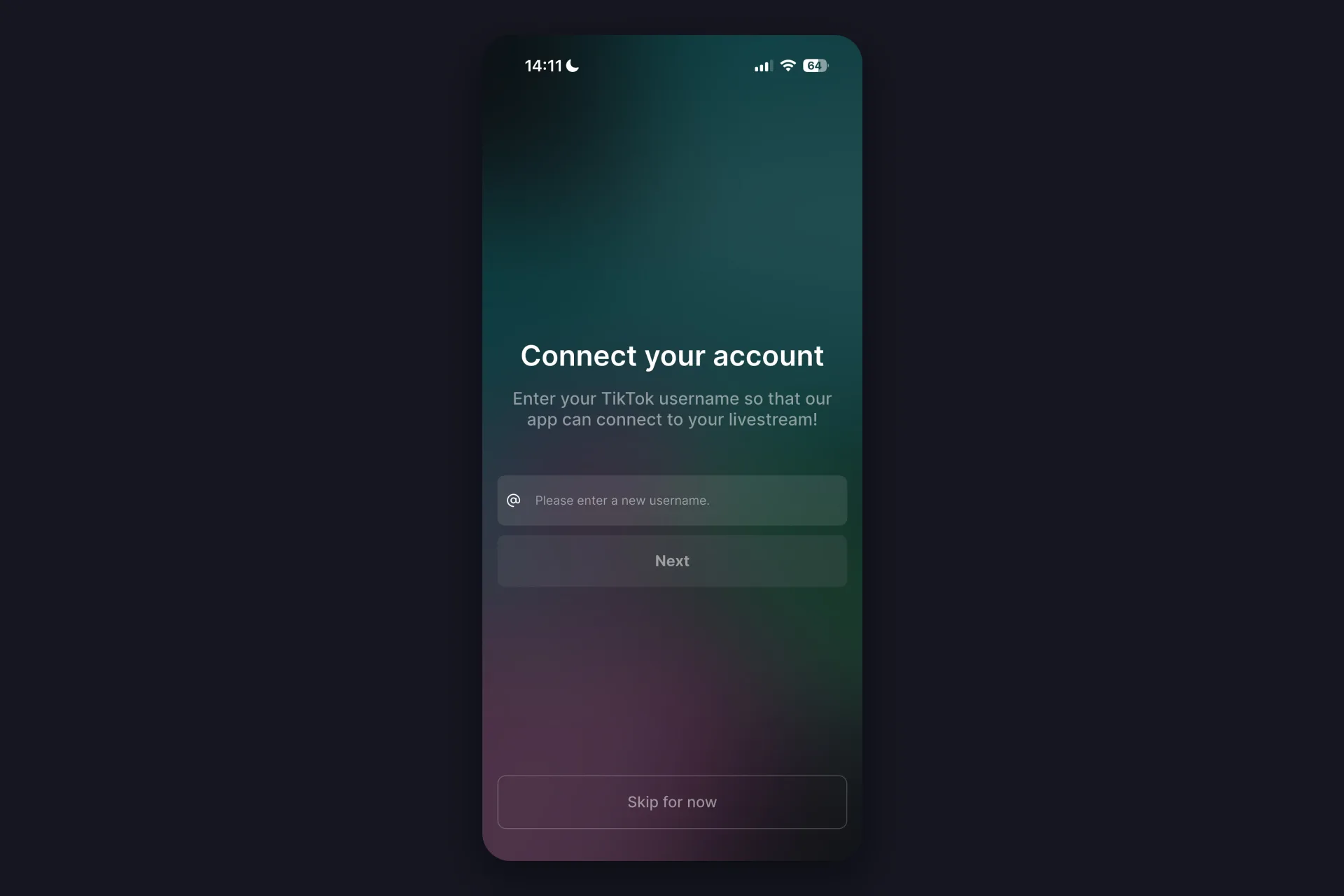
The app starts you off with two presets, Any Gift and Follow, and both are already switched on. Tap one if you want to change the sound or the volume, and hit Sound Preview to hear it. Via Add new Sound Alert you can cover more events like a subscribe, a viewer joining, or one specific gift, say a Rose. The free plan gives you 3 sound alerts, which is plenty to start with.
Want your own sounds on stream? You can upload custom sounds for free; playing them live is a Pro feature, and without Pro a standard sound plays instead, so your alert still fires. For the full tour, our custom sound alerts guide goes deep.
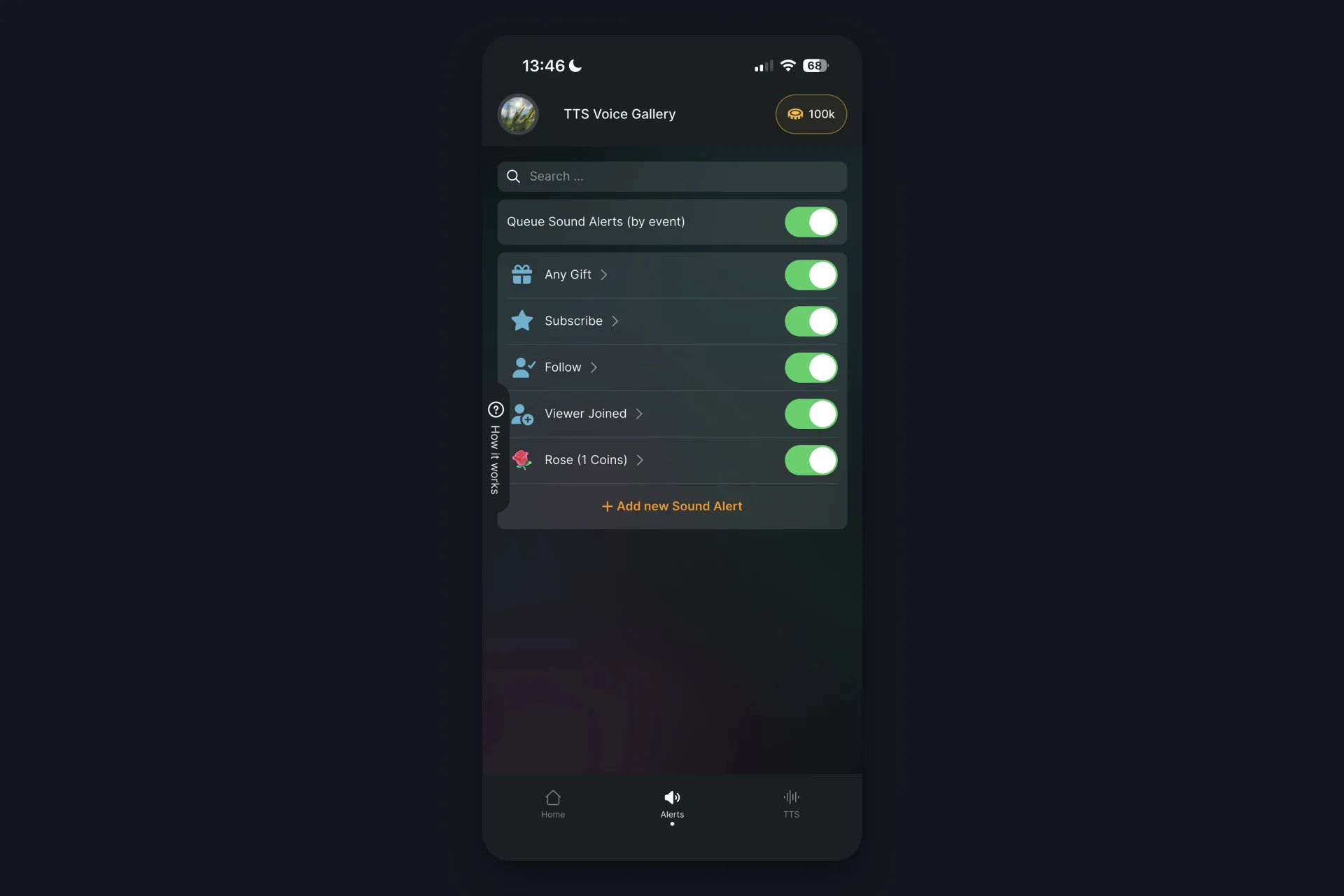
5. Switch on TTS
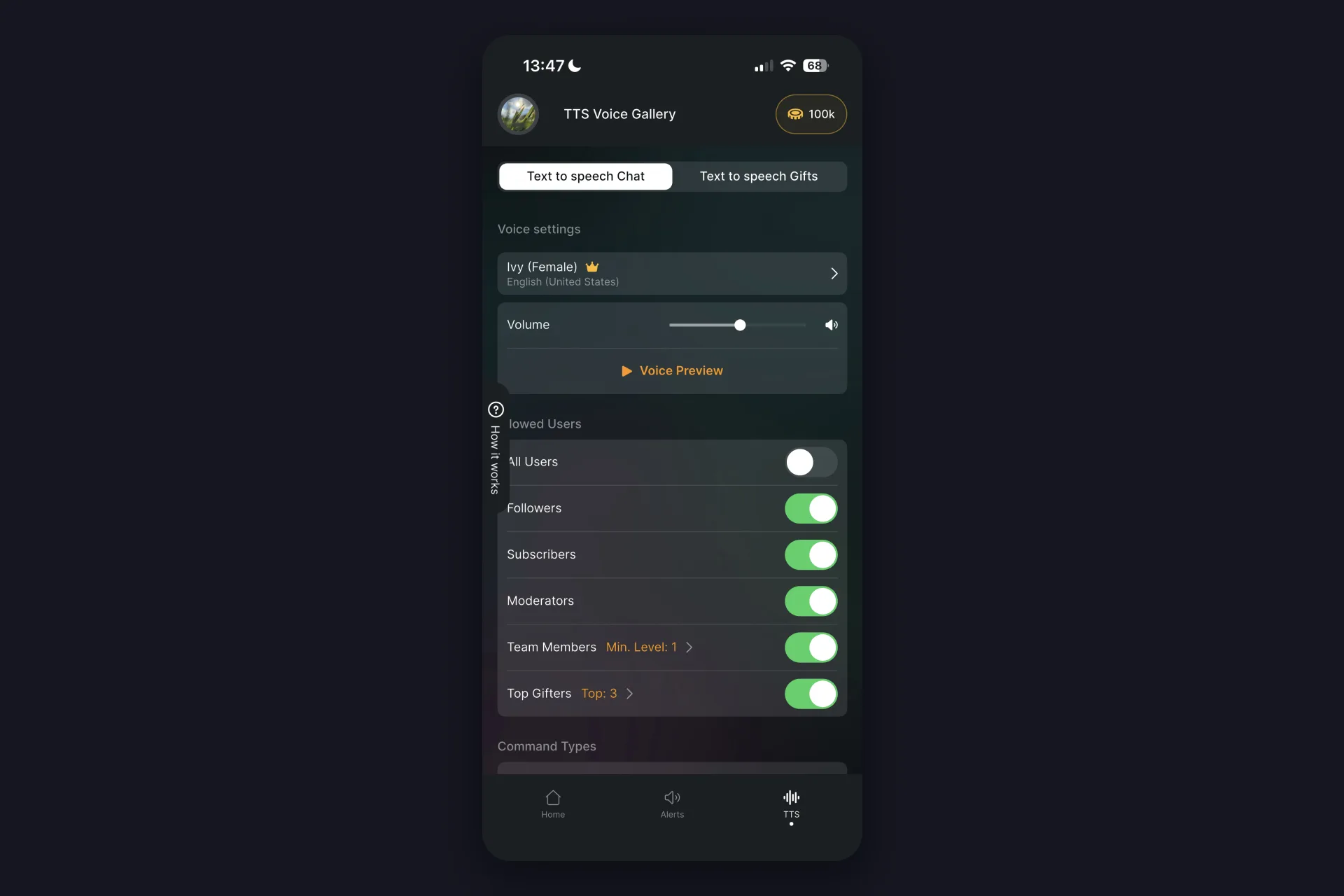
Enable Text-To-Speech if you want your chat read out loud during the stream. TTS Chat and TTS Gifts each have their own tab: pick a voice, set the volume, and decide whose messages count, everyone, or just followers, subscribers, moderators, team members, or top gifters. There’s a welcome twist too: turn on Join Announcements and the app greets viewers by name the moment they join, once per viewer.
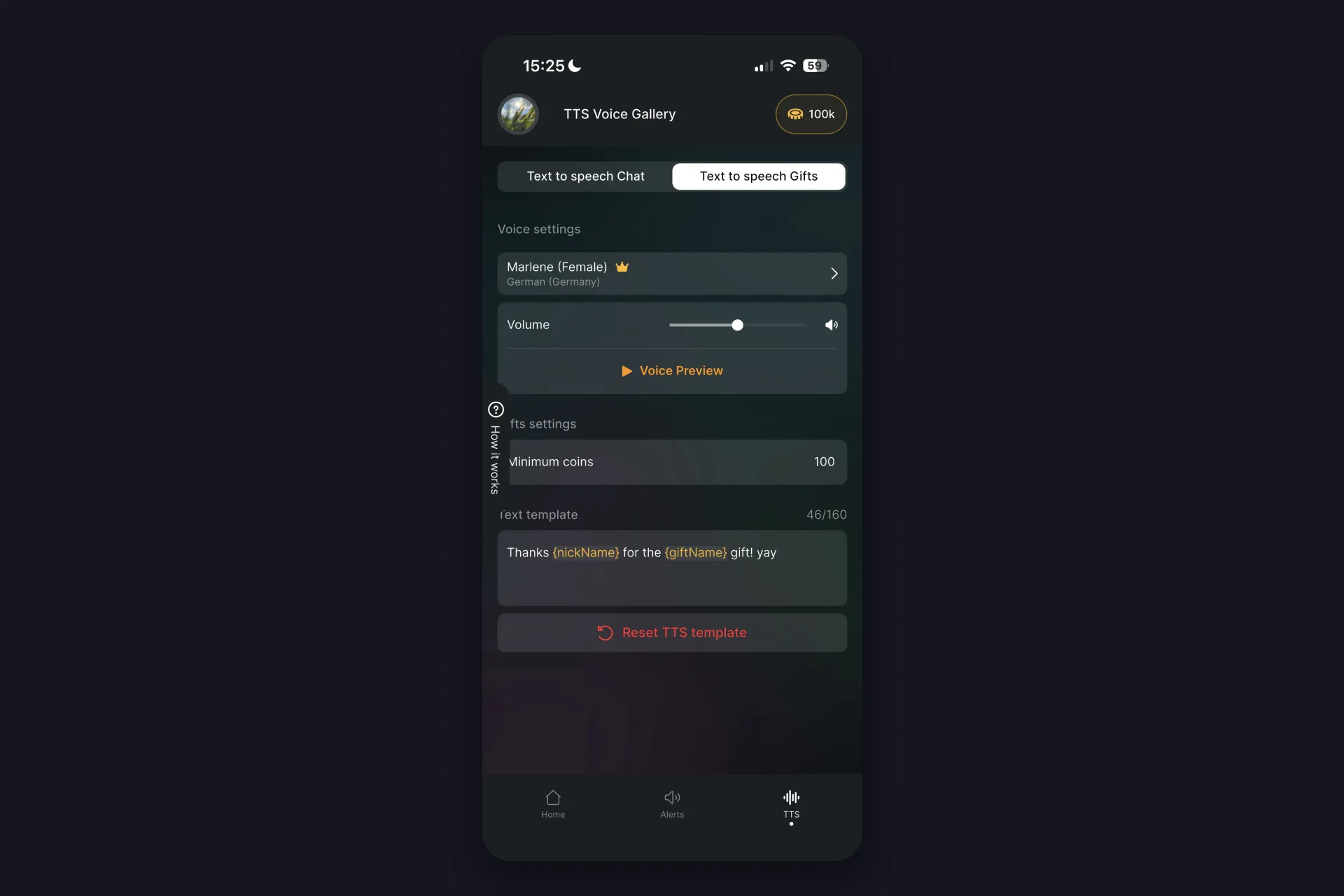
TTS Gifts works the same way and adds a minimum gift value, so the voice only fires for gifts that deserve a shout-out. You can tweak the spoken templates too. Everything about voices, AI Voices and credits lives in our TikFinity Mobile TTS guide.
That’s the setup. Quick check before you go live:
✅ Logged in with Apple or Google
✅ TikTok @handle connected
✅ At least one sound alert active
✅ TTS set up the way you like it
How to go live with TikFinity Mobile
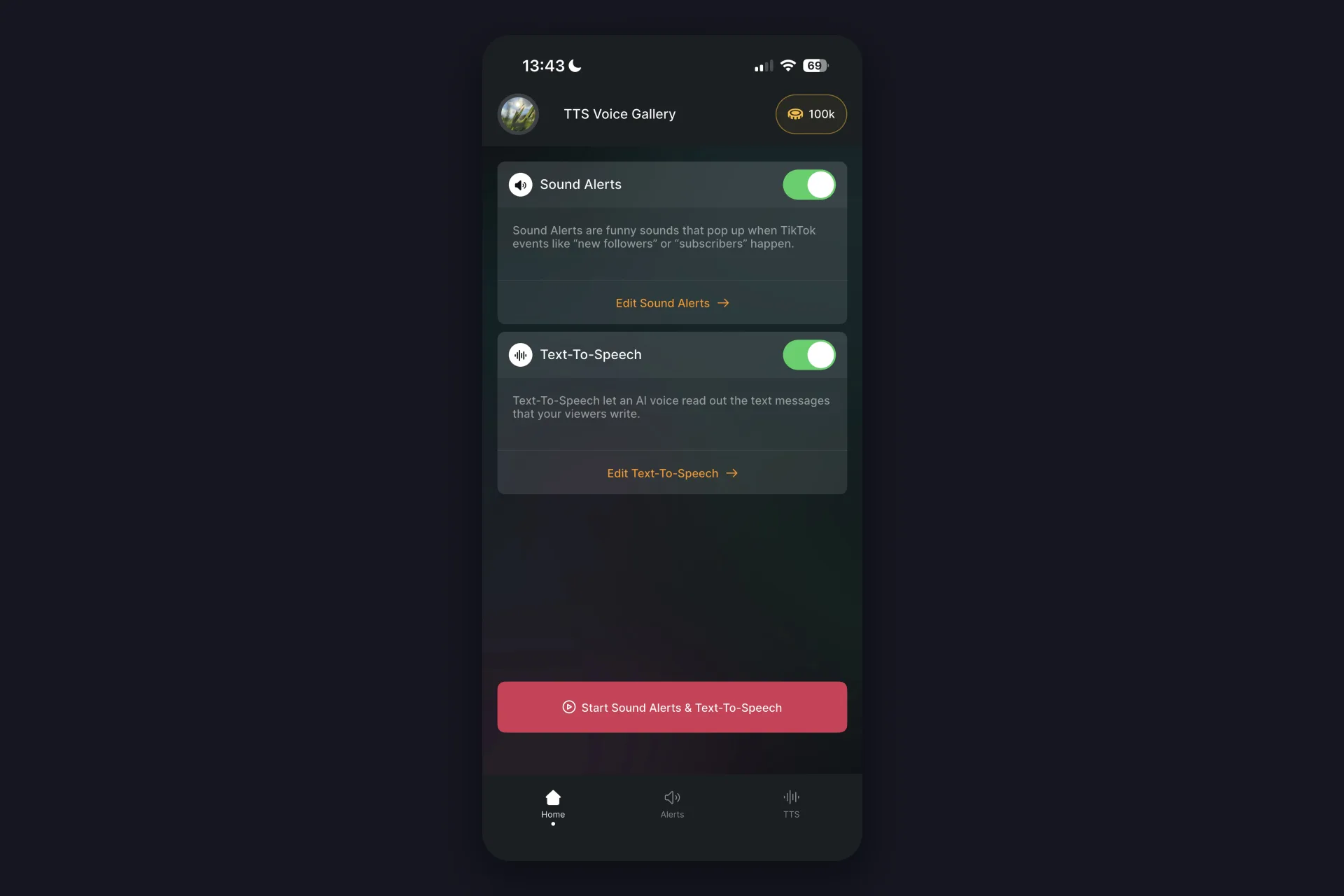
Back on the home screen, hit the big Start Sound Alerts & Text-To-Speech button. Then switch over to TikTok and go LIVE exactly like you always do, nothing changes on that side.
TikFinity keeps running in the background and listens to your LIVE through your public @handle: gifts, follows, chat messages. The moment something happens, you hear it, exactly the way you set it up.
The first time it happens live is a small moment: the sound pops mid-sentence, you glance at your phone, and you get to thank someone by name while they’re still watching. That’s the whole point of alerts.
New to streaming from your phone in general? Our guide on how to go live on TikTok on your phone covers the TikTok side of things.
What’s free and what’s Pro?
You can start streaming with alerts today without paying anything. TikFinity Pro removes the limits once your streams grow.
| What you get | Free | Pro |
|---|---|---|
| Sound alerts | 3 | Unlimited |
| TTS chat messages | 75 per day | Unlimited |
| Custom sounds | Set up only | Your own sounds play on stream |
| Premium AI voices | Not included | 100,000 credits per month |
If you want to see the pricing, just have a look in the app. And one thing to know before you buy: the mobile subscription is separate from TikFinity Pro on desktop, neither one unlocks the other.
Start your first mobile alert today
Be honest: you’ve spent longer picking a stream title than this setup takes. Install the app, log in, drop in your @handle, and a gift alert is already waiting for you. So why not try it before your next LIVE?
Somewhere in that stream, someone will send their first Rose. This time you’ll hear it, and they’ll know you did.
Streaming from a PC too? Then TikFinity for desktop has the full toolbox waiting: visual overlays, custom animations and more. Start with our guide on how to set up TikTok alerts, and if you like TTS on mobile, you’ll love Text-to-Speech on your desktop stream as well.
FAQs about the TikFinity mobile app
Yes, and you can stay on the free plan as long as you like: 3 sound alerts and 75 TTS messages a day are on the house. TikFinity Pro removes those limits and adds premium AI voices once your streams ask for more.
Yes. You install it from the official App Store or Google Play, log in with your Apple or Google account, and connect TikTok with nothing but your public @handle. TikFinity never asks for your TikTok password.
iOS and Android, so whichever phone you stream from is covered. There’s also TikFinity for desktop, a separate web-based tool with overlays and widgets for PC setups.
No, and we get that this one stings a little. TikFinity Mobile is its own app with its own subscription, so Pro on desktop stays on desktop and mobile Pro stays on mobile.
Your app isn’t broken, promise. TikTok accounts need to have gone LIVE at least once before TikFinity can connect to them, so if yours never went live, the app shows an error when you enter your username. Go live once, come back, and it’ll click right in.
That’s TikTok’s side, not TikFinity’s. LIVE access has its own requirements, like a minimum age and a follower threshold. Our guide on TikTok LIVE requirements walks you through what you need and what to do if the LIVE button is missing.
No, that’s the whole idea. You stream from the TikTok app, and TikFinity Mobile handles sounds and TTS right on the same phone. A PC with OBS or TikTok LIVE Studio only comes into play when you want visual overlays.
First check the basics: your phone isn’t on silent and the volume is up. Then make sure you’re live with a public stream, TikFinity can’t read private streams. Still quiet? The app has a built-in way to contact support, they’ll sort you out.