A Christmas overlay doesn’t need a designer or a free weekend. Most of it is already sitting in TikFinity, and most of it doesn’t cost a thing. A free snow overlay you switch on with one link, Santa and Christmas tree animations for your alerts, a sound library full of bells. This guide puts those pieces together into a free Christmas overlay for your TikTok LIVE, and adds stream ideas for the days when the look is done and you still need a plan.
You’ll need TikFinity connected to your TikTok account. If that’s still open, our setup guide takes care of it first.
Your Christmas setup at a glance
✅ A separate stream profile for Christmas (TikFinity Pro)
✅ Falling Snow as your snow overlay (free)
✅ A Santa alert with bells for gifts (free)
✅ Snow that starts when a viewer sends a gift (OBS Studio)
✅ A goal your chat fills together (free)
✅ A Santa voice that reads your chat (free daily quota, all stream long with Pro)
⬜ Decorations, outfit and a plan for the stream itself
Start with a Christmas profile, so your normal setup stays safe
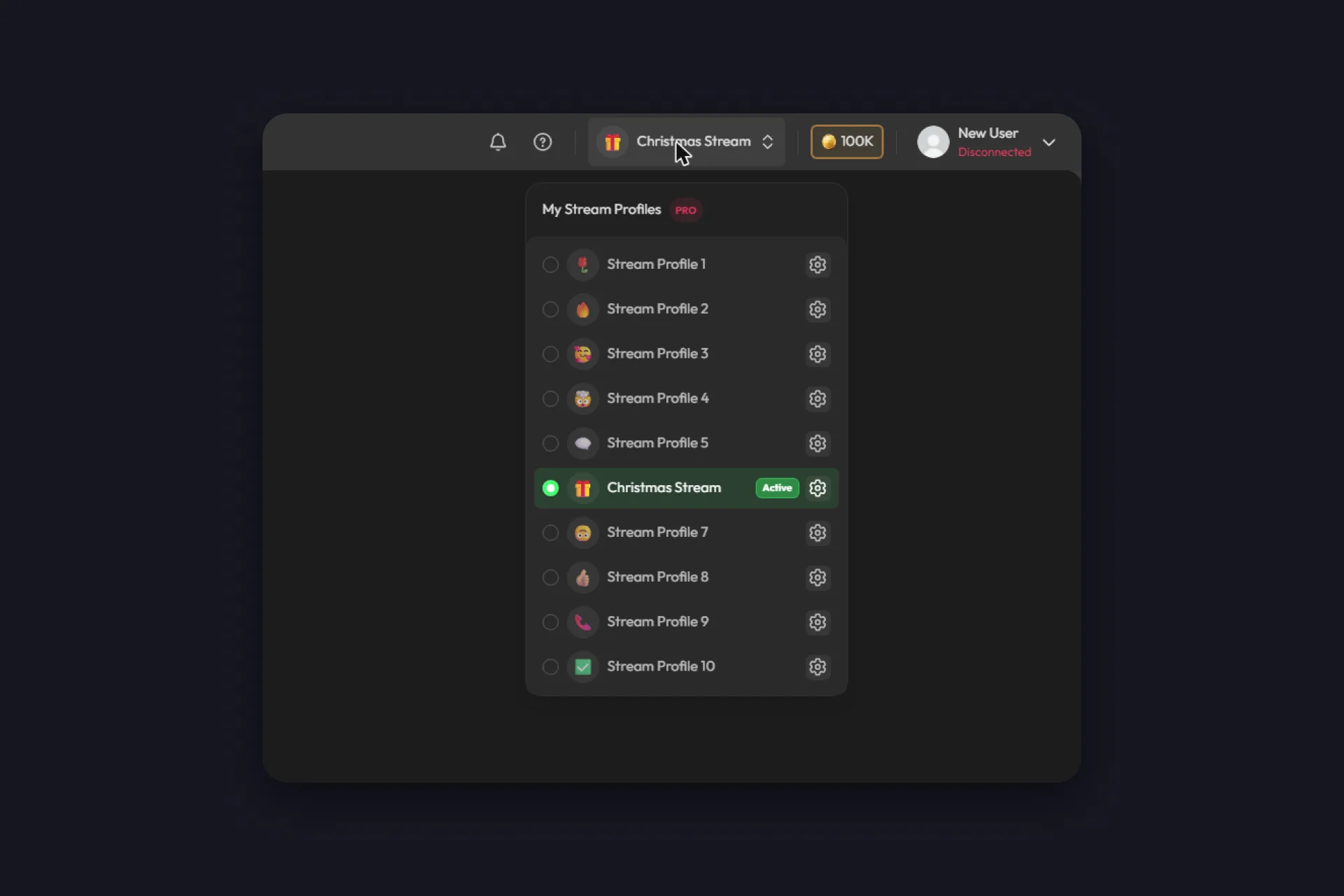
The biggest worry with a seasonal look is the cleanup in January. Stream Profiles solve that. A stream profile is a complete, separate TikFinity setup with its own actions, events, overlays and sounds. You build the Christmas version in one profile, and your everyday alerts wait untouched in another.
Click the profile name at the top of TikFinity, pick an empty profile and open the gear next to it. Give it a name like “Christmas Stream” and an emoji as its icon, then save. One click on the profile makes it active. After the holidays, the same click takes you back.
Add a free snow overlay with Falling Snow
Snow is the fastest way to make a stream feel like December. In TikFinity the snow overlay is called Falling Snow, it’s free, and you’ll find it in the Overlay Gallery.
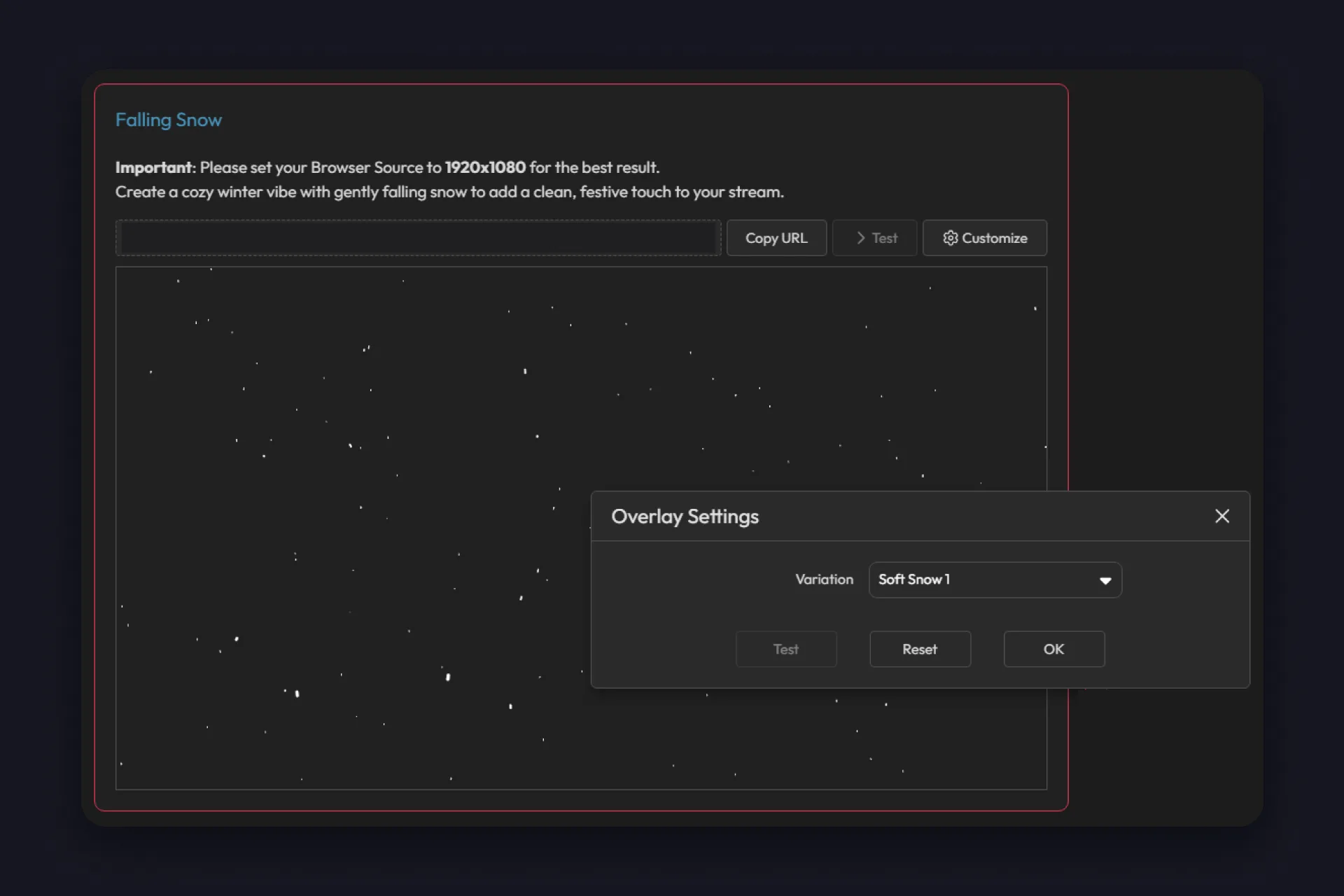
The Falling Snow card in the Overlay Gallery
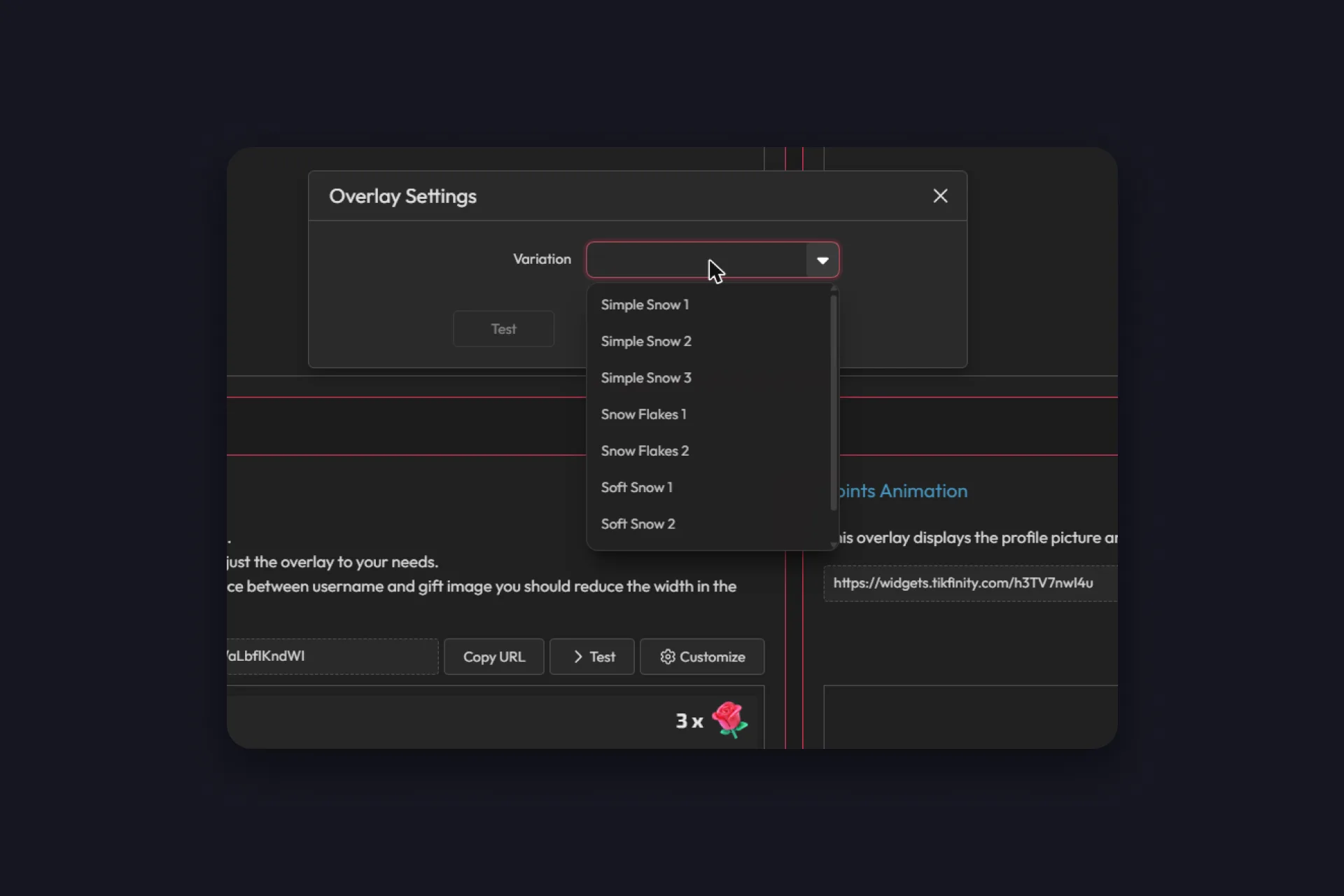
Eight variations, from fine dots to real snowflakes
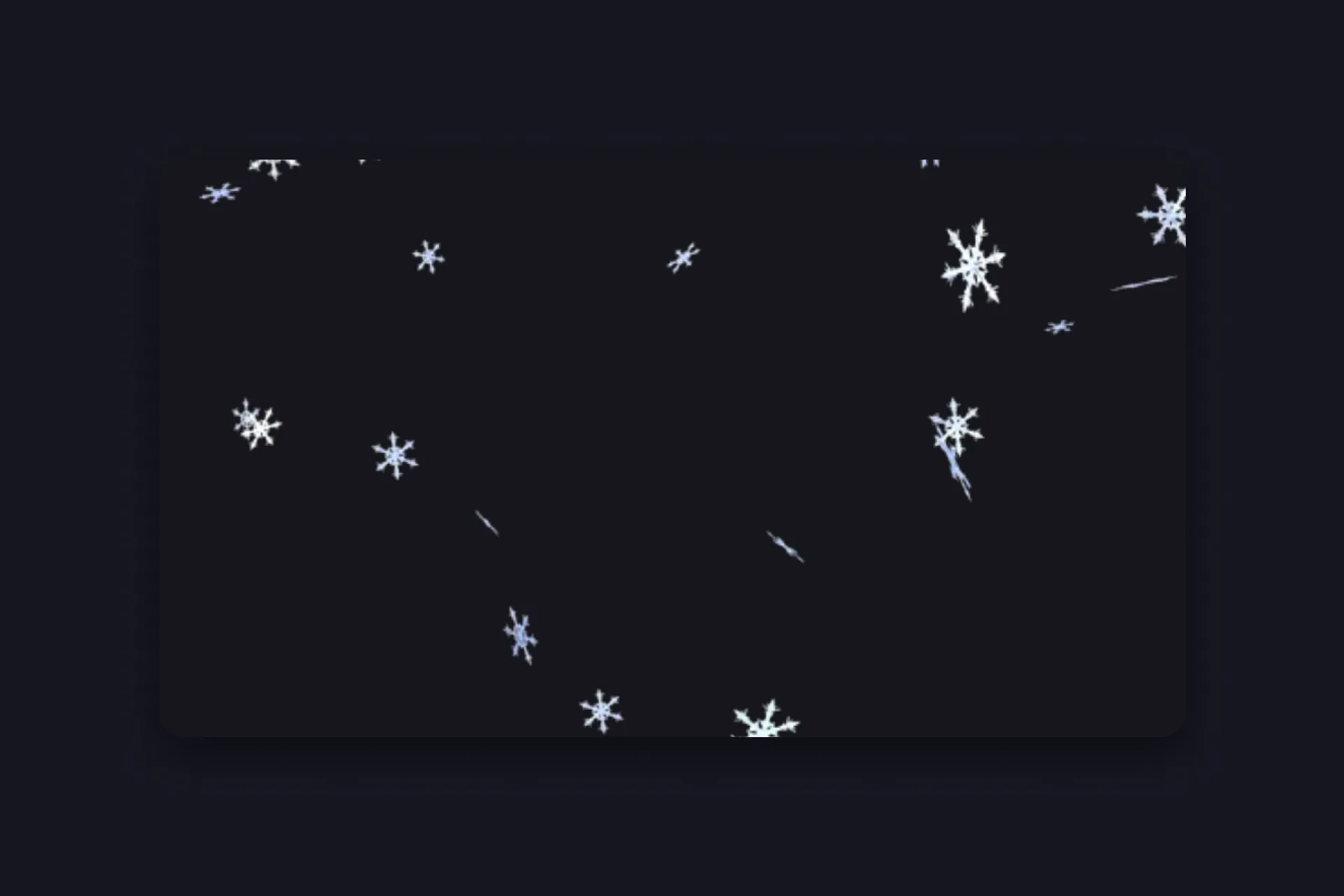
Snow Flakes 1 as it appears on stream
1 Find the Falling Snow card and click Customize. Under Variation, choose the snow you like. There are eight, Simple Snow 1 to 3, Snow Flakes 1 and 2, and Soft Snow 1 to 3. Your choice saves right away.
2 Click Copy URL.
3 Add the link to your broadcasting tool, in TikTok LIVE Studio as a Link source, in OBS Studio as a browser source. TikFinity recommends a size of 1920×1080 for this overlay. You can add it to a vertical stream as well. The sides get cut off, but it’s snow, so it just keeps falling.
4 Move the snow above your camera and game in the source list, so the flakes fall in front of everything.
The Simple Snow variations are fine white dots and stay out of the way, which suits gameplay. Snow Flakes shows drawn snowflakes and reads as Christmas even on a small phone screen. A falling snow overlay that’s too busy gets tiring over a two-hour stream, so check it against your real scene before you go live.
Turn your alerts into free Christmas alerts
An overlay sets the mood. Alerts are where your viewers get something back, because every gift and every follow now triggers a small Christmas moment. All of it happens in Actions & Events, and the free plan already lets you create five actions and events. That’s plenty for a full Christmas set, and TikFinity Pro removes the limit if you want more.
In a new profile TikFinity offers a Starter Pack the first time you open the page. Take it. You get four ready-made actions, Follow Alert, Like Alert, Gift Alert and Sub Alert, with matching events and one screen for your broadcasting tool. It fits into the free plan, and from there you only swap the parts that should look like Christmas. If alerts are new to you, our alerts guide explains actions, events and screens from the start.
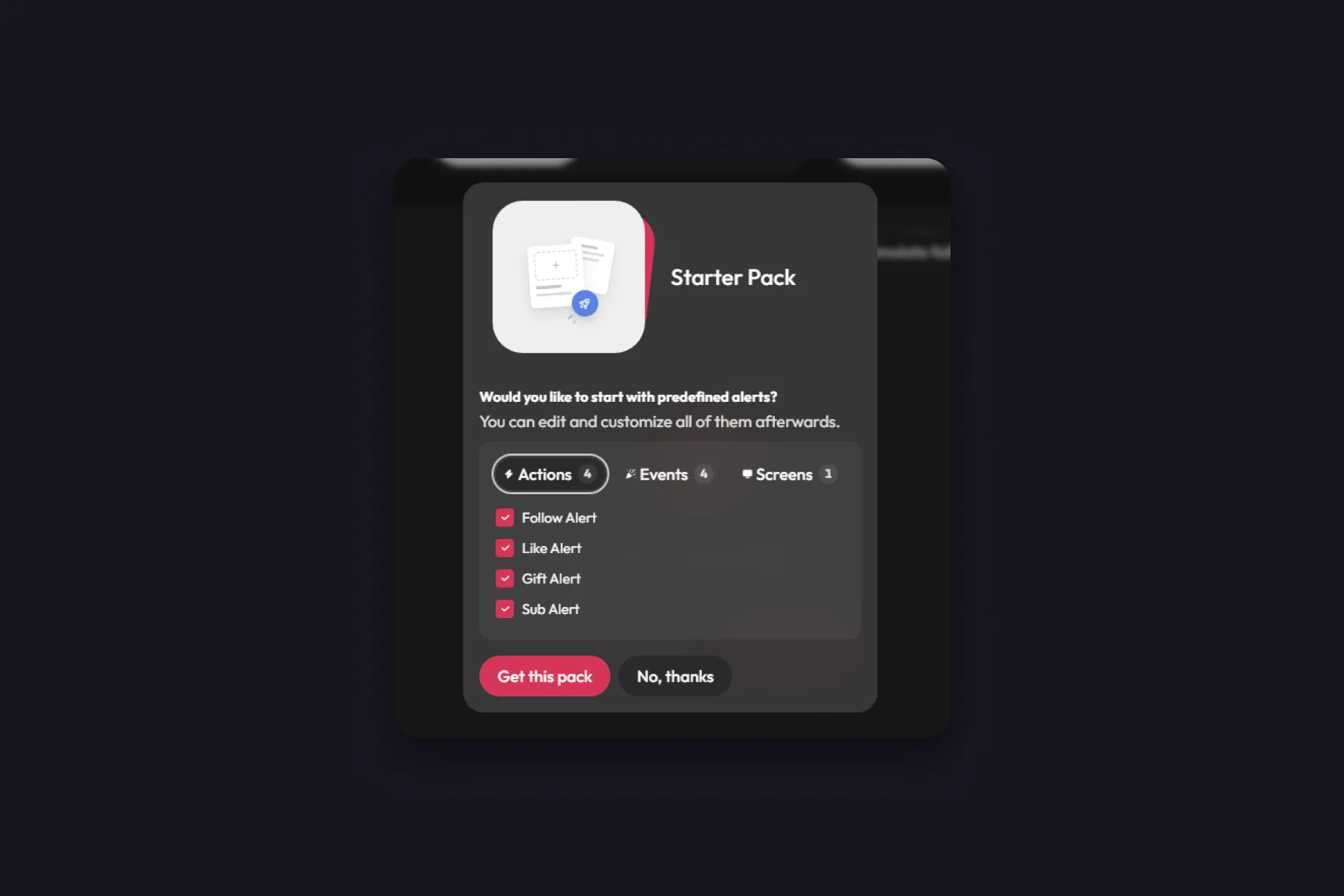
The Starter Pack gives a new profile four alerts to build on
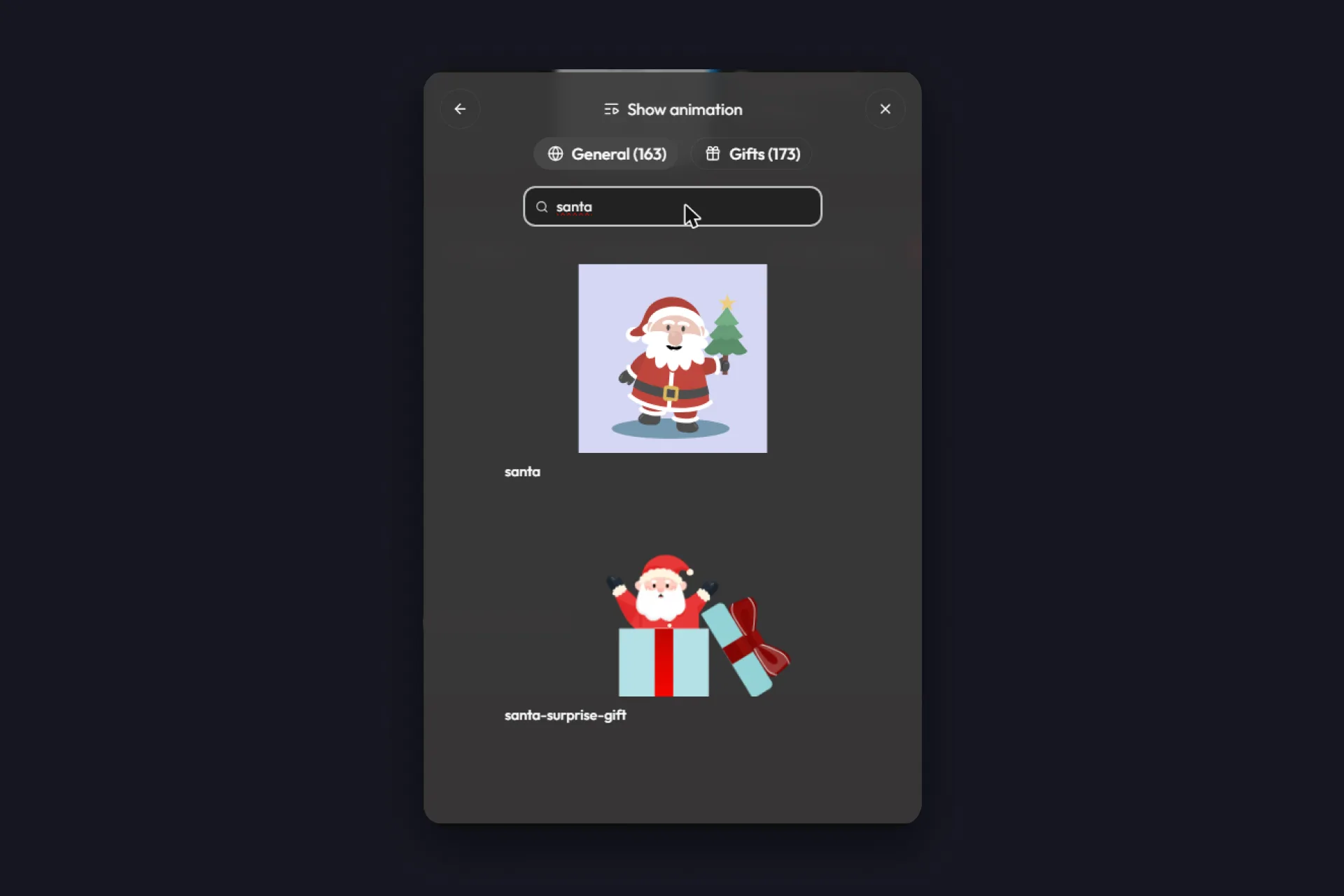
Search the animations for “santa”
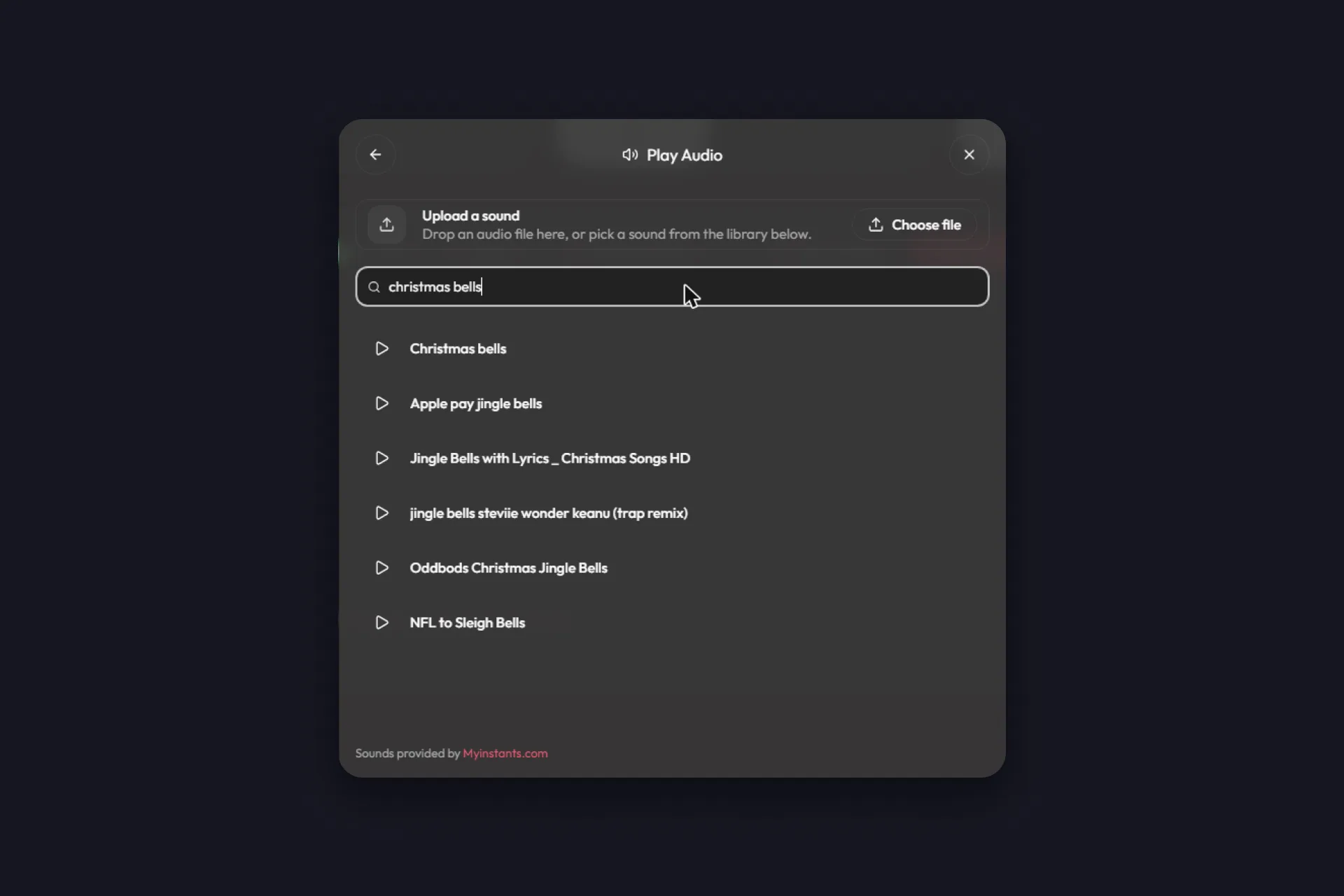
The sound library has bells, sleigh bells and a “ho ho ho”
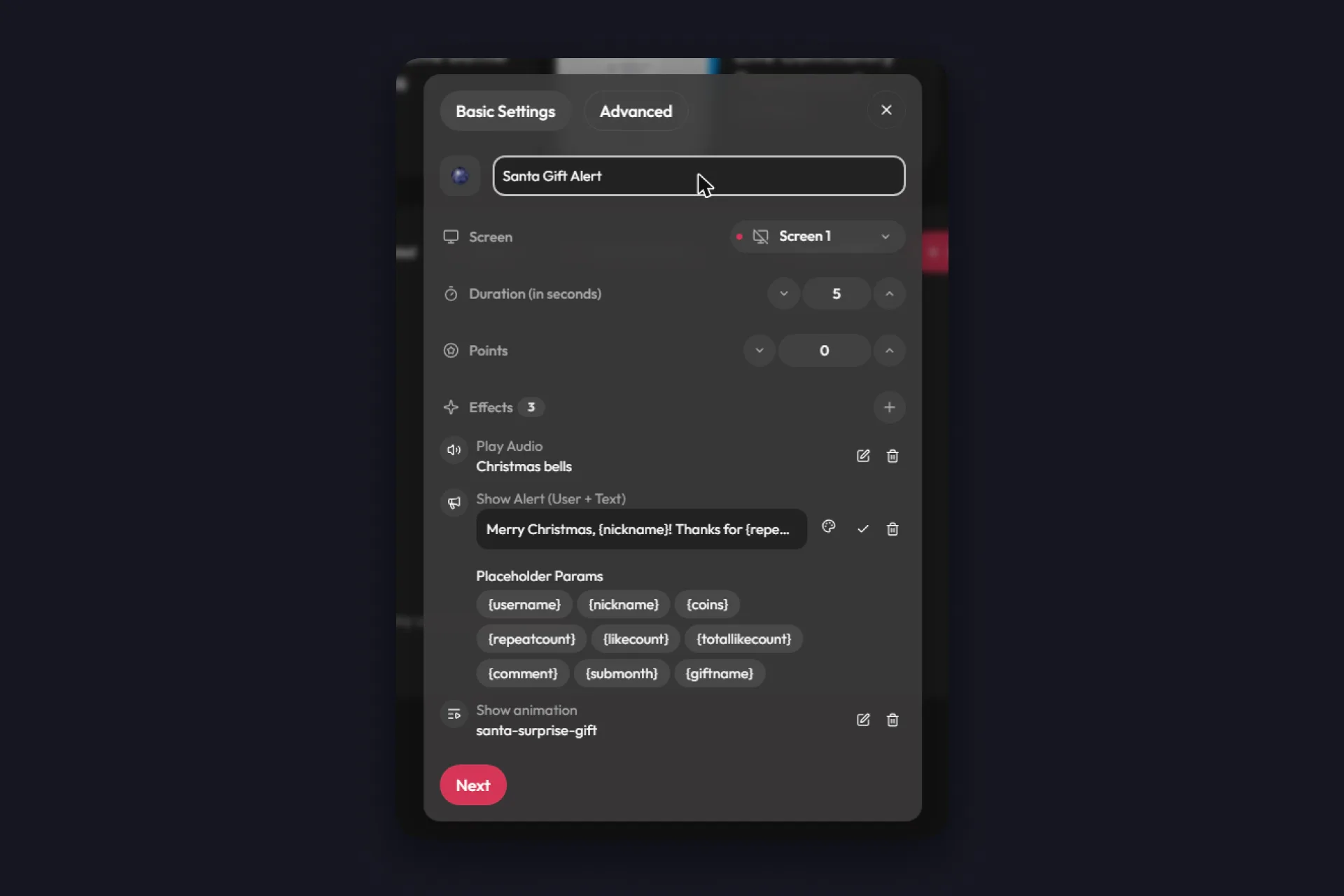
The finished Santa Gift Alert
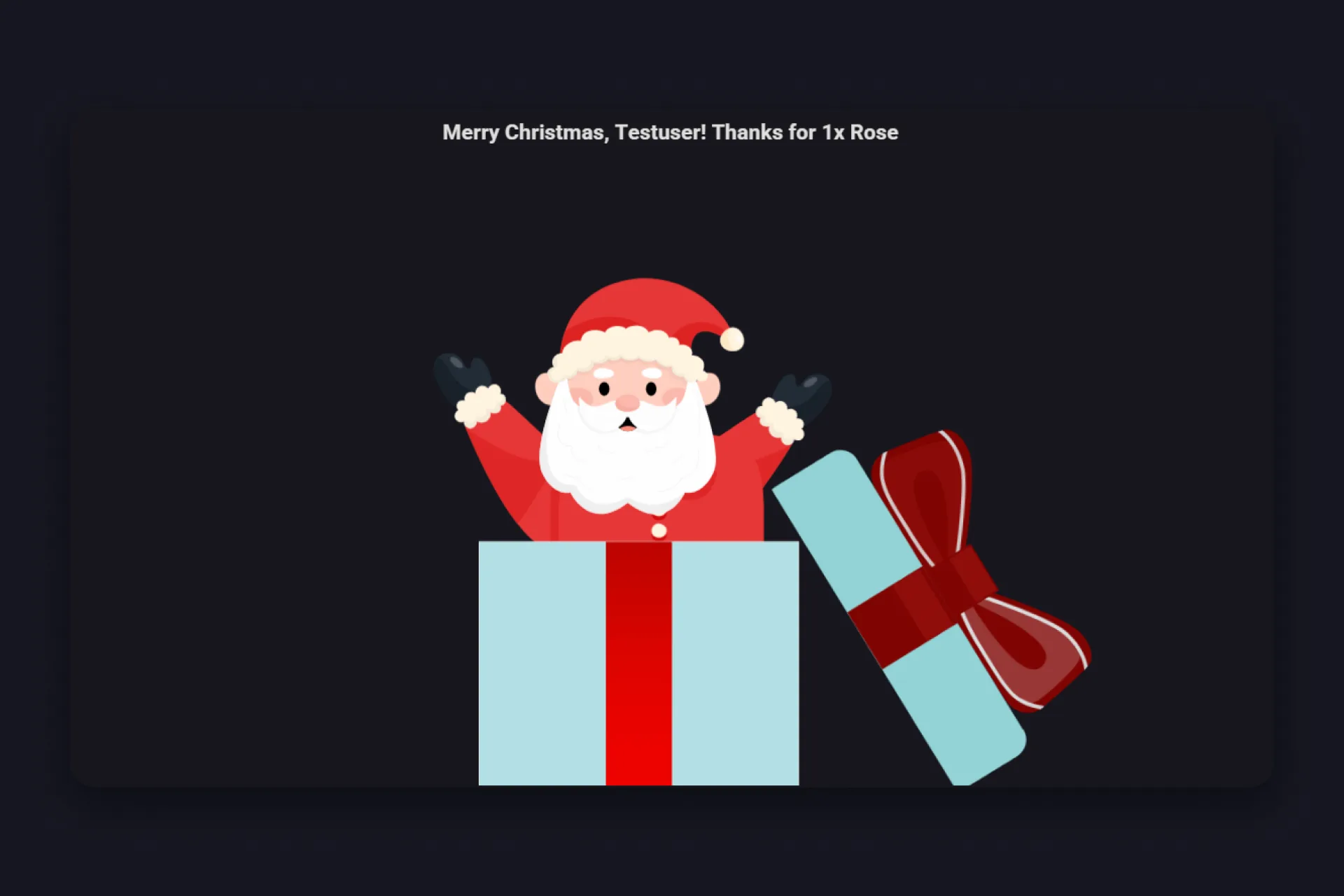
And this is what your viewers see
1 Find the Gift Alert from the Starter Pack and click it. Depending on your TikFinity version, it sits in a Starter Pack folder or directly in your list of actions. Rename it if you like, ours is called Santa Gift Alert.
2 Under Effects, edit Show animation and type “santa” into the search. You’ll find santa and santa-surprise-gift, where Santa jumps out of a gift box. Searching “christmas” brings up christmas-tree, and there’s a ho-ho-ho animation too.
3 Edit Play Audio and search the sound library for “christmas bells” or “santa”. Pick a short one. A sound that plays on every gift should still be pleasant the fiftieth time.
4 Edit Show Alert (User + Text) and write your own line. The placeholders below the field fill in the details, so “Merry Christmas, {nickname}! Thanks for {repeatcount}x {giftname}” greets every gifter by name.
5 Click Next, then Save. Hover over the action and press the play button to test it on your screen.
Repeat that for the other alerts and give each its own animation, the Christmas tree for likes, “ho ho ho” for new followers, Santa for gifts. The free actions and events cover that whole set. A nice extra sits in the event settings. An event can trigger one of several actions at random, so the same gift sometimes brings Santa and sometimes the tree, and your chat keeps sending to see which one comes next.
Want to go further? With TikFinity Pro you can build as many actions and events as you like, for example one alert for small gifts and a bigger one for large gifts. Pick “Sending a gift with min. coins value” as the trigger and set a coin value, then the big gifts get Santa jumping out of his gift box while the small ones bring the Christmas tree.
Let your viewers make it snow
Snow that falls all stream long is decoration. Snow that starts because someone sent a gift is a moment. If you stream with OBS Studio, TikFinity can switch your snow overlay on for a few seconds and off again by itself.
1 In OBS Studio, add Falling Snow as a browser source (the steps are above) and hide it with the eye icon.
2 In Actions & Events, create a new action and add the effect Activate OBS Source. Under Select Source, pick your snow source. TikFinity needs a connection to OBS Studio for this, which you set up under Setup > OBS Connection.
3 Set Duration to the number of seconds it should snow. The source switches off automatically when the duration of the action has expired.
4 Create an event for it. “Sending a specific gift” ties the snow to one gift, “Sending a gift with min. coins value” to every gift above a certain size, and “Commenting a command” lets the chat type something like !snow.
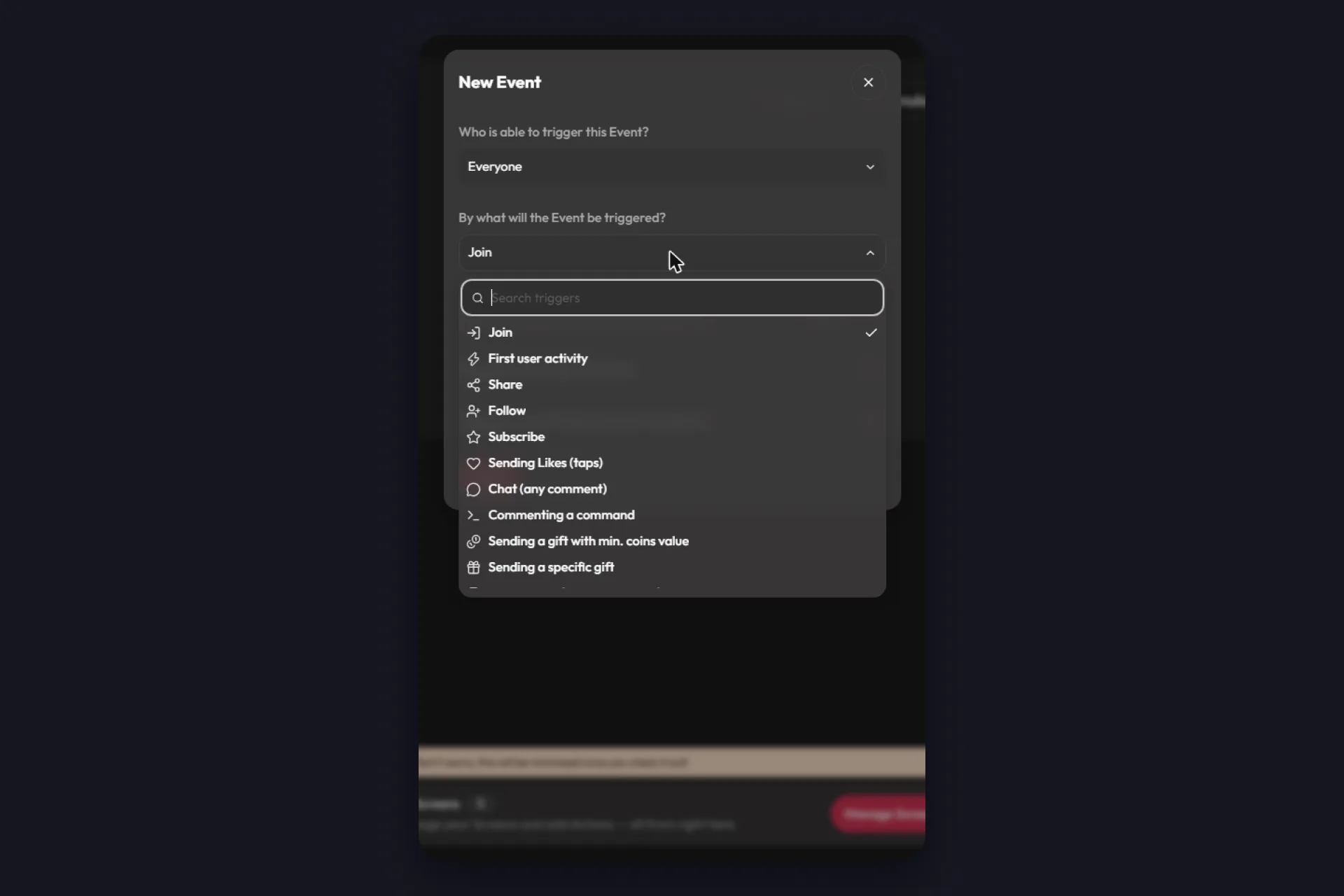
Tell your viewers how it works, in the stream title or out loud. A trigger nobody knows about never fires.
A goal the whole chat fills together
Christmas streams work well with one shared target for the evening. TikFinity’s free Goal Overlays put a bar on screen for likes, shares, follows, coins and more, and each goal can play an action when it’s reached. Give that moment an action of its own. Title a like goal “20k likes and we open a present”, then build an action with the gifts-open animation and an alert text like “You opened the present! Here’s what’s inside: …”, and pick it under Action on reaching.
What’s inside is up to you. A song request round, a Q&A, a game your chat picks, a round of shoutouts. Be creative and choose what fits your community, that’s the part your viewers will remember.
Likes are the fairest choice here, because they cost your viewers nothing. Our guide to TikTok goals covers every goal type, the styles and the custom goals that count one specific gift, a Rose counter for instance. If you’d rather count down than up, Countdown Goals show how much is still missing.
Let Santa read your chat
Want your chat to sound like the North Pole? With TikFinity’s text-to-speech, a jolly Santa voice reads your viewers’ comments out loud, so every “Merry Christmas” in chat comes back with a real ho-ho-ho feel.
1 Open Sounds in TikFinity, switch to TTS Chat and turn on TTS enabled.
2 Click the voice next to Voice. The Choose a voice window opens.
3 Type “santa” into the search. You’ll find voices like Jerry B – Jolly Santa Claus, Mr. Claus – The Classic Jolly Santa or Nicholas – Gentle Santa Claus.
4 Click a voice to hear a sample, then select the one you like. Many Santa voices speak several languages, and you set the language right at the voice.
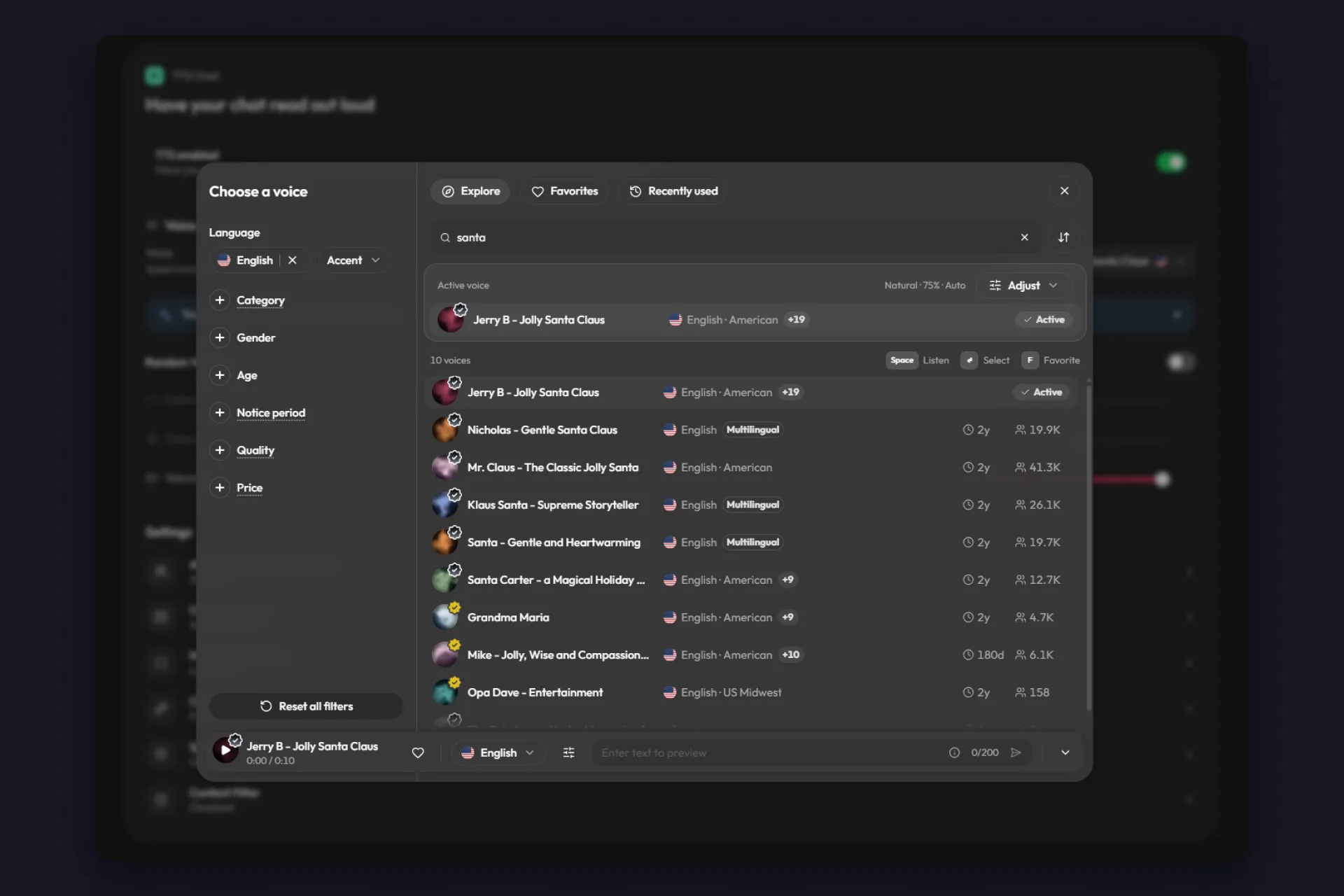
Under Settings you decide who Santa reads for, from all users to your special users. Spam Protection keeps the queue short, and the Content Filter decides what gets read out loud.
Every creator can pick and use every new voice, Santa included. The free plan comes with a small daily quota of messages in the new AI voices, so you can try Santa on your stream right away. If he should read all stream long, TikFinity Pro gives you credits every month, and only Pro lets you buy more. When the free quota is used up, the AI voice stays quiet until the next day, and the three standard voices keep reading for free without a limit.
Here’s a quick look at the new voices:
Christmas stream ideas that fit TikTok LIVE
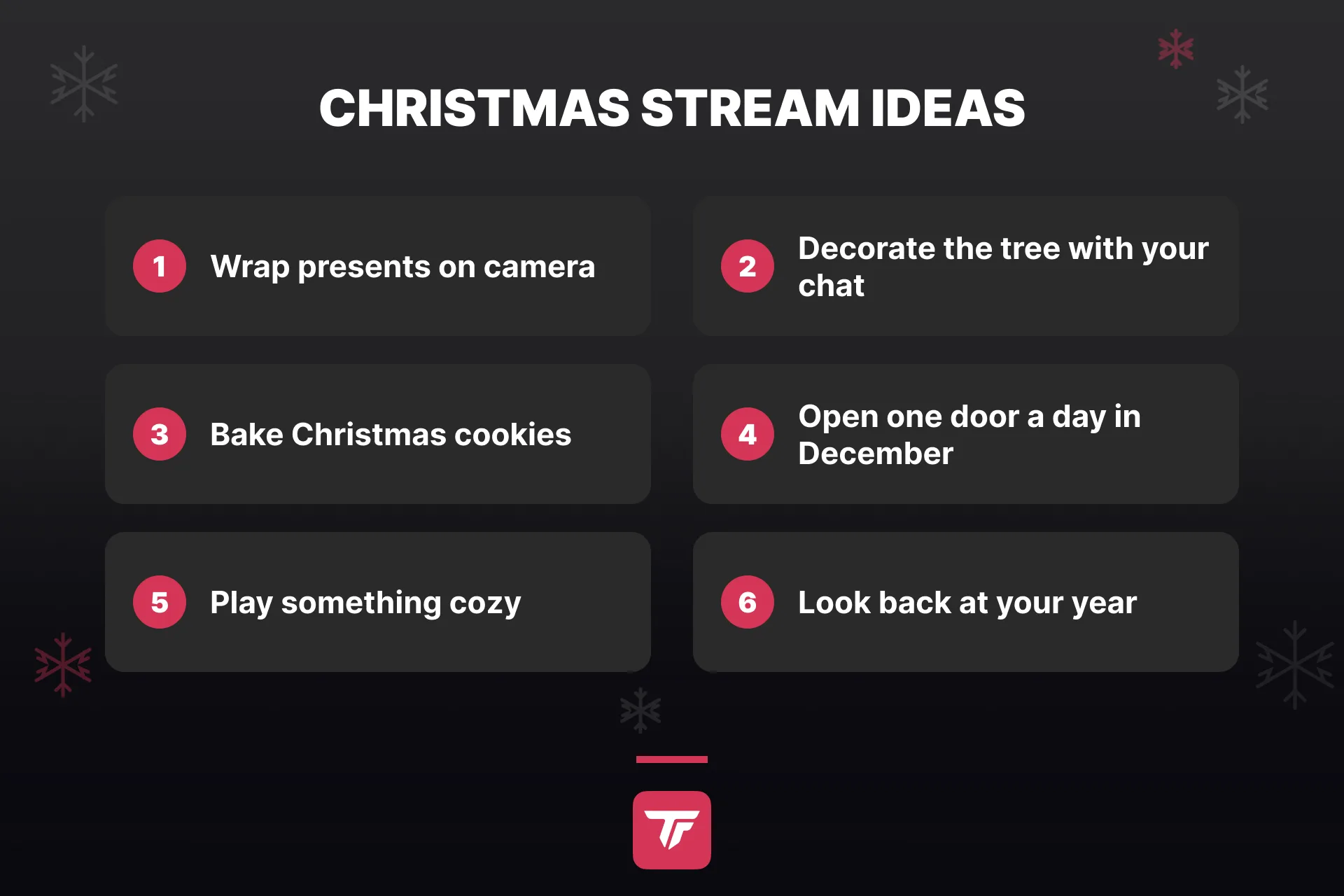
The look is done. What do you actually do for two hours? Most lists of Christmas stream ideas are written for other platforms, so here are formats that work with the way TikTok LIVE viewers join, tap and leave again.
- Wrap presents on camera. It keeps your hands busy, you can talk the whole time, and new viewers understand what’s going on within a second.
- Decorate the tree and let likes decide. Every 5,000 likes, the chat picks the next ornament or the color of the lights.
- Bake or decorate cookies. A phone on a small tripod above the counter is all the setup it takes.
- Run an advent stream. Stream at the same time each day in December and open one door per LIVE, a small challenge, a song, a story. A fixed slot is easier to remember than a surprise.
- Play something cozy. A calm game with a winter map leaves room to talk, and the snow on your overlay matches the snow in the game.
- Look back at the year. Read out your favorite moments and thank the people who were there. This one needs no props at all.
Whichever format you pick, say every few minutes what’s happening and what the chat can do. On TikTok LIVE, somebody new joins all the time.
Decorations, light and outfit
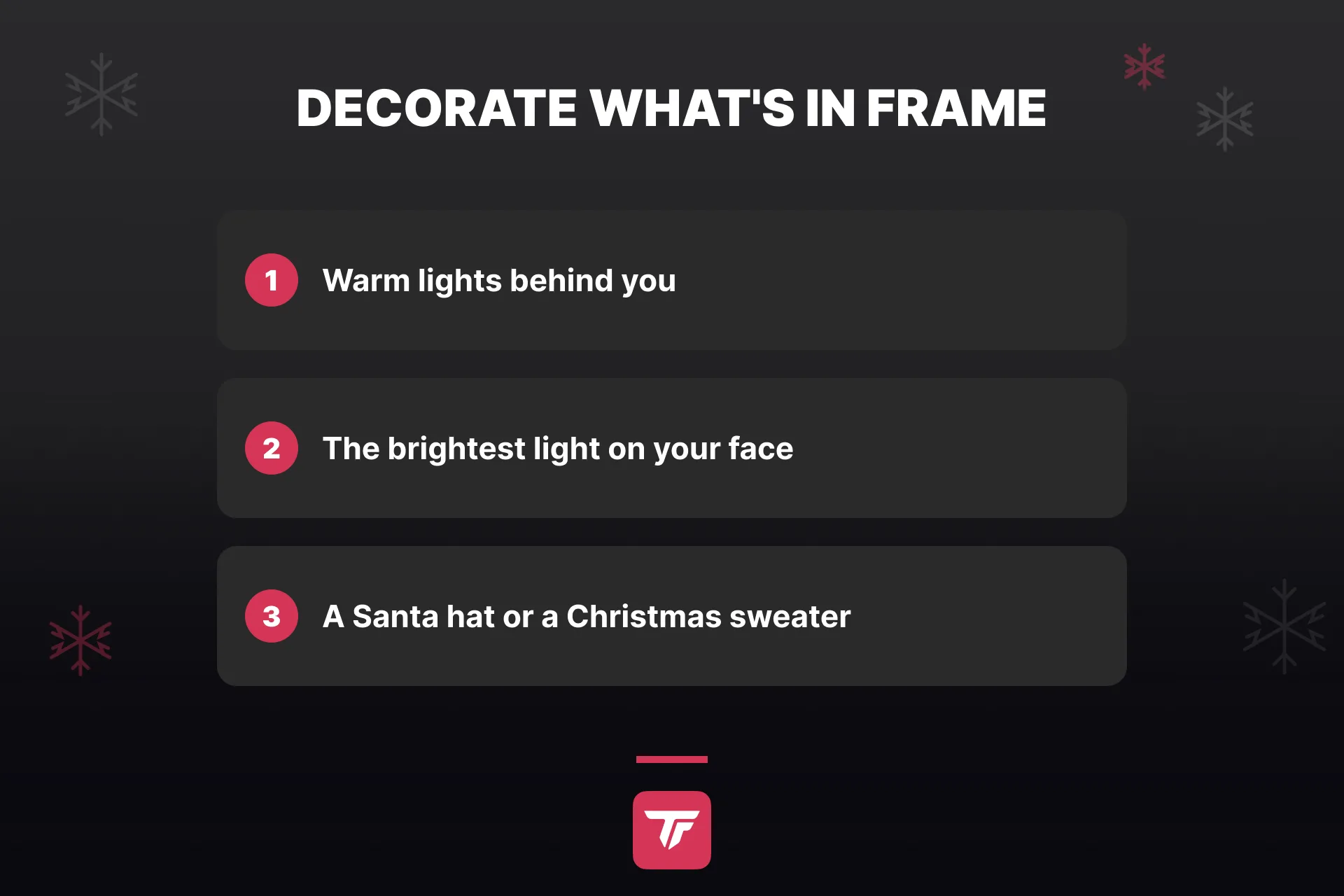
Christmas stream decorations don’t have to fill the room. Your viewers see one upright rectangle, so only decorate what’s in frame. A string of warm lights behind you does more than a tree that’s cut off at the edge. Keep the brightest light in front of your face, otherwise the camera exposes for the lights and you turn into a silhouette.
And put on a Santa hat or a Christmas sweater. It’s cute, it’s fun, and it brings real joy into the stream. What counts most is making the season a little sweeter for the people watching. Some of them might be sitting at home alone this year, and your stream could be the place that makes them feel a little less alone.
Bring Christmas to your phone stream
Going live straight from the TikTok app? Then TikFinity Mobile brings the sound of Christmas to your phone. It plays sound alerts for gifts, follows and more, and it reads chat messages out loud with text-to-speech. The snow overlay and the Santa animation need a broadcasting tool on a PC or Mac, everything in this section works with your phone alone.
Two settings are worth a minute in December. Join Announcements greet viewers by name when they enter, and you can change the greeting to “Merry Christmas, {nickName}!”. And with your own sound files, a jingle of bells can answer every gift. Creating custom sounds is free, playing them live is part of TikFinity Pro on mobile.
What really matters in your Christmas stream
One honest note before you go live. A Christmas overlay makes your stream a cozier place to be, and alerts give your viewers a reason to join in. Neither can promise more viewers, because TikTok decides who sees your LIVE and December is busy for everyone. What you do control is how warm it feels for the people who show up.
Create Your Christmas Stream →
And maybe that’s the most beautiful part of streaming in December. For a few hours, people who’ve never met sit together in your chat, tap hearts, send little gifts and watch Santa pop out of his box. For some of them, your stream might be the coziest place they’ll be all evening. So light the tree, let the snow fall and enjoy the time with your community. Merry Christmas from Finty and the whole TikFinity team. 🎄
FAQs about Christmas overlays for TikTok LIVE
Open the Overlay Gallery in TikFinity, pick a variation on the free Falling Snow card and click Copy URL. Add the link in TikTok LIVE Studio as a Link source or in OBS Studio as a browser source. For Christmas alerts, swap the animation and the sound of your alerts in Actions & Events.
Yes, and it’s free. The snow overlay is called Falling Snow and sits in the Overlay Gallery. It comes with eight variations, Simple Snow 1 to 3, Snow Flakes 1 and 2, and Soft Snow 1 to 3. TikFinity recommends a browser source size of 1920×1080 for it.
No. You can set up everything in this guide for free, from the Falling Snow overlay to Christmas alerts with animations and sounds and a goal for your chat. Stream Profiles, which keep your Christmas setup separate from your normal one, are part of TikFinity Pro, and Pro removes the limit of five actions and events. Without Pro you build the setup in your one profile and change it back after the holidays. The Santa voices for your TTS chat work on the free plan too, within a daily quota, and Pro adds monthly credits.
Yes, if you stream with OBS Studio. Create an action with the effect Activate OBS Source, choose your snow source and set the duration. Then link an event such as Sending a specific gift. The source switches off again when the duration of the action has expired.
If Activate OBS Source shows a red Connection Failed message, TikFinity can’t reach OBS Studio yet. Check three things first. OBS Studio has to be open while you set up the action. The WebSocket server has to be turned on in OBS (OBS 28 or newer, under Tools > WebSocket Server Settings). And the password from those settings has to be entered in TikFinity under Setup > OBS Connection. Once all three are in place, open Select Source again.
Overlays need a broadcasting tool such as TikTok LIVE Studio or OBS Studio. If you go live from the TikTok app, TikFinity Mobile adds sound alerts and text-to-speech, including a spoken greeting for viewers who join.
It can’t guarantee that. An overlay and alerts make the stream more fun for the people who are there and give them reasons to interact. How many viewers TikTok sends to a LIVE depends on many things outside your overlay.