The best moment of last night’s LIVE was a comment. Someone typed the one line that made you laugh out loud, the whole chat piled in, and you cut a clip of it. Watch that clip back: your face, your game, and no comment anywhere. The chat that made the moment lives in TikTok’s app, and the app is not part of your recording.
Getting the chat into the stream is one half of setting up a chat. The other half happens before anyone types: who’s allowed to comment, which words never show up, whose messages float to the top. This guide runs through both, the TikTok LIVE chat settings on your phone and in LIVE Studio first, then the part the built-in chatbox only half covers: putting the chat into your stream, in any layout, with TikFinity.
Set up your TikTok LIVE chat on the phone
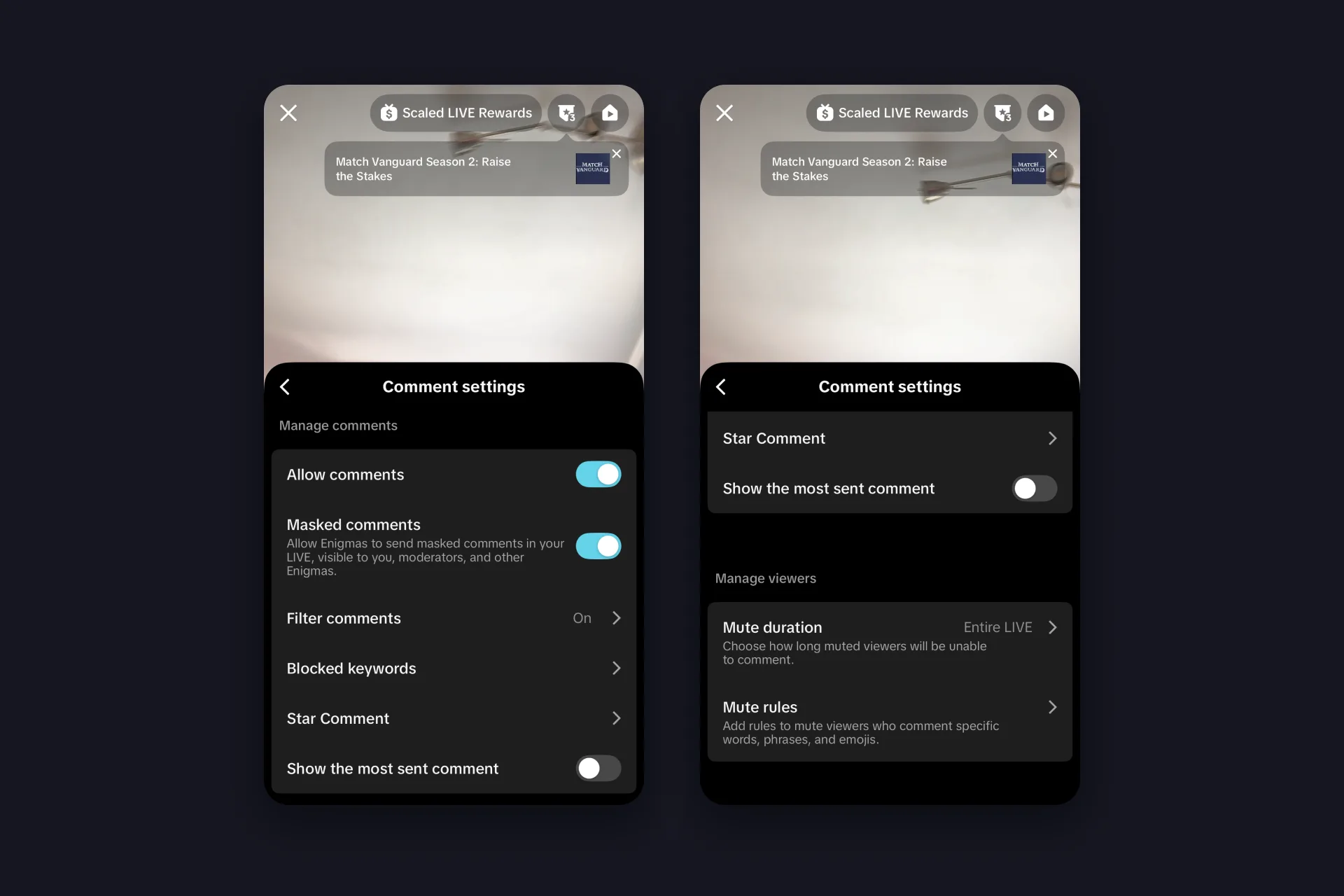
The live chat TikTok shows on your phone is the comment feed on the LIVE screen, and everything for it sits in one panel: open the settings from your LIVE screen and tap Comment settings. It has two halves, one for comments and one for the people sending them.
✅ Allow comments is the master switch. Off means a silent LIVE, which some creators use for a quick announcement stream.
✅ Filter comments is TikTok’s own spam and offense filter. Leave it on.
✅ Blocked keywords is your list: words and phrases that never appear in your chat. Fill it before the first troll shows up, not after.
✅ Star Comment is the paid comment: viewers spend Coins, the line sits at the top of the chat for five or eight seconds, and it earns you Diamonds. Still in beta for selected accounts, and you decide who can send one.
⬜ Show the most sent comment pins the line the chat keeps repeating. Handy for polls, off by default.
⬜ Masked comments are for Enigmas, viewers in TikTok’s anonymous mode who hide their identity and chat activity. Their comments are visible only to you, your moderators, and other Enigmas.
✅ Mute duration decides how long a muted viewer stays quiet, from a few minutes to the entire LIVE, and Mute rules mute anyone who comments specific words, phrases, or emojis on their own.
Moderators come from the chat itself: tap a viewer’s name and make them a mod, and they handle mutes and blocks while you talk. TikTok’s page on moderating a LIVE has the current details.
Set up your chat in TikTok LIVE Studio
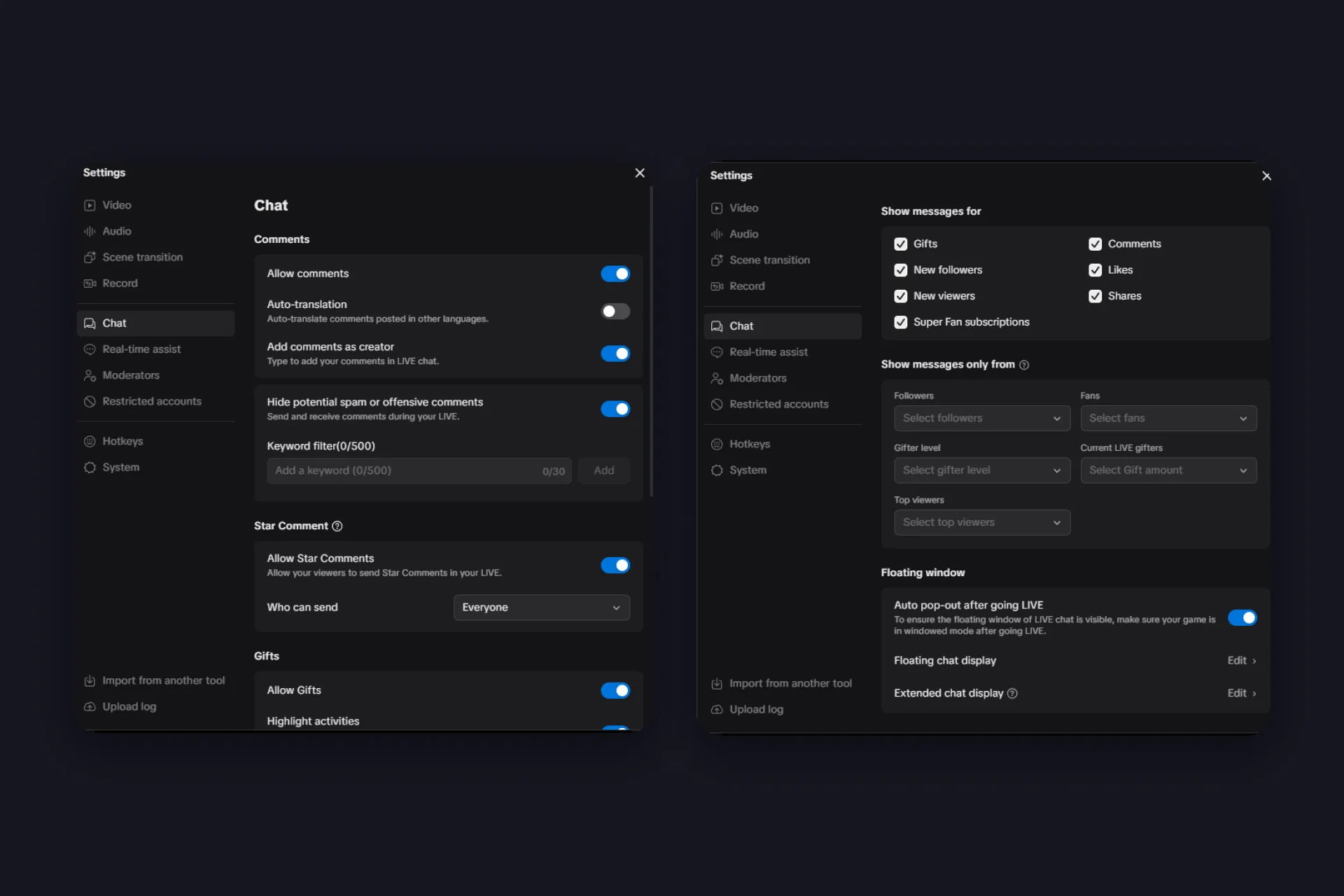
Your TikTok LIVE chat on PC runs through TikTok LIVE Studio, which has a whole Chat tab under Settings, and it goes further than the phone. Here’s what each block does.
| Block | What you set |
|---|---|
| Comments | Allow comments, Auto-translation for comments in other languages, Add comments as creator so you can type into your own chat, and Hide potential spam or offensive comments with a Keyword filter of up to 500 keywords, 30 characters each. |
| Star Comment | Allow Star Comments, the paid comments viewers send with Coins that sit at the top of the chat for five or eight seconds and earn you Diamonds, and pick who can send them. During the LIVE you change that at the top of the chat. |
| Gifts | Allow Gifts, Highlight activities (gifts and Super Fan subscriptions in their own section at the top of the chat), gift effects on the LIVE chat, combo counts, and the like effect. |
| Show messages for | Which events land in your chat feed: gifts, comments, new followers, likes, new viewers, shares, Super Fan subscriptions. Untick likes and new viewers on a busy night and the feed slows down to what matters. |
| Show messages only from | Filters by followers (all or friends only), fan level from 1+ to 30+, gifter level, current LIVE gifters by gift amount, and top viewers. Nothing selected means everyone. Several options mean anyone who meets one of them. |
| Floating window | Auto pop-out after going LIVE puts a transparent chat window over your game the moment you start, and you edit the floating and extended chat display from here. Your game has to run in windowed mode for it to stay visible. |
Two more tabs belong to the chat: Moderators, where you appoint people, and Restricted accounts. Set all of this up once, before the first stream. A chat that’s about to be on screen is a chat everyone reads.
That floating window is worth a look. It hovers over your game with your viewer, gift and like counters, a section where gifts and Super Fan subscriptions land, and a box to type your own comments. Whether it stays on top depends on the game: TikTok’s own advice is windowed or borderless mode, and if it still disappears, a second monitor.
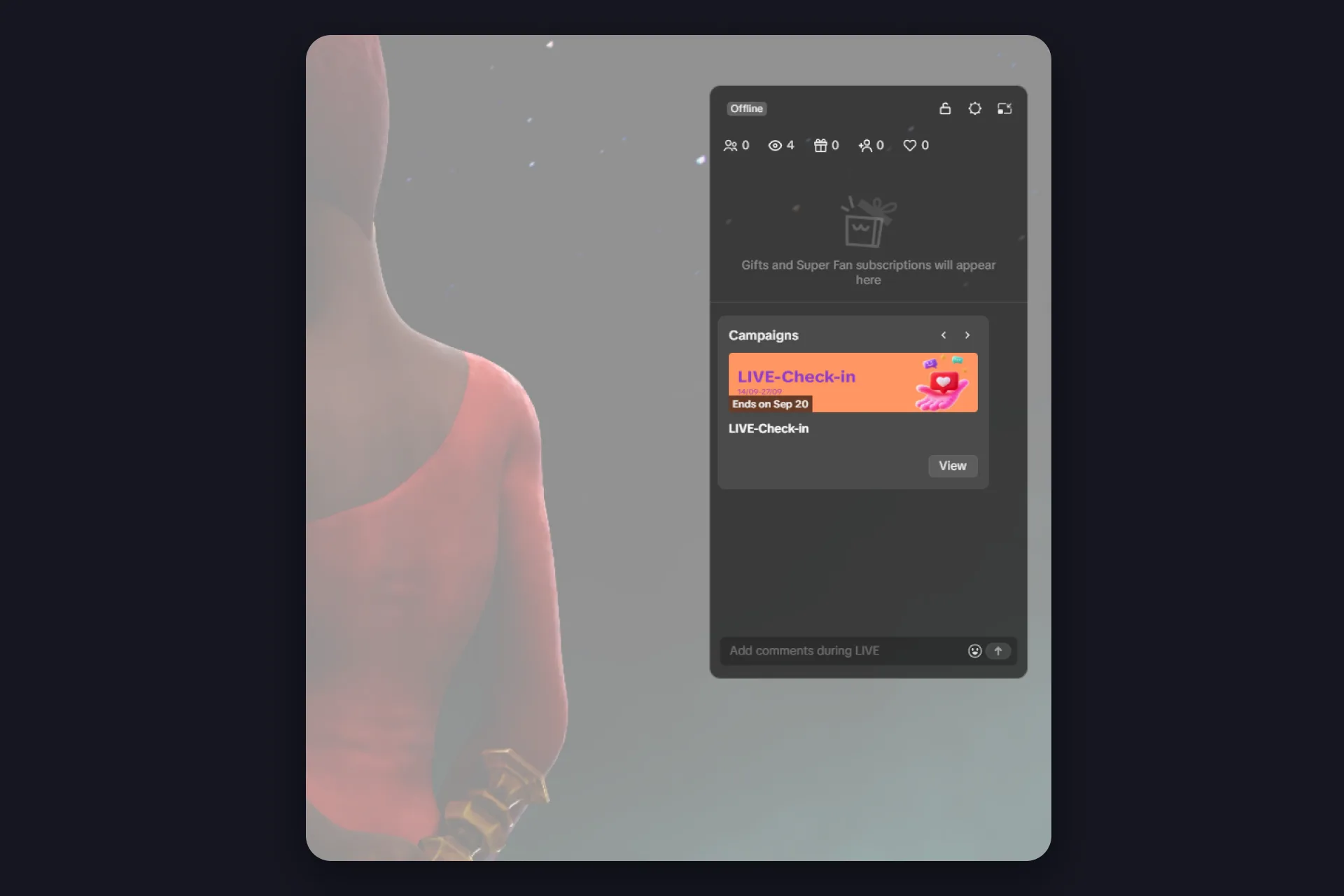
So for reading while you play: on one monitor, that floating window is the answer. Run the game in windowed or borderless mode and the chat sits right on top of it. If you insist on true fullscreen, keep the phone next to the keyboard with your own LIVE open. On two monitors, you have three options: watch the chat inside TikTok LIVE Studio itself, use the floating window there as well, or add TikFinity’s OBS docks to OBS Studio, two panels with your viewers’ activity that never reach the stream. Our LIVE Studio guide covers the rest of the app.
The chatbox LIVE Studio already has, and where it stops
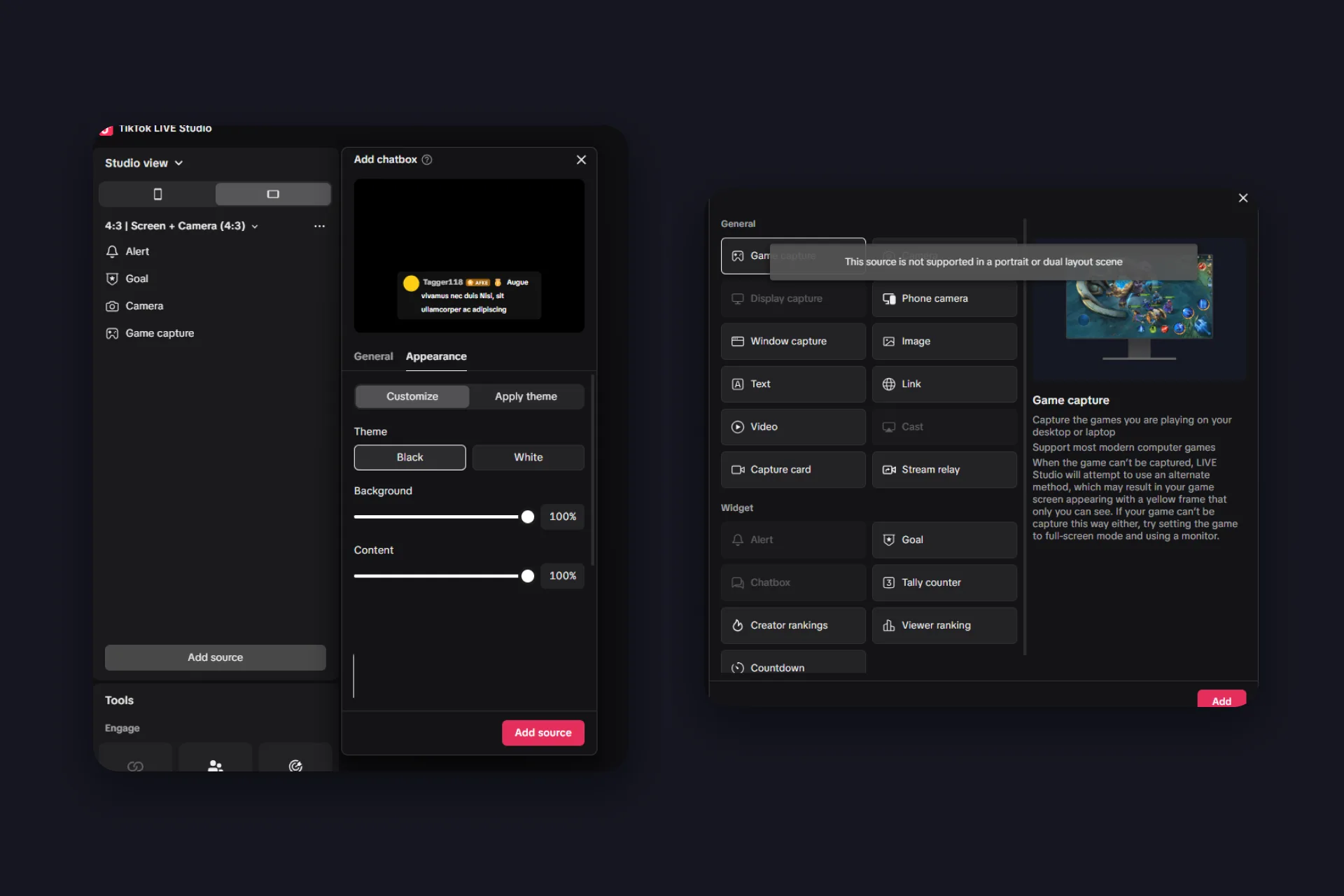
LIVE Studio ships its own chat widget: Add source, Widget, Chatbox, and the chat appears inside your scene. Under Appearance you get a Black or White theme, two sliders for background and content opacity, and a handful of ready-made themes like NeonLight or YellowPower. For a quick widescreen stream, that’s fine.
It stops in three places. The chatbox is a widescreen-only widget: in a portrait or dual layout scene it’s greyed out, with the note that the source isn’t supported there, and portrait is what most TikTok viewers watch. Its styling ends at the theme and the two sliders. And OBS Studio has no TikTok chat widget at all, so anyone streaming from there needs an outside tool anyway.
LIVE Studio Chatbox
|
TikFinity Chat overlay
|
Put the chat on stream with the TikFinity chat overlay
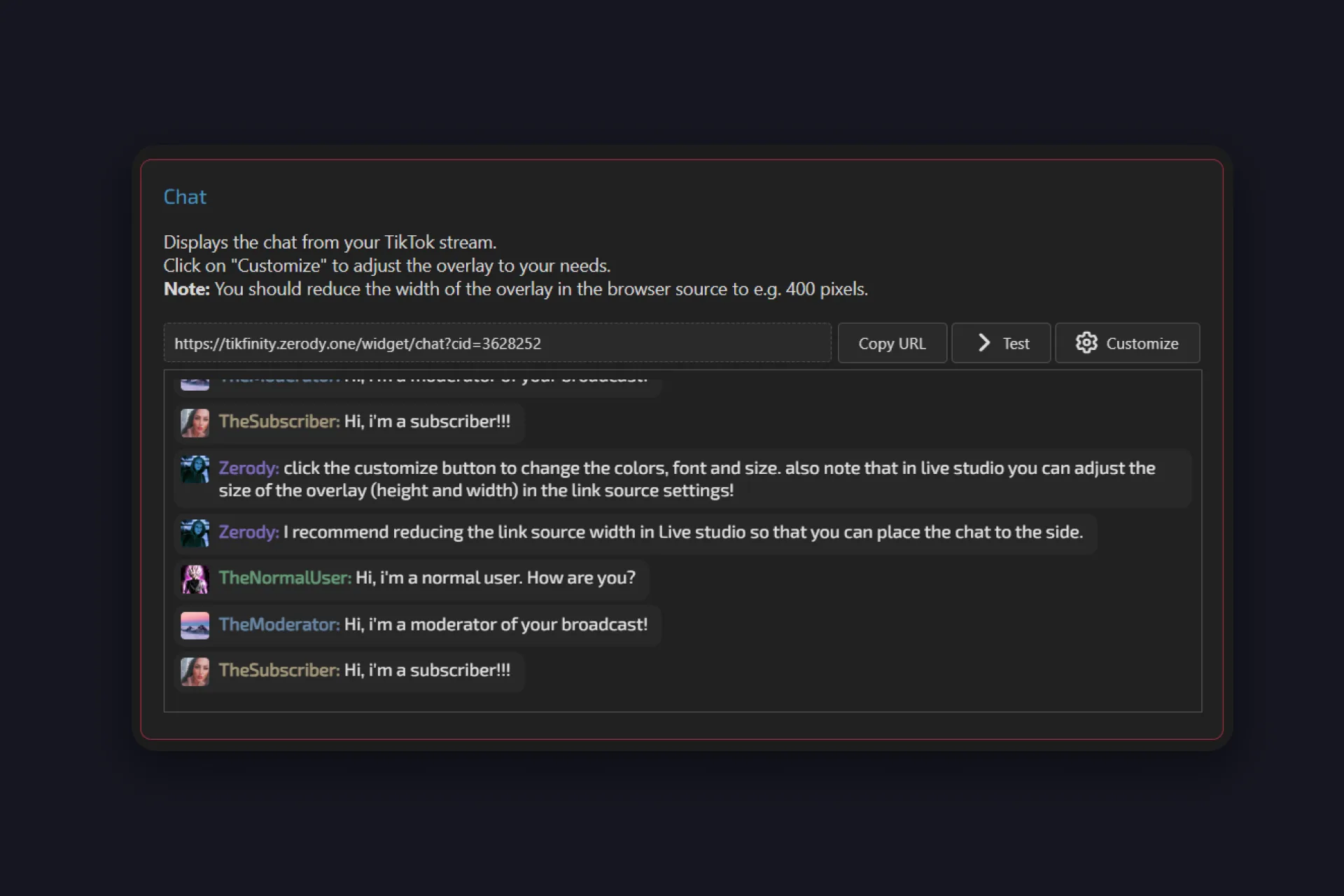
One question first, because it came up under our own tutorial: viewers see the chat in the app anyway, so why put a TikTok chat overlay on the stream? Short answer: not for reading while you play, but for what the stream carries. Your recording, your clips, and the way the chat looks. The long answer is in the FAQ.
The overlay is free and takes four steps. If you’ve never connected TikFinity, our setup guide gets you from signup to your first overlay in ten minutes.
1 Open the overlays in TikFinity and find the card called Chat. Its own description says it all: it displays the chat from your TikTok stream. Customize anything you want with the Customize button, the settings are explained below.
2 Click Test. Five sample lines drop into the preview, from a moderator, a subscriber, and a normal viewer. Then click Copy URL.
3 Add that URL to your broadcasting tool. For your TikTok chat in OBS: Sources, plus, Browser, paste the link. TikTok LIVE Studio: Sources, Link, paste the URL. Any other broadcasting tool with a browser source works the same way.
4 Make the source narrow. TikFinity’s own tip is to reduce the width of the browser source to around 400 pixels, so the chat becomes a column you can park along one edge. In LIVE Studio, width and height sit in the link source settings.
The whole thing in under a minute, straight from the TikFinity team:
@tikfinity.official This is how you can add your TikTok LIVE chat directly to your Livestream! ⭐ Just follow this tutorial to get it done 😎 #TikFinity #Tutorial
♬ som original – TikFinity – TikFinity
Make it yours: the Customize settings that matter
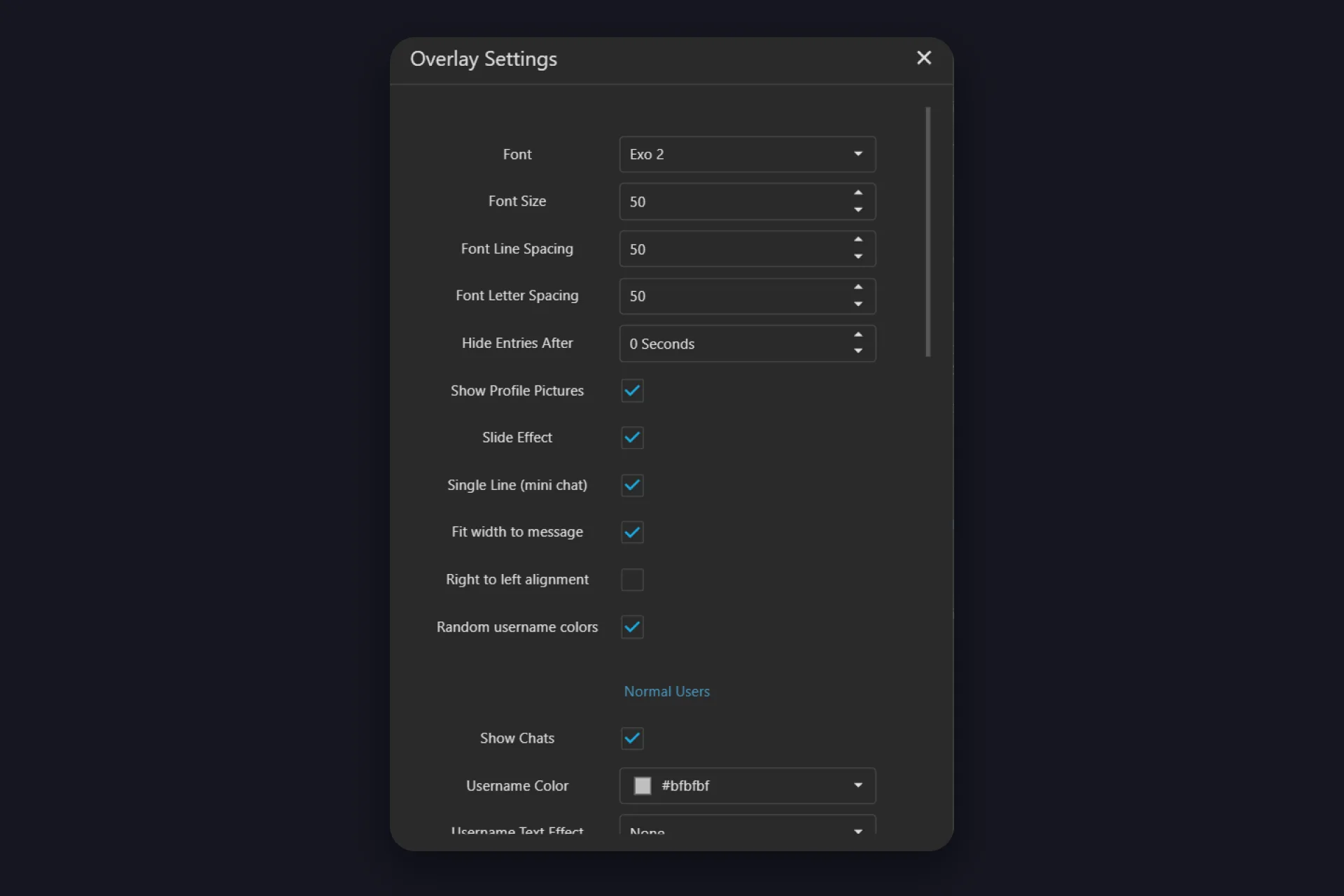
Click Customize on the Chat card and a dialog called Overlay Settings opens. The defaults are fine, but a few switches change how the chat feels on stream.
| Setting | What it does |
|---|---|
| Font, Font Size, Font Line Spacing, Font Letter Spacing | The look of the text. Exo 2 is the default, sizes and spacing run from 5 to 100. |
| Hide Entries After | Seconds until a line disappears. At 0 the chat just keeps scrolling. Set 20 or 30 seconds and a quiet minute leaves a clean screen instead of an old comment. |
| Single Line (mini chat), Fit width to message | Both on by default: each message is one compact line, and the background only spans the text. Switch them off for a classic chat box look. |
| Show Profile Pictures, Slide Effect, Random username colors | Avatars, a slide-in animation, and a different color per viewer. Turn the random colors off if the group colors below should mean something. |
| Right to left alignment | Flips the layout, for a chat column on the right edge of the screen. |
| Normal users, Moderators, Super Fans / Subscribers | Three groups, each with its own Show Chats switch, username color (grey, red, and orange by default), text and glow effects, comment color, and background. |
That last row is the most useful one. Untick Show Chats for normal users and the overlay shows only your mods and subscribers, which turns it into a clean Q&A feed for a sub-only segment. Test fires the sample lines with your new settings, Reset takes you back to the defaults, OK saves.
Let the chat do things
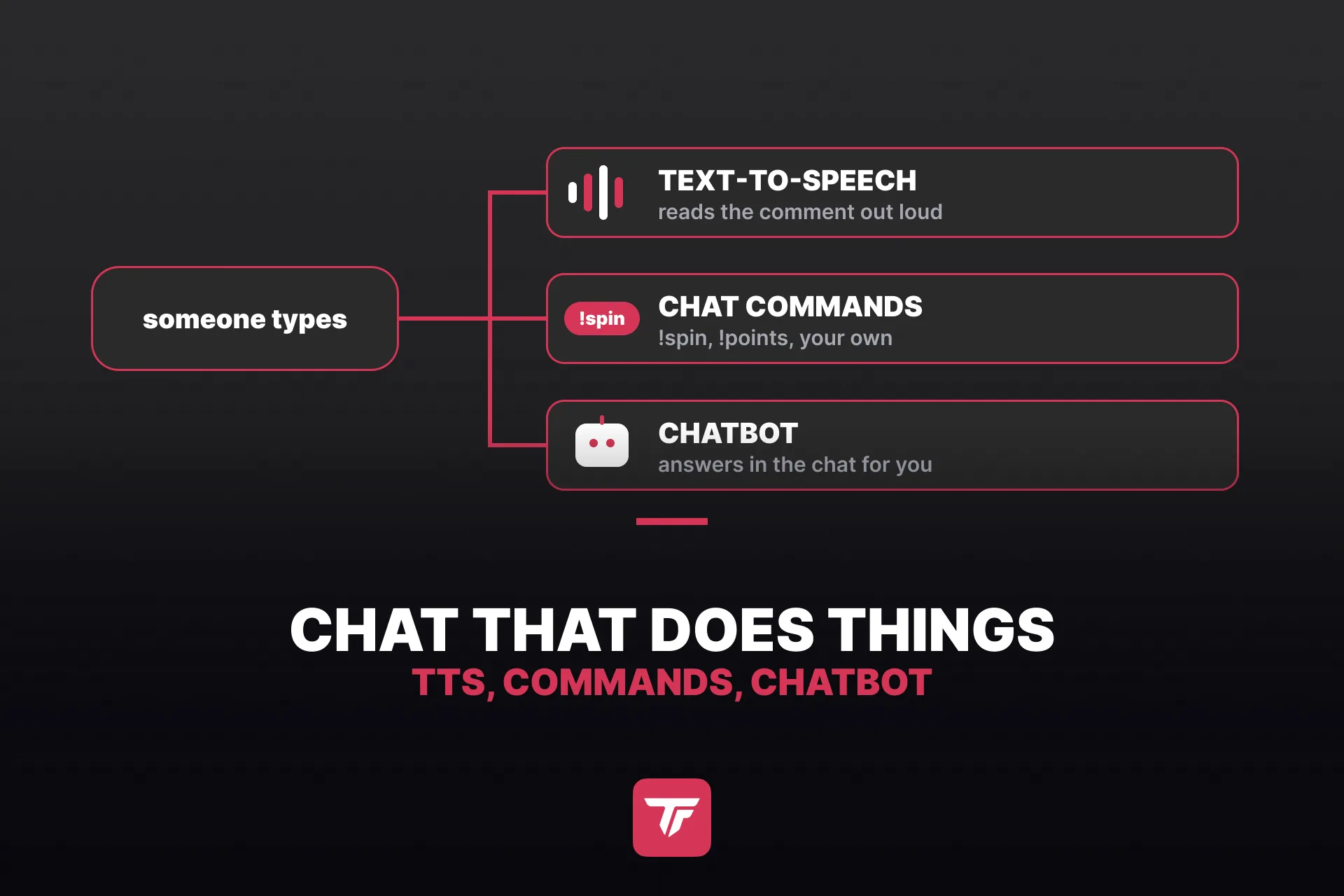
Once the chat is on stream, the same messages can trigger the rest of your setup. Text-to-speech reads comments out loud while your hands are on the keyboard, and our TTS guide sets it up in a few minutes. Chat commands let viewers type a word and get something back, from their points to a wheel spin, with your own commands built in Actions & Events. TikTok filters certain words and commands depending on the region, TikFinity notes, so if a command never fires, rename it. And the chatbot answers in the chat for you, from the Windows desktop app.
Your chat, set up and on screen tonight
Fill your blocked keywords, set who can comment, and pick a mod from your regulars. Then copy the overlay URL, add a 400-pixel browser source, click Test, and your chat is part of the stream. Two more minutes in Customize on font size and the mod color, and you’re done.
The chat overlay is free, like alerts, goals, and TTS. Set it up once, and every comment shows up where it belongs: in the stream, and in every clip you cut from it.
FAQs about TikTok LIVE chat
In TikTok LIVE Studio, switch on Auto pop-out after going LIVE in the Chat settings and the chat floats over your game as a transparent window. It only stays visible if the game runs in windowed or borderless mode, so on one monitor that’s the setup. If you insist on true fullscreen, keep your phone next to the keyboard with your own LIVE open. With two monitors, watch the chat in LIVE Studio itself, use the floating window, or put the TikFinity OBS docks inside OBS Studio. The chat overlay itself doesn’t help you read: it’s for the stream and your clips.
Four reasons. Your recording never contains TikTok’s app, so a clip has no chat unless the chat is in the picture. Viewers who cleared the comment feed on their phone see only what’s in the video. If you also send the stream to YouTube or Kick, those viewers never see TikTok’s comments at all, and Twitch is a special case, see below. And the overlay shows the chat your way: bigger than the app’s feed, mods in red, subscribers in orange, or only the people you want on screen during a Q&A.
You can, for a widescreen stream. The built-in Chatbox isn’t supported in portrait or dual layout scenes, its styling ends at a Black or White theme with two opacity sliders, and it only exists in LIVE Studio. The TikFinity overlay works in any layout, in OBS Studio and other broadcasting tools too, and lets you style each viewer group separately.
A question we see in the TikFinity Discord a lot. Test only simulates messages inside the overlay. Your real chat needs TikFinity connected to your live room: enter your @handle under Setup, not your display name, keep the TikTok account public, and connect while you’re actually live. Once TikFinity shows the stream as connected, every overlay gets the real chat.
Twitch’s Terms of Service, last modified on August 12, 2026, still say you may not use third-party services that combine activity from other platforms on your Twitch stream, and they name merging chat as an example. In February 2026, Twitch CEO Dan Clancy said on the Patch Notes stream that Twitch would stop issuing enforcement actions for combined chat on the video. So the rule is on paper, enforcement is paused, and Twitch can pick it back up. If that risk isn’t yours to take, keep the TikTok chat overlay on your TikTok and YouTube outputs and leave the Twitch picture clean.
That’s a different kind of chat. For help with your account, use the TikTok Support Center or the feedback options inside the app. This guide is about the chat in your LIVE, the comments your viewers send while you stream.