Most LIVEs end when you’re tired. A subathon ends when the chat stops feeding the countdown. Gifts, follows, shares and subs each add seconds or minutes to a subathon timer on your screen, and the moment it runs out, you say goodbye. One rule, the stream ends when the clock does, and a normal LIVE turns into a group project.
This guide sets one up with TikFinity’s Timer, free, in a few minutes. What adds time and how much, how the countdown gets into TikTok LIVE Studio or OBS, what happens at 0:00, and the two switches that make the last hour wild. If you landed here looking for a TikTok countdown timer for your LIVE, this is that, with the viewers in charge of the clock.
What is a subathon, and why does it work on TikTok LIVE?
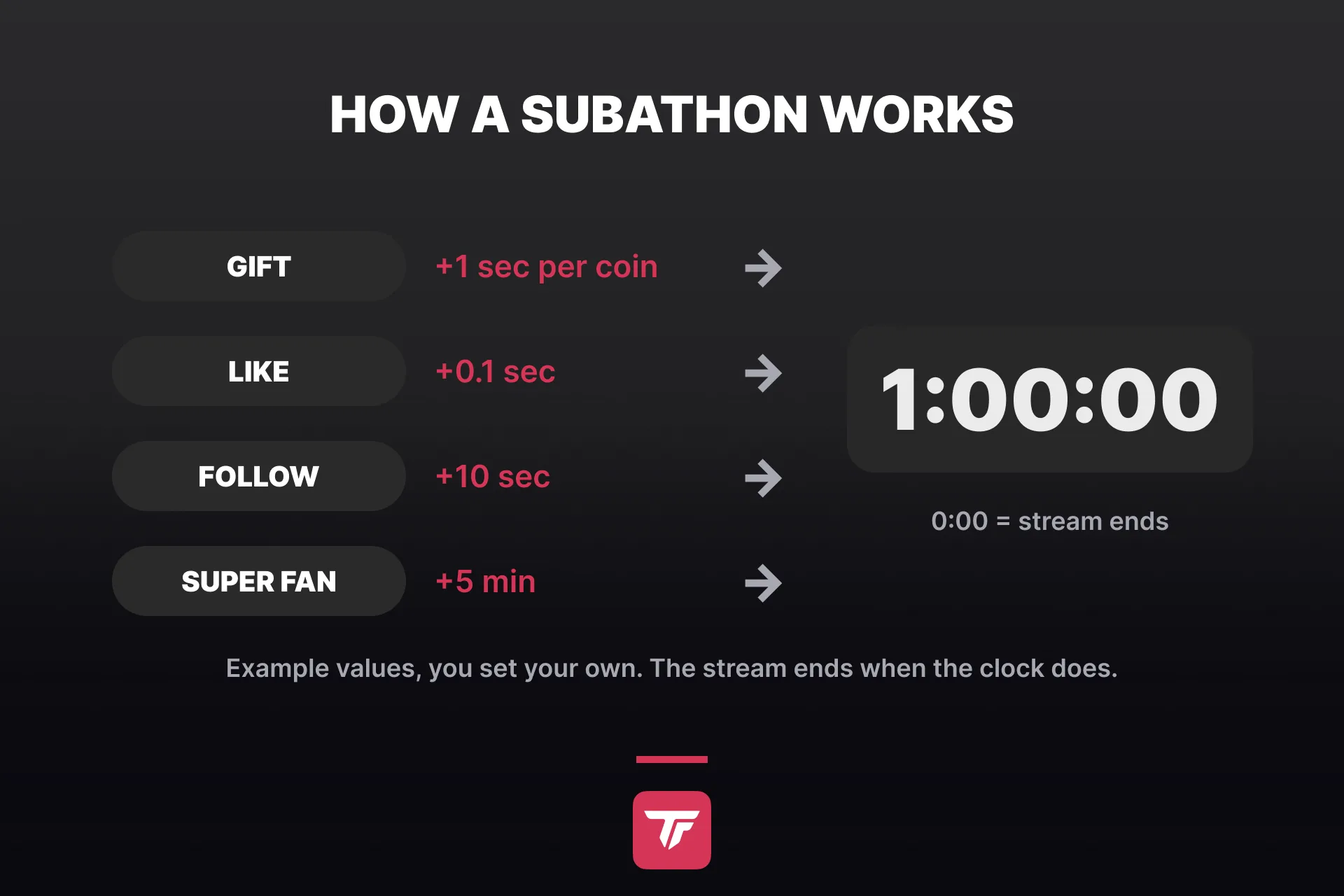
The name comes from Twitch. Sub plus marathon, a stream where every new subscription added time, and the stream kept going as long as people kept subscribing. On TikTok LIVE the same mechanic runs on everything your viewers already do. A gift, a like, a follow, a share, a Super Fan subscription, each one can push the end of the stream further out.
The timer makes the deal visible. A gift lands, the clock jumps, the chat sees it happen. Support gets an instant, on-screen result, and that’s the whole trick.
You’ll see the same thing called a subathon countdown timer, a giftathon, or just a stream countdown timer. All of it means one livestream countdown timer that viewers extend. One honest note before the setup: a subathon is a format, not a growth hack. It works when your regulars enjoy the game, and it’s tiring, so plan a length you can actually stream.
Set up the subathon timer in TikFinity
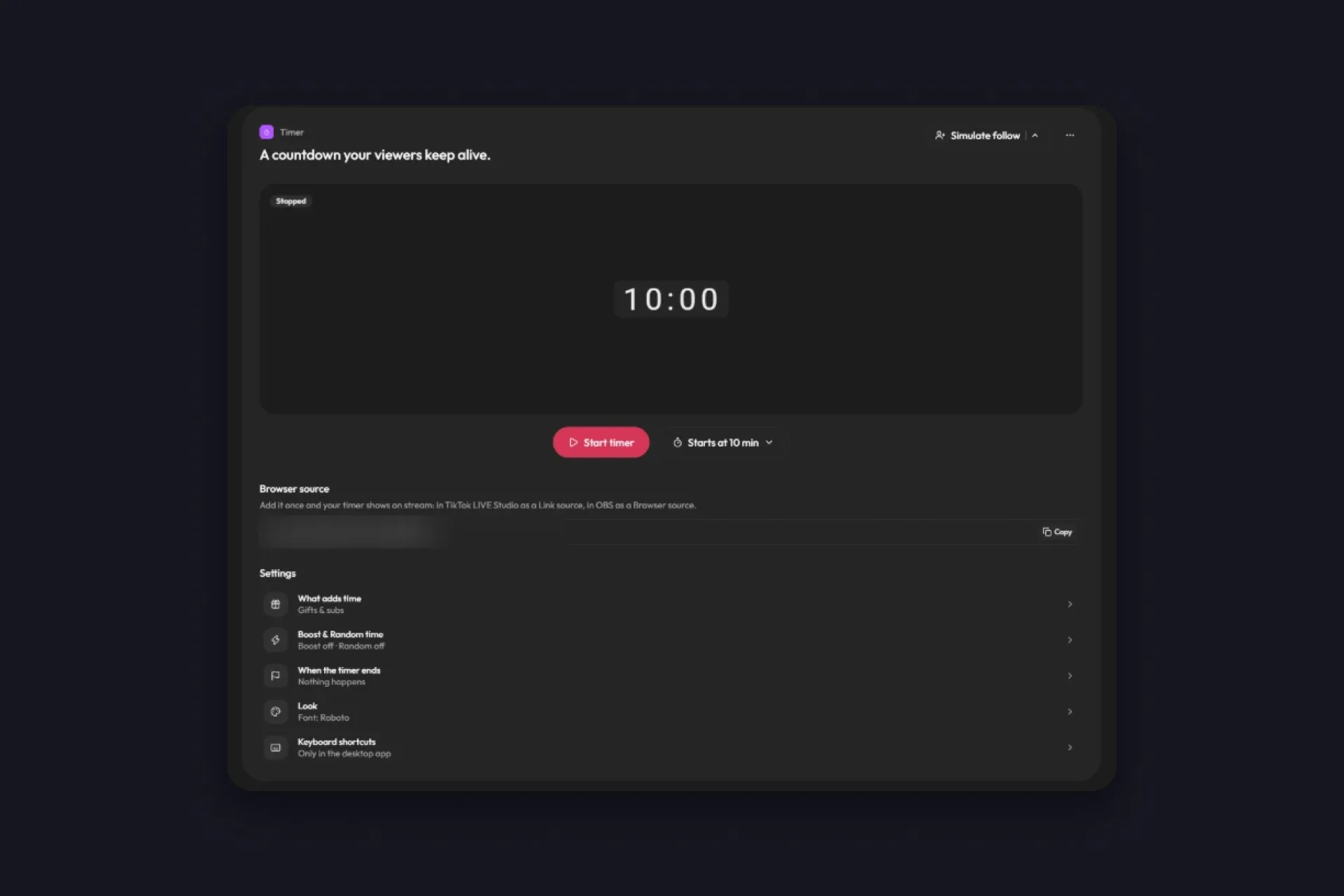
The Timer is one page in TikFinity, and every change on it saves automatically. If you’ve never connected TikFinity to your TikTok account, our setup guide gets you there in ten minutes. Then:
1 Open the Timer in TikFinity. You’ll see the countdown preview, a Start timer button, and the settings underneath.
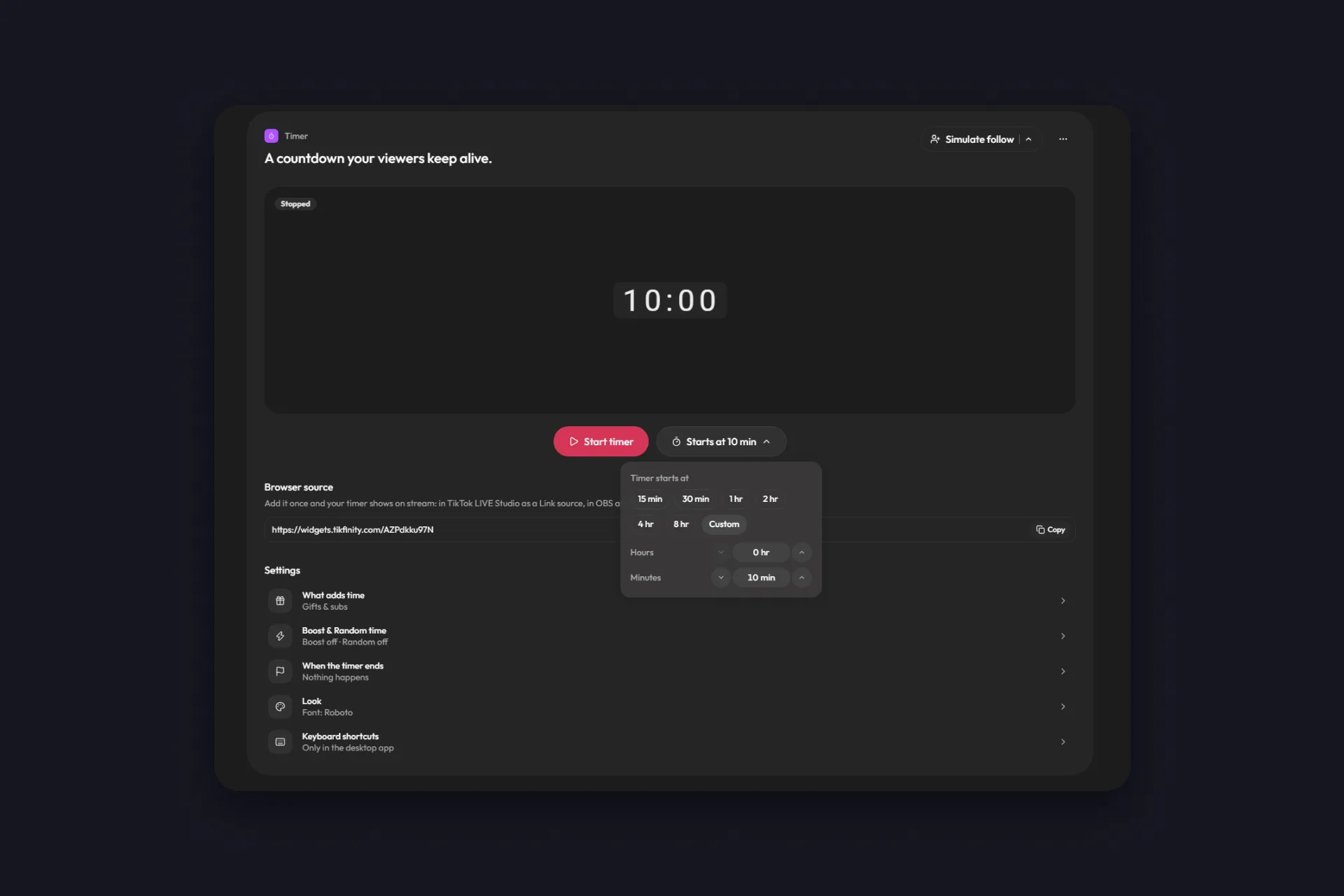
2 Pick the start value. The timer starts at 10 minutes by default. Choose 15 or 30 minutes, 1, 2, 4 or 8 hours, or set your own hours and minutes under Custom. For a first subathon, an hour is a good number, more on that in the tip below.
3 Open What adds time and pick a preset. Classic subathon means gifts, subs and follows add time. Gifts only is the pure giftathon. Everything counts switches on likes, shares and chat messages too. The next section shows how to fine-tune each one.
4 Copy the browser source link and add it to your broadcasting tool. In TikTok LIVE Studio it goes in as a Link source, in OBS Studio as a browser source. Any other tool with a browser source works the same way, and the link stays the same for every stream.
5 Click Start timer. Before anyone’s watching, use the Simulate menu to fire a follow, a share, a sub, five likes or a gift of your choice, and watch the clock jump. If it moves in the preview, it moves on stream.
Decide what adds time, down to the single gift
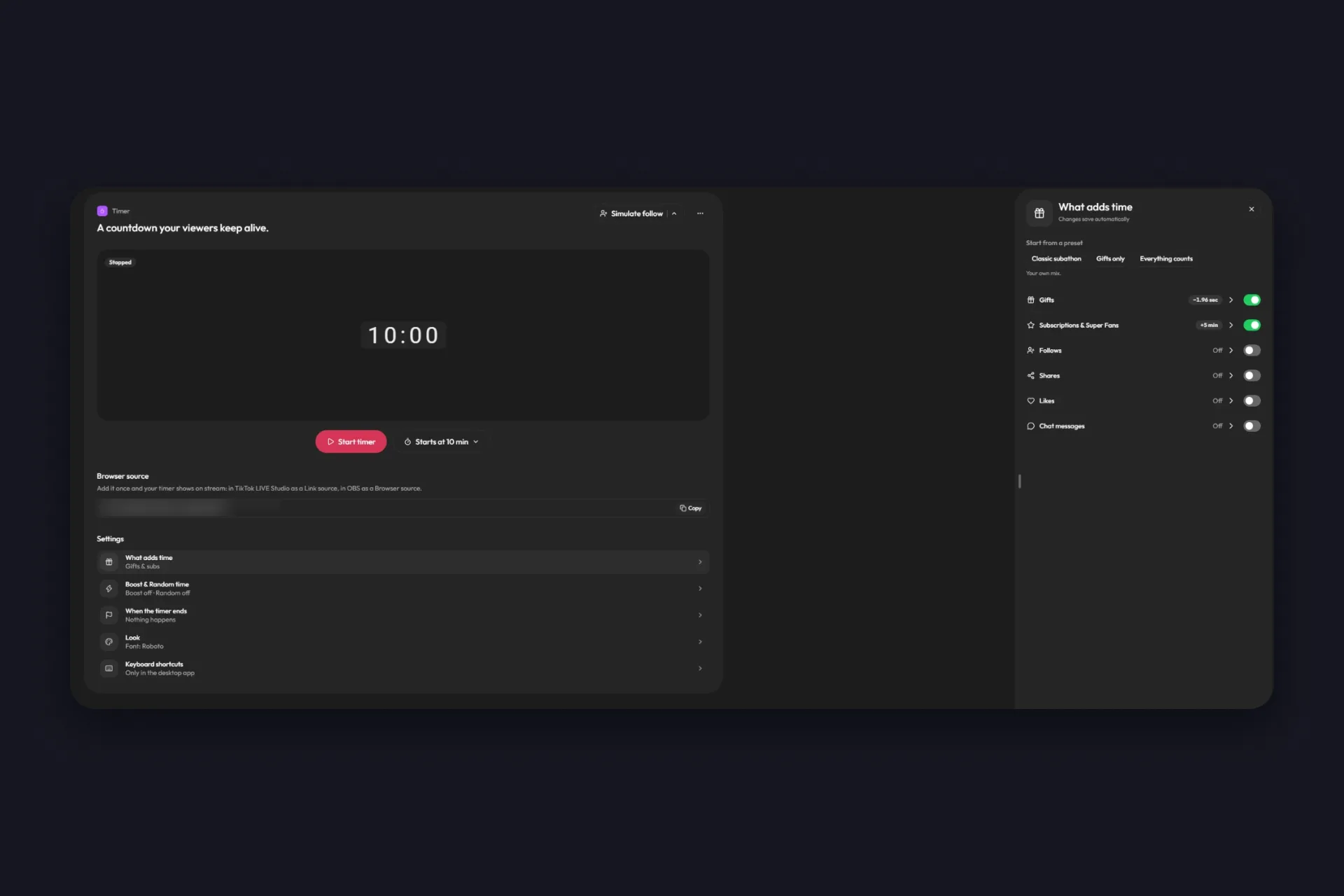
The presets are a starting point. Under them sits a toggle per source, each with its own value, and this is where your subathon gets its personality.
| Source | What you set |
|---|---|
| Gifts | Time per coin, 1, 2, 5 or 10 seconds or your own number. Every gift counts per coin unless you give it its own time, see below. |
| Subscriptions & Super Fans | A fixed amount per new Super Fan, 5 minutes by default. The closest thing to the original Twitch rule. |
| Follows and Shares | A few seconds each. Follows are on in the Classic subathon preset, shares are a nice extra for a small community that likes to spread the word. |
| Likes and Chat messages | Likes come in the hundreds, so keep that number tiny. TikFinity shows you what it adds up to for 100, 1,000 and 10,000 likes while you type. Chat messages reward the people who talk, which is exactly who you want in a long stream. |
Single gifts get their own panel. Click Custom next to Gifts, and under Single gifts choose Add gifts, pick a gift or a whole group, and give it its own time, adding or removing, whatever it costs in coins. The free plan gives one gift its own time, so pick your biggest one, a Lion at 10 minutes for example. With TikFinity Pro you set as many gifts and groups as you like, a Rose at 30 seconds included, and each one has a Remove link if you change your mind. Everything you don’t list keeps counting per coin. While you change the per-coin value, TikFinity shows three example gifts with what they’d add, from a 1-coin gift to a 30,000-coin one, so you see the scale before the first big gift lands.
Do the math once for your biggest gifts. A Lion costs 29,999 coins, and at one second per coin it alone adds over eight hours. That’s why the per-gift time exists: the Lion gets its own number, the clock stays something you can live with, and the Lion still gets the loudest alert of the night.
Every source can run the other way, too. Open Custom for it and switch from Adds time to Removes time, and the same likes or gifts now pull the clock down. That opens up a battle. Likes take a fraction of a second off each, gifts put minutes back on, and the chat argues over how long you stay live. Boost multiplies whatever is on, removals included, so flip it when the fight gets close.
Boost and Random time for the last hour
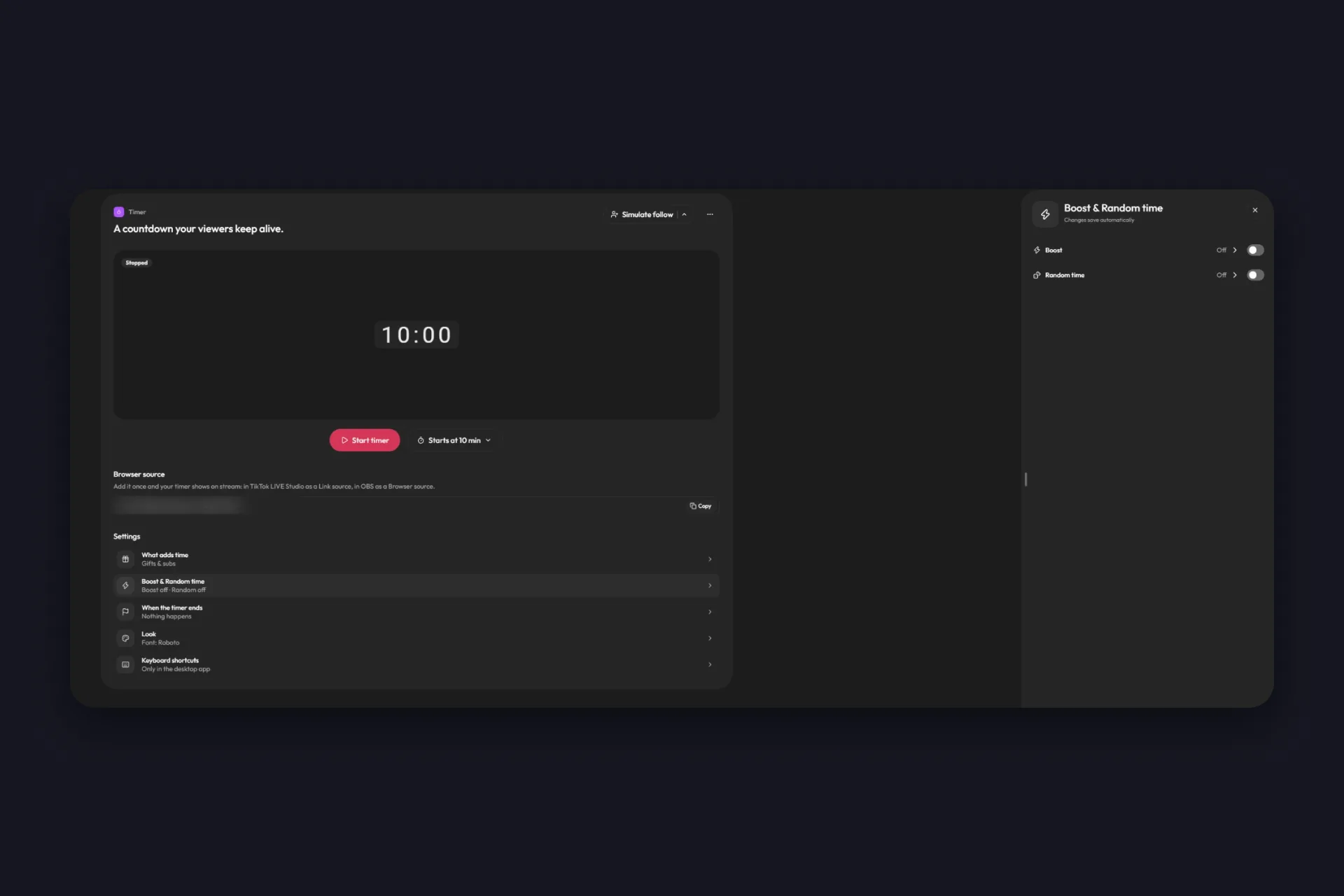
Two switches live in the control bar while the timer runs. Boost multiplies all the time your viewers add, by a factor you pick, ×1.5 for example, for as long as you leave it on. Announce it, give it fifteen minutes, switch it off, and the chat learns that the window is short.
Random time turns every interaction into a small surprise. Instead of a fixed value, each gift or follow adds a random amount from a range you set, for example from five seconds off to ten seconds on. Anything below zero takes time away. Nobody knows what the next Rose does to the clock, which is the fun of it.
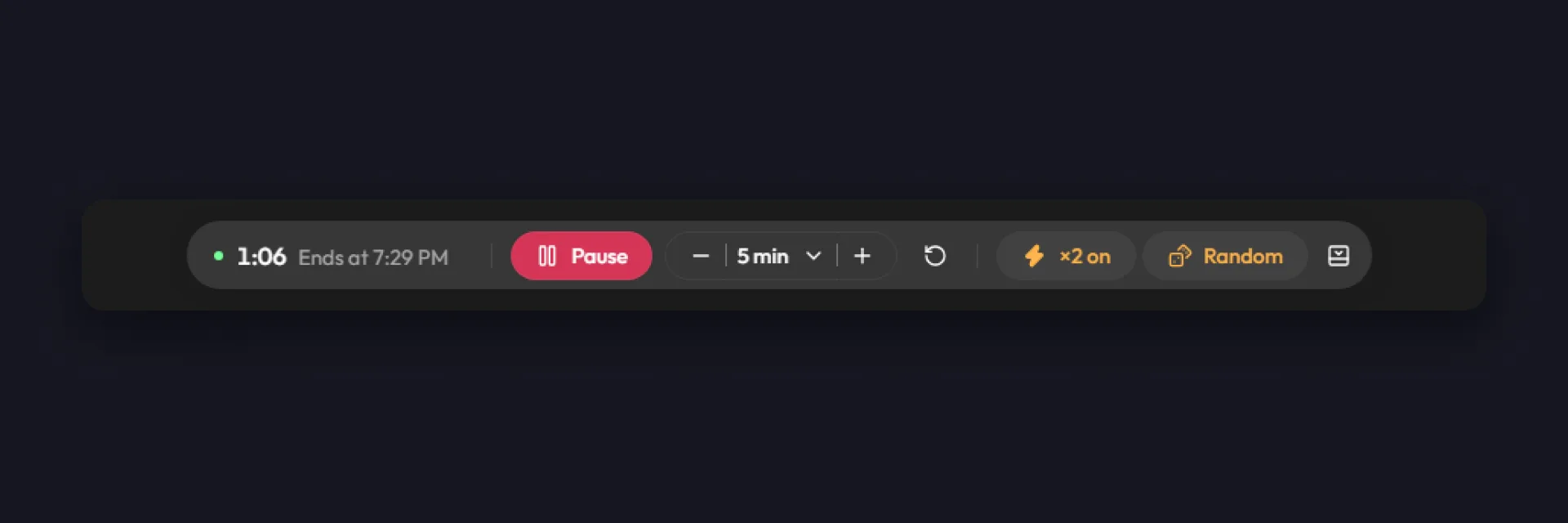
The rest of the bar is for your hands. Pause for a break, plus and minus to add or remove a chunk of time, reset to start over, and the timer tells you the clock time it currently ends at.
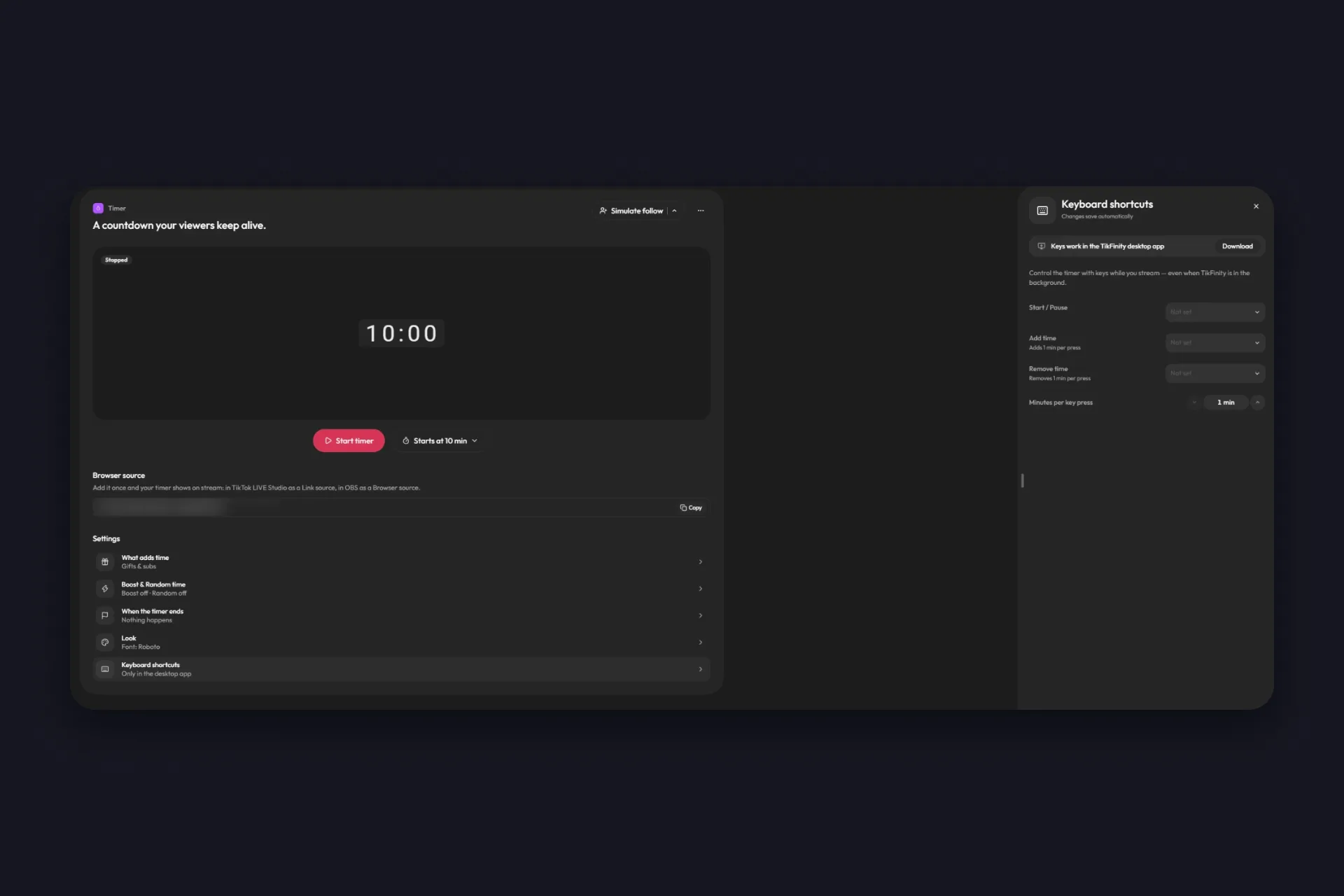
In the TikFinity desktop app, Start and Pause, Add time and Remove time can sit on keyboard shortcuts, with your own number of minutes per key press. Handy when you’re mid-game and the app is in the background.
What happens at 0:00
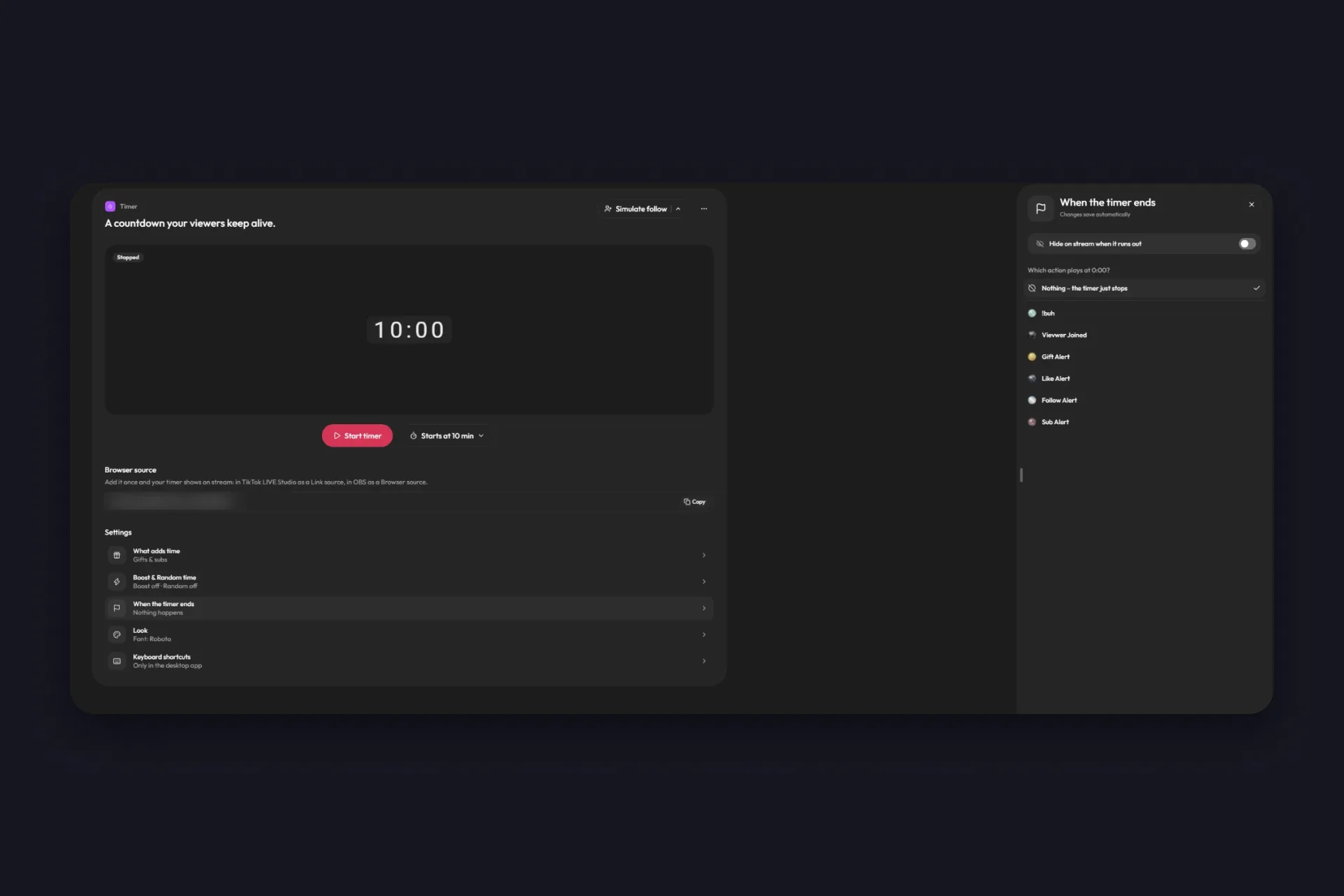
By default, nothing. The timer stops at zero and you say your goodbyes. Two options change that. Hide on stream when it runs out takes the countdown off the screen, clean. And under Which action plays at 0:00 you can pick any action from Actions & Events. A sound, a GIF, an outro animation, or the same alert you built for gifts. If you haven’t built one yet, our alerts guide walks through it.
Match the timer to your overlay
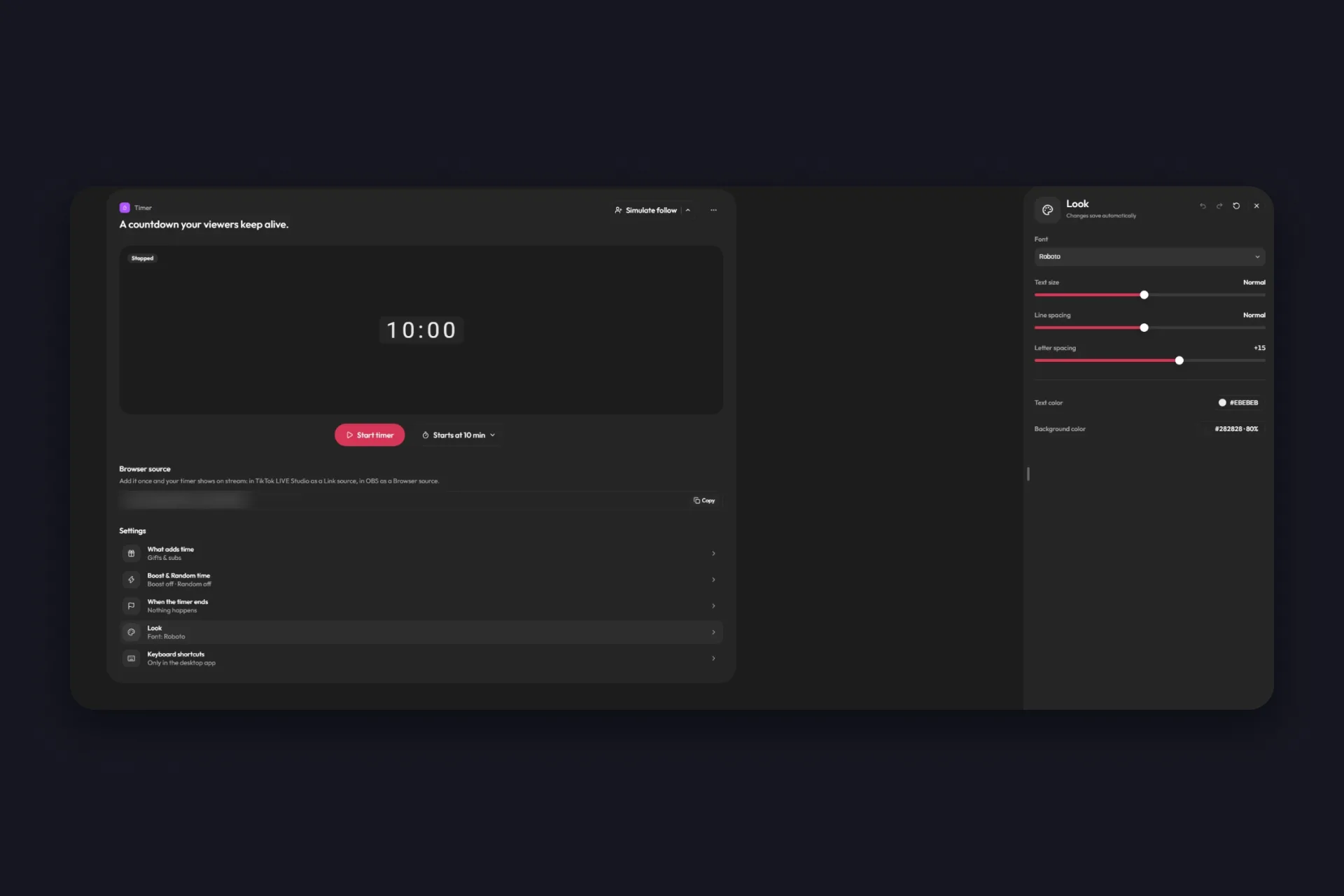
The Look panel has everything a subathon timer overlay needs to blend in. Font, text size, line and letter spacing, a text color, and a background color with its own opacity. Out of the box it’s light digits on a dark, slightly transparent box, which reads well on almost any scene.
Keep it big. Most of your viewers watch in portrait on a phone, and a countdown they can’t read is a countdown they won’t fight for. Put it near the top, where the chat and the gift animations don’t cover it.
A few subathon ideas that keep the clock honest
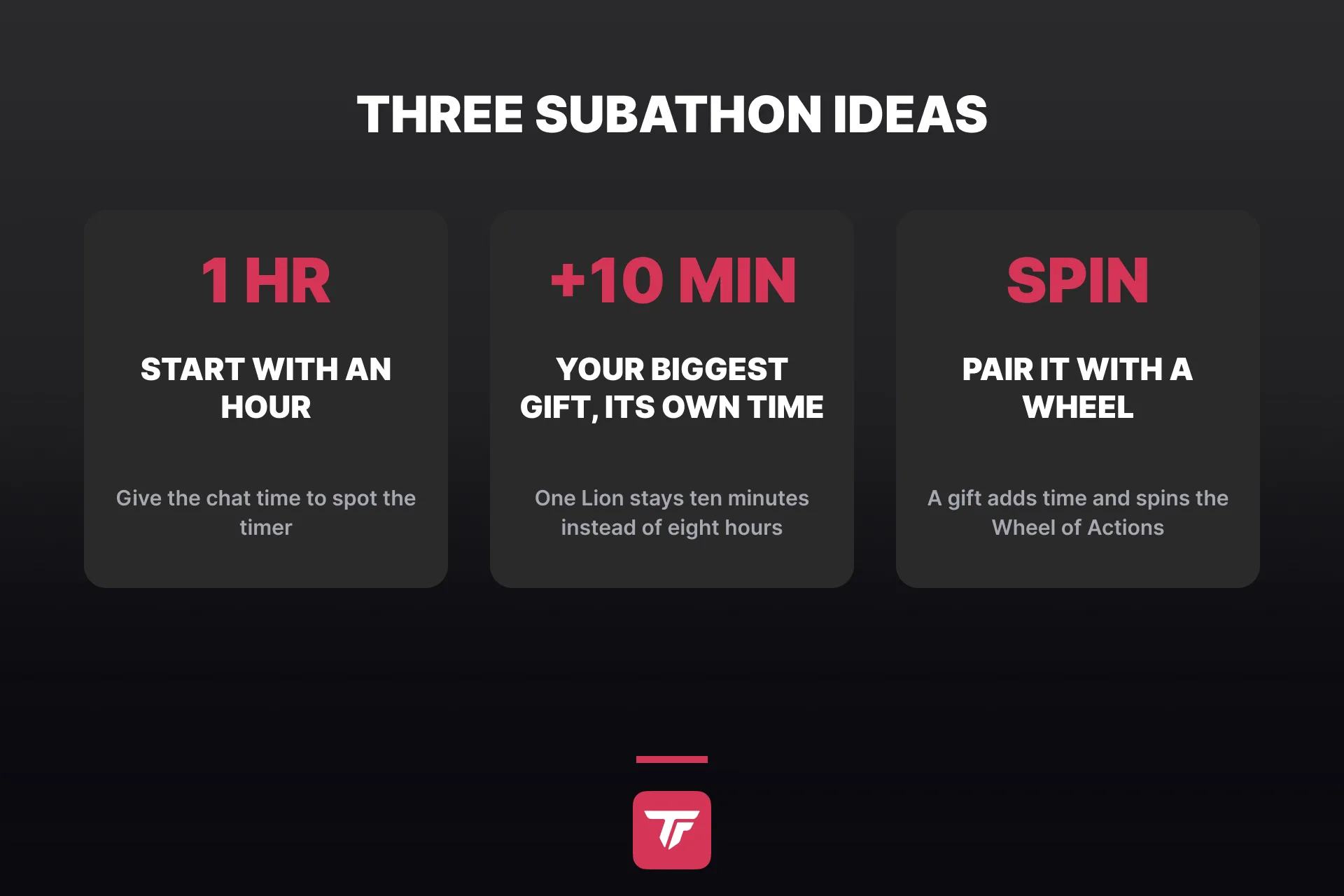
The settings are the easy part. Whether a subathon is fun comes down to how you run it, and these four ideas help:
- Start with an hour and adjust the start value every stream, see the tip in the setup above. The chat earns the rest.
- Say the rules out loud and put them on screen. A line in your stream title or a small text source, like “Rose +30 sec, Super Fan +5 min”, does more for the timer than any animation.
- Give your biggest gift its own time, plan your breaks with Pause, and set a hard stop for yourself before you start. The timer runs as long as the chat wants, you don’t have to.
- Pair the timer with something that reacts. Hang the same gifts on a Wheel of Actions (TikFinity Pro) and a gift adds time and spins the wheel, so the sender gets a result on top, a sound, a GIF, a scene switch. That’s the difference between a stream that gets longer and a stream people stay in. If likes are your community’s thing more than gifts, the Likeathon runs the same game on likes alone, and the Challenge tool does it with custom goals.
Pick one or two for your first subathon and add the rest once you’ve seen how your chat plays the clock.
Start Your Subathon Timer, Free →
One link in your broadcasting tool, one start value, and the rest is the chat’s job. The next time someone asks how long you’re staying tonight, point at the clock. And if it still says three hours at 2 a.m., you know exactly who to thank.
FAQs about the subathon timer
A subathon is a stream with a countdown that your viewers keep alive. Gifts, follows, shares, likes, chat messages and Super Fan subscriptions add time, each with a value you set, and the stream ends when the timer reaches zero. On Twitch the format ran on subscriptions, hence the name. On TikTok LIVE, gifts usually do the heavy lifting.
No. TikTok has two countdowns of its own: the timer in the camera that counts down before a recording starts, and the TikTok LIVE Countdown Sticker you add to a video so viewers can set a reminder for your next stream. A subathon timer runs during the LIVE, on your stream, and your viewers extend it. You need a tool like TikFinity for that.
Copy the browser source link from the Timer page in TikFinity. In OBS Studio add it as a browser source, in TikTok LIVE Studio as a Link source, and in any other broadcasting tool as its browser source. The link stays the same for every stream, and the Timer is part of the free TikFinity plan.
Yes. Open Custom for any source and switch it from Adds time to Removes time. A popular setup is a battle: likes remove a fraction of a second each, gifts add minutes, and the chat fights over how long you stay live. Boost multiplies removals too, so switch it on with intent.
TikFinity is being reworked, and the Timer in this guide is the reworked version. It’s rolling out in waves, so some accounts still see the previous Timer page. If you’ve already had the pop-up offering the switch, go ahead, the reworked TikFinity opens with all your settings in place. If you haven’t seen it yet and want the new Timer now, ask the support team.
Yes. The control bar has Pause, plus and minus for a chunk of time, and Reset. In the TikFinity desktop app you can put Start and Pause, Add time and Remove time on keyboard shortcuts, so a break or a bonus is one key press away even while a game is in the foreground.