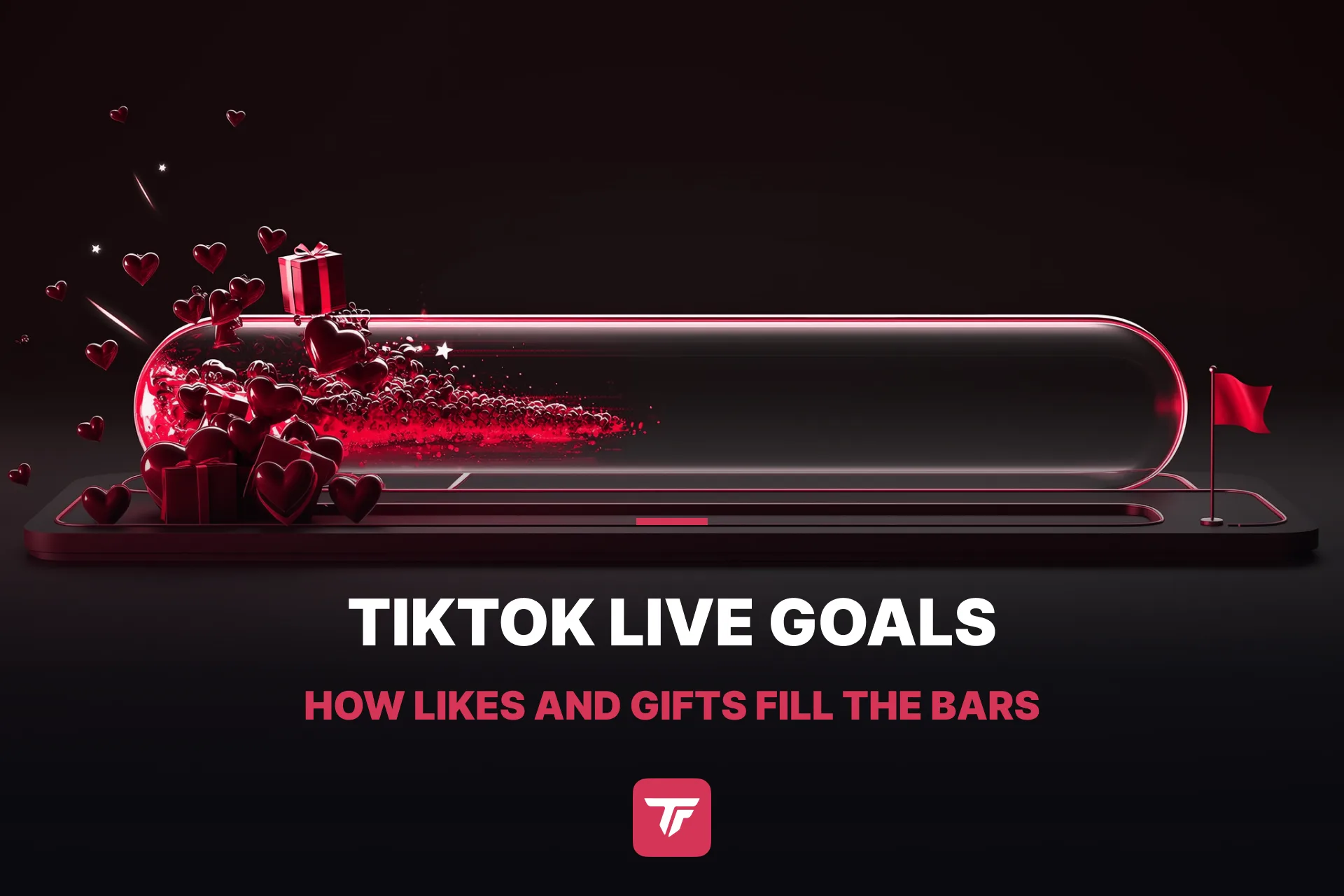
You’ve seen it on bigger streams. A bar sits under the camera, “Like Goal 38,200 / 50,000”, and every few seconds it creeps a little further. Nobody has to ask for taps, the number asks for them. In TikFinity that bar is one page, and this guide shows you how to set up a TikTok goal from that page, which goals exist, which styles are free and which need TikFinity Pro, and how custom goals react to the gifts you choose.
Everything here works the same in TikTok LIVE Studio, OBS Studio or any broadcasting tool with a browser source. The goals connect to your TikTok account through TikFinity, so the count moves on its own while you stream.
Seven goals, one bar each
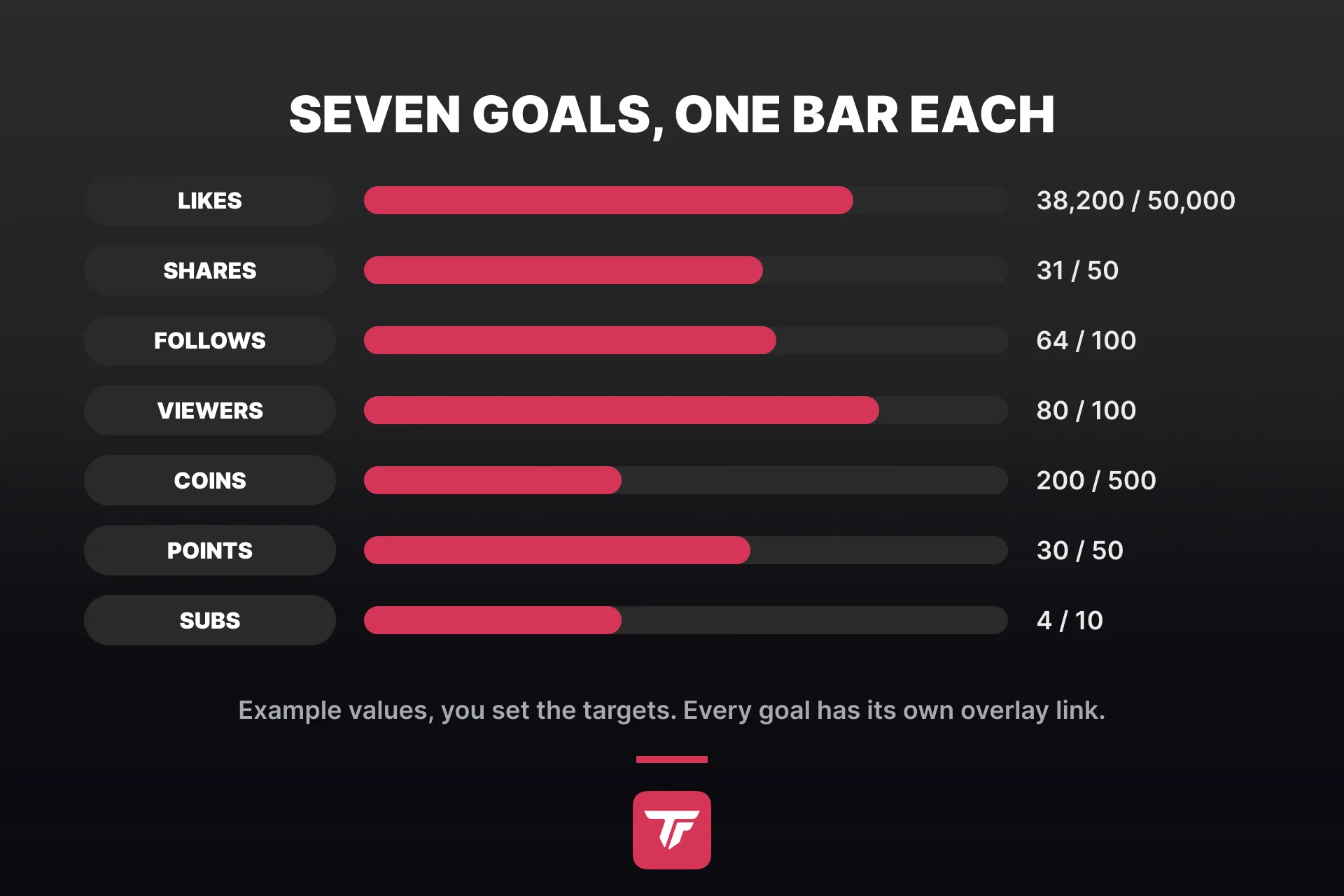
Open the Goal Overlays page in TikFinity and you’ll find one card per goal type. Each card has its own overlay link, so you can run one goal or all seven at the same time.
| Goal | What it counts | Good for |
|---|---|---|
| Likes | Taps on the heart during your LIVE | Every stream, the easiest ask there is |
| Shares | Viewers who share your LIVE | Small communities that bring friends |
| Follows | New followers since the stream started | New creators, follower milestones |
| Viewer Count | People in the room right now | “Let’s hit 100 viewers” moments |
| Coins Earned | Coins from gifts | The TikTok version of a donation goal |
| Channel Points Earned | Points from TikFinity’s points system | Communities that play with points |
| New Subscribers | New Super Fans and subscribers | Creators with subscriptions turned on |
Which one should you start with? The like goal, every time. Likes cost your viewers nothing, the count climbs fast, and a bar that visibly moves teaches the chat how the game works. Our guide to likes on TikTok LIVE goes into why taps matter. Add a follower goal or a sub goal once your regulars know the drill. If you run Super Fan subscriptions, the sub goal is the one that pays off most.
Set up your first TikTok goal in TikFinity
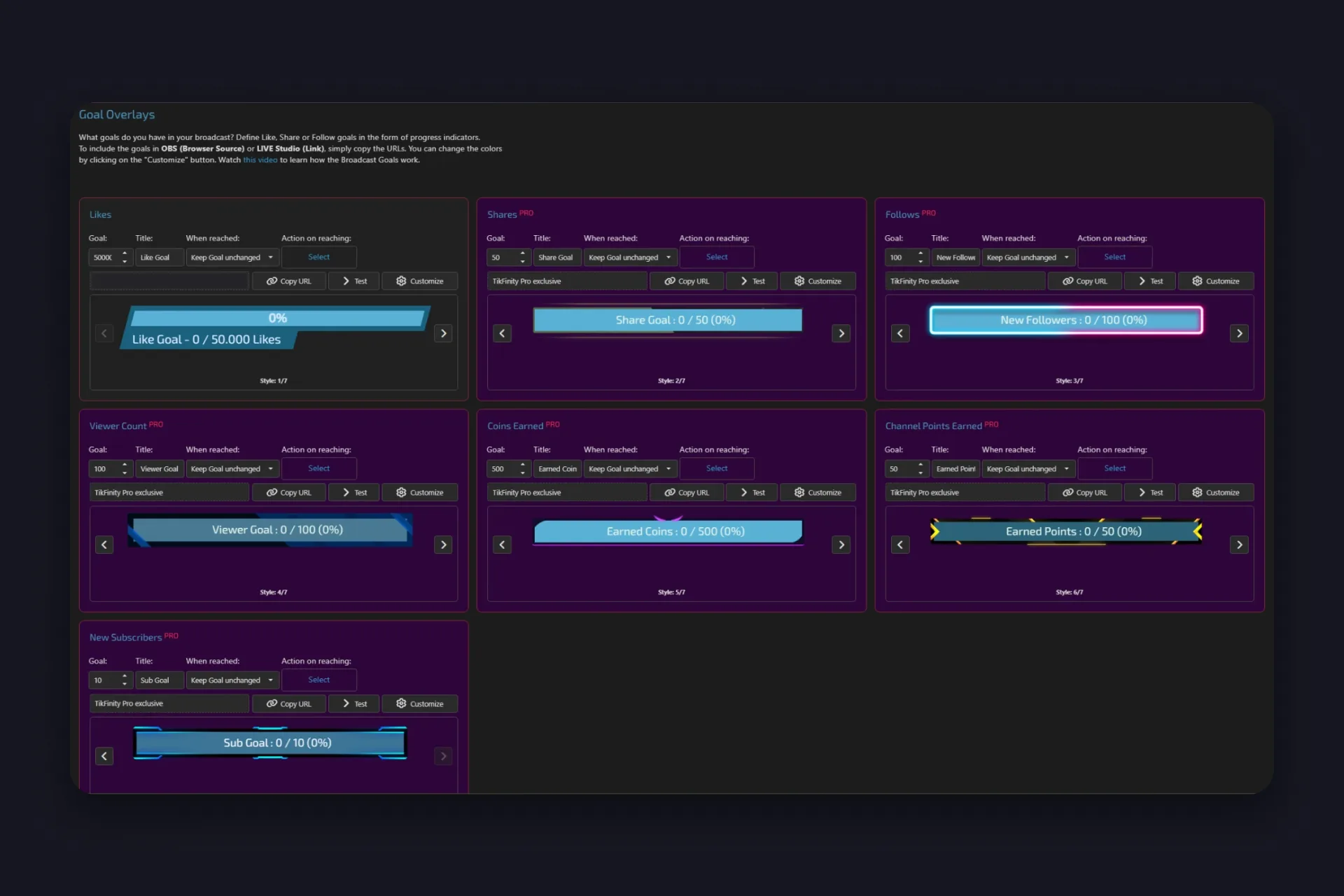
If TikFinity isn’t connected to your TikTok account yet, our setup guide gets you there first. Then open Goal Overlays and work through one card:
1 Type the target into Goal. The Likes card comes with 50,000, which suits a stream that already pulls a crowd. For a first LIVE, 5,000 or 10,000 is a better number. Changes save on their own.
2 Give it a Title. That’s the text on the bar, “Like Goal” by default. A short line works best, more title ideas further down.
3 Pick what happens under When reached. Keep Goal unchanged leaves the full bar on screen, Increase Goal and Double Goal set the next target automatically, Hide takes the bar off the stream once it’s done.
4 Optional, but worth it. Under Action on reaching, click Select and choose an action from Actions & Events, or create one on the spot. Reaching the goal then plays that action, a sound, a GIF, an animation, whatever you’ve built.
5 Click Copy URL and add the link to your broadcasting tool. In TikTok LIVE Studio it goes in as a Link source, in OBS Studio as a browser source. Place it where your face and the chat don’t cover it.
6 Hit Test and the bar fills with sample numbers in the preview, so you can check title and colors without going live.
That’s one goal. Every other card works the same way, so the second one takes a minute.
What a goal does when it’s reached
A TikTok goal that fills up and then just sits there is a missed moment. This is where the two settings from step three and four earn their place, and they combine well.
When reached decides what the bar does next. You have four options:
| Option | What happens | Good for |
|---|---|---|
| Keep Goal unchanged | The full bar stays on screen | Wins you want to keep showing |
| Increase Goal | The target moves up a step | The quiet option, the chat gets a new number to chase |
| Double Goal | 10,000 likes becomes 20,000, then 40,000 | Streams that blow past the first target |
| Hide | The bar leaves the stream once it’s full | One-off goals like “100 followers tonight” |
Action on reaching is the loud option. The action you pick comes from Actions & Events, the same place your gift and follow alerts live, so a confetti animation with a sound is a few clicks away. If you haven’t built an action yet, our alerts guide walks through the first one. Our favorite combination for a like goal is Increase Goal plus a short celebration action. The chat gets its payoff, and the next target is already waiting.
Seven styles, one of them free
Every goal card has arrows under the preview that flip through the designs. Default is included in the free plan for all seven goals, a clean two-tone bar with the title on one line and the percentage on top. It fits most layouts without a single change.
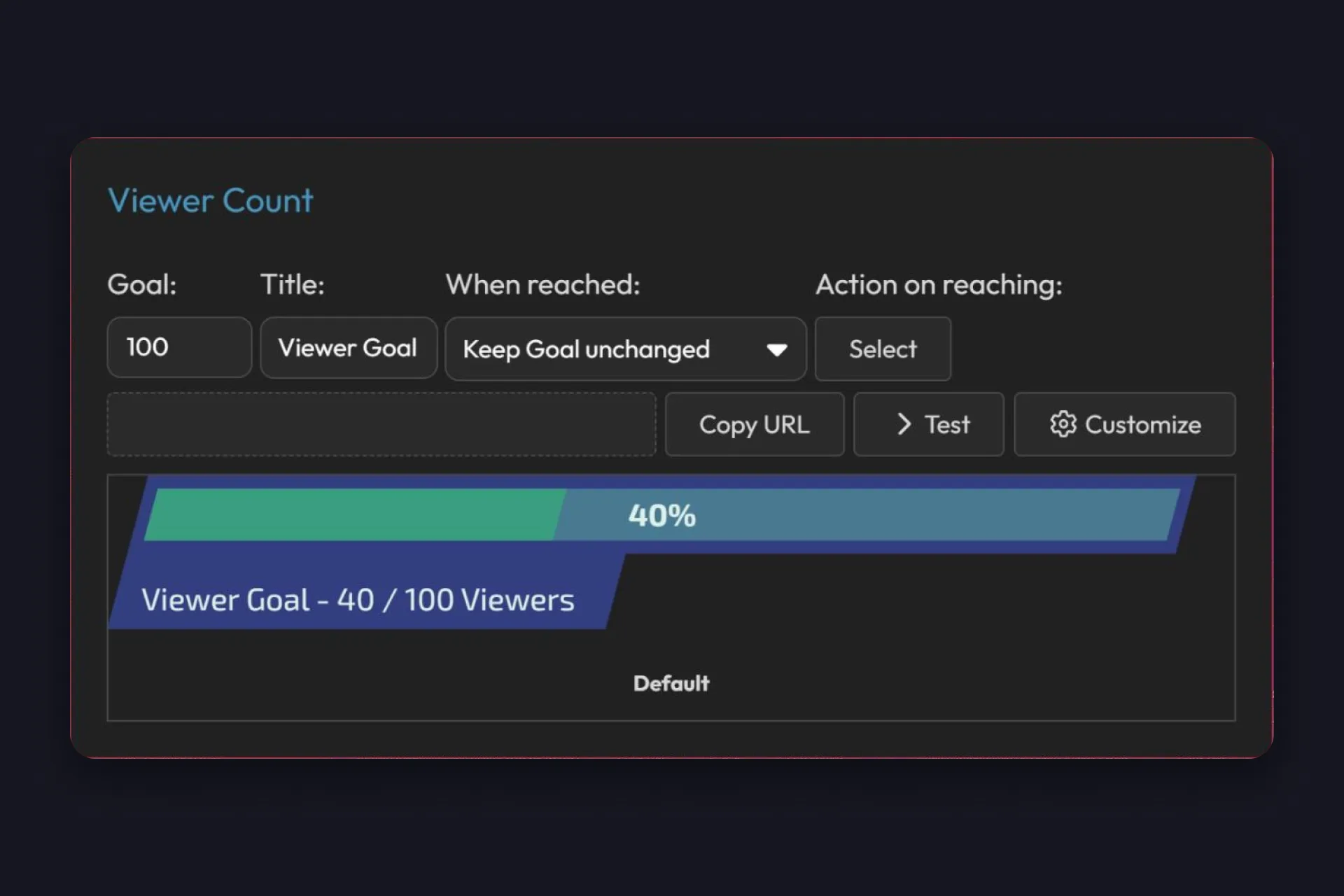
The other six, Army, Clean Neon, Pure, Raven, Aurous and Clarity, are part of TikFinity Pro. They’re the fully redrawn bars, a neon frame, a layered banner, a bar with side markers, each in its own shape. Pick a Pro style on a free account and the card shows “TikFinity Pro exclusive” instead of the overlay link, so you can preview them all before you decide.
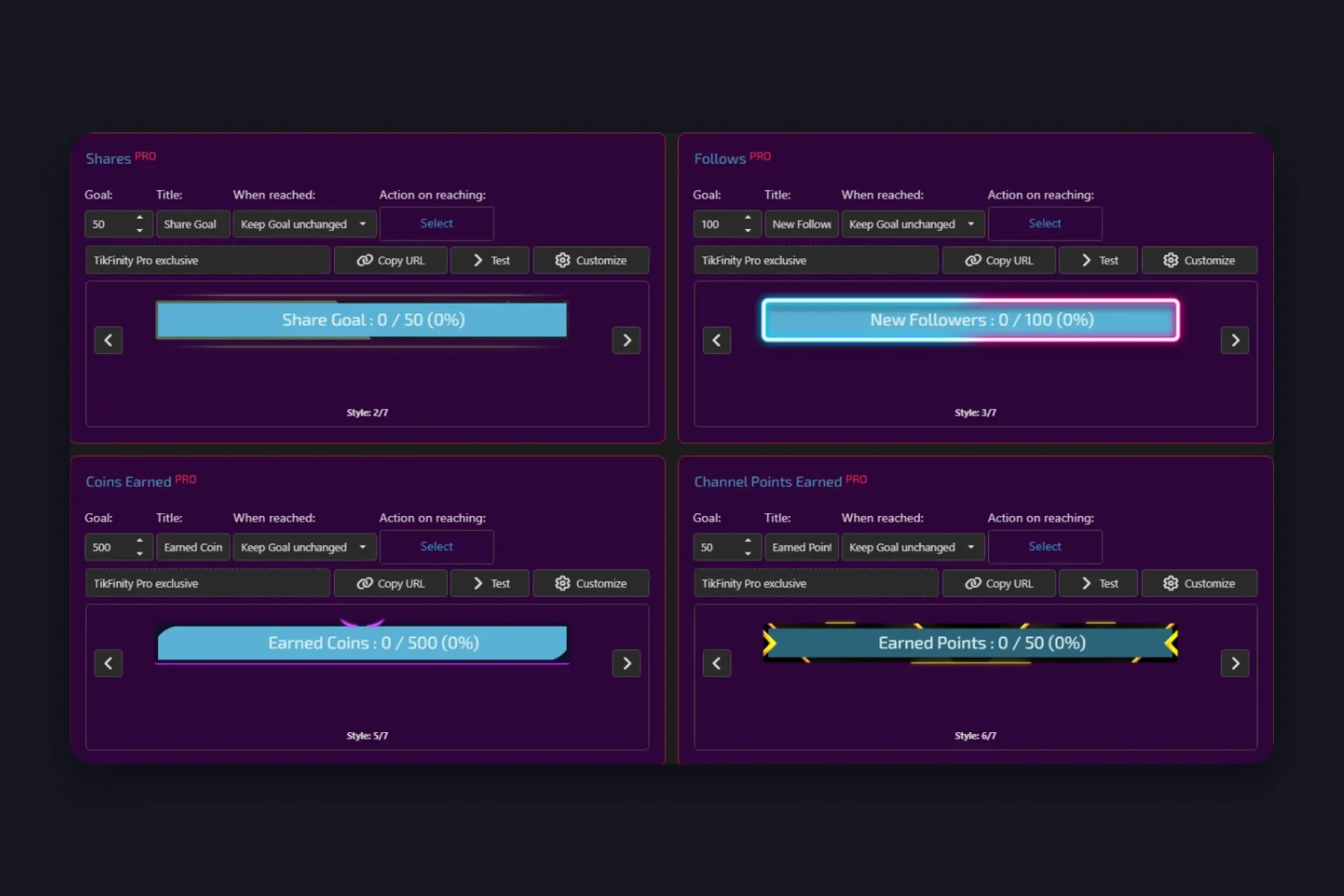
Customize opens the Overlay Settings, and these work on every style, free or Pro. Font and font size, line and letter spacing, a background color with its own transparency, separate colors for the text, the percentage, the filled part and the remaining part, and a toggle for the title. Pro styles like Army add sliders for saturation and grayscale. Under Text Effects you can add a glow to the title. Match the progress color to your webcam frame and your TikTok goal looks like part of the scene rather than a widget on top of it.
Custom goals that react to the gifts you choose
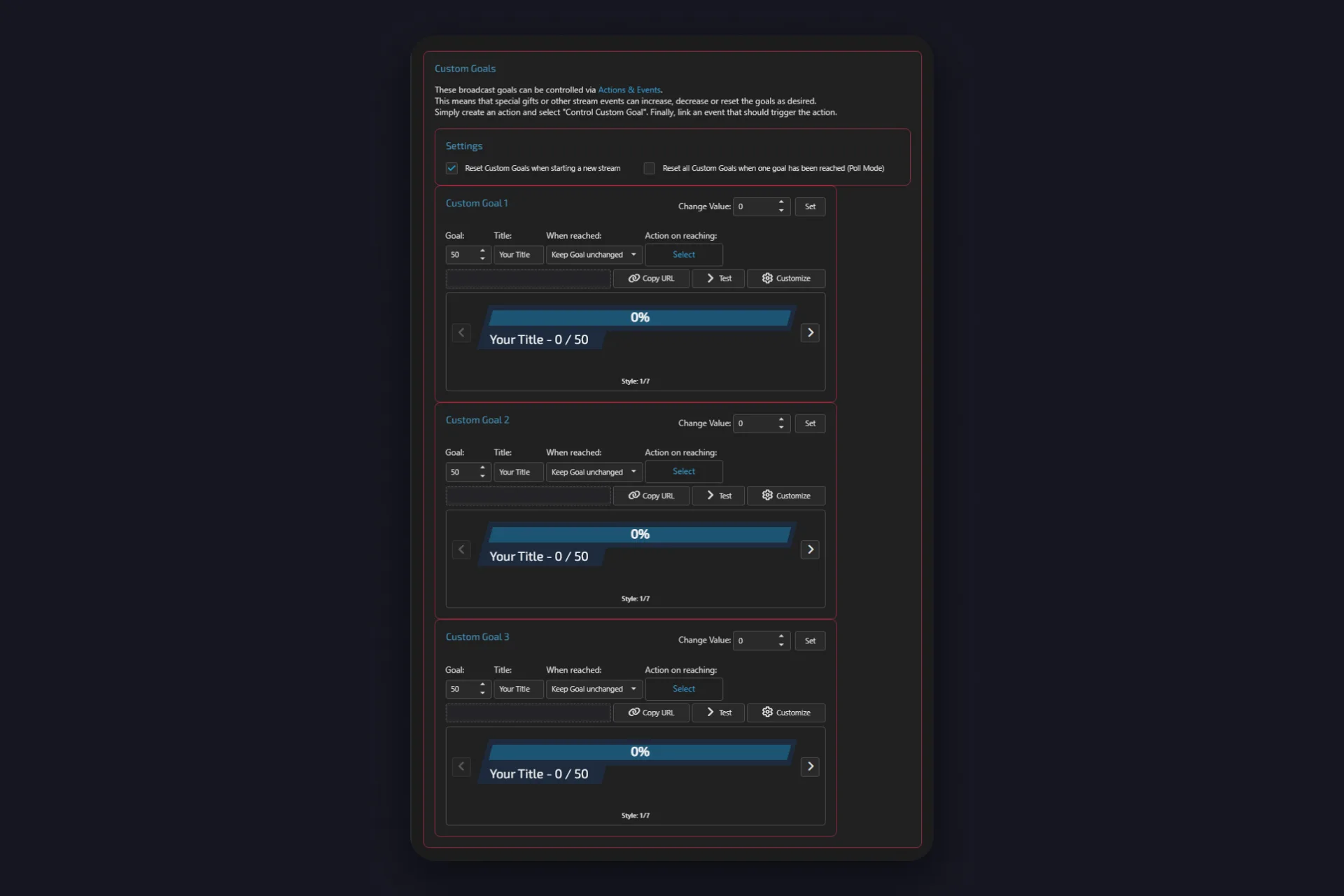
Below the seven standard goals sit three custom goals. These don’t count anything by themselves. You decide what moves them, through Actions & Events, and that opens up goals TikTok doesn’t track at all.
Two that creators run: a Rose counter that only climbs when someone sends a Rose, and a poll, where one goal stands for each option and a specific gift votes for it. The Custom Goals page even has a setting for polls, Poll Mode, which resets all three goals the moment one of them is reached.
Setting one up takes three steps:
1 On the Custom Goal card, set the target and the title, and copy the overlay link into your broadcasting tool like any other goal.
2 In Actions & Events, create a new action and tick Control Custom Goal. Pick the custom goal it changes (one of the three, or all of them), then Increase progress by, Decrease progress by or Set progress to, with the number next to it.
3 Link an event to that action, a specific gift, a follow, a chat command, whatever should move the bar. From then on, every time the event fires, the goal changes.
Two more controls sit on the page. Change Value with the Set button lets you set a custom goal by hand mid-stream, handy when your Rose goal should start at 250 instead of zero. And “Reset Custom Goals when starting a new stream” is on by default, so each LIVE begins at zero. Switch it off if a goal is meant to run across several streams, a “1,000 Roses this month” bar for instance.
Goal titles that get taps
The title is the only text your viewers read on the bar, so it does more work than the colors. Three things make a good one:
- Name the reward, not the metric. “50k likes = face reveal” beats “Like Goal”. The number is already on the bar.
- Keep it short. The bar has room for a few words, and most of your viewers watch in portrait on a phone.
- Make it tonight’s goal. “100 new followers today” is a number your chat can hit before the stream ends, and a goal within reach gets everyone joining in.
Some that work across almost any stream: “Likes to 20k and I switch games”, “Every 50 follows, a song request”, “Coins to 500 = cold water challenge”, “Subs to 10 and the subs pick the next stream”. Pair the title with Action on reaching, so the moment the bar fills, the stream itself announces it.
Set Up Your First Goal, Free →
Once the first bar has done a stream or two, the rest of the goal family is worth a look. Countdown Goals show the same targets the other way round, how much is still missing instead of how much is in. The Timer turns a goal into time, every gift or follow keeps the stream alive a little longer. Different bars, same idea. A TikTok goal your viewers can move is a goal they’ll want to move.
FAQs about goals on TikTok LIVE
With TikFinity, open the Goal Overlays page, pick a card such as Likes or Follows, enter the target and a title, and copy the overlay link into TikTok LIVE Studio as a Link source or into OBS Studio as a browser source. The bar then updates on its own during your LIVE. The Default style and all seven goal types are free.
Yes. The TikTok LIVE goal in the app and in TikTok LIVE Studio tracks a gift target in TikTok’s own layout, for example a Heart Me gift. TikFinity’s goals cover likes, shares, follows, viewers, coins, points and subscribers as well, plus three custom goals, with your own styles, titles and an action that plays when the goal is reached.
The goals themselves are free, all seven types and the three custom goals, on the Default style. The six design styles, Army, Clean Neon, Pure, Raven, Aurous and Clarity, are part of TikFinity Pro. Colors, font and title can be customized on every style, free or Pro.
You decide per goal. Under When reached, choose Keep Goal unchanged, Increase Goal, Double Goal or Hide. Under Action on reaching, pick any action from Actions & Events, a sound, a GIF or an animation, and it plays the moment the bar fills.
Yes, with a custom goal. Create an action in Actions & Events with the effect Control Custom Goal, set how much it adds, and link it to the event for that gift. Only that gift moves the bar. The same trick works for chat commands, follows or anything else Actions & Events can react to.
Set the target on the Follows card in TikFinity’s Goal Overlays, click Copy URL, and add the link in TikTok LIVE Studio under Sources as a Link, or in OBS Studio as a browser source. The link stays the same for every stream, so you only do this once.