TikFinity presets work like a save point in a game. You save a stream profile, that’s the whole TikFinity setup you use for one kind of stream, and you can jump back to it whenever you want. We’ll show you with our own profile how to save a preset, use it, undo it and share it with another streamer.
What a TikFinity preset is and what goes in
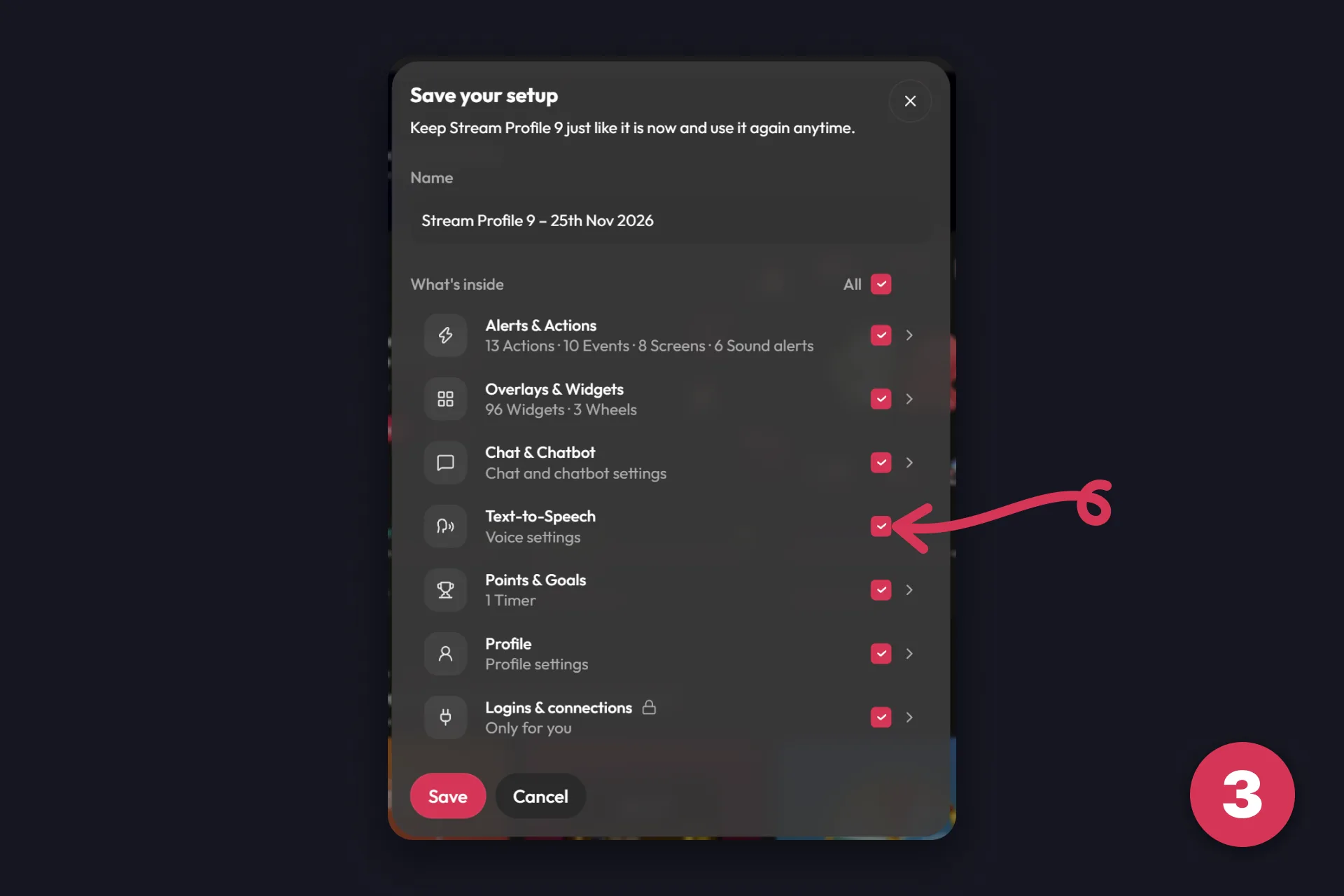
A preset is a copy of your stream profile at one moment. TikFinity sorts everything into seven areas, and when you save, you decide which of them go in:
✅ Alerts & Actions holds your alerts and sound alerts, meaning everything that pops up or plays when someone follows you or sends a gift.
✅ Overlays & Widgets holds your overlays, the extras on top of your stream picture, like a goal bar or a wheel of fortune.
✅ Chat & Chatbot holds your chat and chatbot settings.
✅ Text-to-Speech holds the settings of the voice that reads your chat out loud.
✅ Points & Goals holds your points settings and your timers.
✅ Profile holds your profile settings.
🔒 Logins & connections holds your OBS, Minecraft and Streamer.bot logins, and those are only for you.
That means if you’re about to try something big, you save your setup first and always have a backup. A seasonal setup like your Christmas stream can wait for next year, and a streamer friend who likes your alerts can get the same setup with one link. For your very first stream you honestly don’t need presets. They get handy the moment you’ve built something you don’t want to lose.
Where you find your presets
At the top right of TikFinity you’ll see a button with the name of the profile you’re on, in our case “Stream Profile 9”. That’s the Stream Profile switcher. If you click on it, a menu opens, and at the very bottom you’ll find the row “Presets”, which opens a panel with all your saved setups.
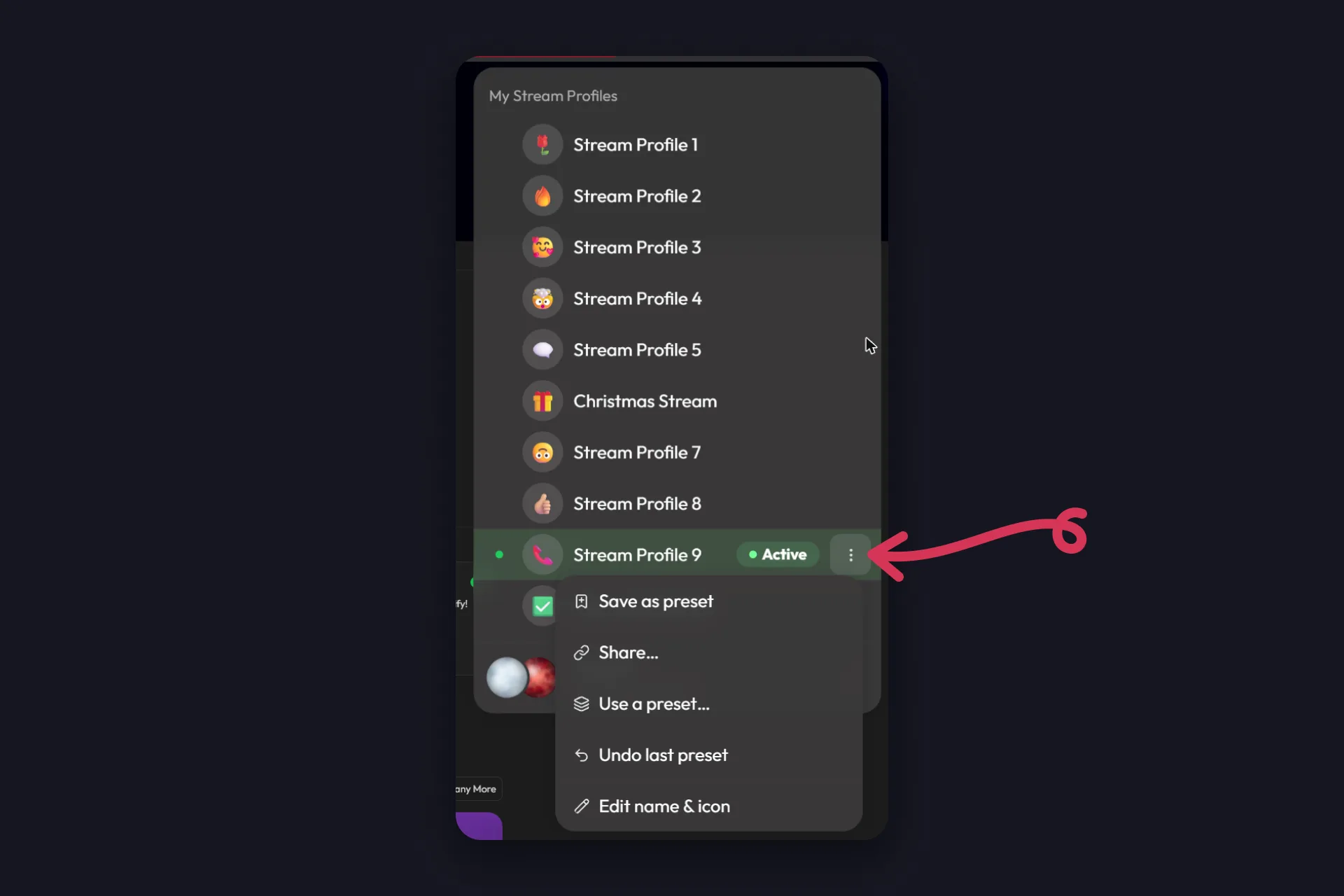
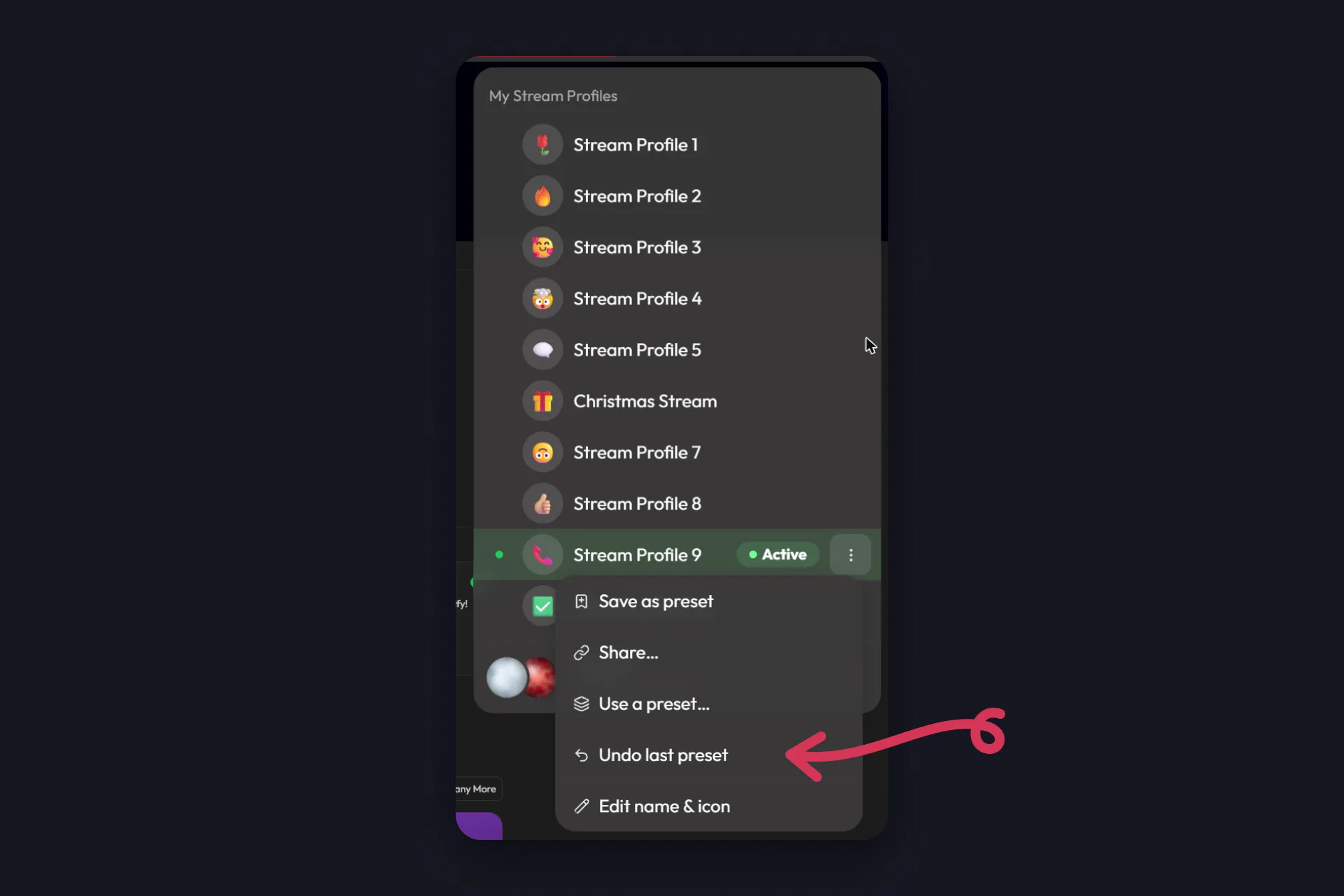
If you’d rather take the quick way, click the three dots next to a profile name. Here you’ll find these options right away, and each of them works for exactly that profile:
- “Save as preset” opens the window “Save your setup”, so you can save this profile as a preset.
- “Share…” opens the same window as “Share your setup”. That means you save the profile and get a link for other streamers in one go.
- “Use a preset…” puts one of your saved presets onto this profile. It only shows up once you’ve saved at least one preset.
- “Undo last preset” appears after you’ve used a preset on this profile, and takes it back again.
Everything here is about TikFinity in your browser and in the desktop app, that’s where you find presets. If stream profiles are still new to you, our TikFinity guide for beginners explains them.
Save your TikFinity setup as a preset
We’ll show you with our “Stream Profile 9” how to save a whole setup with everything in it. This works on the free plan too.
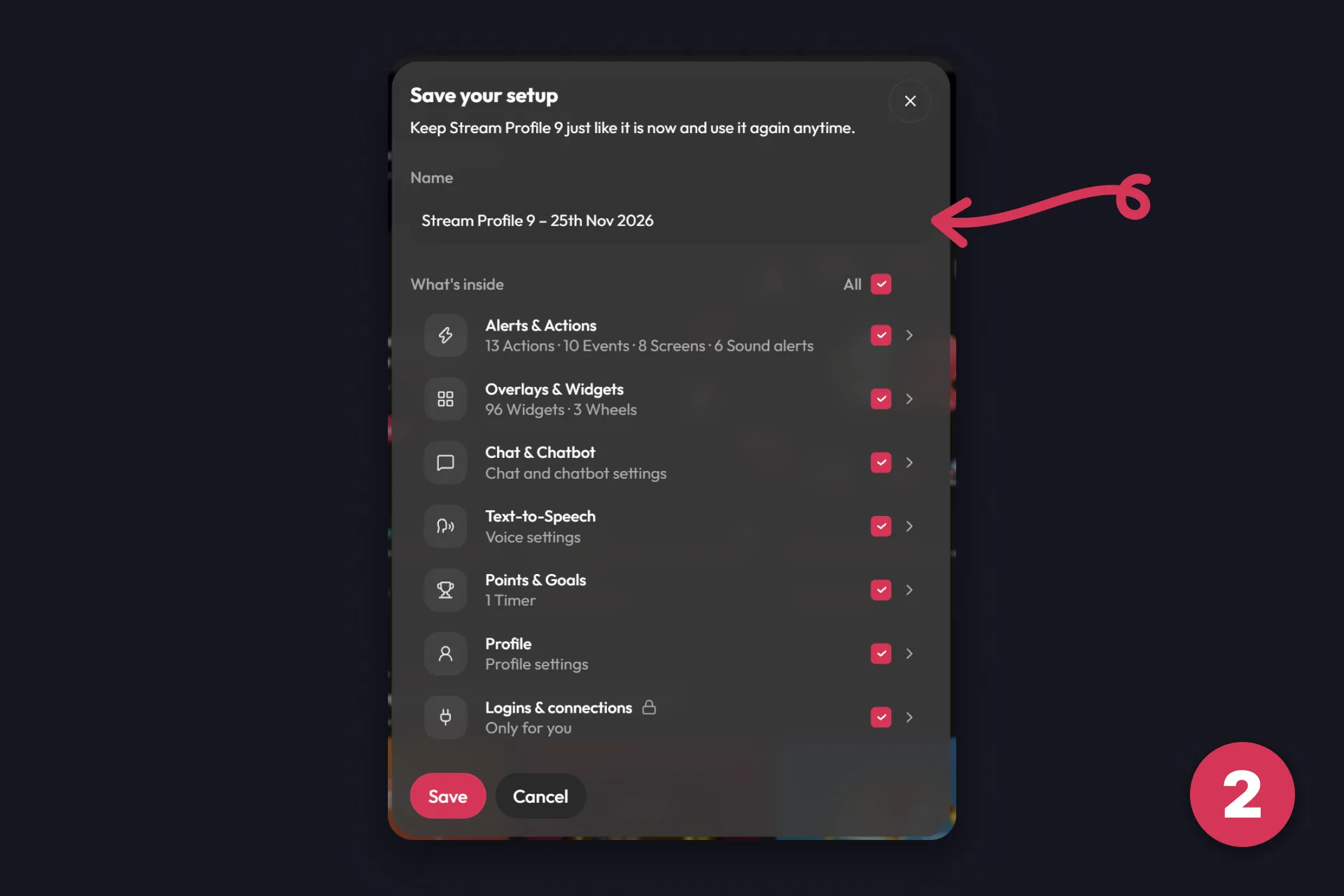
1 Open TikFinity, click the Stream Profile switcher, then “Presets”, and click “Save my setup”. The window “Save your setup” pops up.
2 Give your preset a name. TikFinity already suggests the profile name plus today’s date, in our case “Stream Profile 9” with the 25th of November, and you can keep that or type your own.
3 Under “What’s inside” every area is ticked. Leave it like that if you want the whole setup, or untick the areas you don’t need.
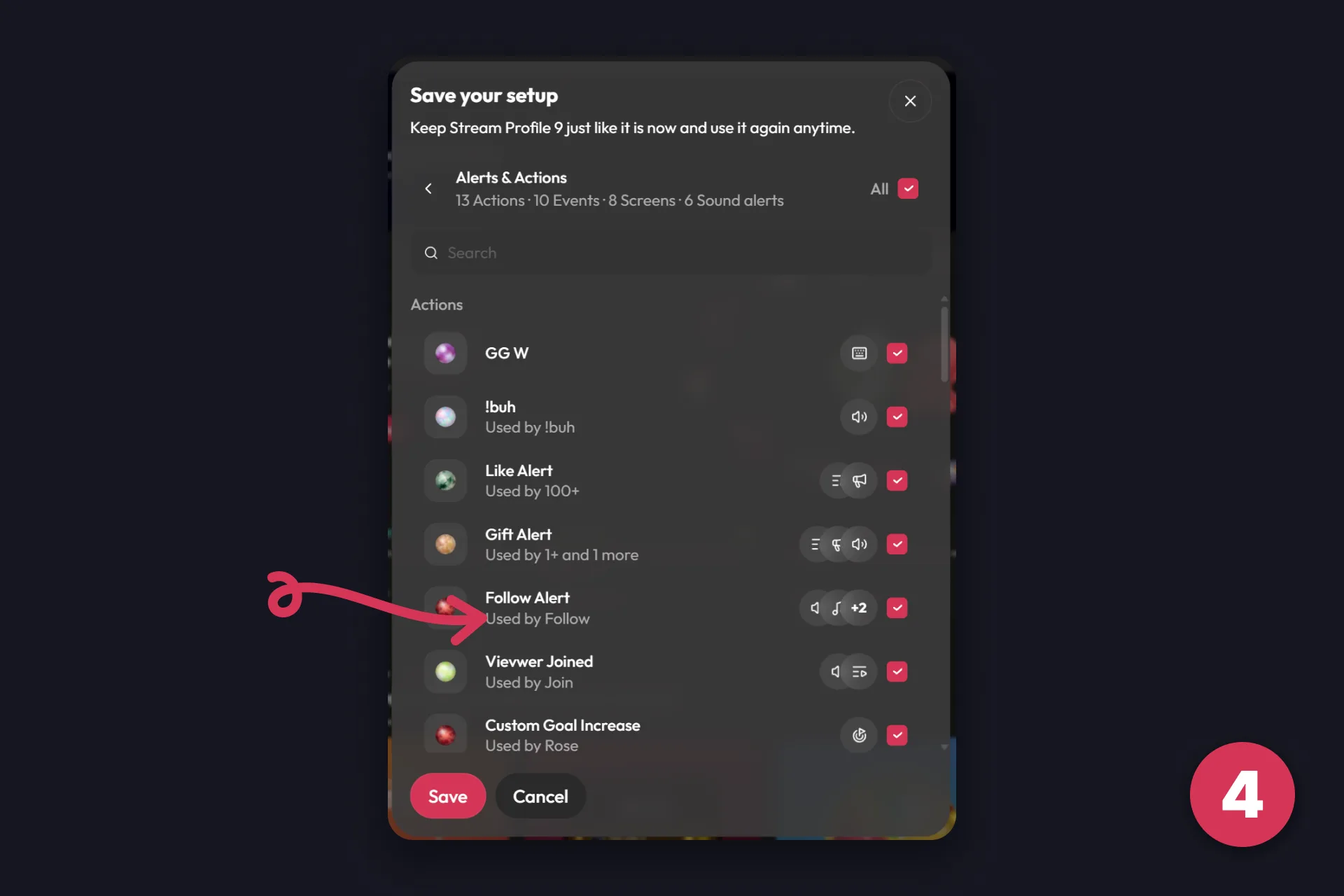
4 If you only want a few pieces, click the arrow next to an area and pick them one by one. That means if you pick, for example, your Follow Event, the alert it starts comes along by itself, so nothing gets lost on the way.
5 Click “Save”.
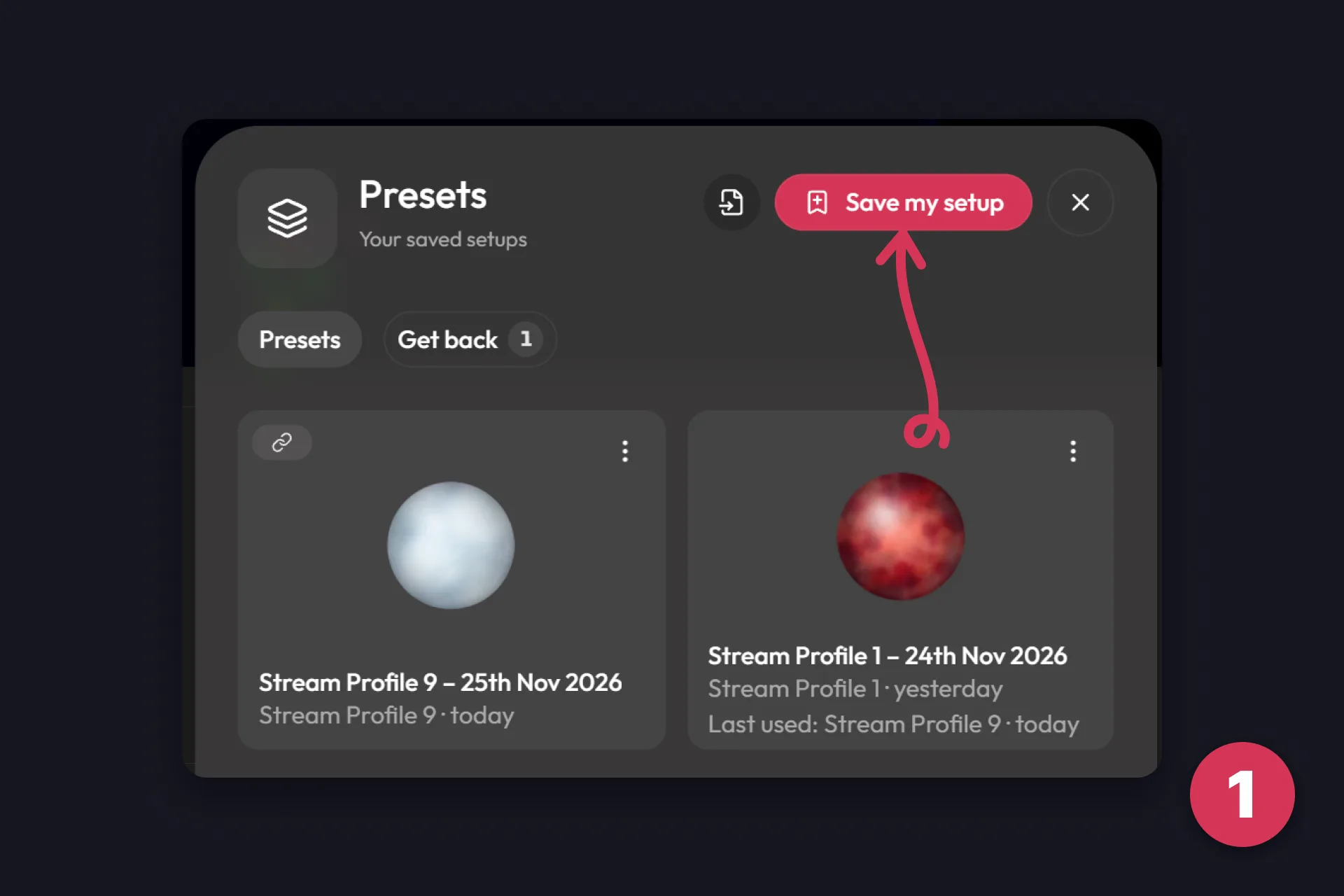
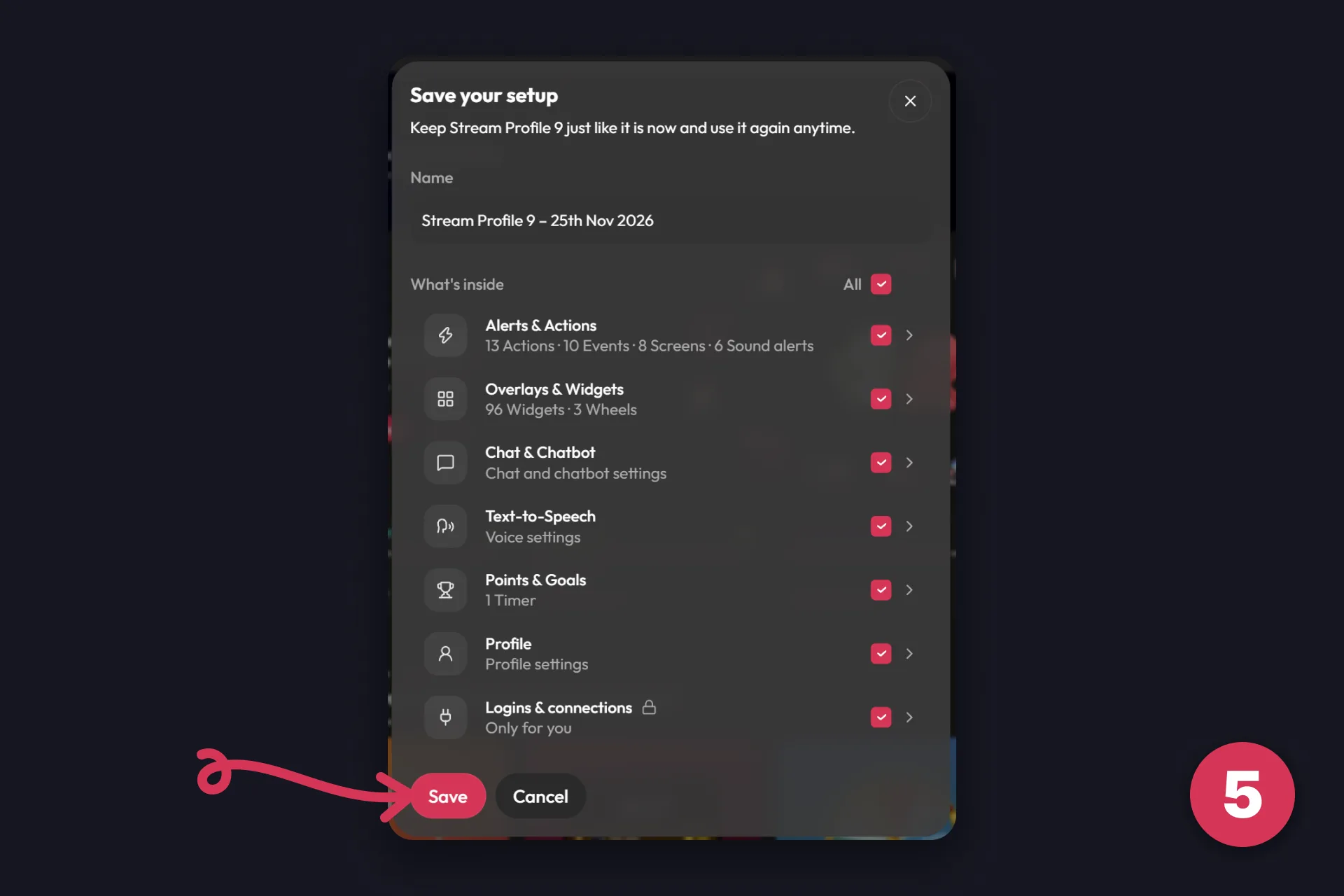
That’s it, your setup is safe! From now on you’ll find the preset in your Presets panel. If you click on its card, you can see everything that’s inside, and the three dots on the card let you rename the preset or delete it. Deleting is for good, but your profiles stay as they are.
By the way: if “Logins & connections” is ticked, the preset also saves your OBS, Minecraft and Streamer.bot logins. They stay with you and never go into a link.
Use a preset on your profile
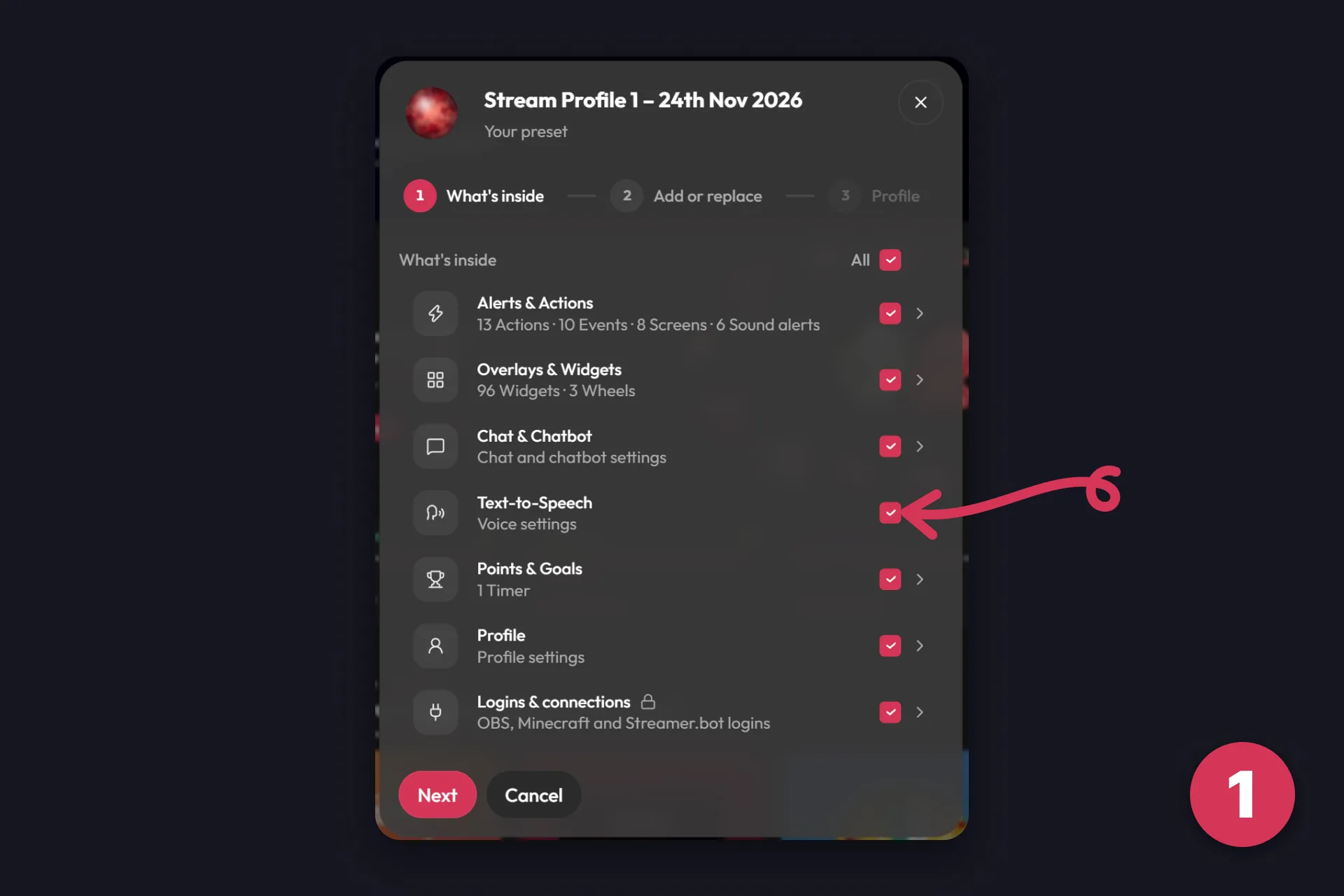
We’ll now put our preset onto “Stream Profile 2”, our second profile. Picking a profile other than the one you’re on is part of TikFinity Pro, on the free plan the preset goes onto the profile you’re on. Click the preset card, then “Use”, and TikFinity asks you three questions:
1 What’s inside? Everything is ticked again, so untick what you don’t want to bring in.
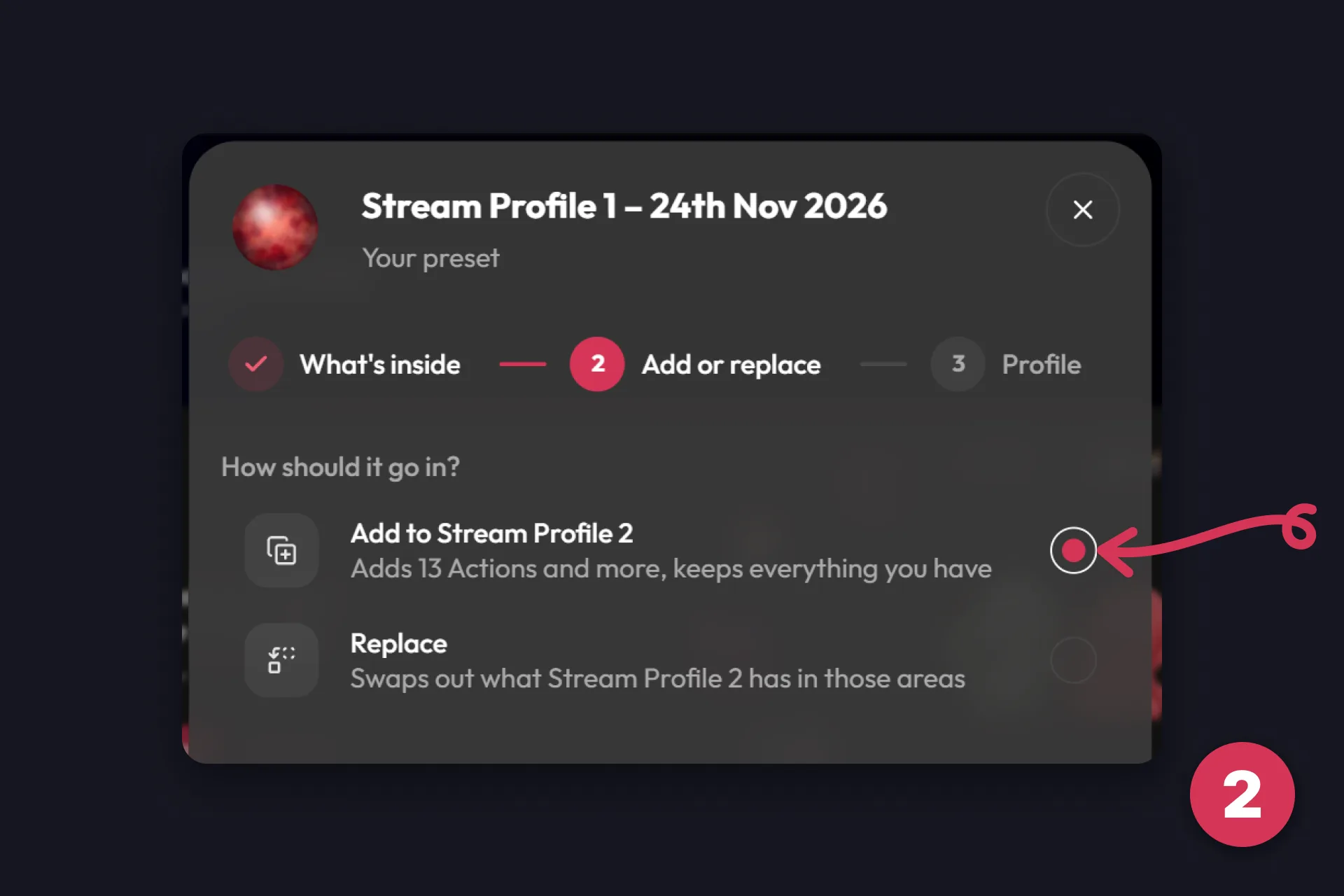
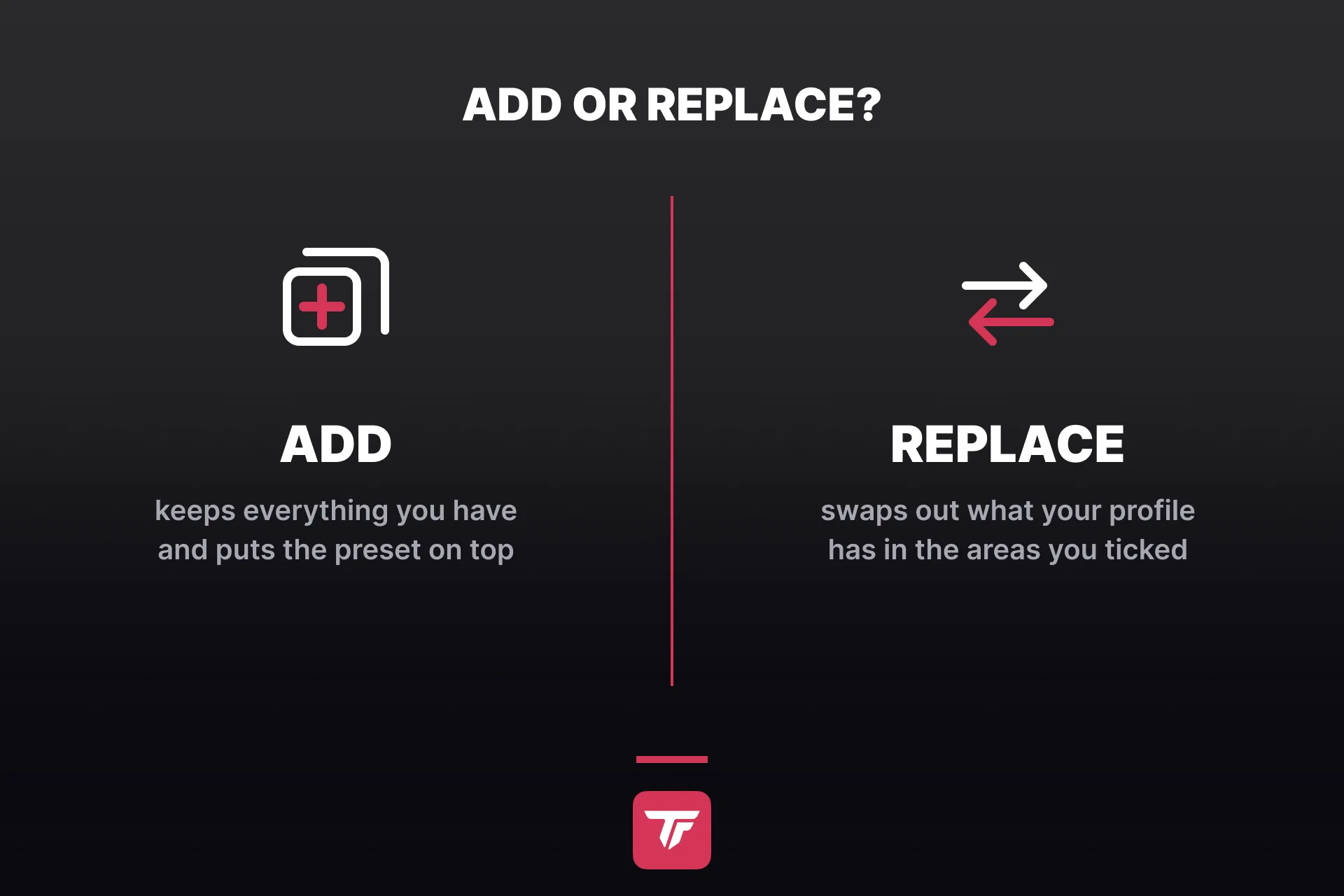
2 Add or replace? “Add” keeps everything the profile already has and puts the preset on top. “Replace” swaps out what the profile has in the areas you ticked.
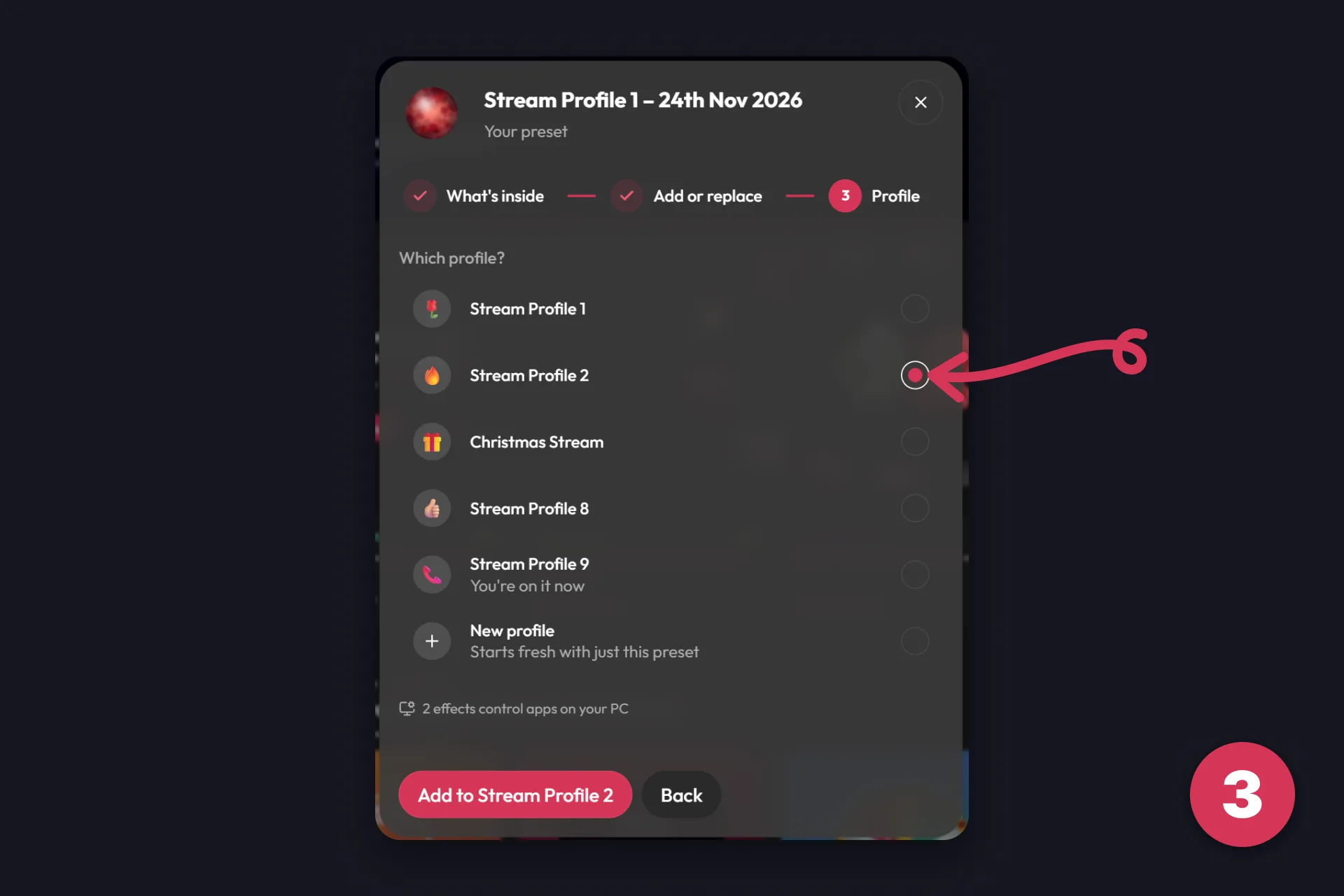
3 Which profile? On the free plan you’ll see the profile you’re on, and “New profile” carries a PRO badge. With Pro you see all the profiles you’ve set up so far, plus “New profile”, which starts fresh with just this preset. We choose “Stream Profile 2” and click “Add to Stream Profile 2”.
TikFinity now sets everything up piece by piece and counts along at the bottom of the screen. Done! In the Stream Profile menu your profile now says “Updated just now”.
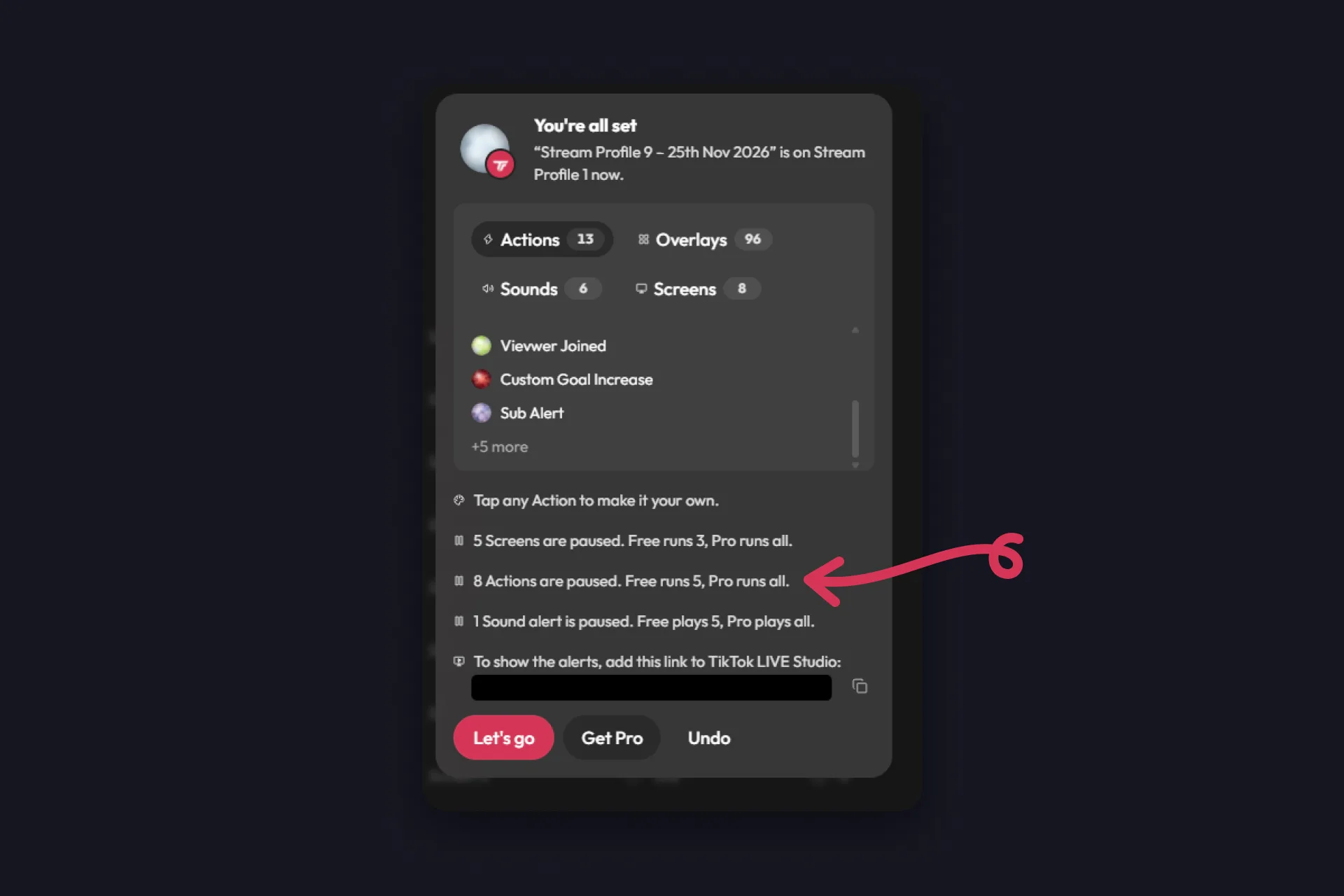
If you used the preset on the profile you’re on, the window “You’re all set” pops up as well. It shows what came in, sorted into Actions, Overlays, Sounds and Screens, and you can click any Action right there to make it your own. Underneath you’ll find the link you add to TikTok LIVE Studio so the alerts show up on your stream, plus an “Undo” button in case you’d rather go back right away.
Changed your mind? Undo a preset for 7 days
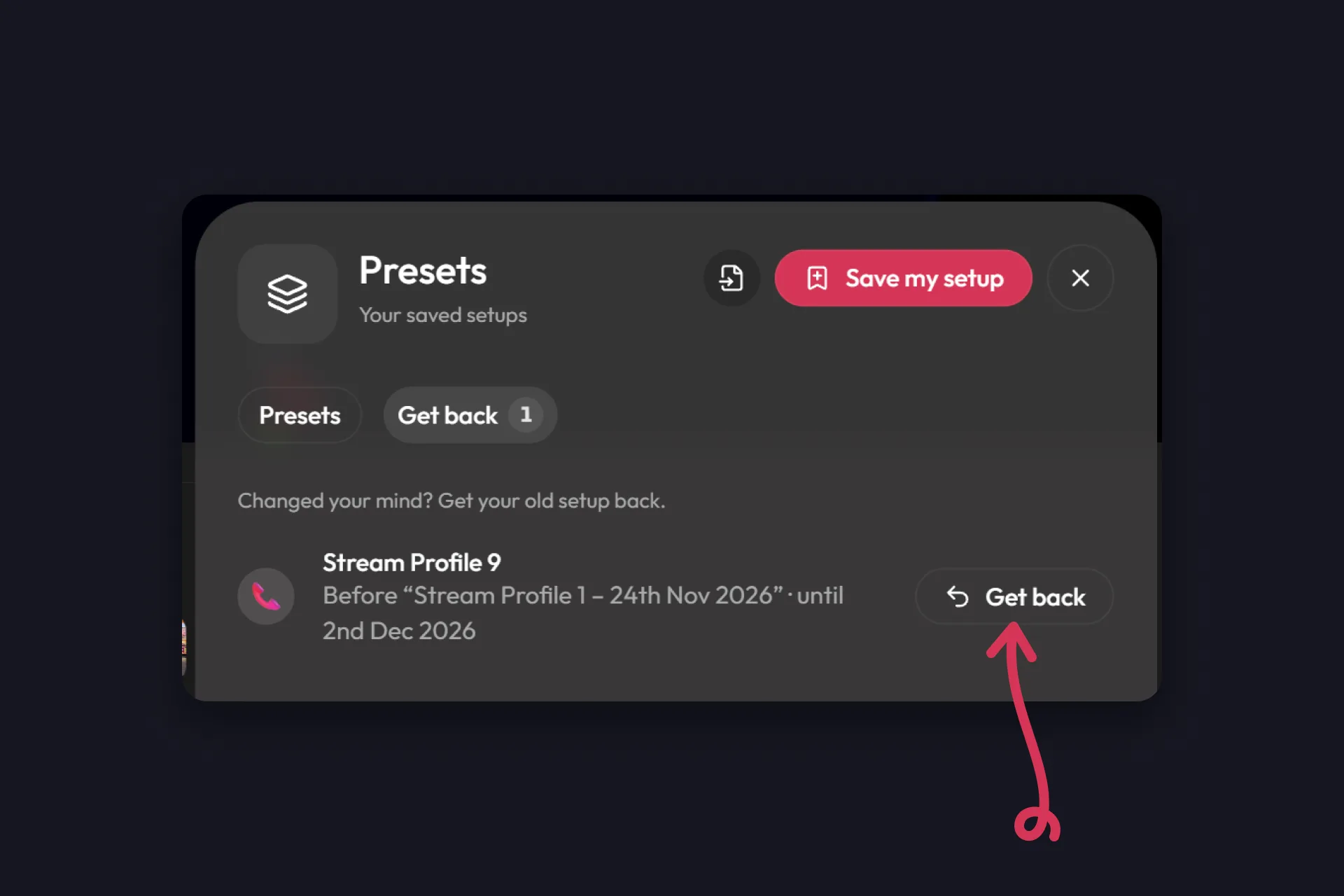
Should you not like the result, you can undo every preset for 7 days. Click the three dots next to the profile and choose “Undo last preset”. You’ll find the same thing in the Presets panel under the tab “Get back”, together with the date until it works.
TikFinity asks once more “Get your old setup back?”, and with a click on “Undo” your profile looks just like before. We tried it with our “Stream Profile 2”, and everything came back the way it was.
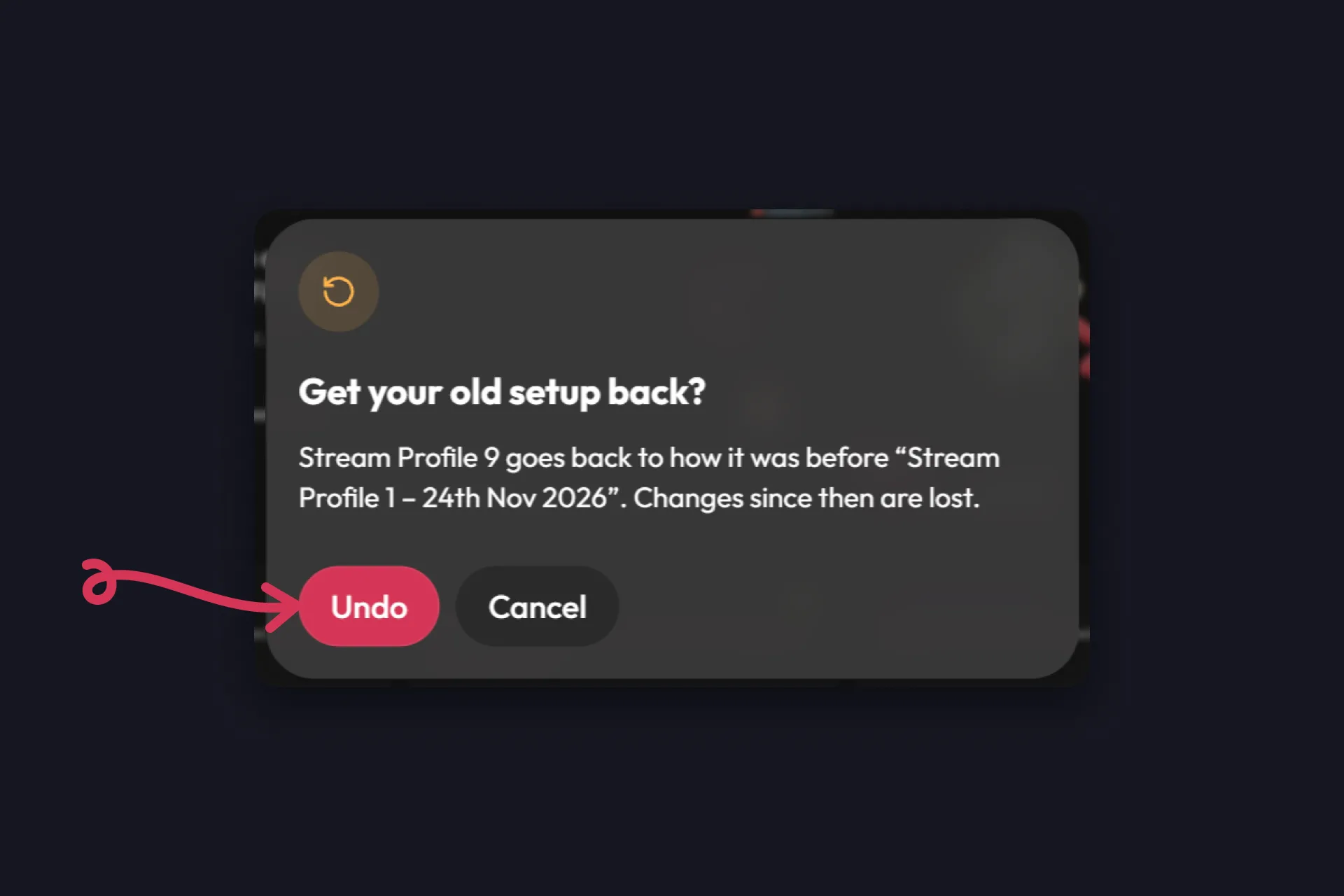
Important: changes you made since then are lost. If you edited an alert after using the preset, that edit is gone too.
Share your TikFinity setup with one link
Open your preset and click “Share”. In the window “Share with friends” you’ll see a preview of what other streamers see. Your TikTok name and picture stay hidden, unless you switch on “Show my TikTok name & picture”. Click “Create link”, and the link is already copied!
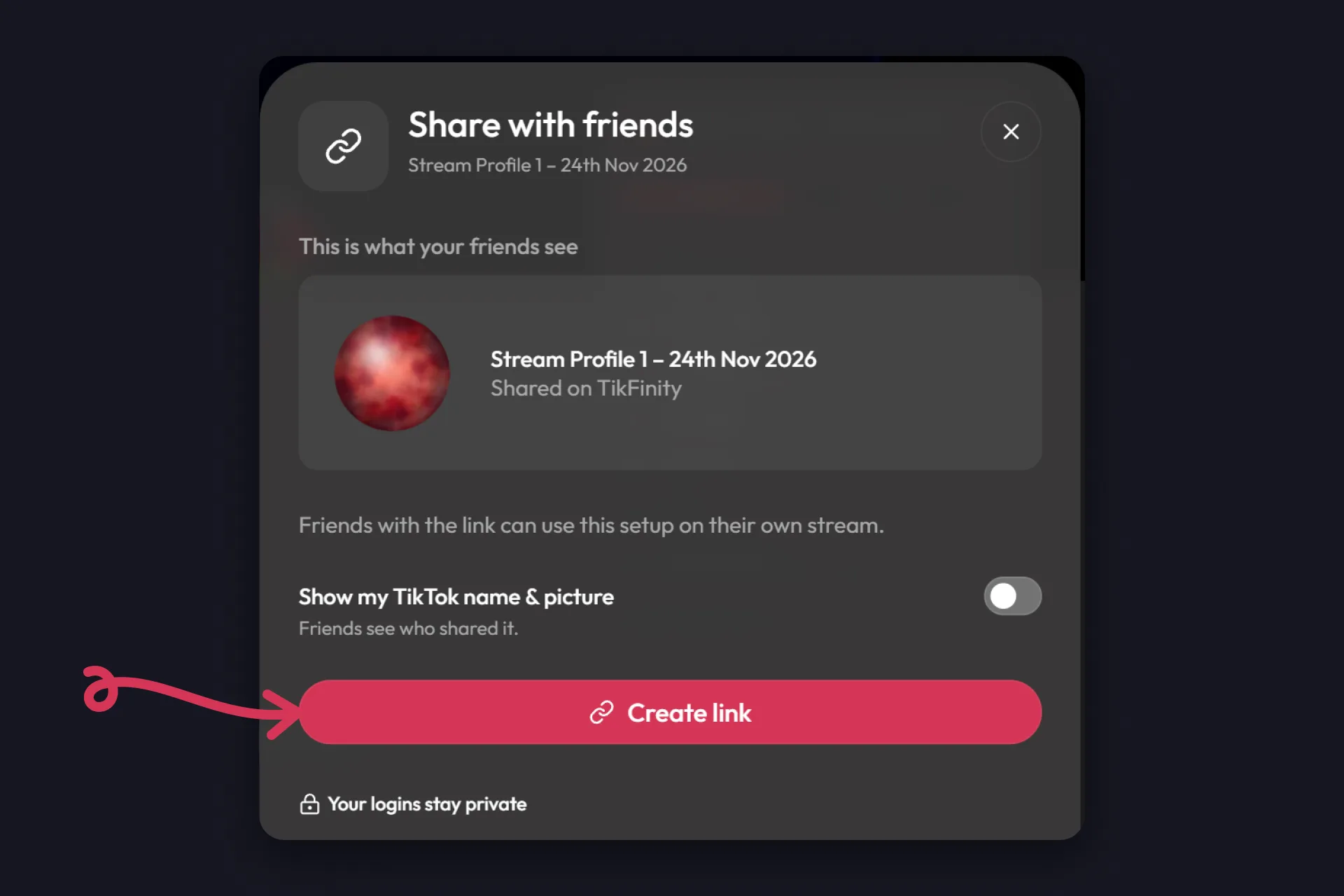
Send it to a streamer friend who wants the same alerts, or to a creator you help get started, and they can use your setup on their own stream. TikFinity shows you how often the link was opened and used. If you’re done sharing, click “Stop sharing”, and the link stops working at once. Streamers who already used it keep their setup.
Your logins never travel along. Links leave out your logins & connections, viewer voices (voices you gave to single viewers) and webhooks (effects that send a signal to another website or program).
Got a preset link from another streamer?
Open it, and you’ll see what’s inside the preset and who shared it, if they switched that on. If you’re already logged in, click “Use”. If not, click “Log in to use”, and if you don’t have a TikFinity account yet, joining is free. After that, the preset waits for you in your Stream Profile menu under “Shared preset”, and you answer the same three questions as above.
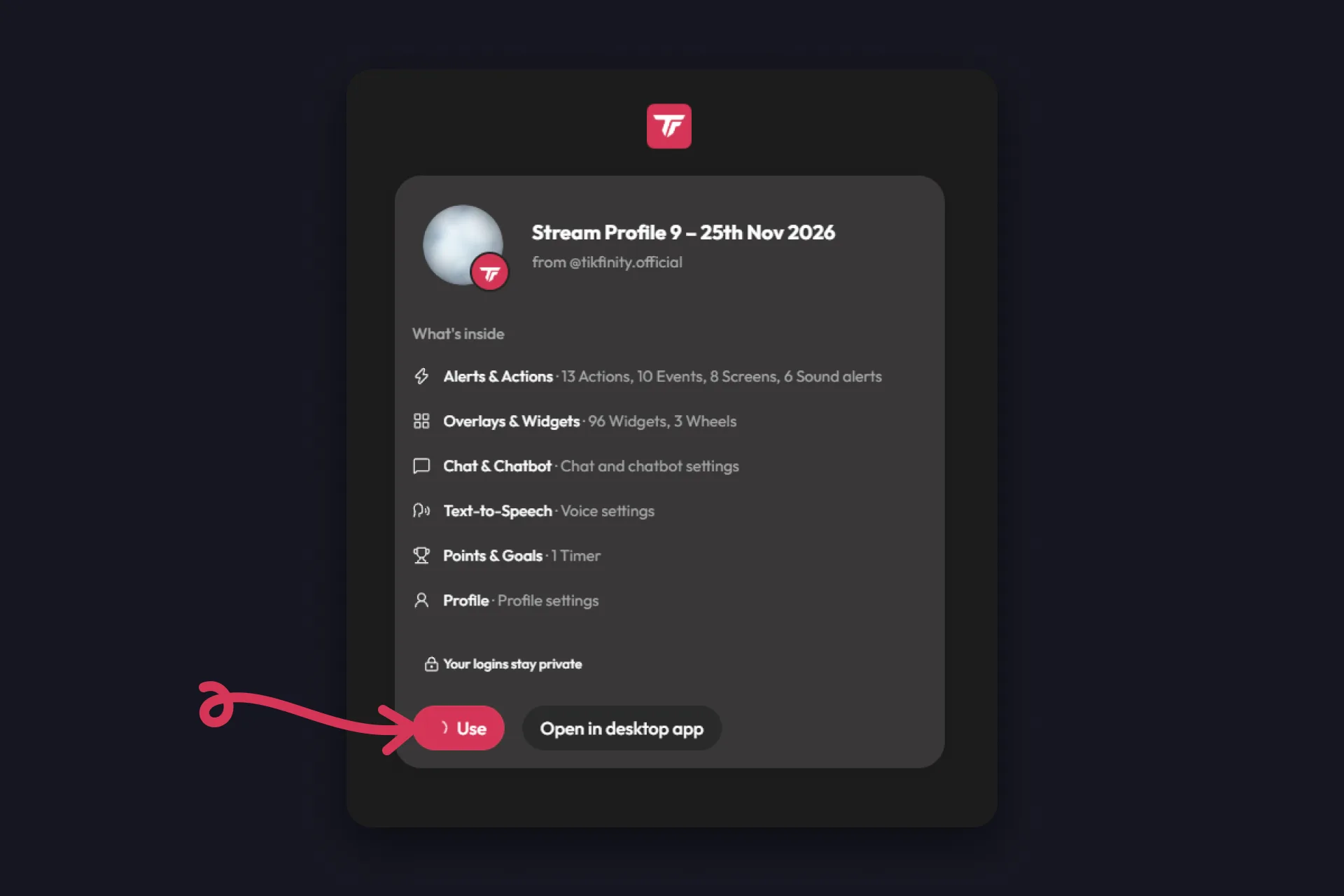
Important: a preset from another streamer can hold more than the free plan runs. TikFinity still puts everything onto your profile, but pauses the extra pieces until you unlock them with TikFinity Pro. We tried it with a free account and a big preset, and the “You’re all set” window showed exactly what was paused, in our case 8 Actions, 5 Screens and 1 Sound alert. If the page says the link doesn’t work anymore, the streamer who shared it turned it off. Just ask them for a new one.
Import an old TikFinity export
Should you still have an old TikFinity export file lying around, click the import icon at the top of the Presets panel and drop the file in. TikFinity takes .tfc and .json files up to 25 MB.
Free or TikFinity Pro?
Presets are free to use, and TikFinity Pro removes the limits:
| Free | TikFinity Pro | |
|---|---|---|
| Presets you can keep | 2 | As many as you like |
| Where you use them, your own and shared ones | The profile you’re on | Any profile or a new one |
If a preset brings more Actions, Screens (the links that show your alerts in your broadcasting tool) or Sound alerts than the free plan runs, TikFinity pauses the extra ones and tells you how many. The free plan runs 5 Actions, 3 Screens and 5 Sound alerts. With Pro, all of them run.
Save Your First Preset, Free →
Tip: make the setup you have right now your first preset. Then you can try something new with our TikTok alerts guide or a subathon timer and play around as much as you like, because your old setup is only a few clicks away!
FAQs about TikFinity presets
TikFinity presets are saved copies of your stream setup. A preset keeps a stream profile just like it is at that moment, with its alerts, overlays, sounds and settings, so you can use it again later or share it with a link.
No. The free plan keeps 2 presets and uses them on the profile you’re on. TikFinity Pro keeps as many as you like and lets you use them on any profile or on a new one.
Yes, for 7 days. Click the three dots next to the profile and choose Undo last preset, or use the Get back tab in the Presets panel. Your profile goes back to how it was, and changes you made since then are lost.
No. Your logins and connections, viewer voices and webhooks never go in a link. You can save your OBS, Minecraft and Streamer.bot logins in a preset for yourself, and they stay with you.
The link stops working right away. Friends who already used it keep their setup.