You’ve seen the streams where every gift triggers something and the screen feels alive the second someone joins. The machinery behind that is simpler than it looks: the whole TikFinity setup happens in your browser, on desktop, in about ten minutes. This guide takes you through it one step at a time, until the first test gift fires inside your scene.
What you need before you start
TikFinity runs in your browser, nothing to install for the basics, and the free plan covers everything in this guide. There’s also a desktop app for Windows that’s worth installing once you’re set up: same account, same settings, plus a local connection and three things the browser can’t do, the chatbot, the Event API and keyboard-triggered sounds. If Windows SmartScreen frowns at a freshly released installer, click More info and Run anyway, and only ever download from the official site.
✅ A TikTok account with LIVE access (our TikTok LIVE requirements guide has the details)
✅ A broadcasting tool if you stream from a PC: OBS Studio, TikTok LIVE Studio, or Streamlabs
✅ Your TikTok @username, the handle from your profile, not your display name
✅ A browser for the TikFinity dashboard
Still picking the broadcasting tool? Our guides to streaming on TikTok with OBS Studio and setting up TikTok LIVE Studio get you from download to go LIVE in either one. This article stays out of that decision, everything below works with both. And if you stream straight from your phone, you don’t need any of them, more on that in the FAQ.
Step 1: Create your account and connect your TikTok
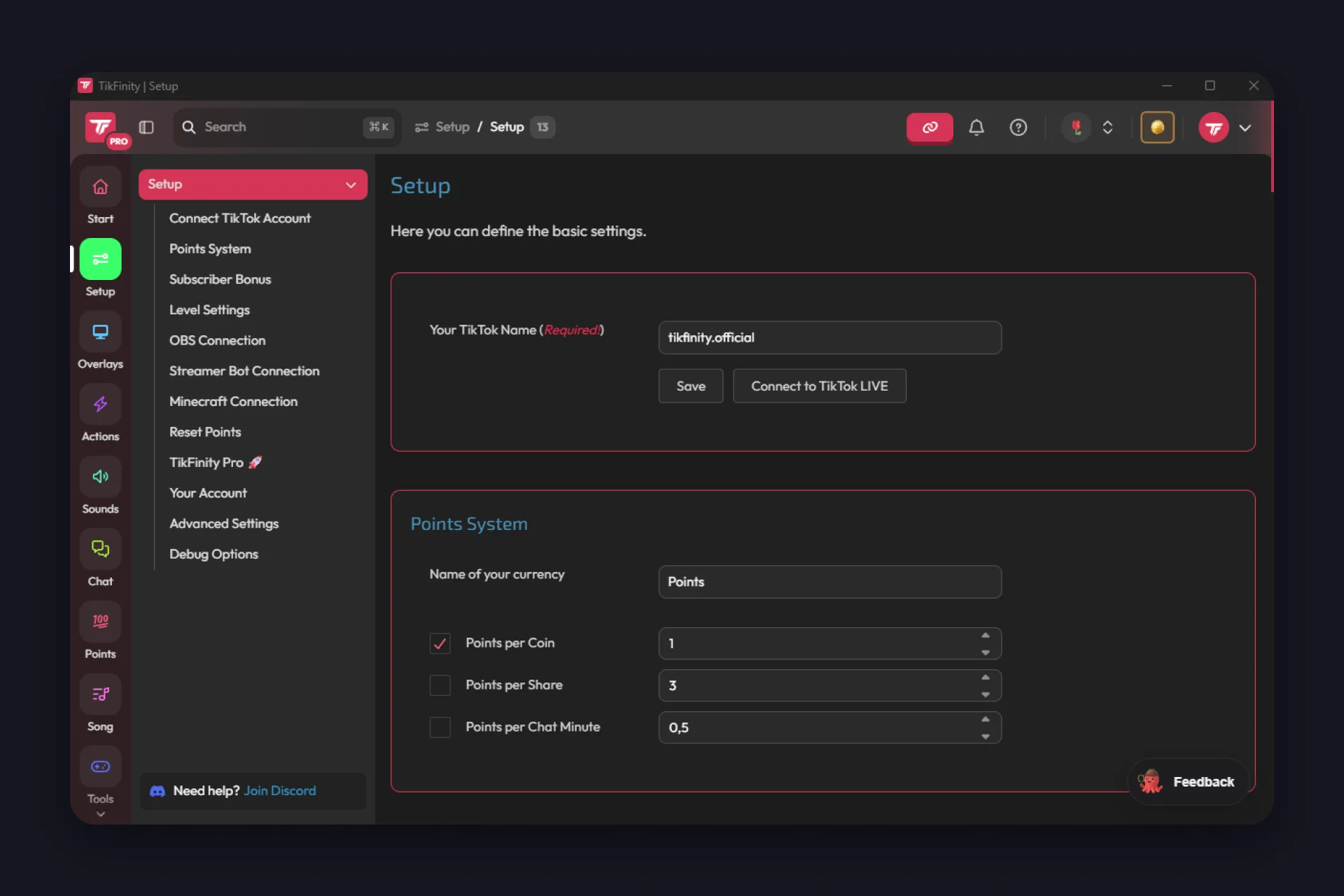
1 Open TikFinity in your browser and register, or log in if you already have an account.
2 Under Setup, enter your TikTok name, that’s your @handle. Copy it straight from your TikTok profile so you don’t grab the display name by mistake, then hit Save.
3 Hit Connect to TikTok LIVE. That links your handle right away and shows you whether the connection works, and from then on TikFinity picks up your stream automatically every time you go live.
The account matters more than the handle, by the way. Your actions, sounds and settings belong to your TikFinity account, not to the TikTok username: change your handle later and you just enter the new one, everything stays. Log in with a different email though, and your whole setup will seem to have vanished.
One thing to know so you don’t hunt for a bug that isn’t there: you can configure everything while you’re offline, but the live connection itself only picks up once you’re actually streaming.
- Check the username under Setup: the @handle from your profile, not your display name, and your TikTok account has to be public.
- Reconnect while your stream is already running. TikFinity attaches to your live room, not to an offline profile.
- “Duplicate execution detected” means two sessions are open. Close the desktop app or the browser tab, or click Take over this session.
The one idea behind everything: events and reactions
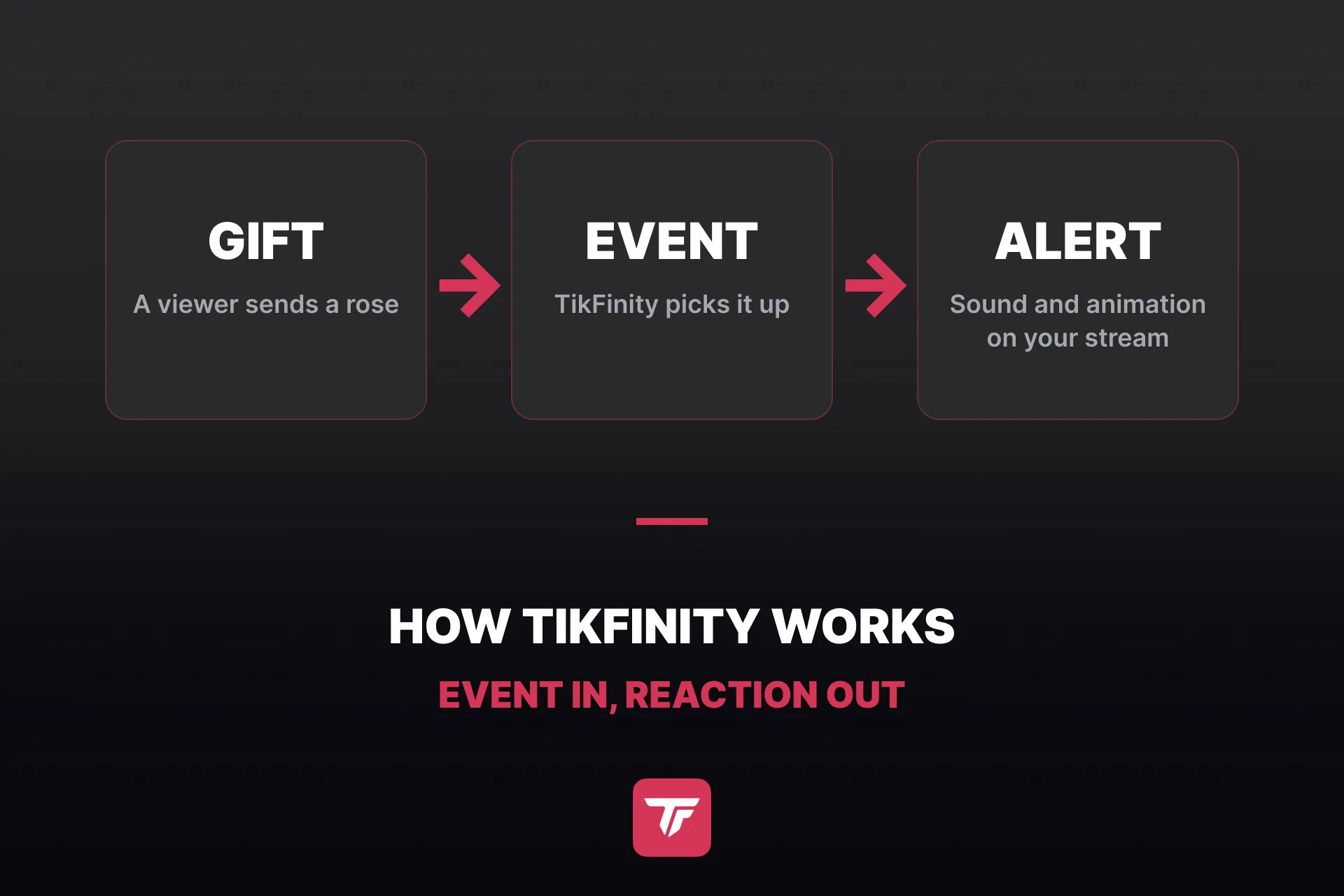
Once you get this, the whole dashboard stops looking complicated. While you’re live, everything your viewers do arrives in TikFinity as an event: a gift, a follow, a like, a share, a comment, a new subscriber. TikFinity reads those events from your LIVE and answers each one with whatever reaction you’ve configured.
A reaction can be almost anything. A sound, a GIF on your overlay, a line in chat, a spoken message, a number ticking up on a goal bar, even a keystroke in your game. Every feature in the sidebar is a different way of packaging that same loop: event in, reaction out.
That’s also why the setup you just did matters so much. The @username tells TikFinity which stream’s events to read, and the overlay screen you’ll embed in a moment is where the visible reactions play out.
Step 2: Pick your first tools
The dashboard offers a lot, and you don’t need most of it on day one. These four cover a complete first stream.
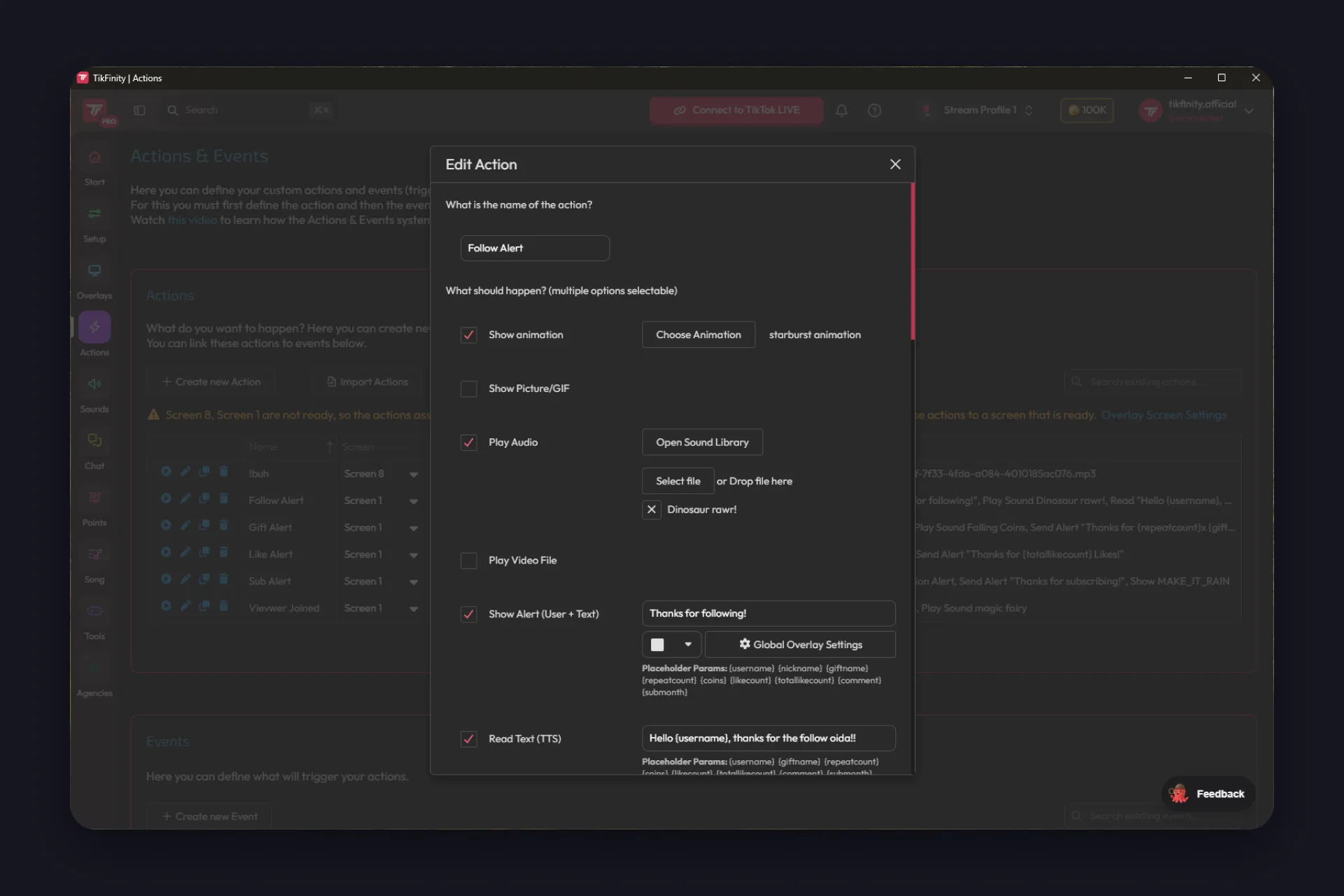
Alerts are built in Actions & Events, and the page tells you the order right at the top: define the action first, then the event that triggers it.
An action is a bundle of things happening at once, and you tick what you want:
- an animation, a picture or GIF, or a video
- a sound from the library or your own file
- an alert text with the viewer’s name, a spoken line via TTS, a chatbot message
- the ambitious ones: switch your OBS scene, fire a webhook, run a Minecraft command, simulate keystrokes, change your Voicemod voice, control a custom goal or the timer
You set how long it stays on screen, and the trigger can earn the viewer points or cost them some once your points system runs. The fine-tuning sits in the same dialog:
- which overlay screen the action plays on, and how loud
- a fade-in and fade-out
- two cooldowns, one global and one per user, so a single viewer can’t loop your alert all stream
- “Repeat with gift combos”: sixty roses mean sixty alerts or one, your call
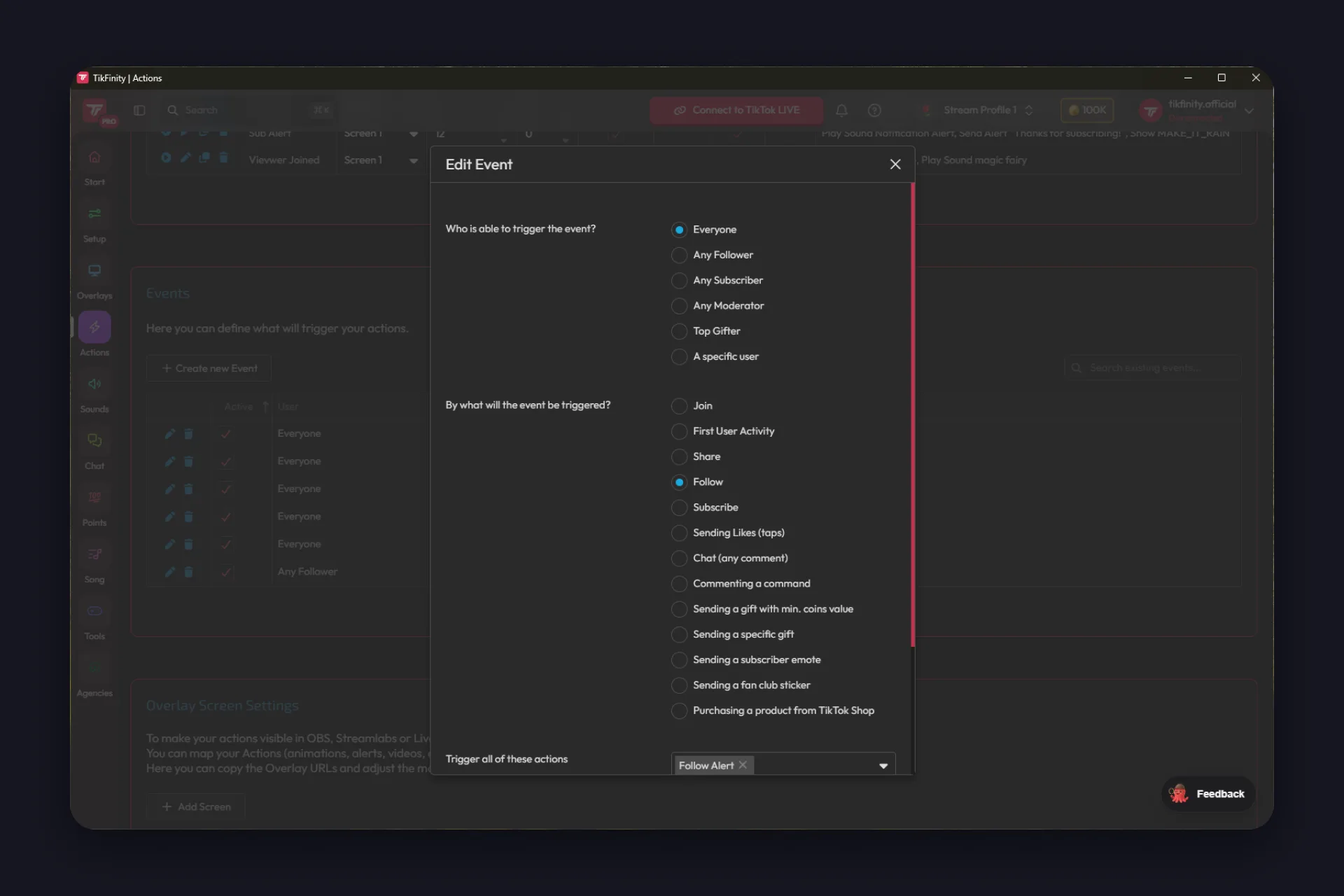
The event decides when all of that fires. The triggers go far beyond a follow:
- the classics: follow, share, subscription, likes, a gift above a coin value or one specific gift
- the ones people forget exist: a viewer joining, their first activity in your stream, a chat command, a subscriber emote, a fan club sticker, even a purchase from your TikTok Shop
- who may trigger it: everyone, followers, subscribers, moderators, your top gifter or one specific person
- one event can fire several actions at once, or pick one of them at random, which keeps your alerts surprising
That’s the loop from earlier made concrete: event in, reaction out, and you’ve defined both halves yourself.
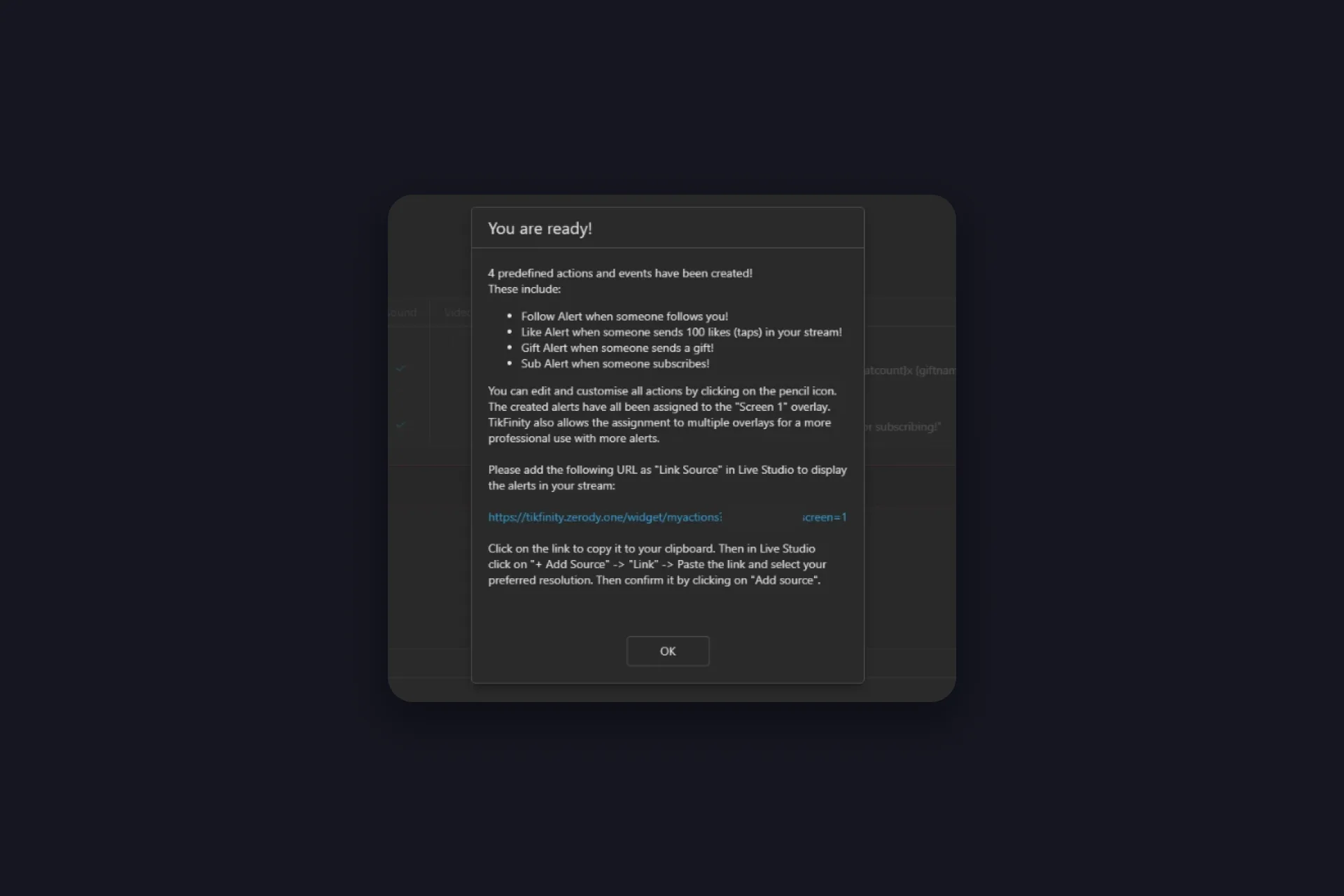
And you don’t start from zero. TikFinity sets up four predefined actions and events for you: a follow alert, a like alert for 100 taps, a gift alert from the first coin, and a sub alert. All four sit on Screen 1 ready to fire, and the “You are ready!” message hands you the overlay link for your broadcasting tool on the spot. You can go live with them exactly as they are. Editing is optional: the pencil icon opens any of them when you want them to sound like you, and Import Actions brings in more ready-made ones.
This tutorial shows the whole flow with a follow alert, and the same steps work for comments, shares, likes and specific gifts:
@tikfinity.official Here is a tutorial on how to add Action Triggers to your TikTok LIVE! 😎 In this example we will be using “Follow” as a trigger but you can use many others, like: comments, shares, likes or even specific gifts 🚀 #TikFinity #Tutorial
♬ som original – TikFinity – TikFinity
When you want to go deeper into alert building, our TikTok alerts guide walks through every step.
Goals put a shared target on screen. A like goal or follower counter from the goals page gives your viewers a number to push toward, and reaching the target can fire any action you’ve built, so the payoff happens on stream, not just in the number.
Text-to-speech reads chat messages out loud, so you never miss a comment mid-game. Set it up on the TTS page, or follow our TTS step-by-step guide. The voice plays inside TikFinity, so keep the browser tab or the desktop app open while you stream. If your viewers should hear it too, that browser or app goes into your broadcasting tool as an audio source, step 3 shows where.
Sound alerts from the sounds page are the fastest win of all: pick a sound, pick a trigger, done. There’s no browser source for these, the sound plays in TikFinity itself, so keep it open while you stream. Want to fire sounds with a key shortcut, soundboard-style? That’s a desktop app feature. You can upload your own sounds too, and this clip shows how quick a custom sound alert goes live:
@tikfinity.official New feature alert 🚨 This is how you can add a custom sound alert on TikFinity 👀 #TikFinity #Tutorial
♬ original sound – TikFinity – TikFinity
Every overlay card works the same way
Here’s the second pattern that unlocks the whole product. Open any overlay in the gallery, the chat, a gift feed, a goal bar, and you’ll find the same three buttons: Copy URL, Test and Customize. Copy URL gives you the link for your broadcasting tool. Test fires a preview so you watch the overlay react without a single viewer. Customize opens the settings.
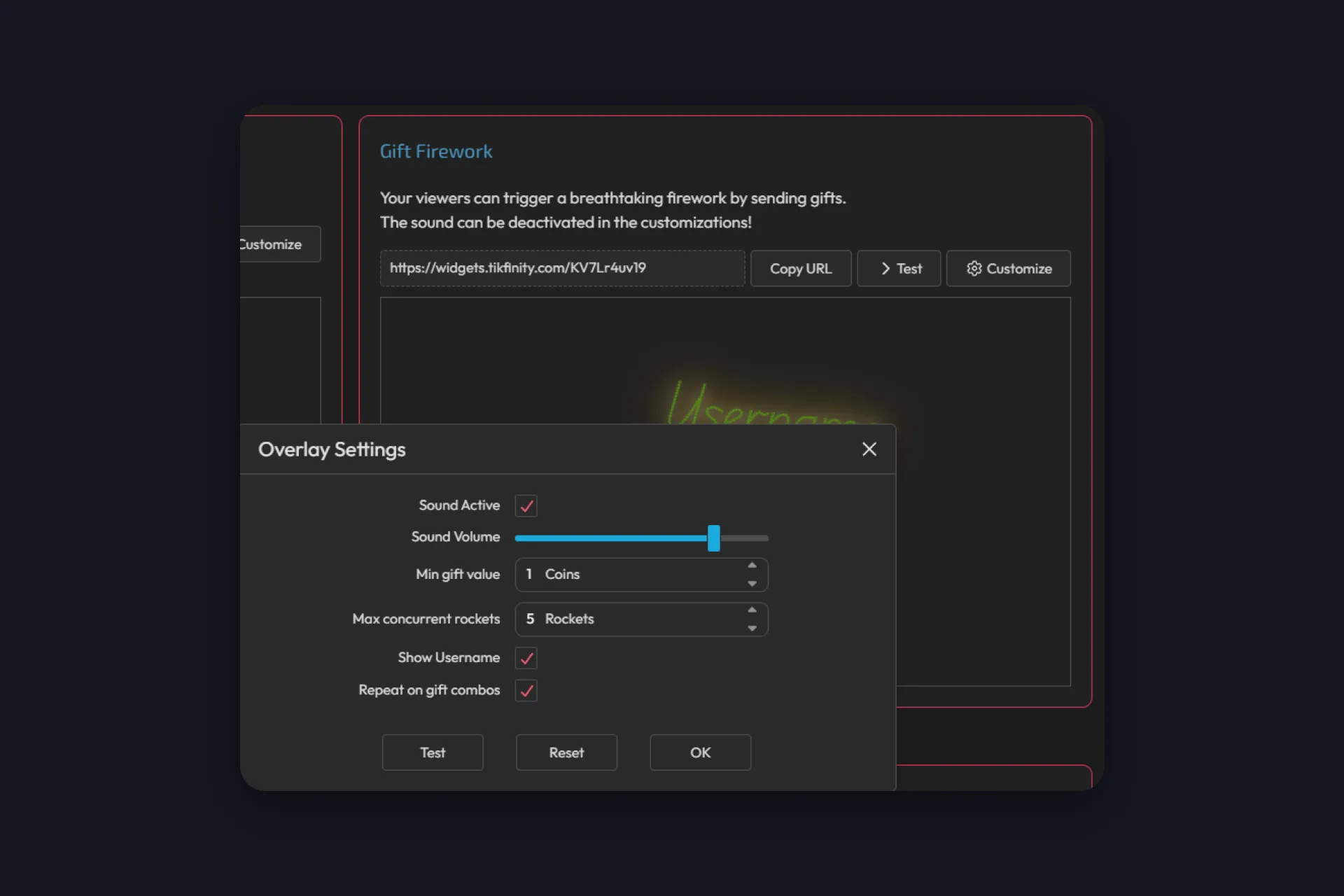
Customize is where overlays stop looking generic. Fonts, sizes and colors, text effects from a subtle glow to a full wiggle, whether a sound plays and how loud, a minimum gift value, whether gift combos repeat the effect: every overlay brings its own switches, and the Reset button takes you back to the defaults when you’ve overdone it.
That said, you don’t have to touch any of it. Every overlay comes with defaults that are ready to go, so customize as much or as little as you like. One quality tip for when you do: if an overlay looks blurry, don’t drag it bigger in your broadcasting tool. Raise the resolution of the browser source instead, the overlay stays sharp at any size.
Step 3: Put TikFinity into your broadcasting tool
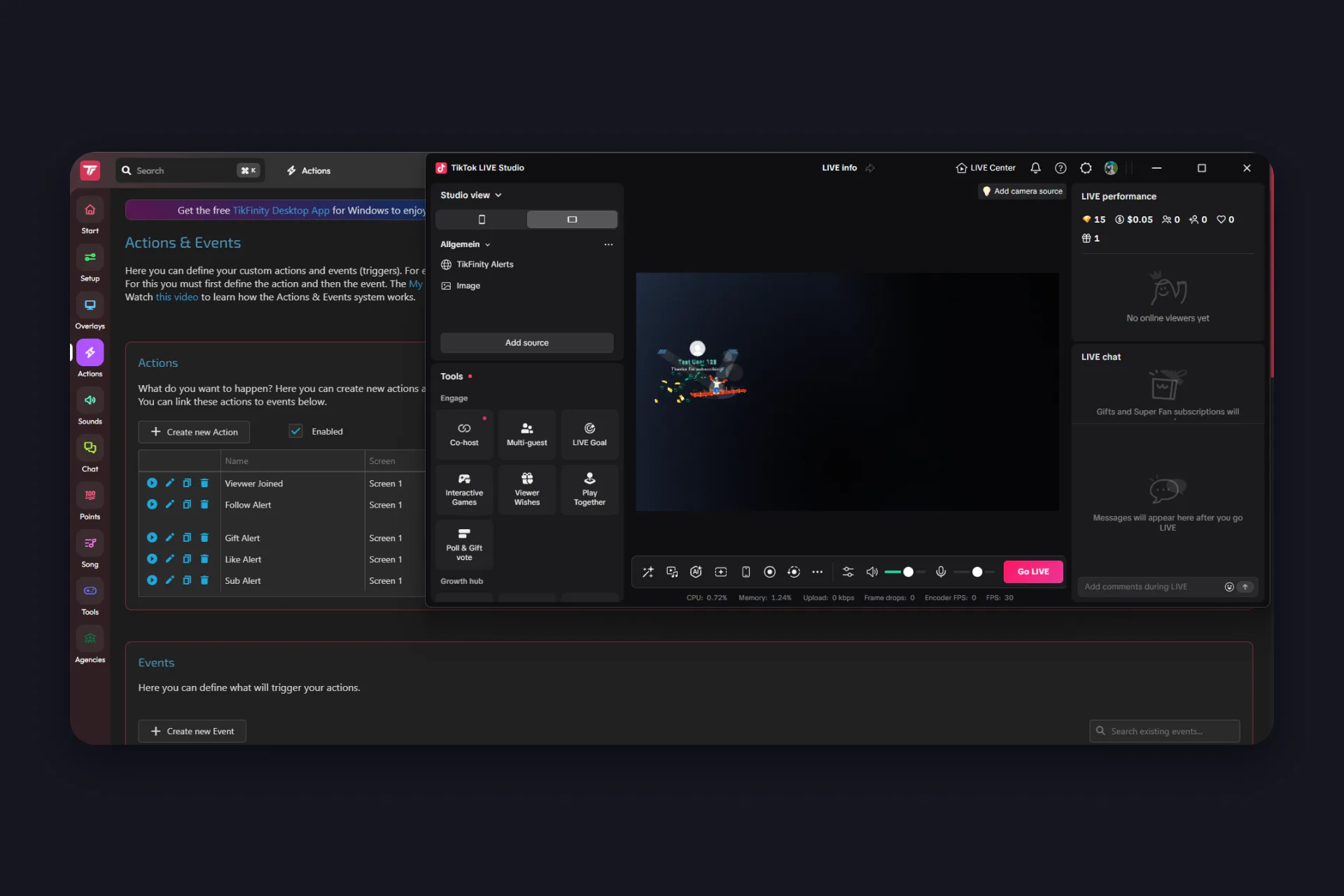
Your overlays need a window into your stream. Scroll down the Actions & Events page to the Overlay Screen Settings, where the predefined alerts have usually put Screen 1 already, and copy its URL. One screen is enough to start, but you can run up to eight, each with its own link, and every action picks the screen it plays on. That’s how a follow alert can pop up top left while gift alerts take over the middle.
Then add that URL to your setup:
OBS Studio: Sources, plus, Browser, paste the link. Our OBS Studio guide covers the rest of the scene.
TikTok LIVE Studio: Sources, Link, paste the URL. The LIVE Studio guide shows where everything sits.
Streamlabs: works like OBS Studio, add the URL as a browser source.
One more source if you use sound alerts or TTS from the Sounds section: those play inside TikFinity itself, not through an overlay. If your broadcasting tool already captures your whole computer sound, you’re done, TikFinity comes through with everything else. If it doesn’t, or you’d rather not send Spotify and Discord along with it, capture TikFinity on its own:
- OBS Studio: look at the Audio Mixer first. If “Desktop Audio” is listed and its meter moves when you play a test sound, system audio is already on. For TikFinity alone, OBS lets you work more precisely: Sources, plus, Application Audio Capture (BETA), then pick the TikFinity desktop app or your browser with TikFinity open from the window list. Needs OBS Studio 28 or newer on Windows.
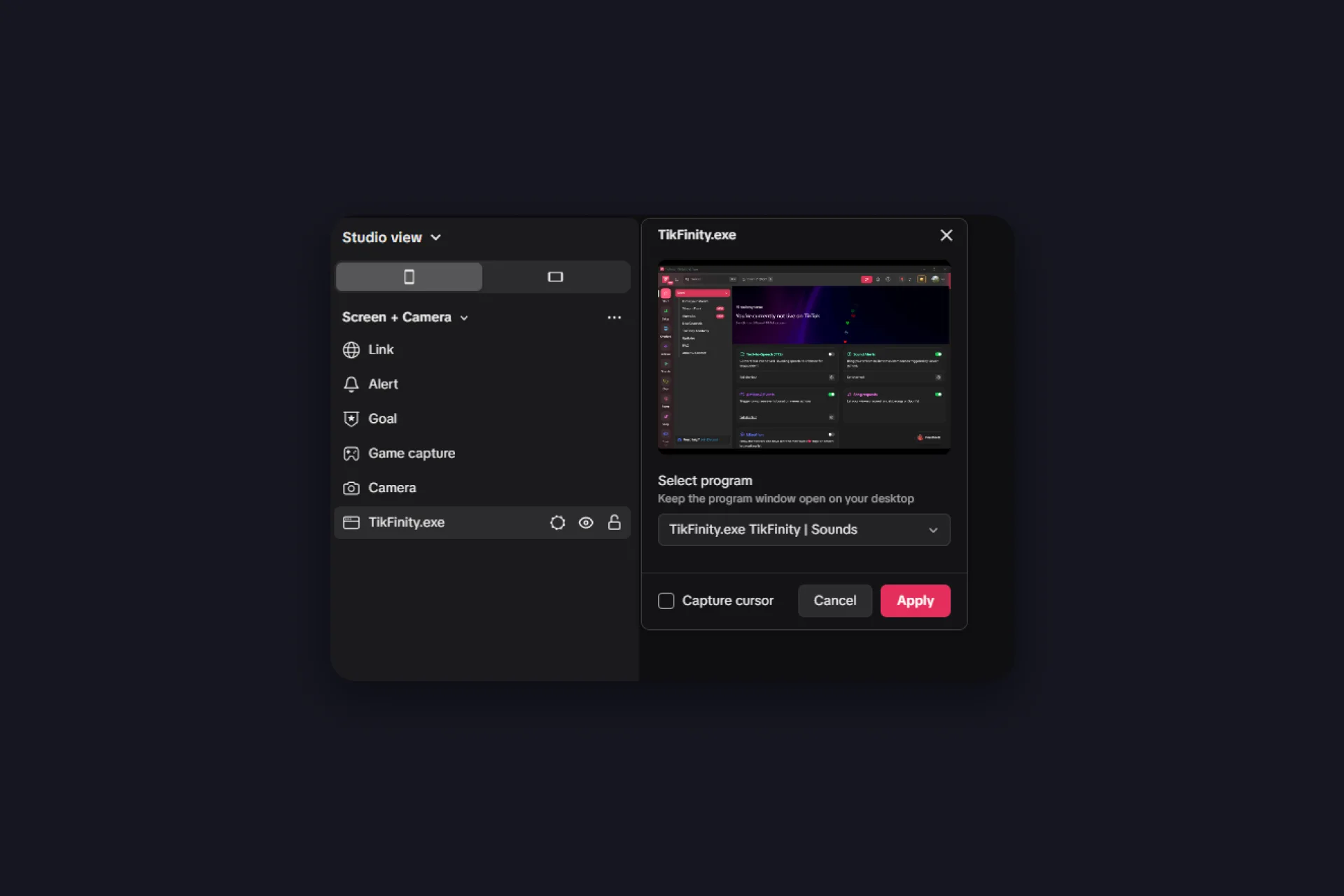
- TikTok LIVE Studio: add TikFinity as a window capture. Under Screen + Camera, select the program, the TikFinity desktop app or your browser with TikFinity open, and apply. Then hide that source with the eye icon or drag it to the very bottom behind all your other sources, the sound still comes through. Keep the program window open on your desktop.
- Streamlabs: same idea as OBS Studio. Desktop audio is captured by default, and an application audio capture source narrows it down to one app.
- An “offline” notice on an Actions & Events screen only means that screen isn’t embedded in your broadcasting tool yet. Add the URL as a source and start your stream.
- Overlay stays empty: make sure the full link made it into the source, a cut-off URL is the most common cause, then refresh or re-add the source. Some overlays stay blank until you’re connected and the first events arrive.
- Tiny box in LIVE Studio: a LIVE Studio quirk, not an overlay setting. Delete the source, add it again, and set width and height when you create it.
- Alerts show but nobody hears them: your TikFinity audio isn’t captured yet. Run through the audio steps above, then check with a short test recording.
Step 4: Test everything without going live
You don’t have to be live to check your work, everything in TikFinity comes with a test button. Every overlay card has one, sound alerts and TTS have theirs, every action has a play button, and the Event Simulator at the bottom of the Actions & Events page fires test gifts, follows and subscriptions on demand.
Send a test gift and watch your scene: the alert should pop up in your broadcasting tool, not just in the browser preview. Now fix the small stuff, volume, position, duration, while nobody’s watching. For the full picture, start a short local recording and play it back, that’s exactly what your viewers will see and hear. When the test gift looks right, the real ones will too.
Where everything lives
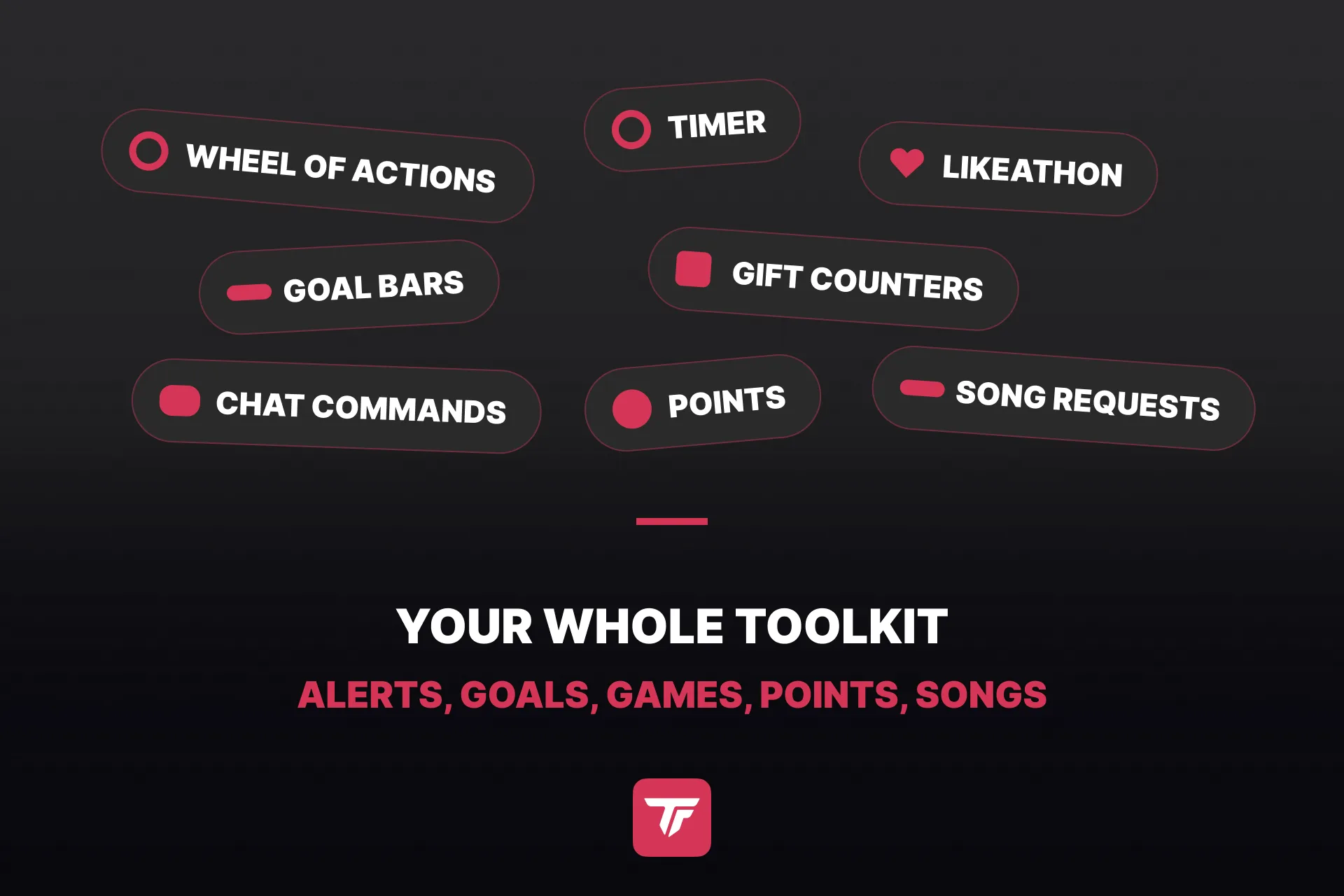
The four tools above barely scratch the sidebar. Here’s the map, so you know where to dig when you’re ready for more:
| Sidebar | What’s inside |
|---|---|
| Start | The home screen you land on. |
| Setup | Your TikTok name, the points system (currency name, points per coin, share and chat minute), subscriber bonus and level settings, the OBS, Streamer.bot and Minecraft connections, and your plan under TikFinity Pro. |
| Overlays | The gallery: goals and countdown goals, follower counter, gift counters, Last X overlays for your latest follower or gifter, graphic overlays like webcam frames and banners, OBS docks, and the Gift Browser for TikTok’s gift artwork. |
| Actions | Actions & Events, the alert engine from step 2, plus your overlay screens. Duplicating an existing action is the fastest way to build the next one. |
| Sounds | Quick sound alerts, keyboard-triggered sounds (desktop app) and text-to-speech. |
| Chat | The chat commands your viewers type and the chatbot that answers them (desktop app). |
| Points | Your channel’s own currency. Viewers earn it by chatting, sharing and gifting, then spend it on spins, songs or anything you put a price on. The transactions page logs every earn and spend. |
| Song | Spotify song requests via !play, with an overlay for the queue. Needs Spotify Premium, that’s a Spotify rule. One-minute setup video. |
| Tools | The games shelf: Wheel of Fortune (how to add it), Points Drop, a timer your viewers extend for subathons, the Likeathon, Challenges and Halving. All free. |
| Agencies | A directory of TikTok agencies you can browse and apply to. Nothing to set up here. |
Free or TikFinity Pro?
Everything in this guide runs on the free plan. These are the numbers you’ll bump into first:
| 5 actions & events |
5 sound alerts |
100 TTS messages a day |
On top of that come the basic overlays, the games, the points system, one gift counter and one stream profile. TikFinity Pro removes the caps and unlocks the premium overlays, like the Coin Jar, where your viewers’ gifts visibly fill a jar on stream, plus more gift counters, up to ten stream profiles and early access to new features. Upgrade the day a limit pinches, not before.
When one setup stops being enough
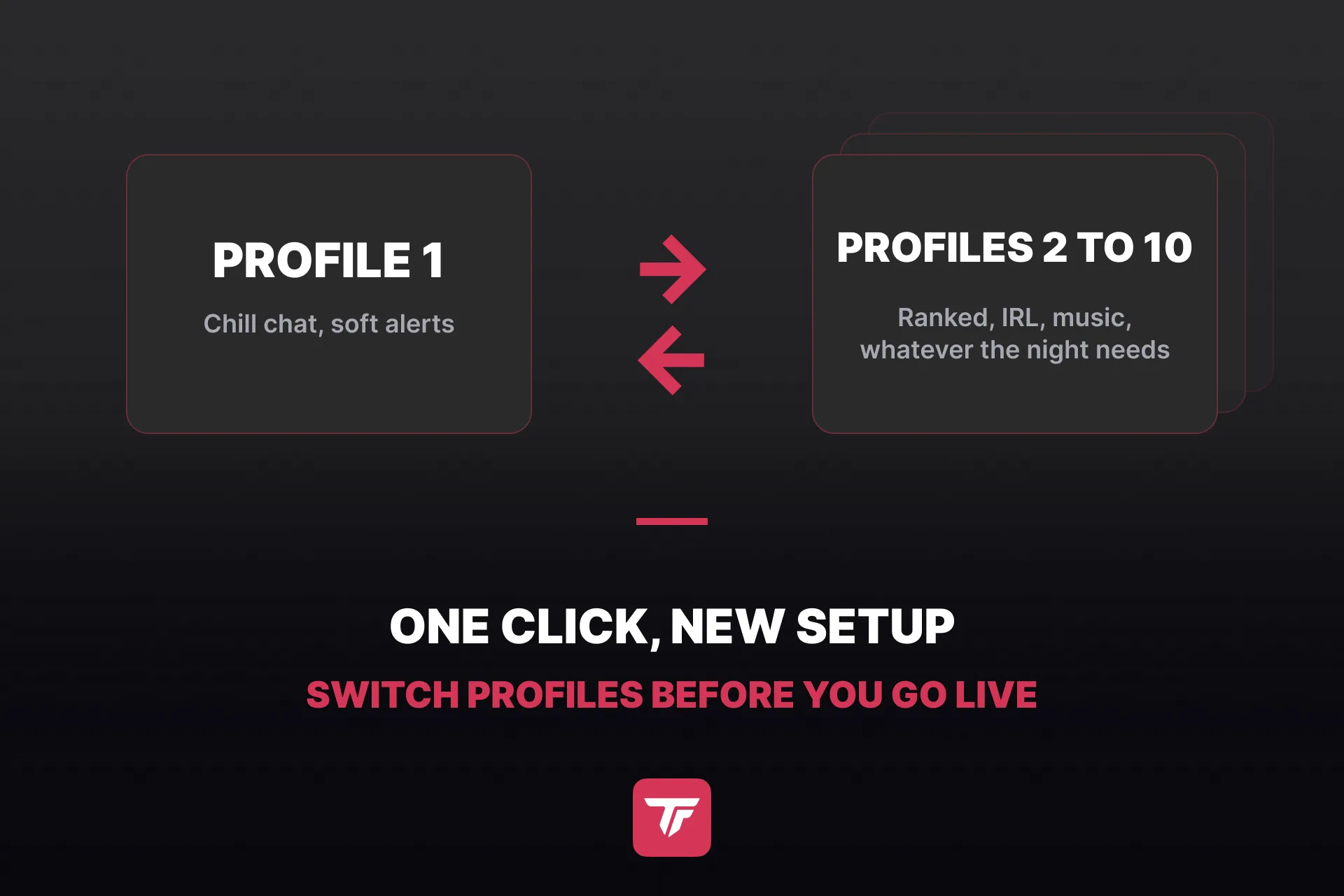
Sooner or later you’ll want different alerts for different formats, a chill chat stream doesn’t need the same sounds as a ranked session. That’s what stream profiles are for: each profile keeps its own actions, alerts and settings, and you switch between them before you go live instead of rebuilding anything.
Let gifts reach into your game
Everything so far happens on top of your stream. Integrations take it inside:
- OBS Studio: an action can switch scenes and toggle sources.
- Voicemod: a gift changes your voice mid-sentence.
- Streamer.bot: any Streamer.bot action starts from a TikTok event.
- Minecraft: run server commands from gifts and let your chat mess with your world.
- GTA 5: a community-built plugin hands your viewers the controls.
- Roblox: plenty of Roblox games react to TikFinity events, so gifts and likes land inside the game.
- Any Windows program: keystroke simulation presses keys for you, so a gift can trigger whatever a hotkey can.
- Your own code: the Event API streams every gift, follow and chat message to your software, webhooks and the third-party interface go the other way. The Event API needs the desktop app.
Ten minutes of clicking, then hit go LIVE
That’s the whole TikFinity setup: account, @username, one alert, one overlay screen, one test gift. Your TikTok LIVE stream setup now reacts to your viewers, and everything you add later, goals, TTS voices, rankings, plugs into the same overlay screen you just built and runs on the same loop you already understand: event in, reaction out.
Stuck on something this guide doesn’t cover? The fastest answers come from the team and community on the official TikFinity Discord. New to streaming from a computer? Stream to TikTok from desktop covers the big picture, and how to get your TikTok stream key sorts out the one requirement OBS Studio can’t skip.
FAQs about the TikFinity setup
Yes. The free tier includes five actions in Actions & Events, five sound alerts, 100 TTS messages a day, one gift counter and one stream profile. TikFinity Pro removes the caps and adds premium overlays and more stream profiles.
Not for the setup in this guide, TikFinity runs in your browser. The desktop app for Windows is still worth the TikFinity download: it adds a local connection and unlocks the chatbot, the Event API and sounds you trigger with keyboard shortcuts.
The browser version does, overlays, alerts, TTS and OBS docks included. The desktop app is Windows-only, so the chatbot, the Event API and keyboard-triggered sounds stay out of reach on a Mac.
Yes. Add your overlay screen URL as a browser source, exactly like in OBS Studio. TikTok LIVE Studio works too, there it’s a link source.
There’s a dedicated TikFinity mobile app for iOS and Android with gift alert sounds, custom sound alerts and TTS, no PC involved. It’s a separate app from TikFinity desktop, with its own setup and its own subscription, so a desktop Pro plan doesn’t carry over. Our TikFinity Mobile guide covers it.