Searched how to go live on TikTok on iPhone and got “tap the plus button” five times in a row? Fair enough, that part is quick. What costs beginners their first streams is everything around it: which mode fits your content, which switch in the long settings list actually does something, what the goal picker wants from you, and what TikTok’s summary tells you once you’ve ended. We tapped through every one of those screens on an iPhone, so you don’t have to guess.
What you need before you go LIVE on an iPhone
Going live happens inside the TikTok app itself, so step zero is the TikTok app from the App Store and an account you’re logged into. The LIVE button isn’t tied to the iPhone, it’s tied to the account. TikTok’s own conditions, as of October 2026:
✅ The TikTok app installed and you’re logged in
✅ You’re at least 18 years old (18 as well to send or receive gifts, 19 in South Korea)
✅ Your account has 1,000 followers, which is when TikTok switches LIVE on for most regions
✅ LIVE and gifts are available in your region, TikTok doesn’t offer them everywhere yet
If you tick all four boxes and still don’t see LIVE, scroll down to the FAQ, the usual suspects are listed there.
Go LIVE on your iPhone in five steps
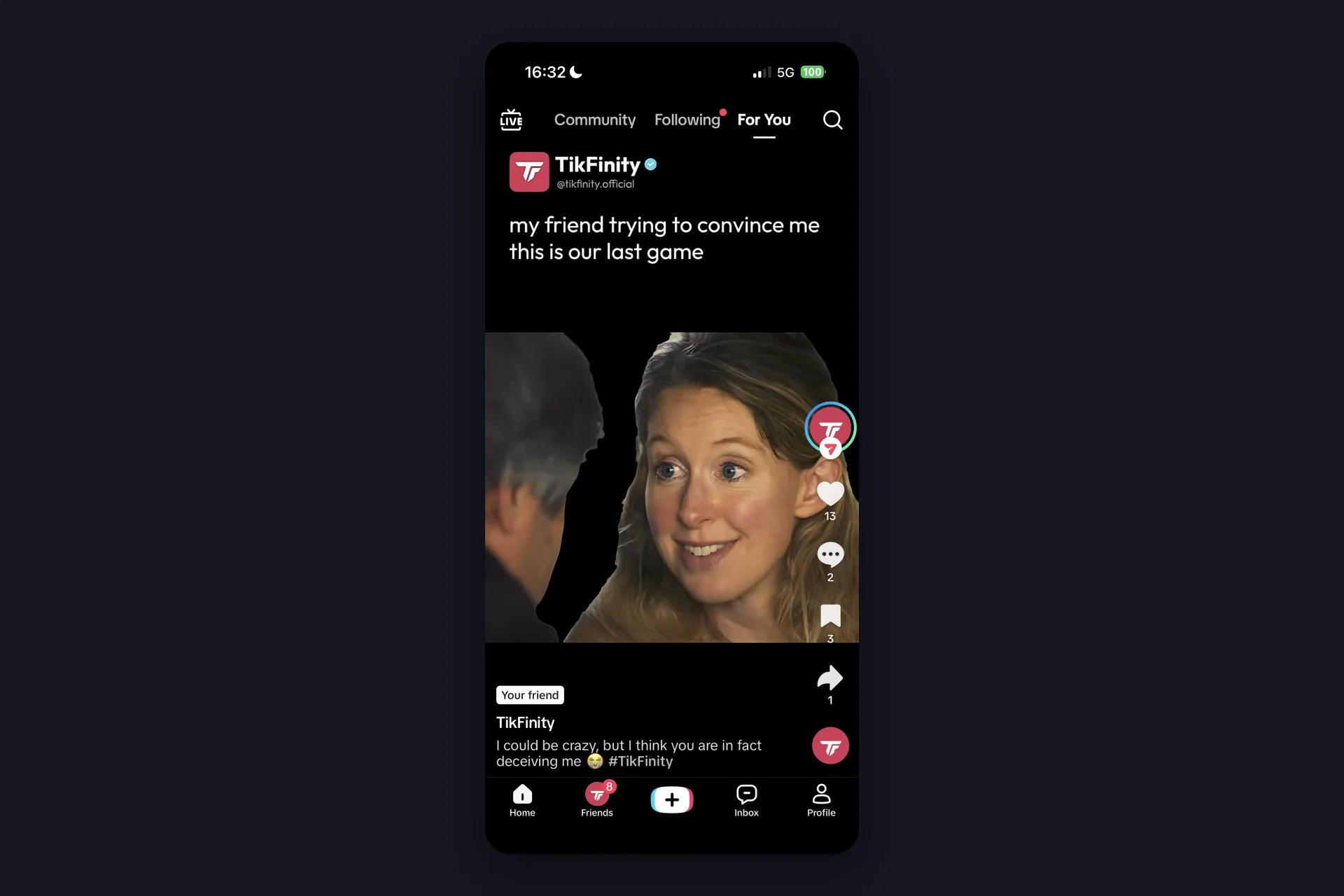
1 Open TikTok and tap the plus button in the middle of the bottom bar, between Friends and Inbox. Quick side note on our screenshot: the first video on our For You page really was one of ours. Honestly, pure coincidence. If you like, come say hi at @tikfinity.official.
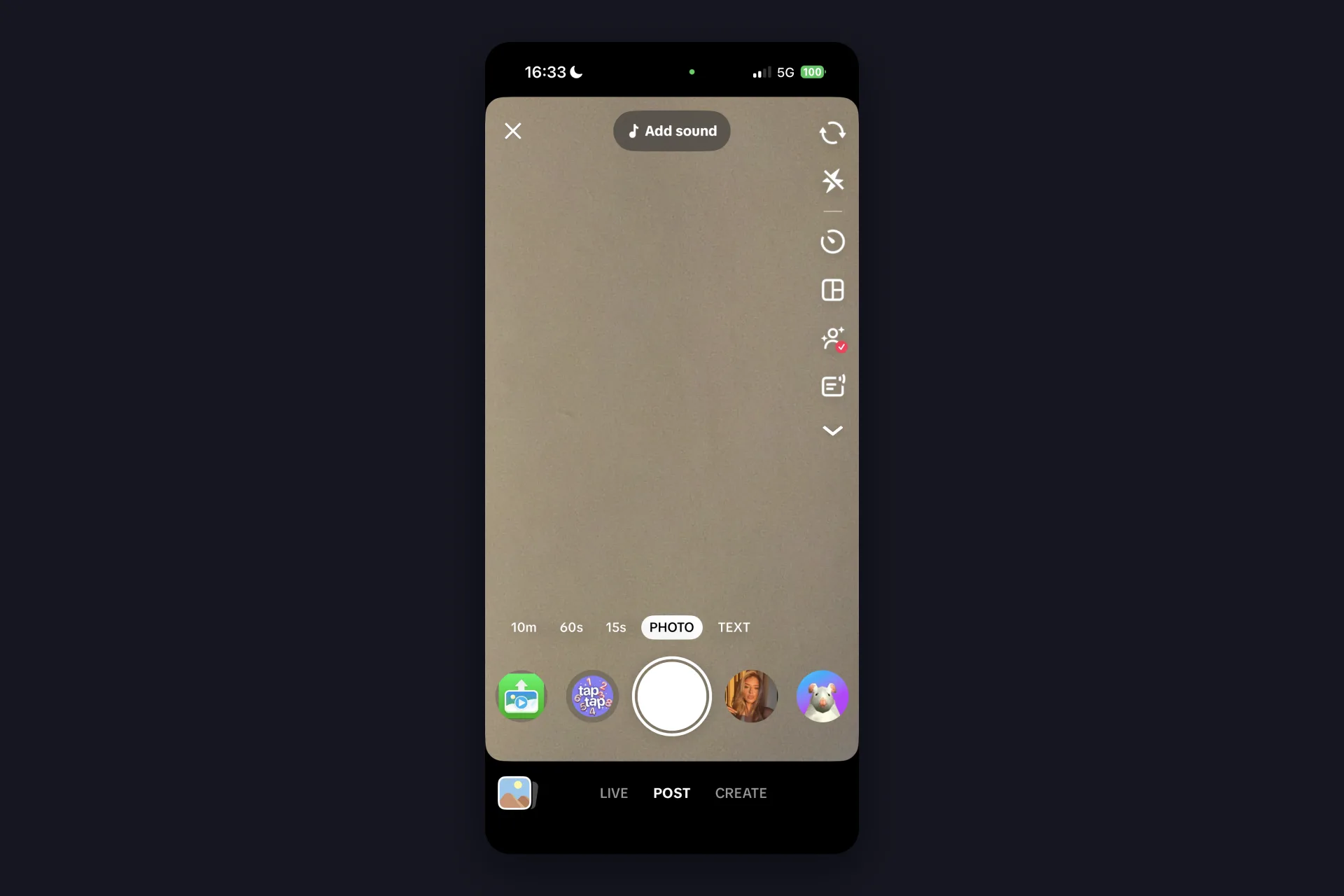
2 The camera opens in POST mode, with the 10m, 60s, 15s, PHOTO and TEXT options above the record button. Look at the very bottom instead: the row reads LIVE, POST, CREATE. Tap LIVE. If that word is missing, your account doesn’t have LIVE access yet, see the FAQ.
3 You’re now in the LIVE preview. The box above the Go LIVE button holds your title, tap it and type what the stream is about. Next to it sits LIVE goal, where you pick up to two goals your viewers can push toward, a gift goal like five roses, for example. A title is worth the ten seconds: TikTok’s LIVE Journey hands out points for going LIVE with a custom title, so the app itself nudges you to write one.
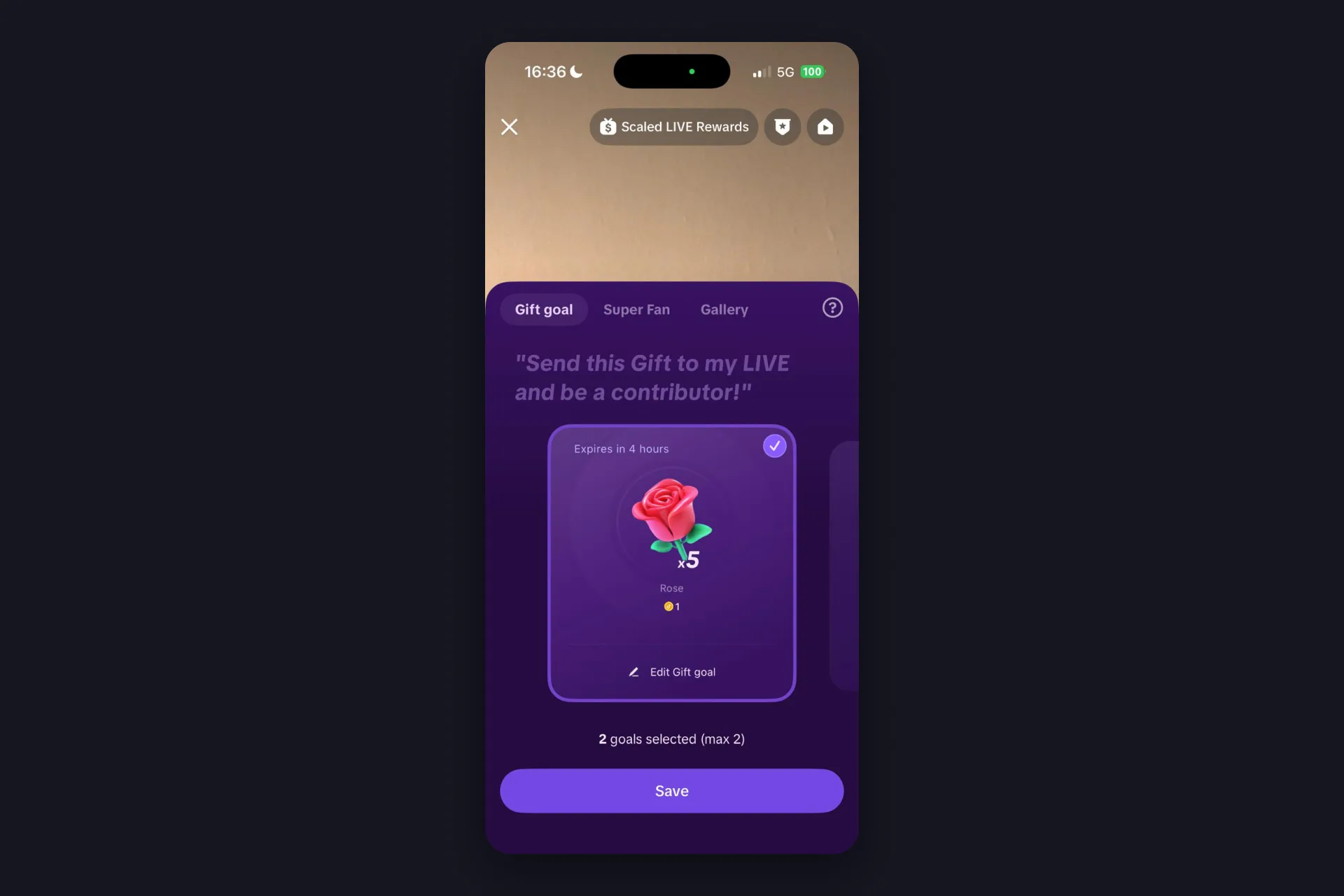
4 Above the title you’ll find the tool row: Flip, Enhance, Effects, Settings, Service+ in the first line, Fan Club, Interact, Share and Promote in the second. Flip switches between front and back camera. Enhance opens the beauty panel with Appearance (Smooth, Shape, Eye, Tooth), Makeup and Filters, and you can switch the whole thing off with the toggle on the left. The one you should open before your first stream is Settings, more on that below.
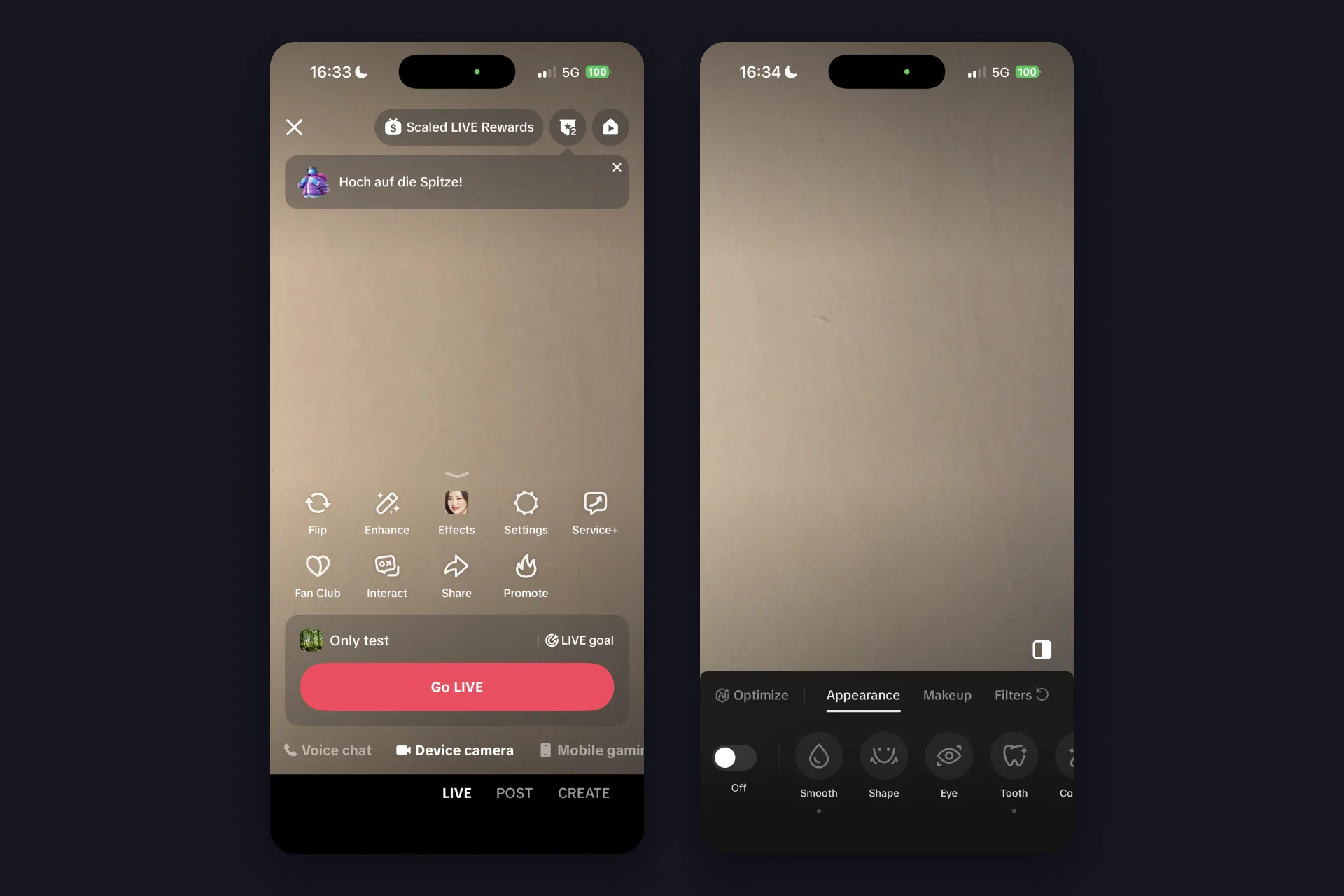
5 Tap Go LIVE. A countdown runs on screen, and then you’re on. TikTok confirms it in your own chat with “We’re notifying viewers that you’re LIVE!”, so you don’t have to wonder whether anyone can see you.
That’s the whole route from the For You page to a running stream. Everything else in this guide is about doing it better, not about doing it at all.
The settings worth touching before you tap Go LIVE
Settings opens a sheet that keeps scrolling. Three shortcuts sit at the top (External camera, Boards, Multi-guest), then come the switches. These are the ones that change how your LIVE feels:
| Setting | What it does |
|---|---|
| Who can watch this LIVE | Everyone by default. Tap it to narrow the stream down before you go on. |
| About me | Shown by default. One or two lines on who you are and what your LIVEs are about. Keep it short and give new viewers a reason to stay. |
| LIVE quality | Up to 1080p on a current iPhone. A weak connection is the only reason to go lower. |
| Noise suppression | Filters background noise from your mic. Leave it on unless you stream music. |
| Optimize for stability | In TikTok’s words, it “limits some functions to prevent lag or disruptions during your LIVE”. Good default on mobile data. |
| Moderators, Comment safety, Marked viewers | Your chat crew and your filters. Set the moderators before the stream, not while it’s getting busy. |
| LIVE Gifts | Whether viewers can send gifts in this LIVE and how they’re shown. |
| Audience controls | One toggle, and the LIVE “is limited to those aged 18 years and older”. |
| Auto-generated LIVE cover | TikTok takes a screenshot from your LIVE and uses it as the cover that pulls viewers in. |
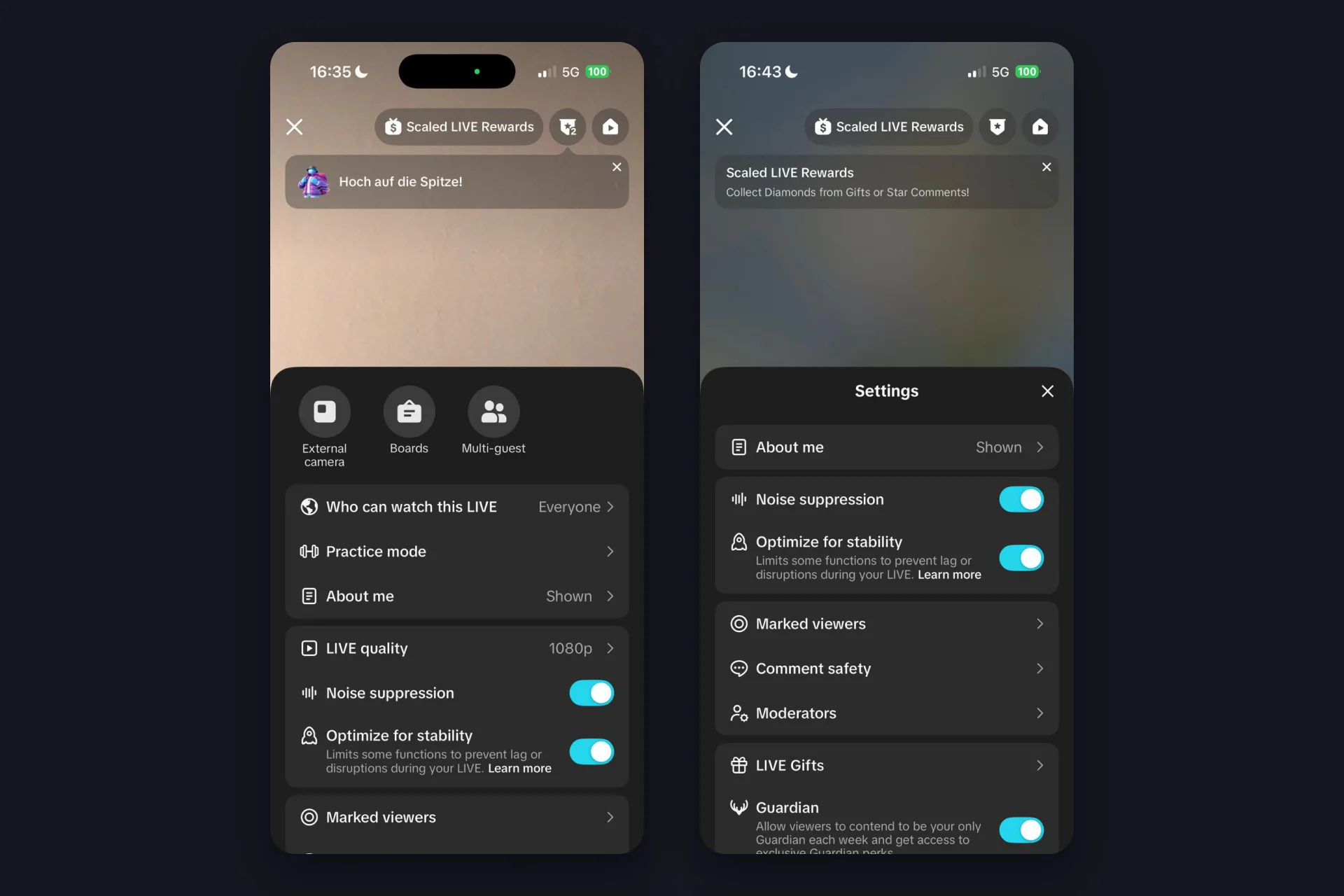
Further down you’ll also find Rankings, LIVE recordings, an AI-generated content label, a Content disclosure switch for promoted content and Guardian, where viewers compete each week to be your one Guardian with its own perks. None of these are must-dos for stream one. The ones in the table are.
Three ways to go LIVE from an iPhone: camera, voice, gaming
Under the Go LIVE button runs a second row most first-timers never scroll: Voice chat, Device camera, Mobile gaming. That’s the LIVE mode, and it changes the whole preview.
Device camera is the default and what most people mean by going live: you, your camera, your room. Flip, Enhance and Effects live here.
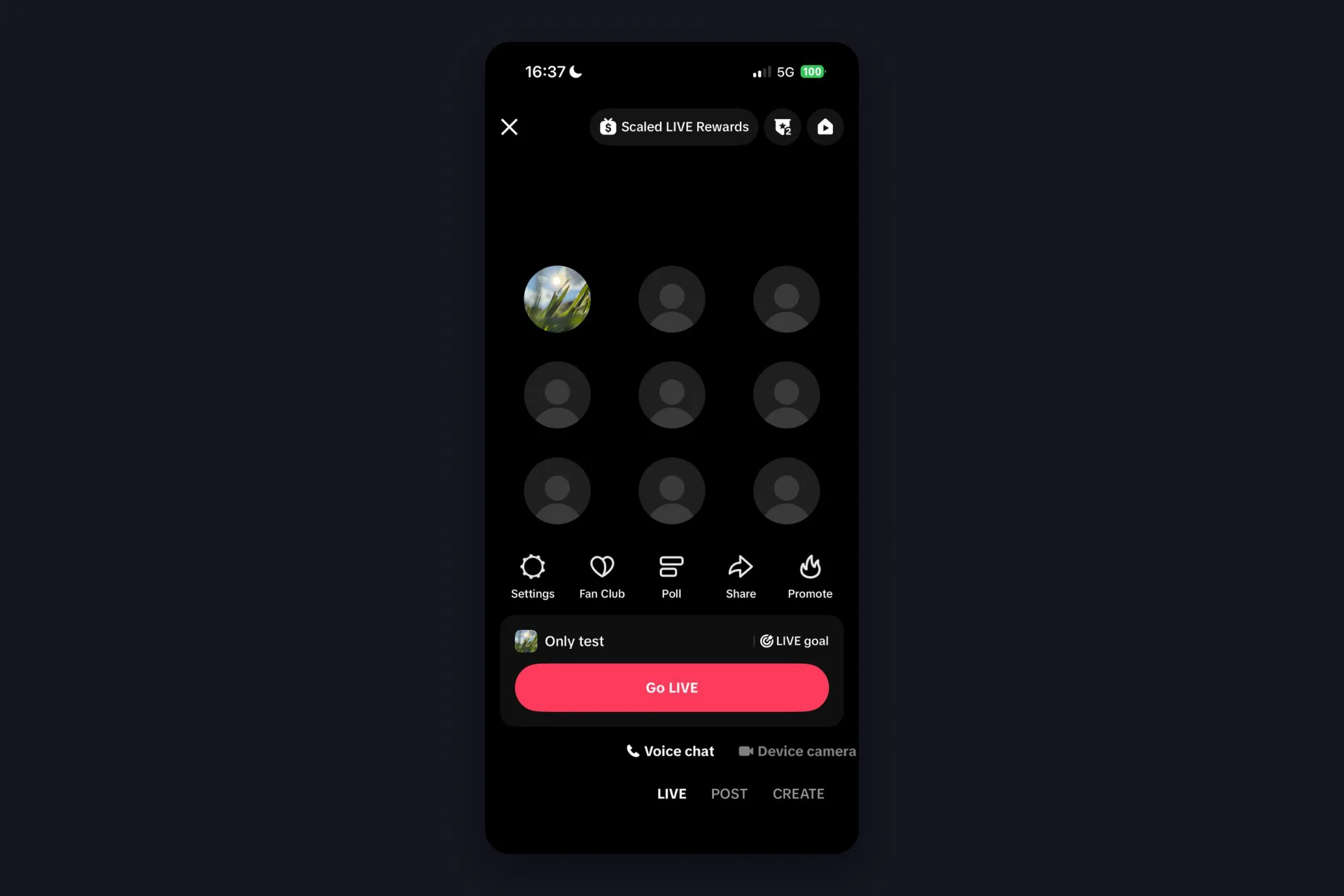
Voice chat turns the camera off. Instead of a video preview you get a grid of nine seats with your profile picture in the first one, and the tool row shrinks to Settings, Fan Club, Poll, Share and Promote. It’s a LIVE for talking, not for showing.
Mobile gaming is the big one for anyone who plays on their phone. The tool row swaps its entries: Play Together, Poll, Fan Club, a widescreen switch and Camera on top, Cast, Share camera, Share, Settings and Promote below. Play Together comes with templates such as Squad up (viewers join with their player ID), You pick, I play (viewers decide how you play) and Party zone (viewers join with your room ID). Share camera looks for a second device on the same TikTok account and uses it as a camera, so one phone can run the game while the other shows your face. The title box gains a topic line too, “# Home” in our test, which you can swap for your game. If you want the full mobile gaming setup, our guide to streaming games on TikTok LIVE covers PC and phone side by side.
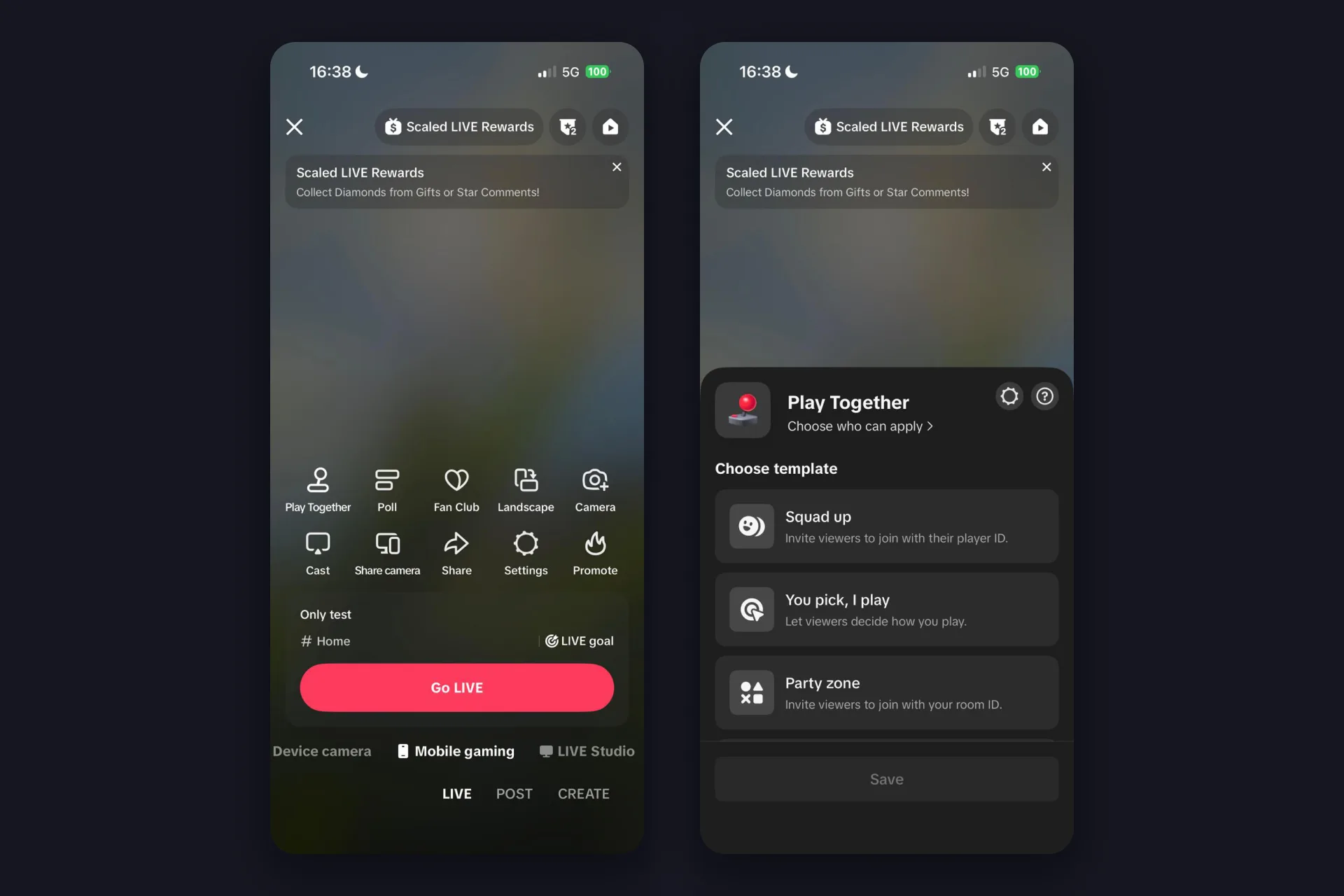
A fourth tab, LIVE Studio, also shows up at the end of that row. That’s TikTok’s desktop program, the world of browser sources and stream overlays, and a different article. This one stays on the phone.
What happens after you tap Go LIVE
The host view is calmer than the preview. Your profile and viewer count sit at the top, with the power icon in the corner to end the stream. Below the title area TikTok shows Daily Ranking and an Add now button in case you skipped the LIVE goal. Your own chat starts with TikTok’s reminders about gifts and the Community Guidelines, then the line that you’re being announced to viewers. Along the bottom you’ve got your tools, the share arrow, effects and More, which hides the settings you just read about.
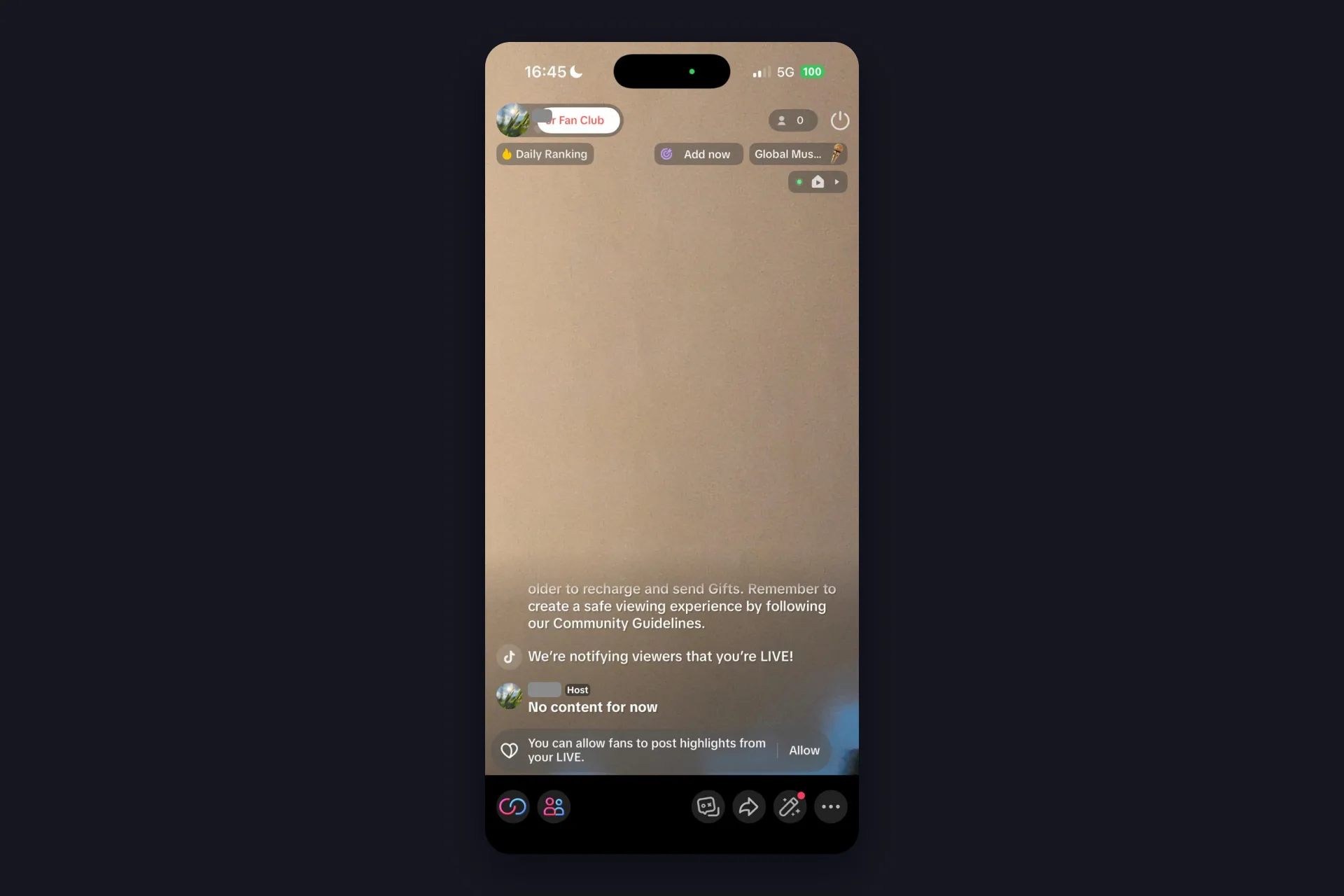
When you’re done, tap the power icon at the top, TikTok calls it the End LIVE button, then confirm with End now. What follows is the part nobody shows in tutorials, and it’s actually useful:
- The summary opens on its own: duration, viewers, gifters and new followers, plus an estimate under Scaled LIVE Rewards for this LIVE and this week.
- LIVE achievement and LIVE Journey show your progress. Our test stream of 21 seconds still counted toward “10 LIVE days done!” and Stage 1 of the Journey, which hands out points for things like going LIVE with a custom title, streaming a total of ten minutes or going LIVE on two separate days.
- LIVE recordings keeps your stream. No highlights captured yet? TikTok offers to let you create and post your own clip from it.
- LIVE Center, reachable from the top of the summary, collects it all: LIVE Analytics with total views, new followers and comments, your top viewers, campaigns and the Journey map.
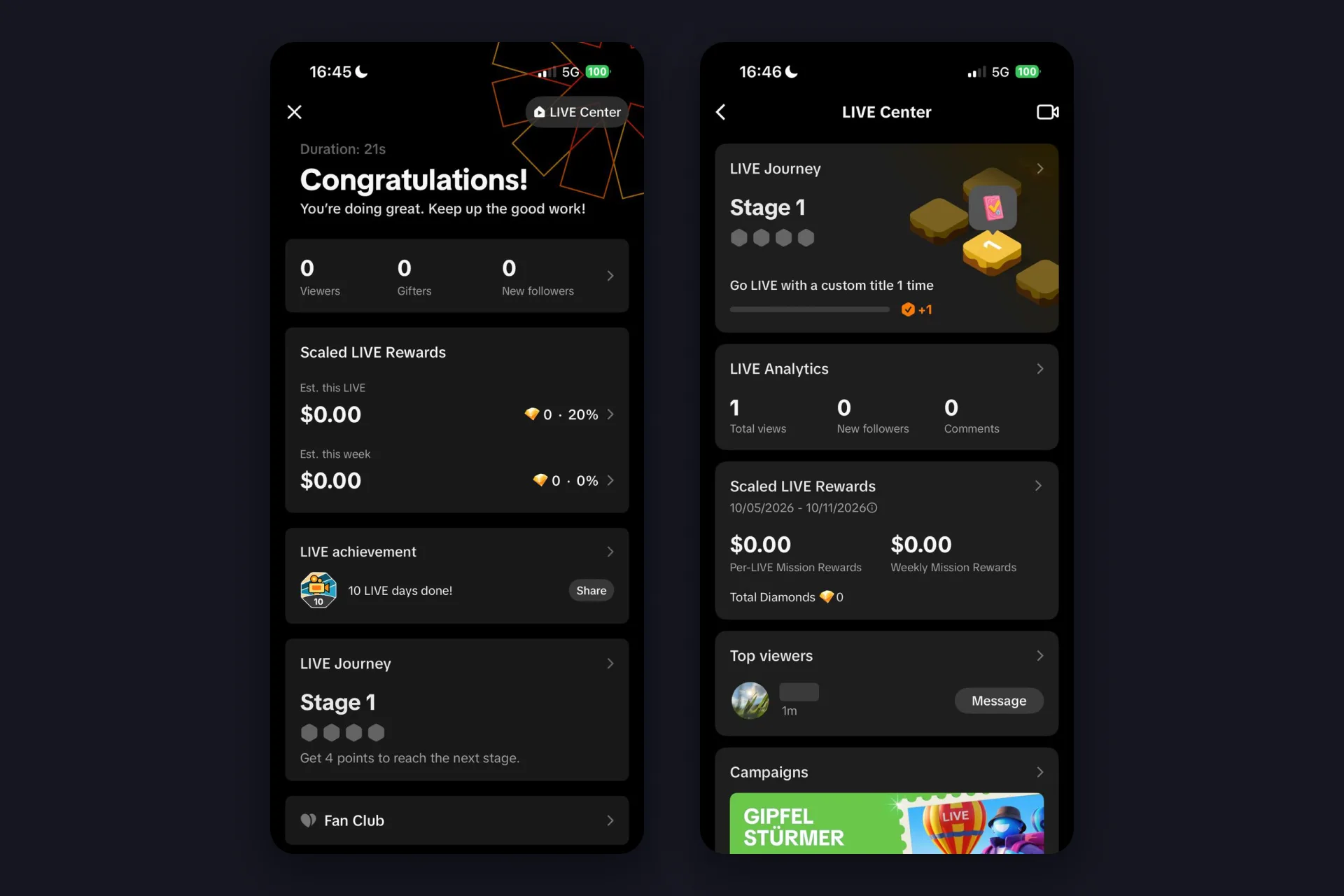
Go through that summary after every stream. The numbers are small at first, that’s normal, and watching them move from one LIVE to the next is the most honest feedback you’ll get.
Make your iPhone LIVE react to your viewers
Everything above is TikTok’s side. The thing that turns a phone stream into a show is what happens when someone sends a gift or writes in chat, and that’s where TikFinity Mobile comes in. It’s a separate app for iPhone and Android that runs in the background while you’re live: a sound plays the moment a gift arrives, a follow or a new subscriber gets its own alert, and text-to-speech reads your chat out loud so you can keep your eyes on the camera instead of the comments. No PC, no browser source, same phone.
The setup fits between two of the steps above:
- Install TikFinity Mobile from the App Store and log in with Apple or Google. The TikFinity Mobile page has the store links for both platforms.
- Enter your TikTok @handle when the app asks for it. One catch from our own testing: the account has to have been live at least once, otherwise the app can’t connect to it. So if this is your very first stream, do a short LIVE first, then set up the alerts.
- Pick your sounds and your TTS voice, then tap Start Sound Alerts & Text-To-Speech.
- Switch to TikTok and go LIVE exactly as described above. TikFinity listens along and fires your alerts.
This short clip from our official account shows the TTS part on the phone, gift messages read out loud while you stream:
@tikfinity.official This is a TikFinity tutorial on how to activate Gift TTS while streaming on mobile 🥳 #TikFinity #Mobile #Tutorial #TTS
♬ som original – TikFinity – TikFinity
The free plan gives you three sound alerts and 75 TTS messages a day, enough for a first week. The full walkthrough, including custom sounds and welcome messages for new viewers, is in our TikFinity Mobile setup guide.
One thing to know before your first alert fires: the sounds play out loud on your iPhone. Without headphones, your mic picks them up and your viewers hear every alert, which is often exactly the point. If you’d rather keep them to yourself, stream with headphones on. Either way, the first time a gift lands and the room answers with a sound, you’ll notice how differently people react when they’re heard.
Your iPhone stays a strong setup on its own, and it also plays well with more. Pair TikFinity on a PC with a broadcasting tool like OBS Studio or TikTok LIVE Studio, and the same idea grows into the full toolbox: overlays on your stream, goal bars, rankings, animated alerts and a chatbot, with the phone still in your hand as a second camera or your mobile gaming device.
FAQs about going live on TikTok on an iPhone
Yes, as of October 2026 TikTok requires 1,000 followers to go LIVE, and the same rule applies on iPhone, Android and desktop. TikTok adds that the number may vary across regions, so the LIVE tab in your own app is the final word.
Usually one of three reasons: your account doesn’t meet TikTok’s requirements yet (18 years old, 1,000 followers), LIVE isn’t available in your region, or you’re simply looking in the wrong place. LIVE sits in the row at the very bottom of the camera screen, left of POST, and TikTok notes you may need to scroll across. Our guide on why you can’t go live on TikTok walks through every cause.
In the LIVE preview, tap Settings and scroll down to Audience controls. Switch it on and the LIVE is limited to viewers aged 18 and older. You can do it before you go live or during the stream through More and then Settings.
TikTok keeps a recording of your stream for you. After you end the LIVE, the summary screen lists it under LIVE recordings, where you can also create and post a clip from it. The LIVE recordings entry in the Settings sheet manages the same thing before you go on.
It can. TikTok says it may ask you to confirm you’re at least 18 before you go LIVE, and that your location or an earlier confirmation can mean you’re never asked. The prompt shows up when you try to start a LIVE, and the options depend on where you are: photos of your ID plus selfies, a selfie with your ID through TikTok’s partner Incode, a credit card authorization, or an age estimate from a selfie you take on the spot. Follow the steps on screen and TikTok tells you the result. Details on TikTok’s age requirements page.
Yes. TikFinity Mobile is a dedicated iOS app with gift alert sounds, custom sound alerts and text-to-speech for your chat. It runs in the background while you’re live in TikTok, no PC involved. The free plan includes three sound alerts and 75 TTS messages a day.